> ## Documentation Index
> Fetch the complete documentation index at: https://docs.langdock.com/llms.txt
> Use this file to discover all available pages before exploring further.
# Getting Started
> Build your first workflow with this step-by-step guide. Learn how to create a simple automation that processes form submissions with AI.
## What You'll Build
In this guide, you'll create a workflow that:
1. Receives form submissions for customer feedback
2. Uses AI to analyze the sentiment and categorize the feedback
3. Routes high-priority feedback to notify the team
4. Creates a record in your system for all feedback
This covers the essential workflow patterns you'll use in most automations.
## Prerequisites
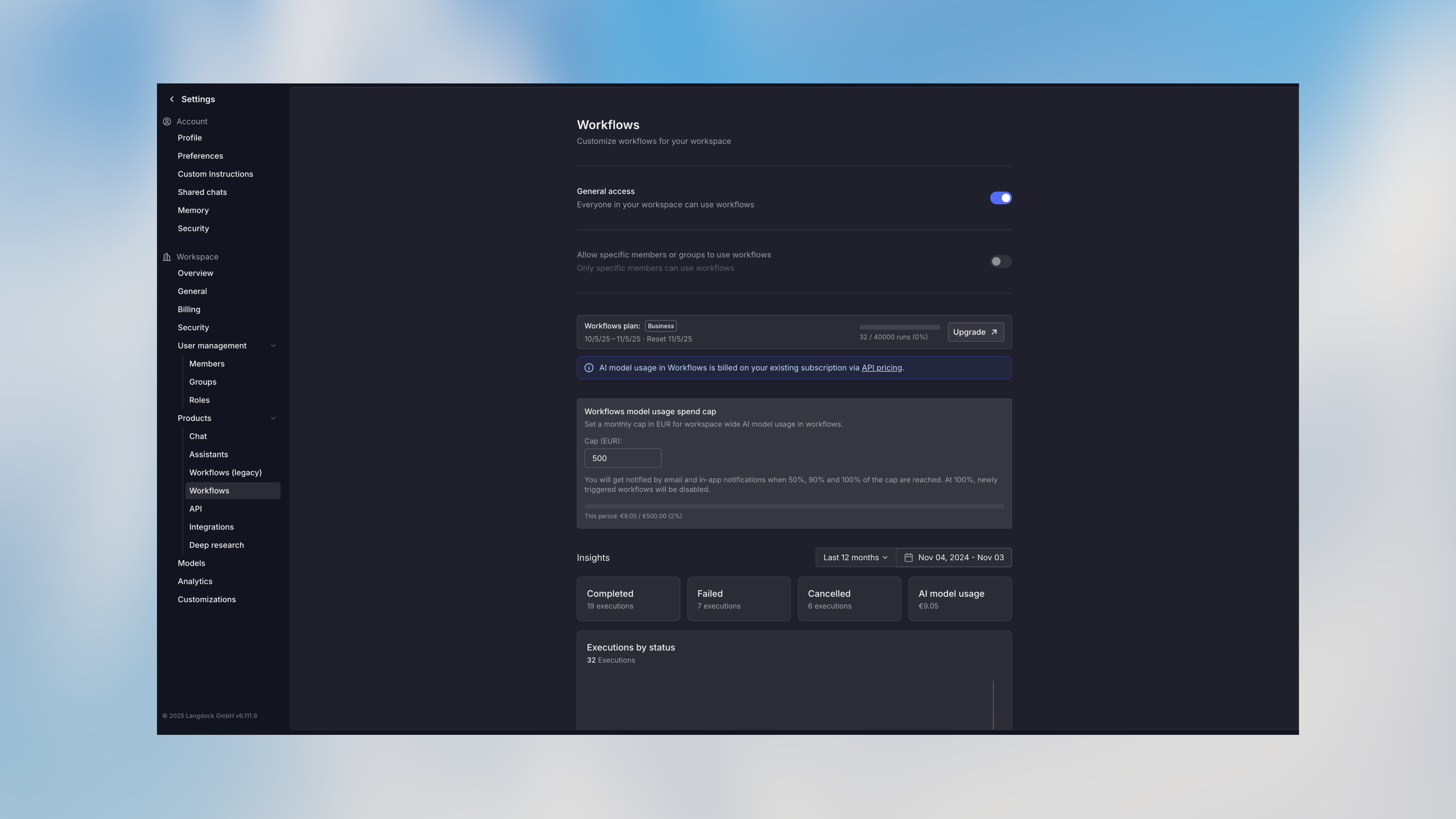 * Your workspace admin enabled workflows in the workspace settings
* Basic understanding of your use case and goals
**Estimated time**: 15 minutes to complete this tutorial
## Step 1: Create a New Workflow
Navigate to the Workflows section and click **Create Workflow**.
1. Give your workflow a descriptive name: "Customer Feedback Processor"
2. Click **Create**
You'll see a blank canvas with a starter node in the center.
The starter node lets you choose how to begin your workflow. Let's create a form trigger:
1. Click **Form** from the trigger options
2. The trigger node appears on the canvas
### Configure the Form
Click on the trigger node to open the configuration panel:
1. **Form Title**: "Customer Feedback Form"
2. **Add Form Fields**:
* Field 1: `name` (Text, Required) - Label: "Your Name"
* Field 2: `email` (Email, Required) - Label: "Email Address"
* Field 3: `feedback` (Multi-line Text, Required) - Label: "Your Feedback"
* Field 4: `product` (Select, Required) - Label: "Product"
* Options: "Mobile App", "Web Platform", "API", "Other"
3. **Form Settings**:
* Enable "Make this form public" to allow external submissions
4. Click **Save**
**Pro tip**: Click the **Copy URL** button to get your form link. You can share this with customers or embed it on your website once you've deployed the workflow and made it public.
## Step 3: Add an Agent Node
Now let's add AI to analyze the feedback:
1. Click the **+** button on the trigger's output handle (right side)
2. Select **Agent** from the node menu
3. The agent node appears, connected to your trigger
### Configure the Agent
Click on the agent node:
1. **Name**: "Analyze Feedback"
2. **Agent Mode**: Create new agent
3. **Agent Name**: "Feedback Analyzer"
4. **Instructions**:
```text theme={null}
You are analyzing customer feedback. For the given feedback:
1. Determine the sentiment: positive, neutral, or negative
2. Identify the main category: bug, feature_request, complaint, praise, or question
3. Assign a priority level: low, medium, or high
4. Extract the key issue or topic in one sentence
Provide your analysis in the structured format.
```
5. **Input**: Add the feedback variable to the prompt
```handlebars theme={null}
{{form1.output}}
```
6. **Model**: Select your preferred model
7. **Enable Structured Output**:
* Click **Add Output Field**
* Field 1: `sentiment` (String) - "The sentiment of the feedback"
* Field 2: `category` (String) - "The category of feedback"
* Field 3: `priority` (String) - "Priority level: low, medium, or high"
* Field 4: `summary` (String) - "One-sentence summary of the issue"
8. Click **Save**
### Test the Agent
Before continuing, test the agent node:
1. Click the **play button** on the trigger node
2. Fill in test data in the form that appears
3. Click **Run**
4. Once complete, click on the agent node
5. View the **Output** tab to see the analysis
You should see structured data like:
```json theme={null}
{
"sentiment": "negative",
"category": "bug",
"priority": "high",
"summary": "Mobile app crashes when uploading images"
}
```
## Step 4: Add a Condition Node
Let's route high-priority feedback differently:
1. Click the **+** button on the agent node's output
2. Select **Condition**
3. Name it "Check Priority"
### Configure Conditions
1. Click **Add Condition**
2. **Condition 1**:
* Name: "High Priority"
* Mode: Manual
* Expression: `{{agent.output.structured.priority === "high"}}`
3. Click **Add Condition** again
4. **Condition 2**:
* Name: "Normal Priority"
* Mode: Manual
* Expression: `{{agent.output.structured.priority != "high"}}` (this catches everything else)
Each condition now has its own output handle on the right side of the node.
## Step 5: Add Notification for High Priority
For high-priority feedback, let's notify the team:
1. Click the **+** button on the "High Priority" condition handle
2. Select **Send Notification**
### Configure the Notification
**Prompt**:
```handlebars theme={null}
A high-priority customer feedback was received: Customer:
{{form1.output.name}}
({{form1.output.email}}) Product:
{{form1.output.product}}
Category:
{{agent.output.structured.category}}
Sentiment:
{{agent.output.structured.sentiment}}
Issue:
{{agent.output.structured.summary}}
Full Feedback:
{{form1.output.feedback}}
Please review and respond promptly.
```
4. Click **Save**
## Step 6: Add an Action Node
Now let's save all feedback to your system. This example uses a generic HTTP request, but you can use any integration:
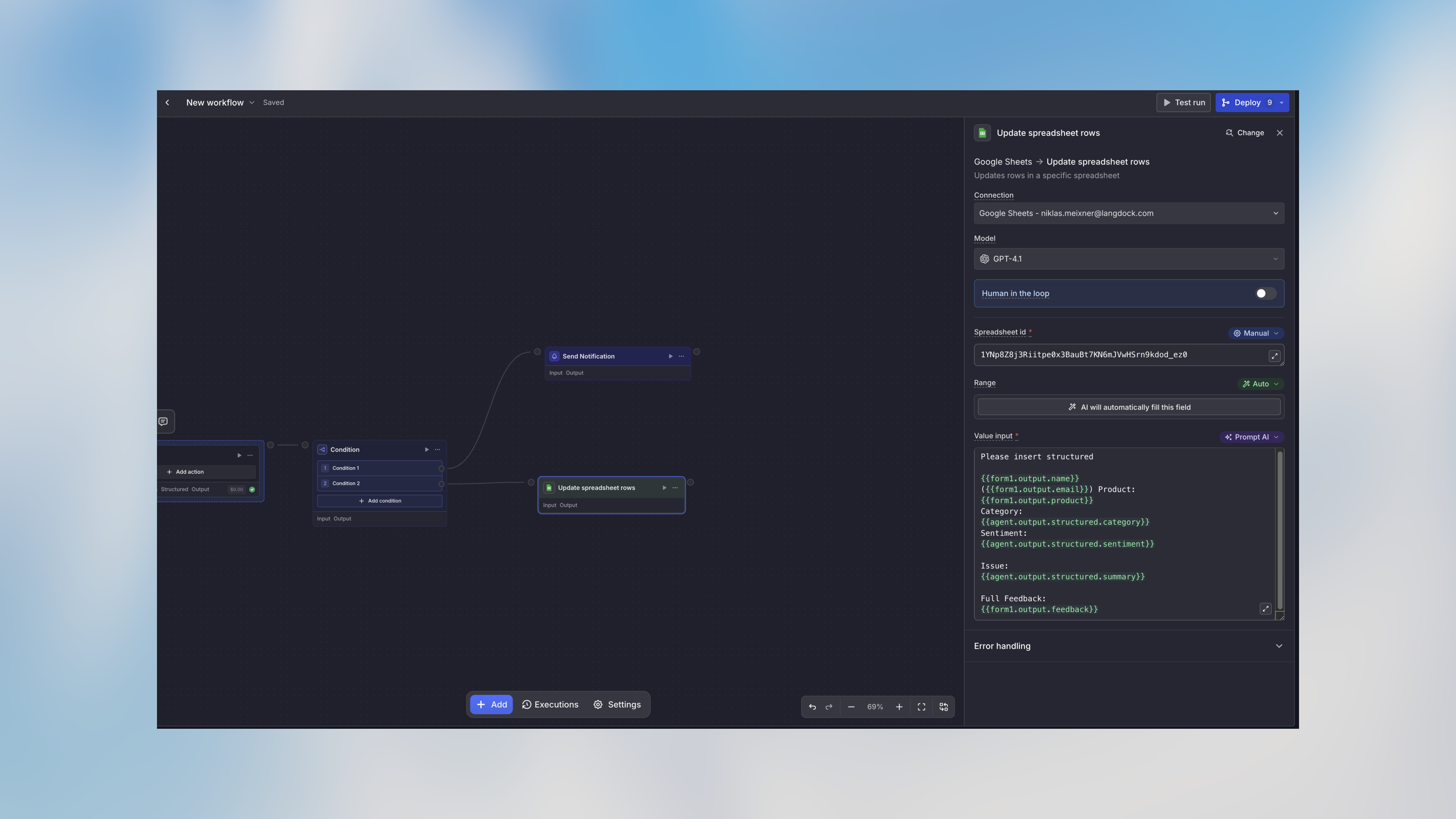
1. Click **+** on **both** condition handles (we want to save all feedback)
2. Select **Google Sheets**
### Configure the Google Sheets Node
1. **SpreadsheetId**: Insert your spreadsheetId
2. **Range**: You can leave this on auto.
3. **Value Input**: Set to "Prompt AI" and insert the following:
```handlebars theme={null}
{
Please insert structured
{{form1.output.name}}
({{form1.output.email}})
Product:
{{form1.output.product}}
Category:
{{agent.output.structured.category}}
Sentiment:
{{agent.output.structured.sentiment}}
Issue:
{{agent.output.structured.summary}}
Full Feedback:
{{form1.output.feedback}}
}
```
5. Click **Save**
* Your workspace admin enabled workflows in the workspace settings
* Basic understanding of your use case and goals
**Estimated time**: 15 minutes to complete this tutorial
## Step 1: Create a New Workflow
Navigate to the Workflows section and click **Create Workflow**.
1. Give your workflow a descriptive name: "Customer Feedback Processor"
2. Click **Create**
You'll see a blank canvas with a starter node in the center.
The starter node lets you choose how to begin your workflow. Let's create a form trigger:
1. Click **Form** from the trigger options
2. The trigger node appears on the canvas
### Configure the Form
Click on the trigger node to open the configuration panel:
1. **Form Title**: "Customer Feedback Form"
2. **Add Form Fields**:
* Field 1: `name` (Text, Required) - Label: "Your Name"
* Field 2: `email` (Email, Required) - Label: "Email Address"
* Field 3: `feedback` (Multi-line Text, Required) - Label: "Your Feedback"
* Field 4: `product` (Select, Required) - Label: "Product"
* Options: "Mobile App", "Web Platform", "API", "Other"
3. **Form Settings**:
* Enable "Make this form public" to allow external submissions
4. Click **Save**
**Pro tip**: Click the **Copy URL** button to get your form link. You can share this with customers or embed it on your website once you've deployed the workflow and made it public.
## Step 3: Add an Agent Node
Now let's add AI to analyze the feedback:
1. Click the **+** button on the trigger's output handle (right side)
2. Select **Agent** from the node menu
3. The agent node appears, connected to your trigger
### Configure the Agent
Click on the agent node:
1. **Name**: "Analyze Feedback"
2. **Agent Mode**: Create new agent
3. **Agent Name**: "Feedback Analyzer"
4. **Instructions**:
```text theme={null}
You are analyzing customer feedback. For the given feedback:
1. Determine the sentiment: positive, neutral, or negative
2. Identify the main category: bug, feature_request, complaint, praise, or question
3. Assign a priority level: low, medium, or high
4. Extract the key issue or topic in one sentence
Provide your analysis in the structured format.
```
5. **Input**: Add the feedback variable to the prompt
```handlebars theme={null}
{{form1.output}}
```
6. **Model**: Select your preferred model
7. **Enable Structured Output**:
* Click **Add Output Field**
* Field 1: `sentiment` (String) - "The sentiment of the feedback"
* Field 2: `category` (String) - "The category of feedback"
* Field 3: `priority` (String) - "Priority level: low, medium, or high"
* Field 4: `summary` (String) - "One-sentence summary of the issue"
8. Click **Save**
### Test the Agent
Before continuing, test the agent node:
1. Click the **play button** on the trigger node
2. Fill in test data in the form that appears
3. Click **Run**
4. Once complete, click on the agent node
5. View the **Output** tab to see the analysis
You should see structured data like:
```json theme={null}
{
"sentiment": "negative",
"category": "bug",
"priority": "high",
"summary": "Mobile app crashes when uploading images"
}
```
## Step 4: Add a Condition Node
Let's route high-priority feedback differently:
1. Click the **+** button on the agent node's output
2. Select **Condition**
3. Name it "Check Priority"
### Configure Conditions
1. Click **Add Condition**
2. **Condition 1**:
* Name: "High Priority"
* Mode: Manual
* Expression: `{{agent.output.structured.priority === "high"}}`
3. Click **Add Condition** again
4. **Condition 2**:
* Name: "Normal Priority"
* Mode: Manual
* Expression: `{{agent.output.structured.priority != "high"}}` (this catches everything else)
Each condition now has its own output handle on the right side of the node.
## Step 5: Add Notification for High Priority
For high-priority feedback, let's notify the team:
1. Click the **+** button on the "High Priority" condition handle
2. Select **Send Notification**
### Configure the Notification
**Prompt**:
```handlebars theme={null}
A high-priority customer feedback was received: Customer:
{{form1.output.name}}
({{form1.output.email}}) Product:
{{form1.output.product}}
Category:
{{agent.output.structured.category}}
Sentiment:
{{agent.output.structured.sentiment}}
Issue:
{{agent.output.structured.summary}}
Full Feedback:
{{form1.output.feedback}}
Please review and respond promptly.
```
4. Click **Save**
## Step 6: Add an Action Node
Now let's save all feedback to your system. This example uses a generic HTTP request, but you can use any integration:
1. Click **+** on **both** condition handles (we want to save all feedback)
2. Select **Google Sheets**
### Configure the Google Sheets Node
1. **SpreadsheetId**: Insert your spreadsheetId
2. **Range**: You can leave this on auto.
3. **Value Input**: Set to "Prompt AI" and insert the following:
```handlebars theme={null}
{
Please insert structured
{{form1.output.name}}
({{form1.output.email}})
Product:
{{form1.output.product}}
Category:
{{agent.output.structured.category}}
Sentiment:
{{agent.output.structured.sentiment}}
Issue:
{{agent.output.structured.summary}}
Full Feedback:
{{form1.output.feedback}}
}
```
5. Click **Save**
 **Alternative**: If you don't have an API, you can use an integration action
instead, like adding a row to Google Sheets or creating a Notion page.
## Step 7: Test the Complete Workflow
Now test the entire workflow:
1. Click on the trigger node
2. Click the **Test run** button in the toolbar
3. Fill in the test form with sample data
4. Click **Run workflow**
5. Watch as each node executes in sequence
6. Click on nodes to view their inputs and outputs
Try testing with:
* Different priority levels
* Various types of feedback
* Different products
Make sure both paths (high priority and normal priority) work correctly.
## Step 8: Deploy Your Workflow
Once testing is complete, deploy the workflow to activate it:
1. Click the **Deploy** button in the top right
2. Choose version type: **Major** (new Workflow)
3. Add description: "Feedback Collection"
4. Click **Deploy**
Your workflow is now **v1.0.0** and will process real form submissions.
## Step 9: Share Your Form
Get the form URL to share with customers:
1. Click on the trigger node
2. Click **Copy URL** in the node toolbar
3. Share this URL via email, website, or support portal
**Pro tip**: You can embed the form in your website using an iframe or link to
it from your support page.
## Step 10: Monitor Workflow Runs
After your workflow is live, monitor its performance:
1. Go to the **Runs** tab at the bottom of the canvas
2. View all workflow executions
3. Click on any run to see detailed execution data for each node
4. Check the **Usage** section to monitor AI credit consumption
## What You've Learned
Congratulations! You've built a complete workflow that demonstrates:
* ✅ Creating form triggers to capture data
* ✅ Using AI agents to analyze content
* ✅ Implementing conditional logic to route execution
* ✅ Sending notifications
* ✅ Integrating with external systems
* ✅ Testing and deploying workflows
## Next Steps
### Enhance This Workflow
Try adding:
* A **Code Node** to calculate metrics or transform data
* An **Action Node** to automatically create support tickets
* Additional conditions for different priority levels
### Explore Advanced Features
Control and optimize workflow costs
## Common Questions
Published versions are immutable, but you can always edit the draft version (v0) and publish a new version when ready. This ensures your production workflows stay stable while you make changes.
By default, the workflow stops and marks the run as failed. You can configure
error handling strategies for each node, including continuing on error or
routing to error-handling paths.
Workflows consume AI credits based on the models and nodes used. You can set spending limits and view detailed usage in the workflow settings. Check the Usage tab after test runs to estimate costs.
## Get Help
Need assistance? We're here to help:
* Check the [Core Concepts](/en/using-langdock/workflows/fundamentals/core-concepts) to understand workflow fundamentals
* Review [Variable Usage](/en/using-langdock/workflows/fundamentals/variable-usage) for advanced data handling
* Contact support at [support@langdock.com](mailto:support@langdock.com)
## FAQ
Start with a small workflow that has one trigger, one or two processing steps, and a clear output. Once that works reliably, add integrations, branching logic, approvals, or additional nodes.
Check that the workflow is active, the trigger is configured, required fields are filled, and each node has the inputs it expects. Run the workflow with simple test data before using it with real processes.
**Alternative**: If you don't have an API, you can use an integration action
instead, like adding a row to Google Sheets or creating a Notion page.
## Step 7: Test the Complete Workflow
Now test the entire workflow:
1. Click on the trigger node
2. Click the **Test run** button in the toolbar
3. Fill in the test form with sample data
4. Click **Run workflow**
5. Watch as each node executes in sequence
6. Click on nodes to view their inputs and outputs
Try testing with:
* Different priority levels
* Various types of feedback
* Different products
Make sure both paths (high priority and normal priority) work correctly.
## Step 8: Deploy Your Workflow
Once testing is complete, deploy the workflow to activate it:
1. Click the **Deploy** button in the top right
2. Choose version type: **Major** (new Workflow)
3. Add description: "Feedback Collection"
4. Click **Deploy**
Your workflow is now **v1.0.0** and will process real form submissions.
## Step 9: Share Your Form
Get the form URL to share with customers:
1. Click on the trigger node
2. Click **Copy URL** in the node toolbar
3. Share this URL via email, website, or support portal
**Pro tip**: You can embed the form in your website using an iframe or link to
it from your support page.
## Step 10: Monitor Workflow Runs
After your workflow is live, monitor its performance:
1. Go to the **Runs** tab at the bottom of the canvas
2. View all workflow executions
3. Click on any run to see detailed execution data for each node
4. Check the **Usage** section to monitor AI credit consumption
## What You've Learned
Congratulations! You've built a complete workflow that demonstrates:
* ✅ Creating form triggers to capture data
* ✅ Using AI agents to analyze content
* ✅ Implementing conditional logic to route execution
* ✅ Sending notifications
* ✅ Integrating with external systems
* ✅ Testing and deploying workflows
## Next Steps
### Enhance This Workflow
Try adding:
* A **Code Node** to calculate metrics or transform data
* An **Action Node** to automatically create support tickets
* Additional conditions for different priority levels
### Explore Advanced Features
Control and optimize workflow costs
## Common Questions
Published versions are immutable, but you can always edit the draft version (v0) and publish a new version when ready. This ensures your production workflows stay stable while you make changes.
By default, the workflow stops and marks the run as failed. You can configure
error handling strategies for each node, including continuing on error or
routing to error-handling paths.
Workflows consume AI credits based on the models and nodes used. You can set spending limits and view detailed usage in the workflow settings. Check the Usage tab after test runs to estimate costs.
## Get Help
Need assistance? We're here to help:
* Check the [Core Concepts](/en/using-langdock/workflows/fundamentals/core-concepts) to understand workflow fundamentals
* Review [Variable Usage](/en/using-langdock/workflows/fundamentals/variable-usage) for advanced data handling
* Contact support at [support@langdock.com](mailto:support@langdock.com)
## FAQ
Start with a small workflow that has one trigger, one or two processing steps, and a clear output. Once that works reliably, add integrations, branching logic, approvals, or additional nodes.
Check that the workflow is active, the trigger is configured, required fields are filled, and each node has the inputs it expects. Run the workflow with simple test data before using it with real processes.