> ## Documentation Index
> Fetch the complete documentation index at: https://docs.langdock.com/llms.txt
> Use this file to discover all available pages before exploring further.
# Variable Usage
> Learn how to access, reference, and work with variables across your workflow nodes to build dynamic and powerful automations.
## Introduction
Variables are the lifeblood of your workflows—they carry data between nodes, making your automations dynamic and context-aware. Every time a node completes execution, its output becomes available as a variable that subsequent nodes can access and use.
**Think of variables as containers** that hold data as it flows through your workflow. Understanding how to access and manipulate them is key to building powerful automations.
## Accessing Variables
Langdock provides two intuitive ways to access variables from previous nodes in your workflow:
### Method 1: Double Curly Braces (`{{}}`)
The most direct way to reference variables is using the double curly brace syntax. Simply type `{{` in any field, and you'll see a dropdown of all available variables from previous nodes.
**Basic syntax:**
```handlebars theme={null}
{{node_name.output.field_name}}
```
**Real-world examples:**
```handlebars theme={null}
{{form1.output.email}}
{{analyze_feedback.output.sentiment}}
{{api_call.output.data.userId}}
{{trigger.output.customer_name}}
```
### Method 2: Output Selector
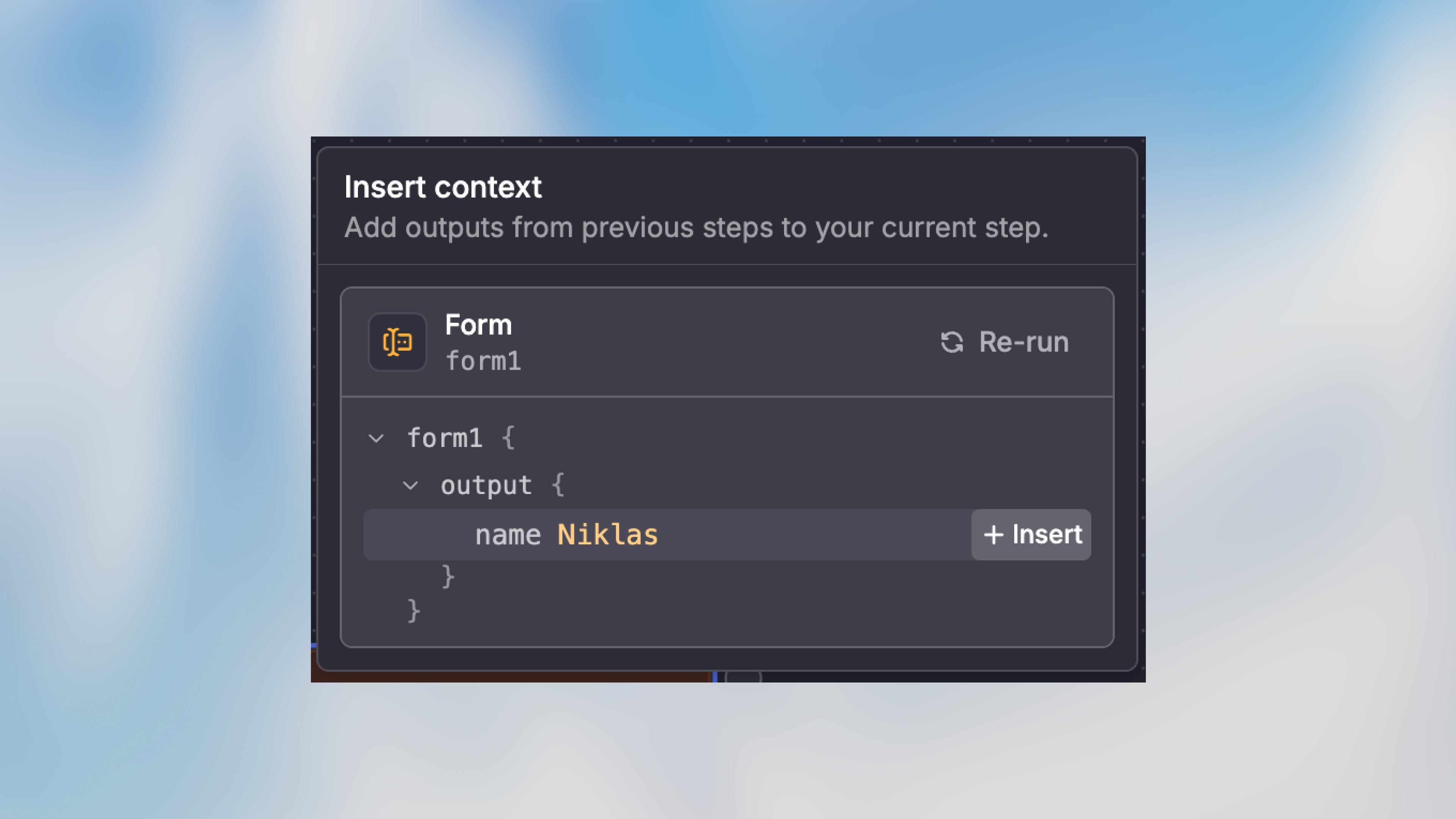 For fields that support it, you can use the visual output selector instead of typing variable paths manually. This is especially helpful when you're not sure of the exact data structure.
**How to use it:**
1. Click on a field that supports variable selection
2. Look for the variable picker icon or dropdown
3. Browse available outputs from previous nodes
4. Select the exact field you need
The output selector automatically generates the correct variable syntax for you, reducing errors and making configuration faster.
***
## Understanding Variable Structure
Variables follow a consistent structure that makes them predictable and easy to work with:
```handlebars theme={null}
{{node_name.output.property}}
```
Let's break this down:
* **`node_name`**: The unique name you gave the node (e.g., `form1`, `analyze_data`, `http_request`)
* **`output`**: The standard output object every node produces
* **`property`**: The specific data field you want to access
### Accessing Nested Data
Real-world data often has nested structures. You can access deeply nested properties using dot notation:
```handlebars theme={null}
{{node_name.output.user.profile.email}}
{{api_response.output.data.items[0].title}}
{{trigger.output.metadata.created_at}}
```
### Working with Arrays
When your data includes arrays, you can access specific elements by index:
```handlebars theme={null}
{{http_request.output.results[0].name}}
{{trigger.output.attachments[2].url}}
```
Or reference the entire array:
```handlebars theme={null}
{{trigger.output.tags}}
{{api_call.output.items}}
```
### Agent Output Structure
Agent nodes have two output types depending on configuration:
**When an output schema is defined:**
```handlebars theme={null}
{{agent.output.structured.summary}}
{{agent.output.structured.priority}}
{{agent.output.structured.action_items[0]}}
```
**When no schema is defined:**
```handlebars theme={null}
{{agent.output.messages}}
```
The `structured` property only exists when you've configured an output schema in the agent node. Without a schema, use the `messages` array to access the conversation.
### Optional Chaining with `?`
Use `?` to safely access properties that might not exist:
```handlebars theme={null}
{{trigger.output.user?.email}}
{{agent.output.structured?.priority}}
{{http_request.output.data?.items?.[0]?.name}}
```
This prevents errors when data is missing. If any part of the path is `undefined` or `null`, the entire expression returns `undefined` instead of throwing an error.
***
## What Happens When You Rename Nodes
**Node names are tied to variables.** When you rename a node, all variables referencing that node are automatically updated throughout your workflow—no manual fixes needed.
### Automatic Variable Updates
Let's say you have a form trigger node named `form1` being used in multiple places:
```handlebars theme={null}
{{form1.output.email}}
{{form1.output.subject}}
{{form1.output.message}}
```
If you rename `form1` to `PMApplicantForm`, all references automatically update:
```handlebars theme={null}
{{PMApplicantForm.output.email}}
{{PMApplicantForm.output.subject}}
{{PMApplicantForm.output.message}}
```
**This happens automatically in:**
* Manual mode fields
* AI Prompt mode instructions
* Code node references
* Condition node comparisons
* All other node configurations
### Best Practice: Name Nodes Meaningfully
Since renaming is seamless, invest time in giving nodes clear, descriptive names from the start:
**Good node names:**
* `ExtractCustomerData`
* `AnalyzeSentiment`
* `SendWelcomeEmail`
* `CheckInventoryStatus`
**Avoid generic names:**
* ❌ `agent1`
* ❌ `http_node`
* ❌ `trigger`
* ❌ `action`
***
## Reusing Variables Across Multiple Nodes
One of the most powerful features of variables is that **you can use them multiple times across many different nodes**. Once a node produces output, that data is available to all subsequent nodes in your workflow.
### Basic Variable Reuse
Use the same variable in multiple nodes:
```text theme={null}
Trigger (form1) →
├─ Agent (analyze with {{form1.output.message}})
├─ HTTP Request (log {{form1.output.email}})
└─ Notification (alert about {{form1.output.priority}})
```
All three nodes can reference `form1.output` simultaneously since they all come after the trigger.
### Use Case: Multi-Channel Notifications
Send the same information through different channels:
```text theme={null}
Agent (analyze_ticket) →
├─ Email (send {{analyze_ticket.output.summary}} to support team)
├─ Slack (post {{analyze_ticket.output.summary}} to #support)
└─ Database (log {{analyze_ticket.output.priority}} and {{analyze_ticket.output.category}})
```
***
## Advanced Variable Techniques
### Combining Multiple Variables
Mix data from different nodes in a single field:
```handlebars theme={null}
New order #{{trigger.output.order_id}} from {{customer_data.output.name}} for {{trigger.output.amount}}
```
### Variables in Code Nodes
Use Code nodes to access variables in custom code. [Learn more about Code nodes](/en/using-langdock/workflows/nodes/code-node).
```javascript theme={null}
const email = trigger.output.email;
const priority = analyze.output.structured?.priority || "medium";
return {
email: email,
priority: priority
};
```
### Variables in AI Prompt Mode
Reference multiple variables in AI instructions:
```text theme={null}
Analyze the customer message {{trigger.output.message}} and consider their history:
- Previous purchases: {{customer_data.output.purchase_count}}
- Last contact: {{customer_data.output.last_contact_date}}
- Sentiment from last interaction: {{previous_analysis.output.sentiment}}
Provide a personalized response addressing their concern.
```
### Filtering and Transformation
Use variables to filter or transform data:
**In a Condition node:**
```handlebars theme={null}
{{ trigger.output.amount > 1000 }}
{{ analyze.output.structured?.priority === "high" }}
{{ customer.output.status !== "inactive" }}
```
The entire expression must be inside `{{ }}`. The expression is evaluated as JavaScript.
**In a Code node for filtering:**
```javascript theme={null}
const orders = trigger.output.orders;
const highValueOrders = orders.filter((order) => order.amount > 1000);
return { filtered_orders: highValueOrders };
```
***
## Troubleshooting Variables
### Variable Not Available
**Problem:** The variable you want doesn't appear in the autocomplete.
**Common causes:**
* The node hasn't been connected yet
* The node is downstream (comes after) the current node
* The node hasn't been executed in a test run yet
**Solution:** Ensure the node producing the variable comes before the node trying to use it in your workflow graph.
### Undefined or Null Values
**Problem:** Variable exists but returns `undefined` or `null`.
**Common causes:**
* The source node failed or returned empty data
* The field path is incorrect
* Optional data wasn't provided
**Solution:**
```javascript theme={null}
// Provide defaults in Code nodes
const email = trigger.output.email || "unknown@example.com";
const amount = trigger.output.amount || 0;
// Check existence first
if (trigger.output && trigger.output.email) {
// Safe to use
}
```
### Wrong Data Type
**Problem:** Variable contains unexpected data type.
**Solution:** Check the output tab of the source node after a test run to see the actual data structure.
```javascript theme={null}
// Debug by logging the variable
ld.log(typeof trigger.output.amount);
ld.log(JSON.stringify(trigger.output, null, 2));
```
## Quick Reference
### Variable Syntax Cheat Sheet
| Use Case | Syntax | Example |
| ----------------------- | ----------------------------------- | ----------------------------------------------------------- |
| Basic field access | `{{node.output.field}}` | `{{trigger.output.email}}` |
| Nested object | `{{node.output.object.property}}` | `{{user.output.profile.age}}` |
| Array element | `{{node.output.array[index]}}` | `{{items.output.list[0]}}` |
| Nested in array | `{{node.output.array[0].property}}` | `{{orders.output.items[0].price}}` |
| Entire array | `{{node.output.array}}` | `{{trigger.output.tags}}` |
| Agent structured output | `{{agent.output.structured.field}}` | `{{analyze.output.structured.summary}}` |
| Optional chaining | `{{node.output.field?.property}}` | `{{trigger.output.user?.email}}` |
| Multiple in one string | `Order {{id}} for {{amount}}` | `Order {{trigger.output.id}} for {{trigger.output.amount}}` |
***
## Best Practices
Name nodes clearly so variables are self-documenting: `{{AnalyzeCustomerFeedback.output.sentiment}}` is much clearer than `{{agent1.output.sentiment}}`
After adding a node, run a test and click on the node to inspect its output. This confirms the data structure before using it in downstream nodes.
Use default values for optional fields:
```javascript theme={null}
const priority = analyze.output.priority || "medium";
const tags = trigger.output.tags || [];
```
If you find yourself writing deeply nested paths like `{{node.output.data.items[0].meta.tags[2].value}}`, consider using a Code node to simplify the data structure first.
Add comments in Code nodes or descriptions in nodes when using complex variable logic, especially for team workflows.
***
## Next Steps
Now that you understand variables, explore how to use them effectively in different contexts:
Learn how to use variables in Auto, Manual, and AI Prompt modes
Transform and manipulate variables with custom code
Use variables to create dynamic routing logic
Understand how variables fit into the bigger picture
For fields that support it, you can use the visual output selector instead of typing variable paths manually. This is especially helpful when you're not sure of the exact data structure.
**How to use it:**
1. Click on a field that supports variable selection
2. Look for the variable picker icon or dropdown
3. Browse available outputs from previous nodes
4. Select the exact field you need
The output selector automatically generates the correct variable syntax for you, reducing errors and making configuration faster.
***
## Understanding Variable Structure
Variables follow a consistent structure that makes them predictable and easy to work with:
```handlebars theme={null}
{{node_name.output.property}}
```
Let's break this down:
* **`node_name`**: The unique name you gave the node (e.g., `form1`, `analyze_data`, `http_request`)
* **`output`**: The standard output object every node produces
* **`property`**: The specific data field you want to access
### Accessing Nested Data
Real-world data often has nested structures. You can access deeply nested properties using dot notation:
```handlebars theme={null}
{{node_name.output.user.profile.email}}
{{api_response.output.data.items[0].title}}
{{trigger.output.metadata.created_at}}
```
### Working with Arrays
When your data includes arrays, you can access specific elements by index:
```handlebars theme={null}
{{http_request.output.results[0].name}}
{{trigger.output.attachments[2].url}}
```
Or reference the entire array:
```handlebars theme={null}
{{trigger.output.tags}}
{{api_call.output.items}}
```
### Agent Output Structure
Agent nodes have two output types depending on configuration:
**When an output schema is defined:**
```handlebars theme={null}
{{agent.output.structured.summary}}
{{agent.output.structured.priority}}
{{agent.output.structured.action_items[0]}}
```
**When no schema is defined:**
```handlebars theme={null}
{{agent.output.messages}}
```
The `structured` property only exists when you've configured an output schema in the agent node. Without a schema, use the `messages` array to access the conversation.
### Optional Chaining with `?`
Use `?` to safely access properties that might not exist:
```handlebars theme={null}
{{trigger.output.user?.email}}
{{agent.output.structured?.priority}}
{{http_request.output.data?.items?.[0]?.name}}
```
This prevents errors when data is missing. If any part of the path is `undefined` or `null`, the entire expression returns `undefined` instead of throwing an error.
***
## What Happens When You Rename Nodes
**Node names are tied to variables.** When you rename a node, all variables referencing that node are automatically updated throughout your workflow—no manual fixes needed.
### Automatic Variable Updates
Let's say you have a form trigger node named `form1` being used in multiple places:
```handlebars theme={null}
{{form1.output.email}}
{{form1.output.subject}}
{{form1.output.message}}
```
If you rename `form1` to `PMApplicantForm`, all references automatically update:
```handlebars theme={null}
{{PMApplicantForm.output.email}}
{{PMApplicantForm.output.subject}}
{{PMApplicantForm.output.message}}
```
**This happens automatically in:**
* Manual mode fields
* AI Prompt mode instructions
* Code node references
* Condition node comparisons
* All other node configurations
### Best Practice: Name Nodes Meaningfully
Since renaming is seamless, invest time in giving nodes clear, descriptive names from the start:
**Good node names:**
* `ExtractCustomerData`
* `AnalyzeSentiment`
* `SendWelcomeEmail`
* `CheckInventoryStatus`
**Avoid generic names:**
* ❌ `agent1`
* ❌ `http_node`
* ❌ `trigger`
* ❌ `action`
***
## Reusing Variables Across Multiple Nodes
One of the most powerful features of variables is that **you can use them multiple times across many different nodes**. Once a node produces output, that data is available to all subsequent nodes in your workflow.
### Basic Variable Reuse
Use the same variable in multiple nodes:
```text theme={null}
Trigger (form1) →
├─ Agent (analyze with {{form1.output.message}})
├─ HTTP Request (log {{form1.output.email}})
└─ Notification (alert about {{form1.output.priority}})
```
All three nodes can reference `form1.output` simultaneously since they all come after the trigger.
### Use Case: Multi-Channel Notifications
Send the same information through different channels:
```text theme={null}
Agent (analyze_ticket) →
├─ Email (send {{analyze_ticket.output.summary}} to support team)
├─ Slack (post {{analyze_ticket.output.summary}} to #support)
└─ Database (log {{analyze_ticket.output.priority}} and {{analyze_ticket.output.category}})
```
***
## Advanced Variable Techniques
### Combining Multiple Variables
Mix data from different nodes in a single field:
```handlebars theme={null}
New order #{{trigger.output.order_id}} from {{customer_data.output.name}} for {{trigger.output.amount}}
```
### Variables in Code Nodes
Use Code nodes to access variables in custom code. [Learn more about Code nodes](/en/using-langdock/workflows/nodes/code-node).
```javascript theme={null}
const email = trigger.output.email;
const priority = analyze.output.structured?.priority || "medium";
return {
email: email,
priority: priority
};
```
### Variables in AI Prompt Mode
Reference multiple variables in AI instructions:
```text theme={null}
Analyze the customer message {{trigger.output.message}} and consider their history:
- Previous purchases: {{customer_data.output.purchase_count}}
- Last contact: {{customer_data.output.last_contact_date}}
- Sentiment from last interaction: {{previous_analysis.output.sentiment}}
Provide a personalized response addressing their concern.
```
### Filtering and Transformation
Use variables to filter or transform data:
**In a Condition node:**
```handlebars theme={null}
{{ trigger.output.amount > 1000 }}
{{ analyze.output.structured?.priority === "high" }}
{{ customer.output.status !== "inactive" }}
```
The entire expression must be inside `{{ }}`. The expression is evaluated as JavaScript.
**In a Code node for filtering:**
```javascript theme={null}
const orders = trigger.output.orders;
const highValueOrders = orders.filter((order) => order.amount > 1000);
return { filtered_orders: highValueOrders };
```
***
## Troubleshooting Variables
### Variable Not Available
**Problem:** The variable you want doesn't appear in the autocomplete.
**Common causes:**
* The node hasn't been connected yet
* The node is downstream (comes after) the current node
* The node hasn't been executed in a test run yet
**Solution:** Ensure the node producing the variable comes before the node trying to use it in your workflow graph.
### Undefined or Null Values
**Problem:** Variable exists but returns `undefined` or `null`.
**Common causes:**
* The source node failed or returned empty data
* The field path is incorrect
* Optional data wasn't provided
**Solution:**
```javascript theme={null}
// Provide defaults in Code nodes
const email = trigger.output.email || "unknown@example.com";
const amount = trigger.output.amount || 0;
// Check existence first
if (trigger.output && trigger.output.email) {
// Safe to use
}
```
### Wrong Data Type
**Problem:** Variable contains unexpected data type.
**Solution:** Check the output tab of the source node after a test run to see the actual data structure.
```javascript theme={null}
// Debug by logging the variable
ld.log(typeof trigger.output.amount);
ld.log(JSON.stringify(trigger.output, null, 2));
```
## Quick Reference
### Variable Syntax Cheat Sheet
| Use Case | Syntax | Example |
| ----------------------- | ----------------------------------- | ----------------------------------------------------------- |
| Basic field access | `{{node.output.field}}` | `{{trigger.output.email}}` |
| Nested object | `{{node.output.object.property}}` | `{{user.output.profile.age}}` |
| Array element | `{{node.output.array[index]}}` | `{{items.output.list[0]}}` |
| Nested in array | `{{node.output.array[0].property}}` | `{{orders.output.items[0].price}}` |
| Entire array | `{{node.output.array}}` | `{{trigger.output.tags}}` |
| Agent structured output | `{{agent.output.structured.field}}` | `{{analyze.output.structured.summary}}` |
| Optional chaining | `{{node.output.field?.property}}` | `{{trigger.output.user?.email}}` |
| Multiple in one string | `Order {{id}} for {{amount}}` | `Order {{trigger.output.id}} for {{trigger.output.amount}}` |
***
## Best Practices
Name nodes clearly so variables are self-documenting: `{{AnalyzeCustomerFeedback.output.sentiment}}` is much clearer than `{{agent1.output.sentiment}}`
After adding a node, run a test and click on the node to inspect its output. This confirms the data structure before using it in downstream nodes.
Use default values for optional fields:
```javascript theme={null}
const priority = analyze.output.priority || "medium";
const tags = trigger.output.tags || [];
```
If you find yourself writing deeply nested paths like `{{node.output.data.items[0].meta.tags[2].value}}`, consider using a Code node to simplify the data structure first.
Add comments in Code nodes or descriptions in nodes when using complex variable logic, especially for team workflows.
***
## Next Steps
Now that you understand variables, explore how to use them effectively in different contexts:
Learn how to use variables in Auto, Manual, and AI Prompt modes
Transform and manipulate variables with custom code
Use variables to create dynamic routing logic
Understand how variables fit into the bigger picture