> ## Documentation Index
> Fetch the complete documentation index at: https://docs.langdock.com/llms.txt
> Use this file to discover all available pages before exploring further.
# Field Modes
> Configure node fields with Auto, Manual, and AI Prompt modes.
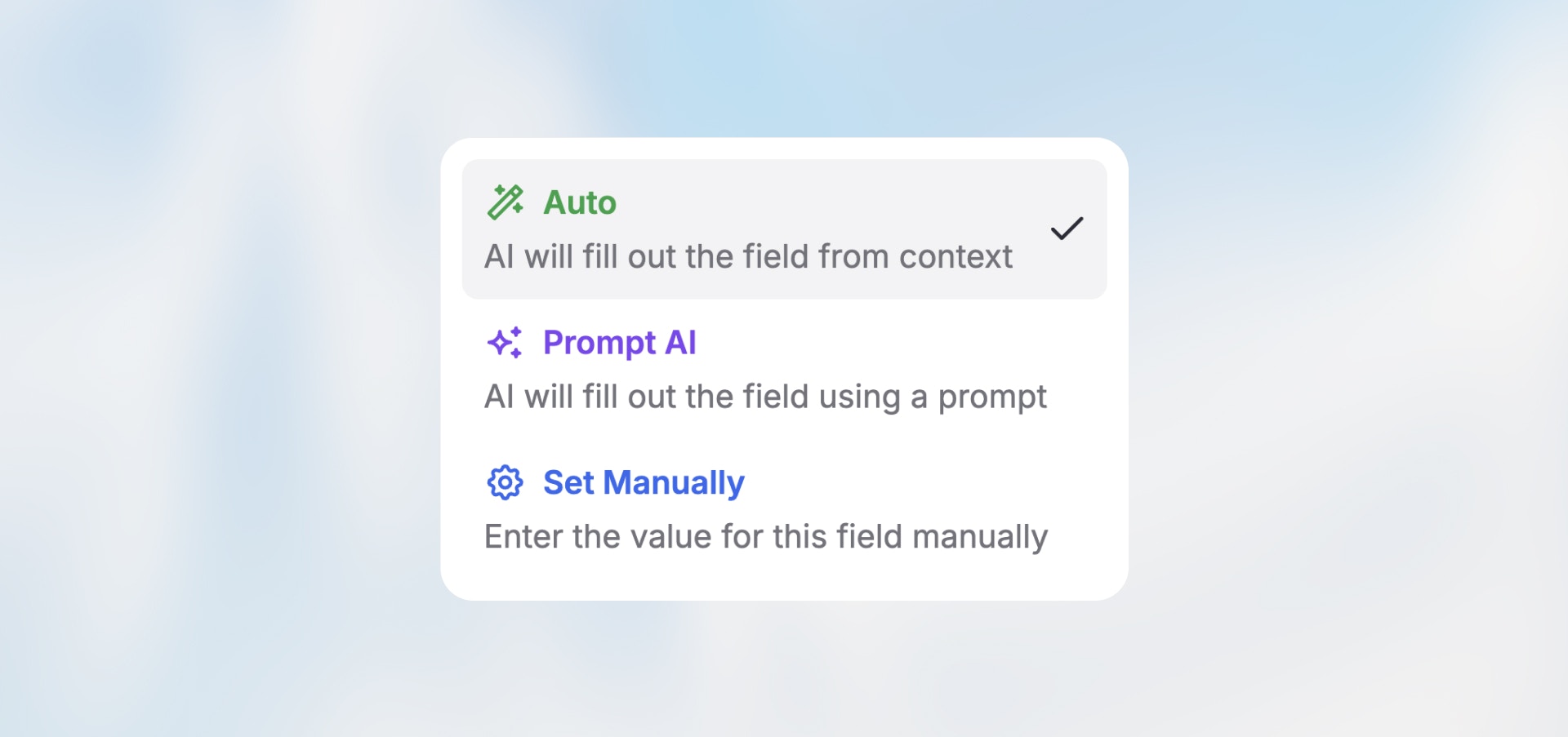 ## Overview
Every node field can be configured in one of three modes. Choose based on whether you need AI intelligence, exact control, or quick setup.
## The Three Modes
### Manual Mode
You specify the exact value—static text, variables, or a combination.
## Overview
Every node field can be configured in one of three modes. Choose based on whether you need AI intelligence, exact control, or quick setup.
## The Three Modes
### Manual Mode
You specify the exact value—static text, variables, or a combination.
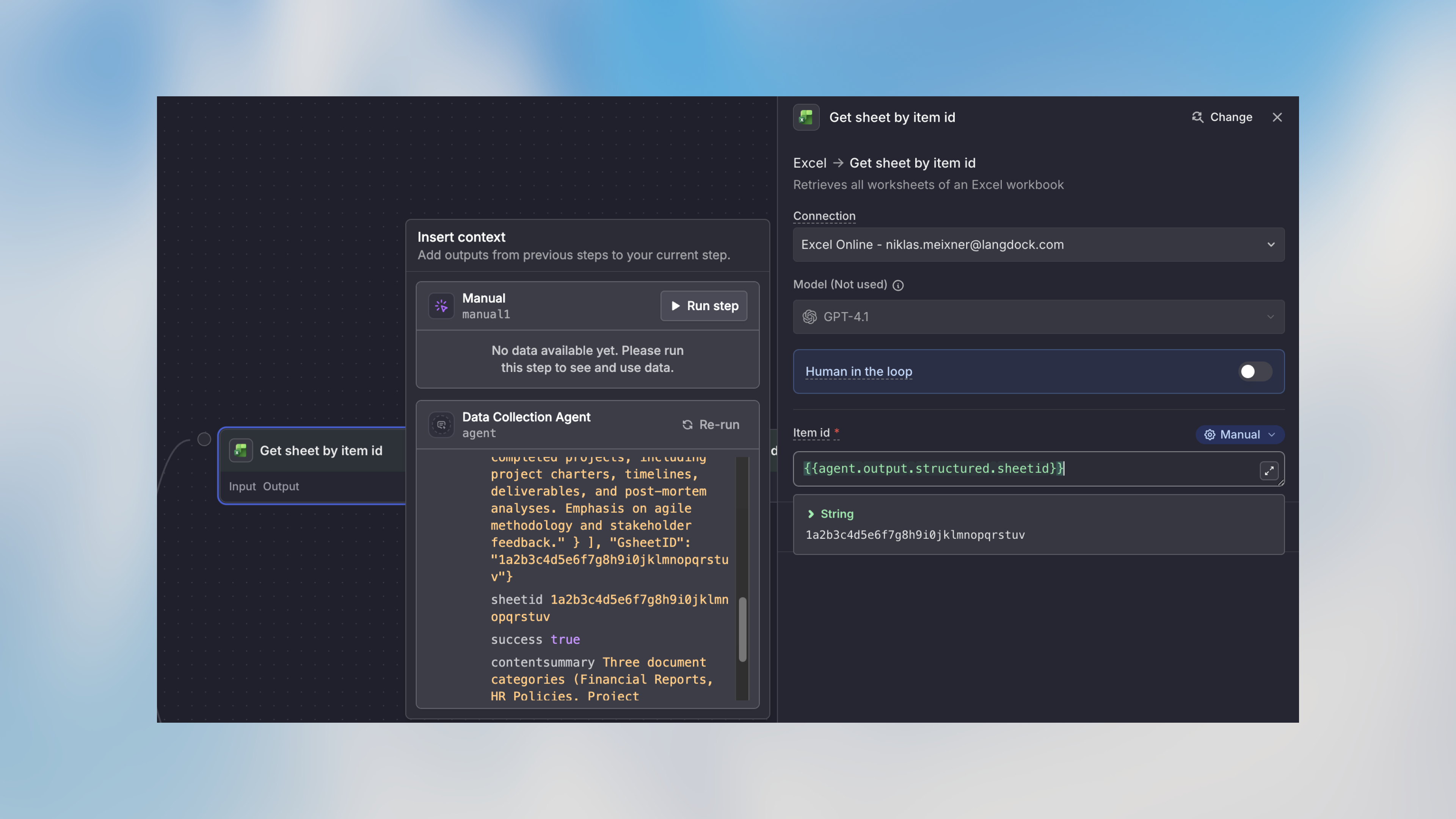 **Use when:** You know exactly what value you need.
```handlebars theme={null}
Field: "Recipient Email"
Mode: Manual
Value: "{{trigger.output.email}}"
→ Directly uses the email from your form
```
No AI credits. Fastest and most predictable. Use this whenever possible.
***
### AI Prompt Mode
Give natural language instructions for AI to generate content.
**Use when:** You know exactly what value you need.
```handlebars theme={null}
Field: "Recipient Email"
Mode: Manual
Value: "{{trigger.output.email}}"
→ Directly uses the email from your form
```
No AI credits. Fastest and most predictable. Use this whenever possible.
***
### AI Prompt Mode
Give natural language instructions for AI to generate content.
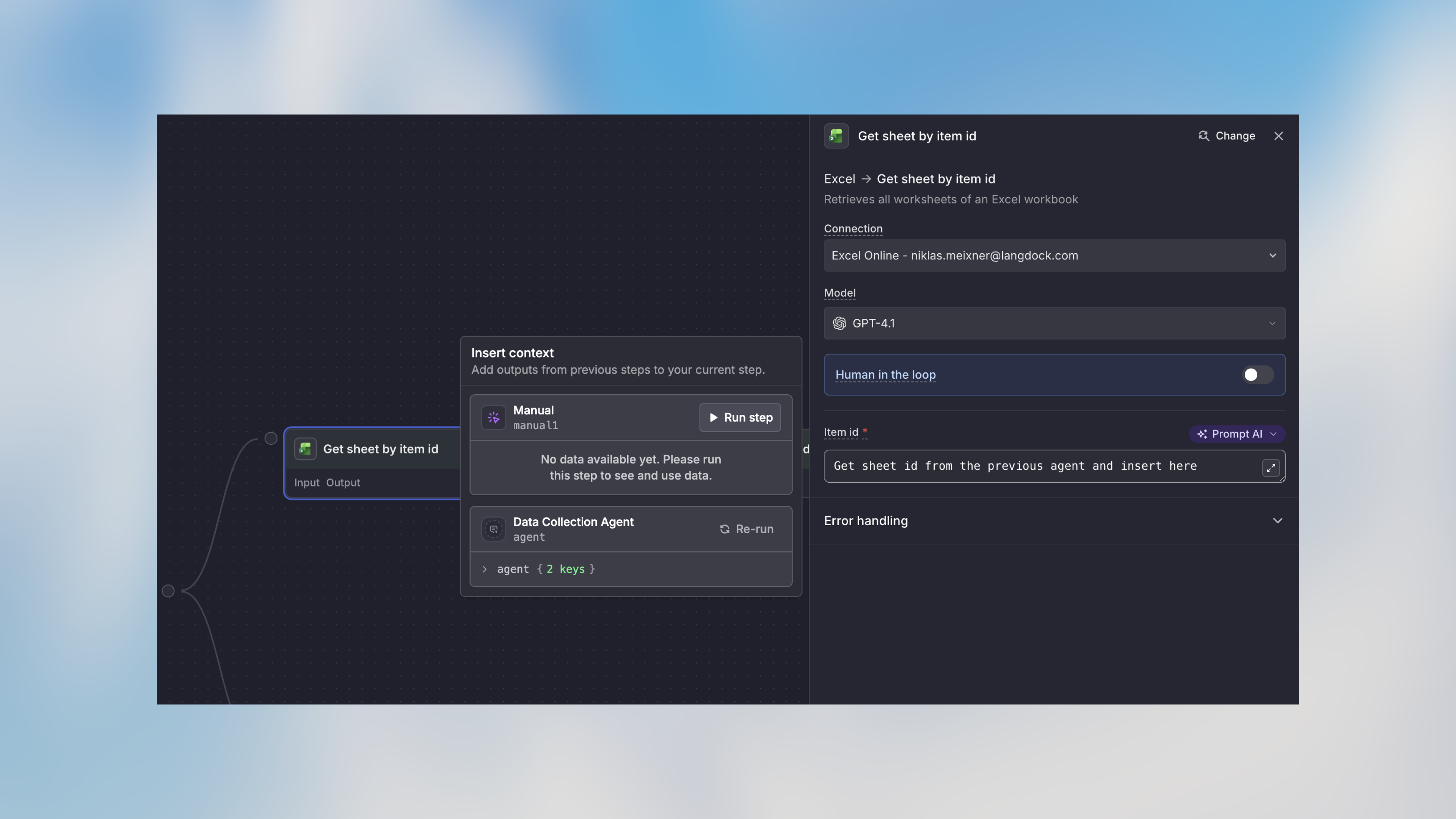 **Use when:** You need AI to write, summarize, or transform content.
```text theme={null}
Field: "Email Body"
Mode: AI Prompt
Instructions: "Write a friendly response to {{trigger.output.message}},
addressing their concern about {{agent.output.structured.issue_category}}."
→ Personalized email generated each time
```
Uses AI credits. Output varies between executions based on context.
***
### Auto Mode
AI analyzes context from previous nodes and determines the value automatically.
**Use when:** You're prototyping or the data structure varies between runs.
```text theme={null}
Field: "Ticket Priority"
Mode: Auto
→ AI looks at message content and sets priority based on urgency signals
```
Uses AI credits. Convenient for quick setup, but less predictable than Manual.
***
## Quick Comparison
| Mode | AI Credits | Control | Best For |
| --------- | ---------- | ------- | ---------------------------------- |
| Manual | No | High | Direct values, templates (default) |
| AI Prompt | Yes | Medium | Content generation, summarization |
| Auto | Yes | Low | Prototyping, variable structures |
Recipient fields such as To, Cc, and Bcc are never filled by AI by default, to protect against prompt injection. If you switch them to Auto or AI Prompt, the editor shows a security warning. See the [Action node](/en/using-langdock/workflows/nodes/action-node) page for details.
## Variable Syntax
Both Manual and AI Prompt modes support variables:
```handlebars theme={null}
{{node_name.output.field_name}}
{{node_name.output.nested.field}}
{{node_name.output.array[0].property}}
```
**Examples:**
```handlebars theme={null}
{{trigger.output.email}} // Form field
{{agent.output.summary}} // Agent output
{{http_request.output.data.userId}} // API response
{{my_loop.output.currentItem.name}} // Current loop item
```
Type `{{` in any field to see available variables from previous nodes.
## Real-World Examples
### Customer Support
```text theme={null}
Trigger: Form submission
Action: Send email
├─ To: Manual → "{{trigger.output.email}}"
├─ From: Manual → "support@company.com"
├─ Subject: Manual → "Re: {{trigger.output.subject}}"
└─ Body: AI Prompt → "Write a helpful response to: {{trigger.output.message}}"
```
### Data Processing
```text theme={null}
Trigger: New spreadsheet row
Action: Create CRM record
├─ Name: Manual → "{{trigger.output.customer_name}}"
├─ Email: Manual → "{{trigger.output.email}}"
├─ Notes: AI Prompt → "Summarize this feedback: {{trigger.output.feedback}}"
└─ Status: Manual → "New Lead"
```
## Next Steps
Deep dive into workflow variables
AI-powered content processing
**Use when:** You need AI to write, summarize, or transform content.
```text theme={null}
Field: "Email Body"
Mode: AI Prompt
Instructions: "Write a friendly response to {{trigger.output.message}},
addressing their concern about {{agent.output.structured.issue_category}}."
→ Personalized email generated each time
```
Uses AI credits. Output varies between executions based on context.
***
### Auto Mode
AI analyzes context from previous nodes and determines the value automatically.
**Use when:** You're prototyping or the data structure varies between runs.
```text theme={null}
Field: "Ticket Priority"
Mode: Auto
→ AI looks at message content and sets priority based on urgency signals
```
Uses AI credits. Convenient for quick setup, but less predictable than Manual.
***
## Quick Comparison
| Mode | AI Credits | Control | Best For |
| --------- | ---------- | ------- | ---------------------------------- |
| Manual | No | High | Direct values, templates (default) |
| AI Prompt | Yes | Medium | Content generation, summarization |
| Auto | Yes | Low | Prototyping, variable structures |
Recipient fields such as To, Cc, and Bcc are never filled by AI by default, to protect against prompt injection. If you switch them to Auto or AI Prompt, the editor shows a security warning. See the [Action node](/en/using-langdock/workflows/nodes/action-node) page for details.
## Variable Syntax
Both Manual and AI Prompt modes support variables:
```handlebars theme={null}
{{node_name.output.field_name}}
{{node_name.output.nested.field}}
{{node_name.output.array[0].property}}
```
**Examples:**
```handlebars theme={null}
{{trigger.output.email}} // Form field
{{agent.output.summary}} // Agent output
{{http_request.output.data.userId}} // API response
{{my_loop.output.currentItem.name}} // Current loop item
```
Type `{{` in any field to see available variables from previous nodes.
## Real-World Examples
### Customer Support
```text theme={null}
Trigger: Form submission
Action: Send email
├─ To: Manual → "{{trigger.output.email}}"
├─ From: Manual → "support@company.com"
├─ Subject: Manual → "Re: {{trigger.output.subject}}"
└─ Body: AI Prompt → "Write a helpful response to: {{trigger.output.message}}"
```
### Data Processing
```text theme={null}
Trigger: New spreadsheet row
Action: Create CRM record
├─ Name: Manual → "{{trigger.output.customer_name}}"
├─ Email: Manual → "{{trigger.output.email}}"
├─ Notes: AI Prompt → "Summarize this feedback: {{trigger.output.feedback}}"
└─ Status: Manual → "New Lead"
```
## Next Steps
Deep dive into workflow variables
AI-powered content processing