> ## Documentation Index
> Fetch the complete documentation index at: https://docs.langdock.com/llms.txt
> Use this file to discover all available pages before exploring further.
# Tricks and Shortcuts
> To accelerate your work with Langdock, there are a few shortcuts and tricks you can use, like CMD + K.
## Shortcuts
There are shortcuts to perform key operations in Langdock.
All users can load the prompts from the prompt library into the chat field with `@`. You can find out more about the prompt library [here](/en/using-langdock/chat/prompt-library).
Here is a list of all the other shortcuts for Mac Users:
| Action | Shortcut |
| ---------------------------------------- | --------------------- |
| Open a new chat | `CMD` + `Shift` + `O` |
| Open / close the sidebar | `CMD` + `Shift` + `S` |
| Copy the last response | `CMD` + `Shift` + `C` |
| Open the Command bar (see details below) | `CMD` + `K` |
| Save in the MCP builder | `CMD` + `S` |
| Test in the MCP builder | `CMD` + `Enter` |
Here is a list for Windows Users:
| Action | Shortcut |
| ---------------------------------------- | ---------------------- |
| Open a new chat | `Ctrl` + `Shift` + `O` |
| Open / close the sidebar | `Ctrl` + `Shift` + `S` |
| Copy the last response | `Ctrl` + `Shift` + `C` |
| Open the Command bar (see details below) | `Ctrl` + `K` |
| Save in the MCP builder | `Ctrl` + `S` |
| Test in the MCP builder | `Ctrl` + `Enter` |
## CMD + K
The shortcut `CMD` + `K` (Mac) or `Ctrl` + `K` (Windows) opens a window where you search your chat history or search through all settings.
For example, you can:
* Type in a keyword to search a chat
* Type in the name of a pinned agent to go to a new chat with this agent
* Type in "language" or "dark mode" to change the language or switch to dark / light mode
## Paste URL of document to attach it
As explained here, you can attach files and pages from your integrations to a chat or to an agent. There are two ways to do that:
* You can either search for the name to look through all files.
* Or you paste the URL of the according file in the search field or in the chat to find and attach the file.
## Langdock App (Mobile)
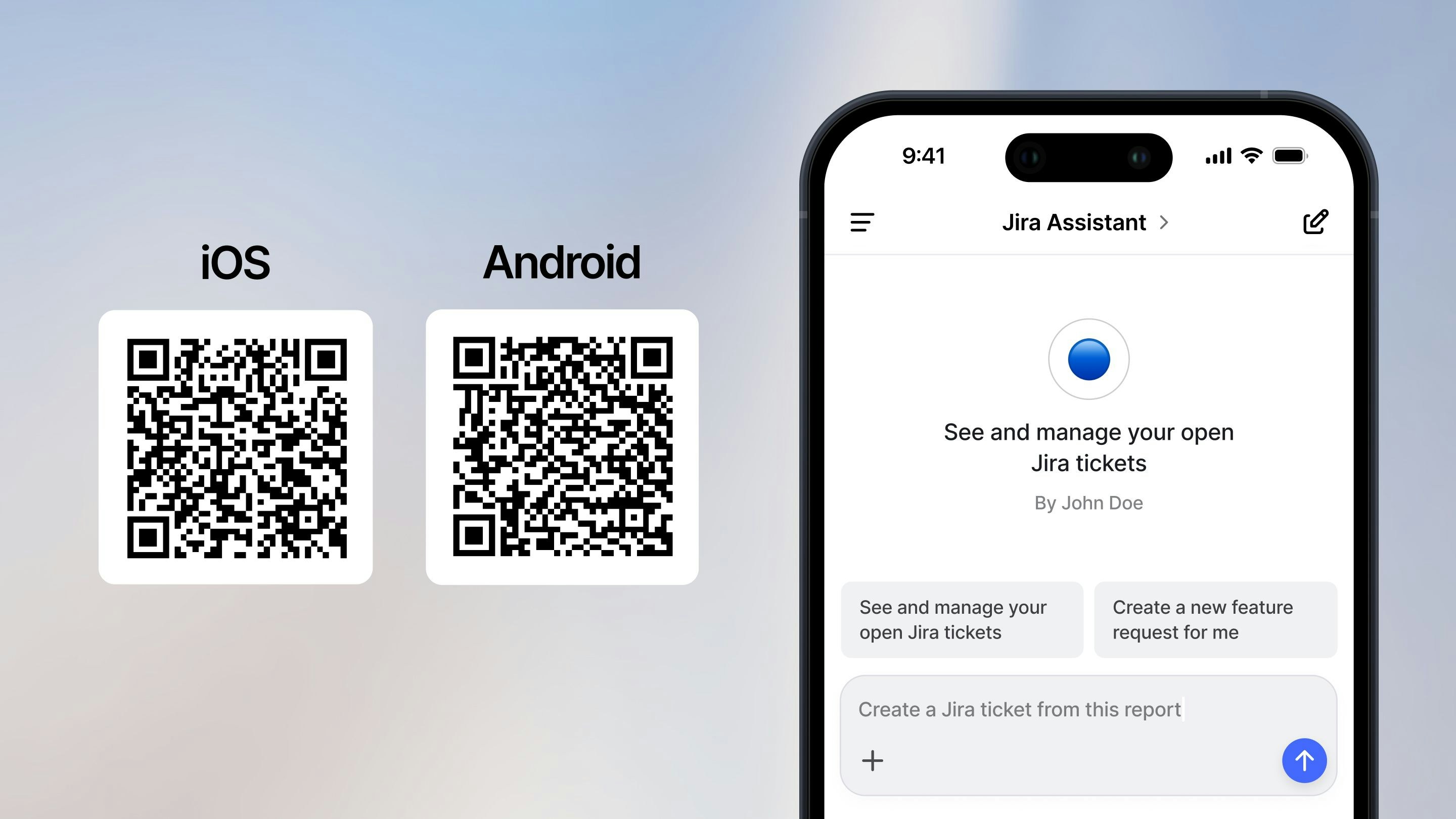
Download our mobile app through the Apple and Google app stores.
 ## Langdock App (Desktop)
We have developed a progressive web app (PWA), which allows you to install the app on your desktop and do not have to open the browser every time to access it. To install it, you can open the browser, go to app.langdock.com and then click on the **Install** button in the navbar. You can then add the app on your desktop or in the task bar.
**Which browsers support PWAs?**
Desktop:
* Chrome, Edge and Safari all support PWAs. The best browser for PWAs on desktop is Chrome.
* Firefox only supports PWA with extensions
Mobile:
* For Firefox on Android, no extension is needed.
* On Android, Chrome, Edge, Opera, and Samsung Internet Browser all support installing PWAs.
* On iOS, PWAs can be installed from the Share menu in Safari, Chrome, Edge, Firefox, and Orion.
* Firefox only supports PWA with extensions
### How to Install on Microsoft Edge
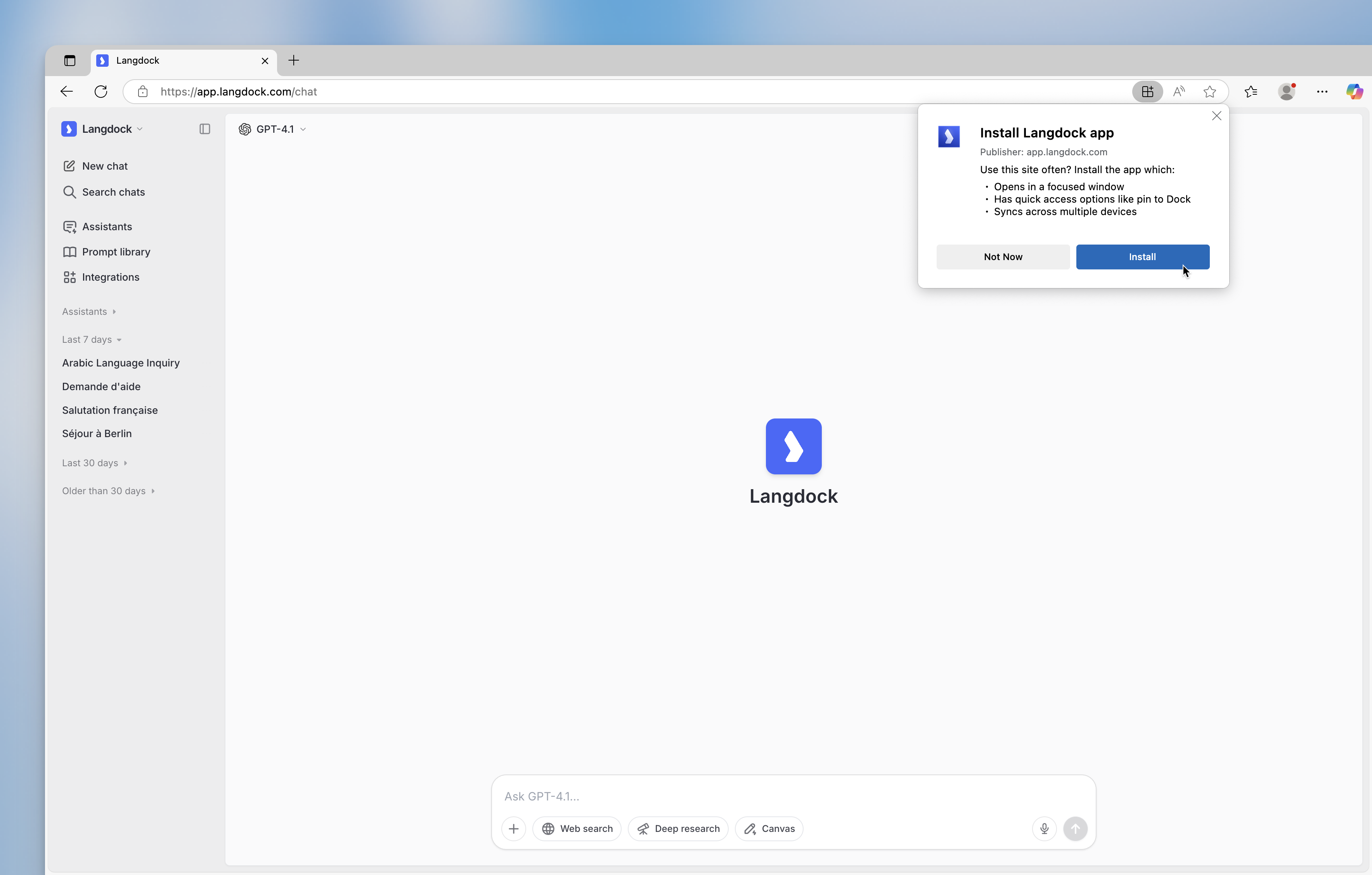
**Option 1:** Install it via the Apps icon in the navbar
## Langdock App (Desktop)
We have developed a progressive web app (PWA), which allows you to install the app on your desktop and do not have to open the browser every time to access it. To install it, you can open the browser, go to app.langdock.com and then click on the **Install** button in the navbar. You can then add the app on your desktop or in the task bar.
**Which browsers support PWAs?**
Desktop:
* Chrome, Edge and Safari all support PWAs. The best browser for PWAs on desktop is Chrome.
* Firefox only supports PWA with extensions
Mobile:
* For Firefox on Android, no extension is needed.
* On Android, Chrome, Edge, Opera, and Samsung Internet Browser all support installing PWAs.
* On iOS, PWAs can be installed from the Share menu in Safari, Chrome, Edge, Firefox, and Orion.
* Firefox only supports PWA with extensions
### How to Install on Microsoft Edge
**Option 1:** Install it via the Apps icon in the navbar
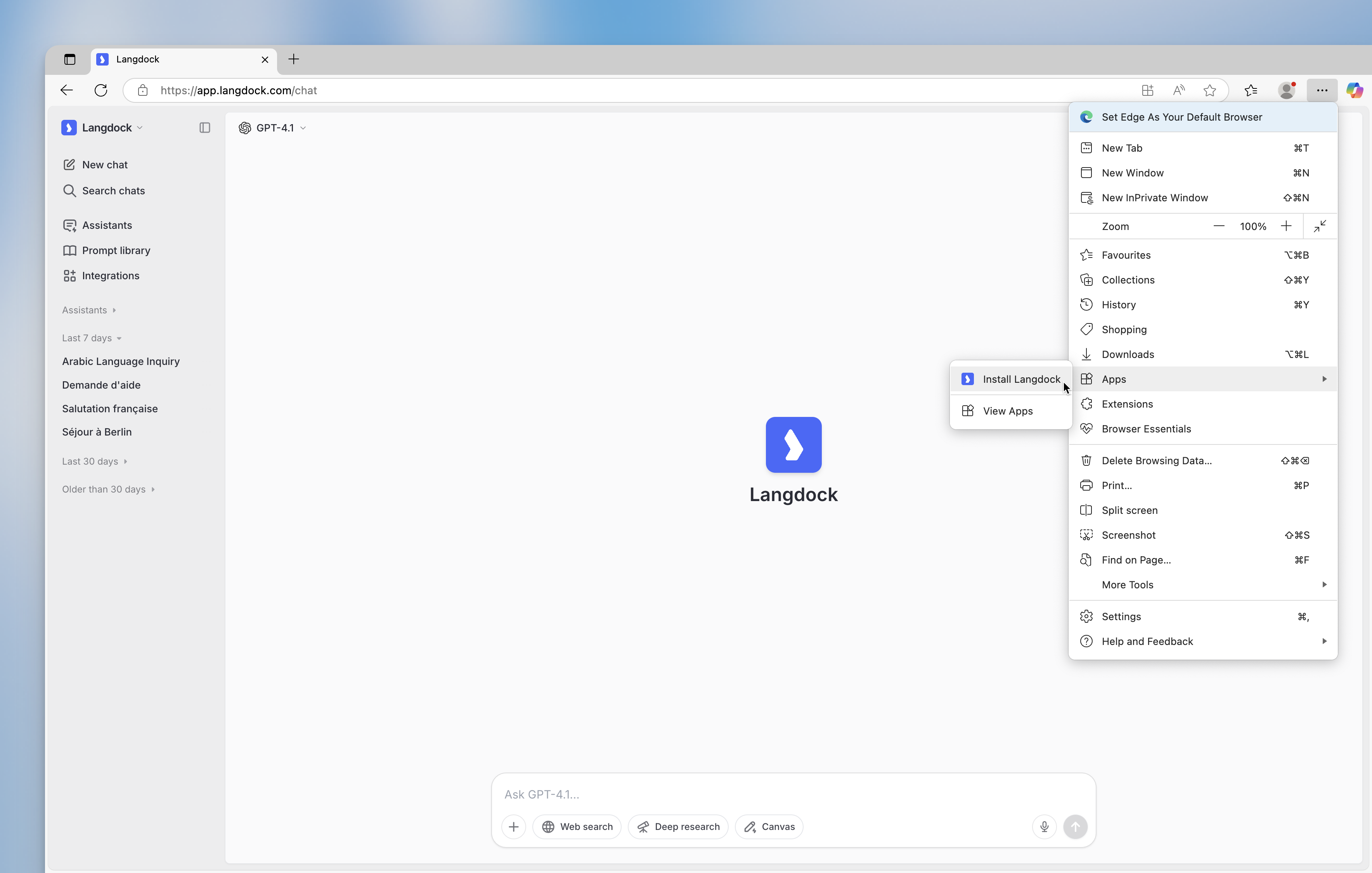
 **Option 2:** Install it via the menu on the right → navigate to Apps → Install Langdock
 ***
### How to Install on Google Chrome
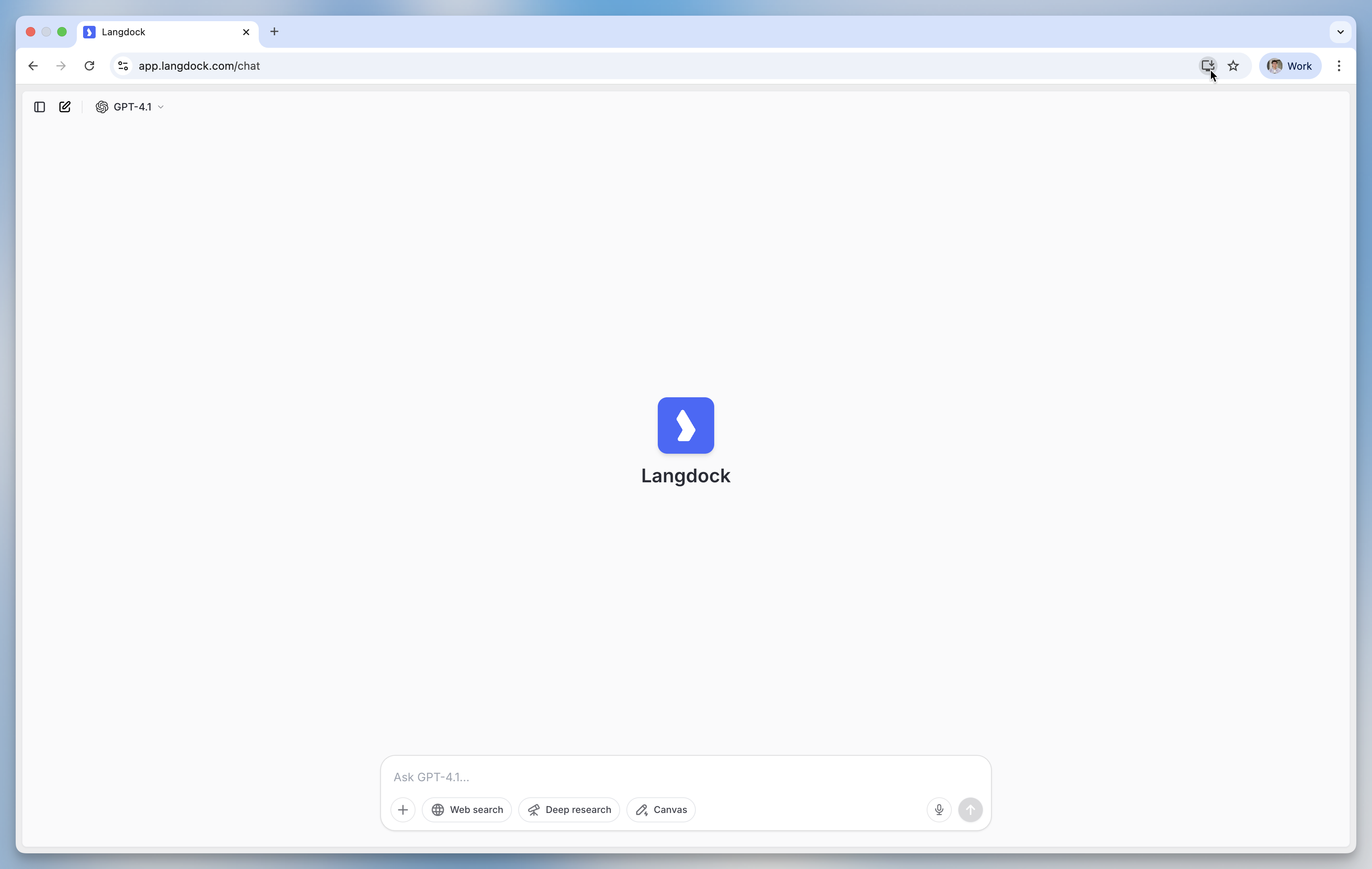
**Option 1:** Install it via the Apps icon in the navbar
***
### How to Install on Google Chrome
**Option 1:** Install it via the Apps icon in the navbar
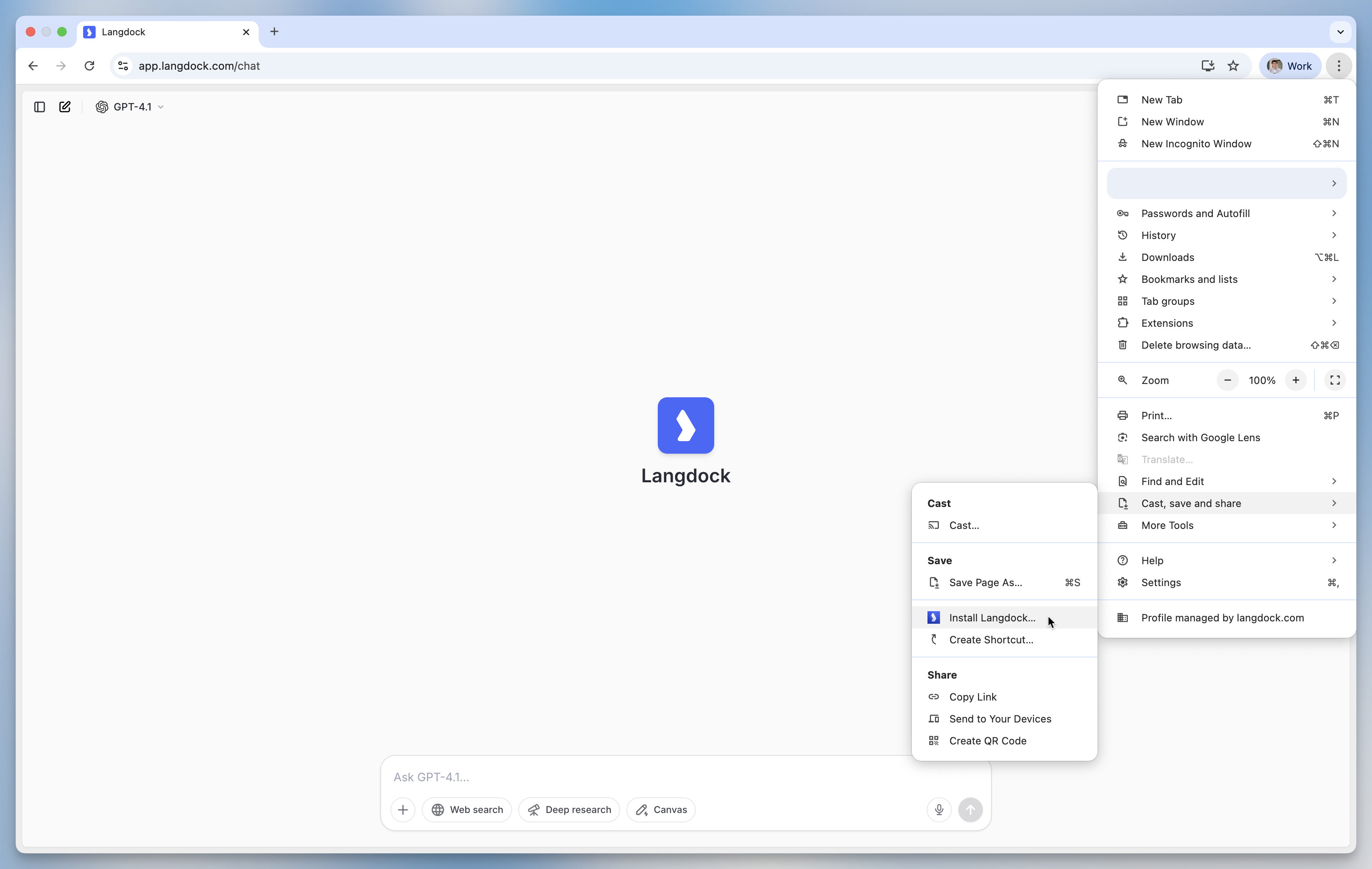
 **Option 2:** Install it via the menu on the right → navigate to "Cast, save and share" → Install Langdock
 ***
### How to Install on Safari
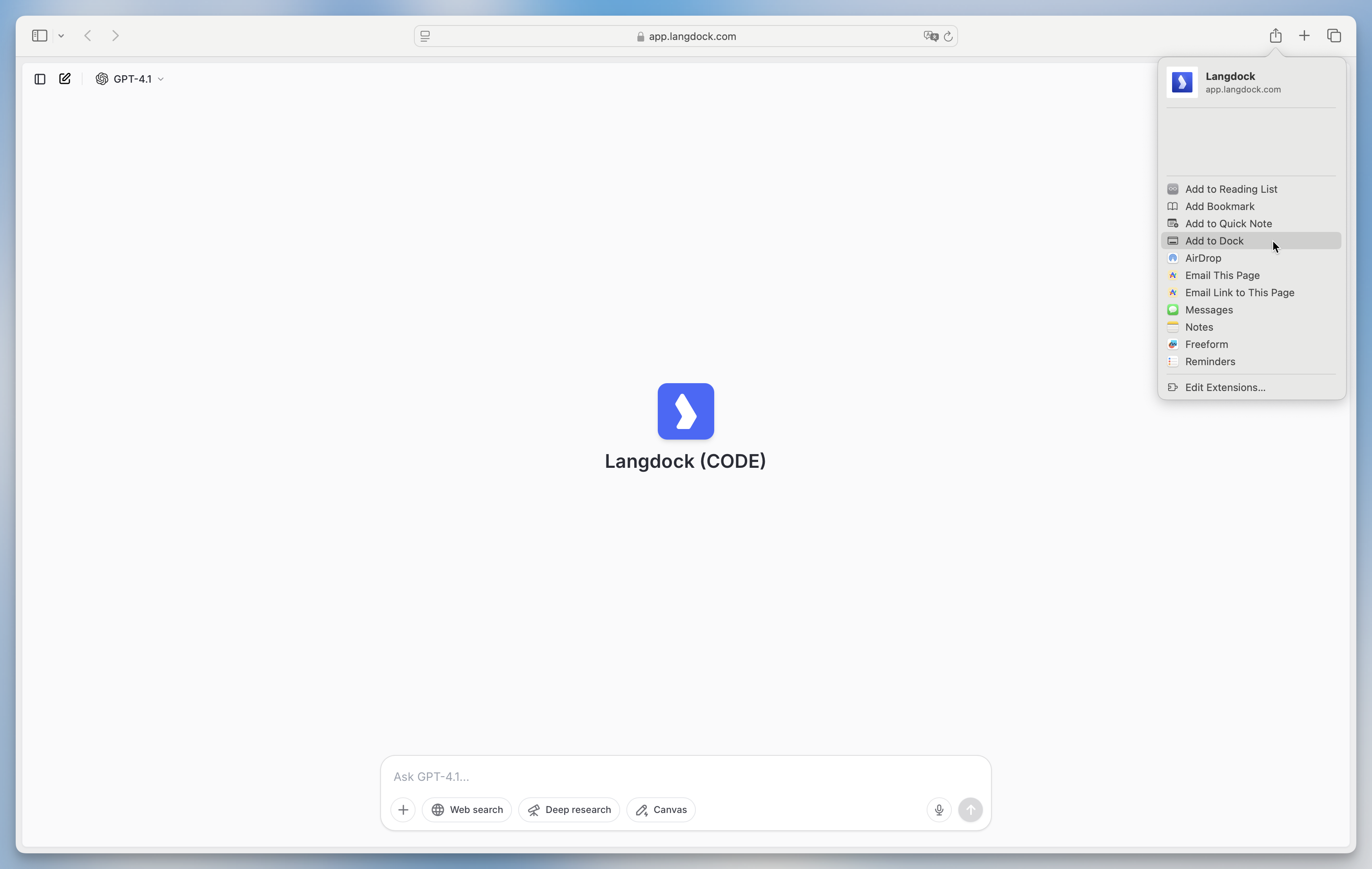
Install it via the sharing menu on the right → navigate to "Add to Dock"
***
### How to Install on Safari
Install it via the sharing menu on the right → navigate to "Add to Dock"