> ## Documentation Index
> Fetch the complete documentation index at: https://docs.langdock.com/llms.txt
> Use this file to discover all available pages before exploring further.
# Usage Limits
> Understand how usage is measured, what your limits are, and what happens when you reach them.
When you use chat and agents, your usage is measured based on underlying model provider costs. More expensive models consume your limit faster than lightweight ones. Today's models are fundamentally more powerful than what existed even a year ago. They can write full documents, build presentations, run multi-step research, and handle complex tasks end to end. So what are the limits, and how do you make the most of them?
This page explains how usage limits work and what happens when you reach them. For tips on getting the most out of your Langdock subscription, see [Usage Tips](/en/using-langdock/models-and-limits/usage-tips).
## Usage windows
Your usage is tracked across two time windows:
| Window | Duration | How it works |
| ----------- | ---------------- | -------------------------------------------------------------- |
| **Session** | 5 hours | Starts when you send your first message. Resets after 5 hours. |
| **Weekly** | Monday to Monday | Fixed weekly window. Resets every Monday. |
Both windows have their own limit. If you reach either one, your messages are routed to GPT-5.2 until that window resets.
These limits also apply when chat and agents use tools such as Document Editor, Company Knowledge, and Deep Research.
## Checking your usage
You can check your usage directly from chat to see how much of your current session and weekly limits you have used. This helps you manage your usage and decide when to switch models, continue later, or adjust your plan.
### 1. Open the indicator
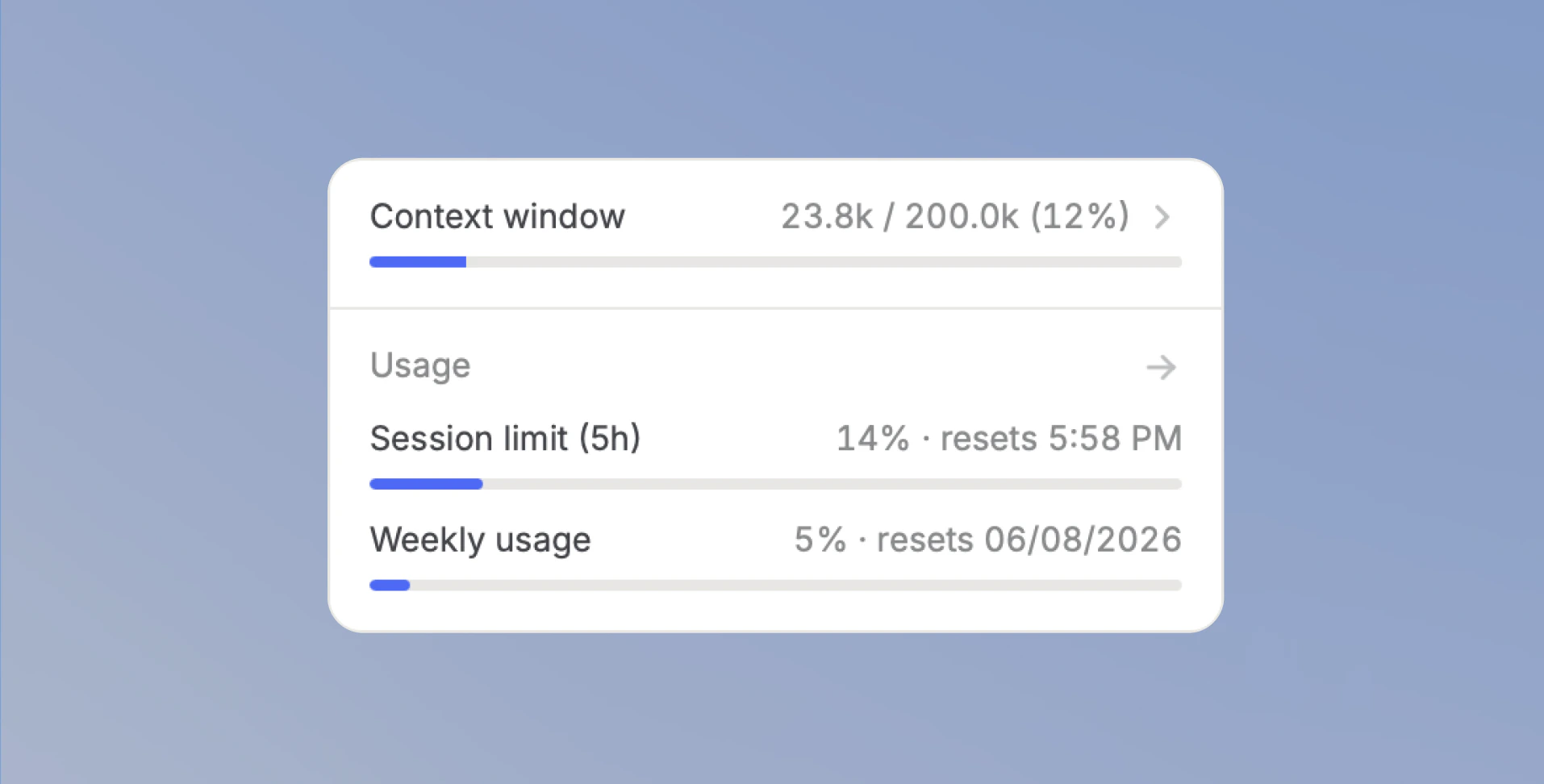
Find the circular indicator next to the model selector in the chat input. Click it to open the context window panel.
 ### 2. Check your usage limits
The `Usage` section shows your current usage limits:
* `Session limit` shows your usage in the current 5-hour window and when it resets.
* `Weekly usage` shows your usage in the current weekly window and when it resets.
* `Extra usage` appears when extra usage applies to your Workspace.
### 2. Check your usage limits
The `Usage` section shows your current usage limits:
* `Session limit` shows your usage in the current 5-hour window and when it resets.
* `Weekly usage` shows your usage in the current weekly window and when it resets.
* `Extra usage` appears when extra usage applies to your Workspace.
 ### Check usage in account settings
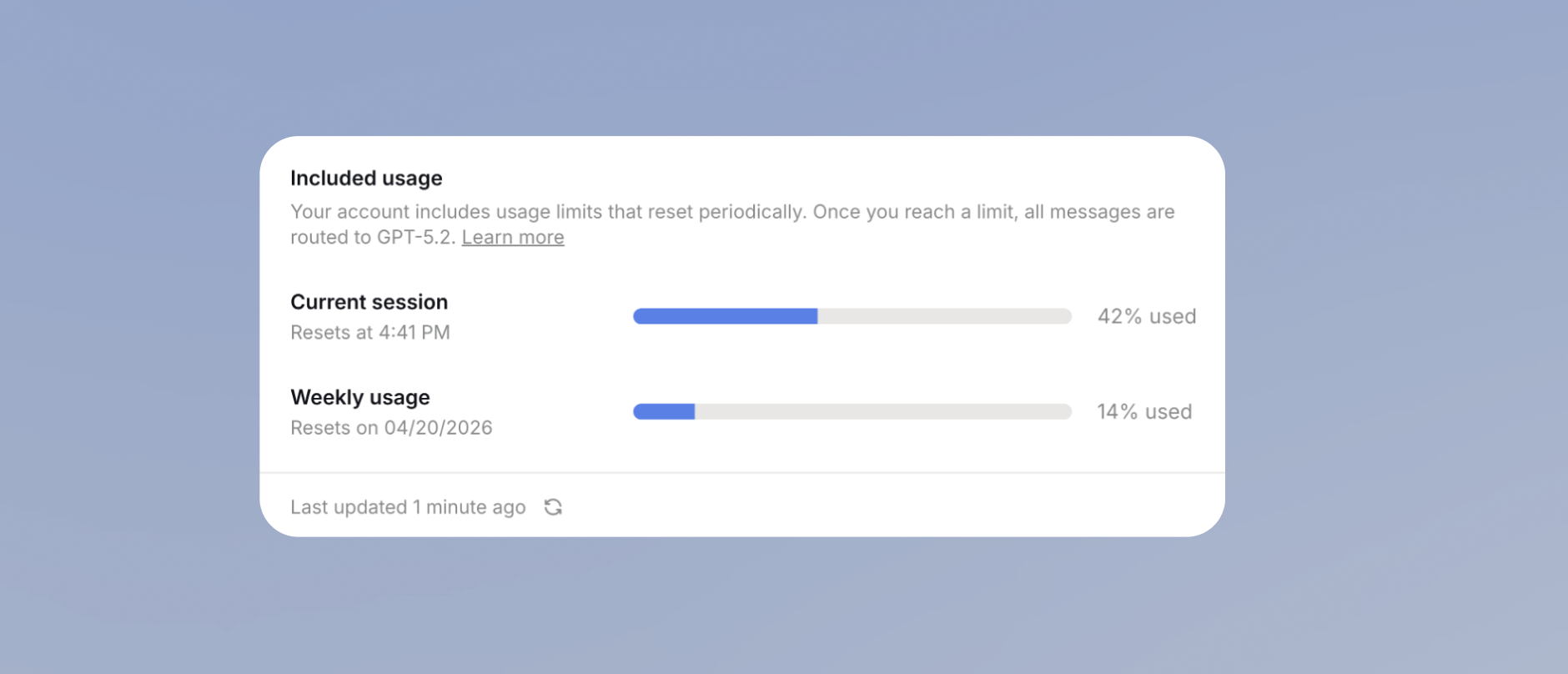
You can also see your current usage in [Settings > Account > Usage](https://app.langdock.com/settings/account/usage). The page shows progress bars for both your session and weekly usage, along with the time until each window resets.
### Check usage in account settings
You can also see your current usage in [Settings > Account > Usage](https://app.langdock.com/settings/account/usage). The page shows progress bars for both your session and weekly usage, along with the time until each window resets.
 ## Tips to get the most out of your usage
We've put together a [Usage Tips](/en/using-langdock/models-and-limits/usage-tips) guide to help you and your team get the most out of Langdock, with practical tips on model selection, prompting, and how to work efficiently within your limits.
## What happens when you reach a limit
When you hit your session or weekly limit, your messages are automatically routed to GPT-5.2 until that window resets. You can continue working without interruption, just on a different model.
If your admin has enabled usage requests, you will see a **Request higher limits** button in the chat. Your admin will be notified and can increase your limits or upgrade your plan.
If you reach a limit while the model is working, it is allowed to finish its response before switching. You won't see a reply cut off halfway. Your next message will use GPT-5.2.
## Increasing your limits
Your usage limits depend on the plan you are on. If you regularly hit your limits, your admin can:
* [Upgrade you to a higher plan](/en/admin/manage-usage/plans) with more usage.
* [Enable pay-as-you-go billing](/en/admin/manage-usage/extra-usage) so you can keep using premium models after reaching your limit.
***
There is also a spam protection limit of 250 messages per 3 hours, regardless of model cost. This limit exists to prevent automated abuse and does not affect normal usage.
*Last updated: April 2026*
## FAQ
Usage is based on the resources consumed by model requests, not just the number of messages. Long chats, large files, stronger models, tool use, and generated output can all increase usage because the model processes more input, produces more output, or uses more expensive capabilities.
When a usage limit is reached, access to some models or capabilities may be restricted depending on the workspace plan and configuration. Some workspaces may allow extra usage or higher limits. If a model becomes unavailable, check the usage indicator and your workspace's limit settings.
Yes. If a preferred model is no longer available because of usage limits or workspace policy, users may need to choose another available model. If the replacement model has different capabilities, context size, or output behavior, the same task may behave differently.
Usage limits control how much model capacity a user or workspace can consume. The context window controls how much information the model can consider in a single request. A chat can hit context limits even if usage remains available, and usage can be exhausted even if an individual prompt fits in context.
## Tips to get the most out of your usage
We've put together a [Usage Tips](/en/using-langdock/models-and-limits/usage-tips) guide to help you and your team get the most out of Langdock, with practical tips on model selection, prompting, and how to work efficiently within your limits.
## What happens when you reach a limit
When you hit your session or weekly limit, your messages are automatically routed to GPT-5.2 until that window resets. You can continue working without interruption, just on a different model.
If your admin has enabled usage requests, you will see a **Request higher limits** button in the chat. Your admin will be notified and can increase your limits or upgrade your plan.
If you reach a limit while the model is working, it is allowed to finish its response before switching. You won't see a reply cut off halfway. Your next message will use GPT-5.2.
## Increasing your limits
Your usage limits depend on the plan you are on. If you regularly hit your limits, your admin can:
* [Upgrade you to a higher plan](/en/admin/manage-usage/plans) with more usage.
* [Enable pay-as-you-go billing](/en/admin/manage-usage/extra-usage) so you can keep using premium models after reaching your limit.
***
There is also a spam protection limit of 250 messages per 3 hours, regardless of model cost. This limit exists to prevent automated abuse and does not affect normal usage.
*Last updated: April 2026*
## FAQ
Usage is based on the resources consumed by model requests, not just the number of messages. Long chats, large files, stronger models, tool use, and generated output can all increase usage because the model processes more input, produces more output, or uses more expensive capabilities.
When a usage limit is reached, access to some models or capabilities may be restricted depending on the workspace plan and configuration. Some workspaces may allow extra usage or higher limits. If a model becomes unavailable, check the usage indicator and your workspace's limit settings.
Yes. If a preferred model is no longer available because of usage limits or workspace policy, users may need to choose another available model. If the replacement model has different capabilities, context size, or output behavior, the same task may behave differently.
Usage limits control how much model capacity a user or workspace can consume. The context window controls how much information the model can consider in a single request. A chat can hit context limits even if usage remains available, and usage can be exhausted even if an individual prompt fits in context.