> ## Documentation Index
> Fetch the complete documentation index at: https://docs.langdock.com/llms.txt
> Use this file to discover all available pages before exploring further.
# Outlook Plugin
> With the Outlook plugin you can work with Langdock without leaving your Outlook inbox or calendar.
The Outlook plugin brings Langdock into Microsoft Outlook, so your email, calendar, and AI assistance stay side by side. Use it to catch up on a full inbox, get the key points from long threads, draft replies, and prepare your meetings without switching tools. Langdock knows which email or calendar event you have open, so you can ask about it directly instead of copying content into a separate chat.
## How to install Langdock for Outlook
Install the Langdock Add-in from the Microsoft Marketplace and connect it to your Langdock account. The plugin is available in Outlook on the web and desktop.
Before you can sign in, an admin needs to enable the Outlook plugin in the workspace integration settings. If it is not enabled yet, point your admin to the [Plugin Setup Guide](/en/admin/manage-integrations/plugin-setup-guides/outlook).
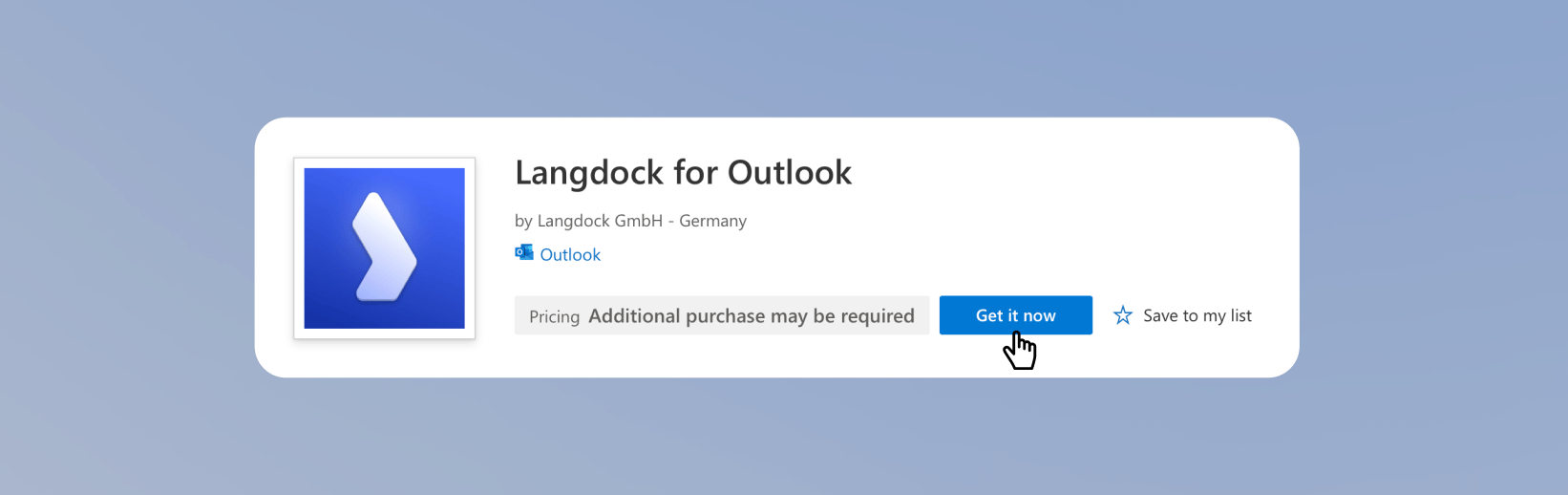
Navigate to the Langdock for Outlook page on the Microsoft Marketplace, click **Get it now**, and confirm your details in the dialog that appears.
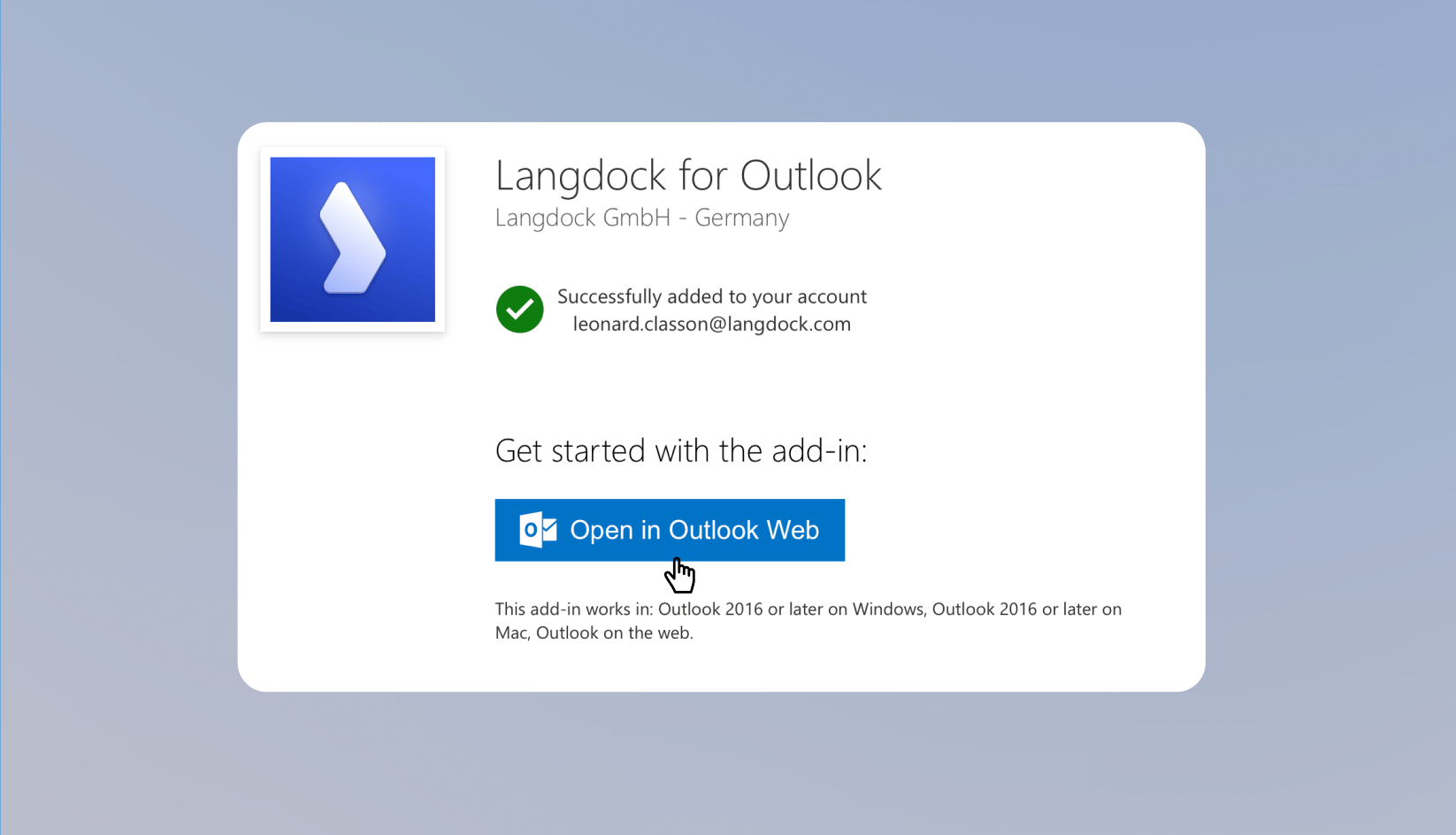
 After the Add-in is added to your account, click **Open in Outlook Web**.
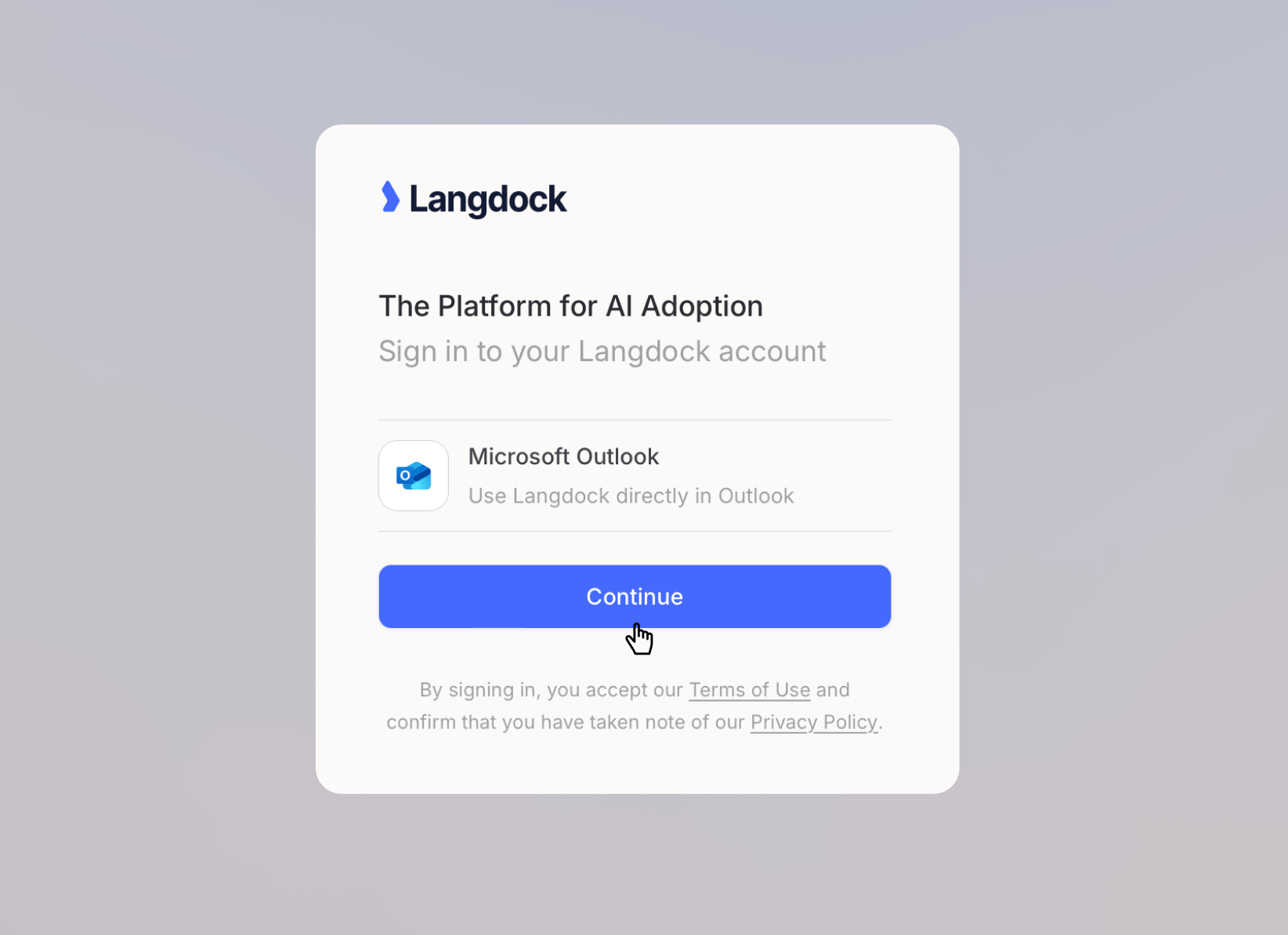
 Return to your inbox, open an email, and click **Langdock** in the Outlook toolbar. Without an open email, the apps in the toolbar are disabled. Click **Continue** and sign in through your browser. Copy the sign-in code, paste it into the **Complete sign-in** screen in Outlook, then click **Continue**.
 On the **Connect Outlook** screen, click **Connect** for Outlook Email and Outlook Calendar. The plugin uses these two integrations to read message content, search your mailbox, and work with your calendar. If both integrations are already connected in Langdock, this screen is skipped.
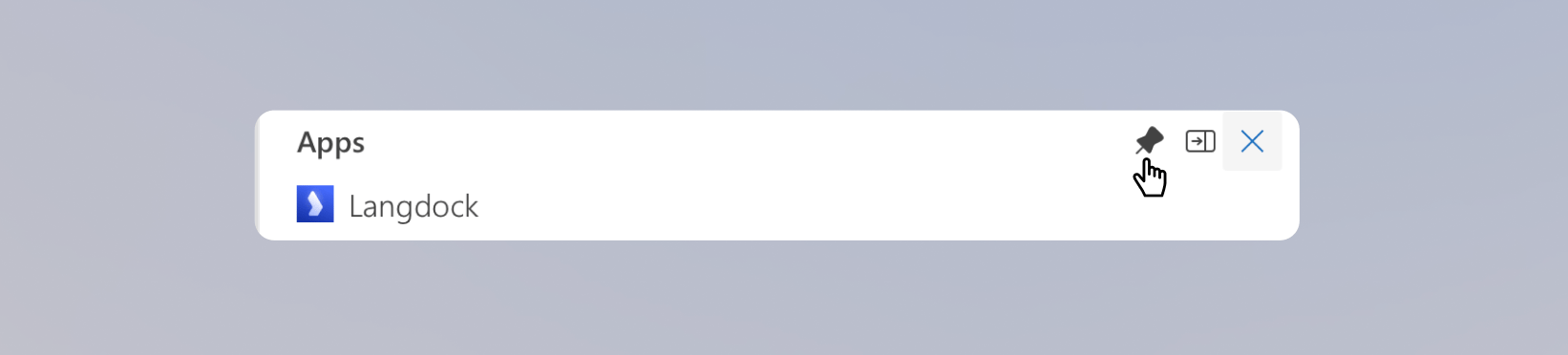
Click the pin icon at the top of the Langdock pane. Outlook closes an unpinned pane when you switch between emails. A new compose window also opens without the pane, so pin it there once as well.
On the **Connect Outlook** screen, click **Connect** for Outlook Email and Outlook Calendar. The plugin uses these two integrations to read message content, search your mailbox, and work with your calendar. If both integrations are already connected in Langdock, this screen is skipped.
Click the pin icon at the top of the Langdock pane. Outlook closes an unpinned pane when you switch between emails. A new compose window also opens without the pane, so pin it there once as well.
 You can now use Langdock while Outlook stays open. Start with a specific question about the email or calendar event you are viewing.
Connect Outlook Email and Outlook Calendar with the same Microsoft account you use in Outlook. Otherwise Langdock works with a different inbox and calendar than the one in front of you. Skipping the connection is fine, you can always catch up on it later. Until then, Langdock only sees the subject and participants of the open email or event.
## Working with Langdock in Outlook
The Outlook plugin is useful whenever the work starts in your inbox or calendar. Open an email or a calendar event, open Langdock next to it, and ask for what you need.
You can now use Langdock while Outlook stays open. Start with a specific question about the email or calendar event you are viewing.
Connect Outlook Email and Outlook Calendar with the same Microsoft account you use in Outlook. Otherwise Langdock works with a different inbox and calendar than the one in front of you. Skipping the connection is fine, you can always catch up on it later. Until then, Langdock only sees the subject and participants of the open email or event.
## Working with Langdock in Outlook
The Outlook plugin is useful whenever the work starts in your inbox or calendar. Open an email or a calendar event, open Langdock next to it, and ask for what you need.
 ### Common use cases
* **Catch up on your inbox**: Get a summary of what came in and what needs your attention.
* **Summarize long threads**: Pull the key points, open questions, and next steps out of a conversation without rereading every message.
* **Draft replies**: Ask for a response based on the open thread, then refine tone and content in the chat.
* **Compose new emails**: Ask Langdock to write or expand a draft. It can fill in the body, the subject, and the recipients.
* **Organize your inbox**: Sort messages into folders and clear out what's done.
* **Plan your week**: Check your schedule, and create or update calendar events from the same conversation.
### Example: Research stats and draft the reply
Say a colleague asks for something you would normally research in a separate chat. Sarah is building a deck for a customer webinar and needs three current stats on how teams use AI at work, each with a source she can cite. Open the email, open Langdock next to it, and describe what you need.
### Common use cases
* **Catch up on your inbox**: Get a summary of what came in and what needs your attention.
* **Summarize long threads**: Pull the key points, open questions, and next steps out of a conversation without rereading every message.
* **Draft replies**: Ask for a response based on the open thread, then refine tone and content in the chat.
* **Compose new emails**: Ask Langdock to write or expand a draft. It can fill in the body, the subject, and the recipients.
* **Organize your inbox**: Sort messages into folders and clear out what's done.
* **Plan your week**: Check your schedule, and create or update calendar events from the same conversation.
### Example: Research stats and draft the reply
Say a colleague asks for something you would normally research in a separate chat. Sarah is building a deck for a customer webinar and needs three current stats on how teams use AI at work, each with a source she can cite. Open the email, open Langdock next to it, and describe what you need.
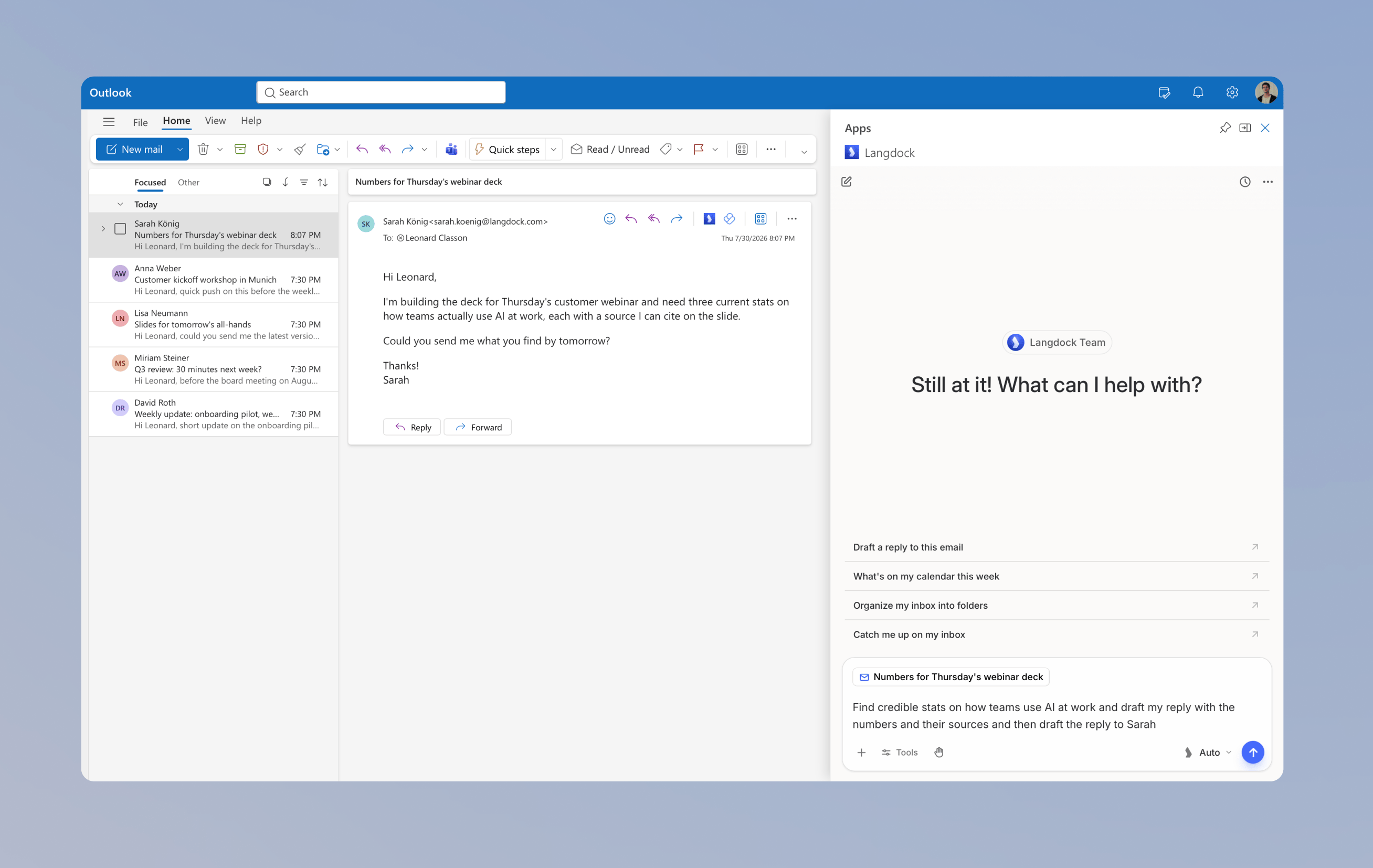 Ask Langdock for the research and the reply in one prompt:
`Find credible stats on how teams use AI at work and draft my reply with the numbers and their sources and then draft the reply to Sarah`
Ask Langdock for the research and the reply in one prompt:
`Find credible stats on how teams use AI at work and draft my reply with the numbers and their sources and then draft the reply to Sarah`
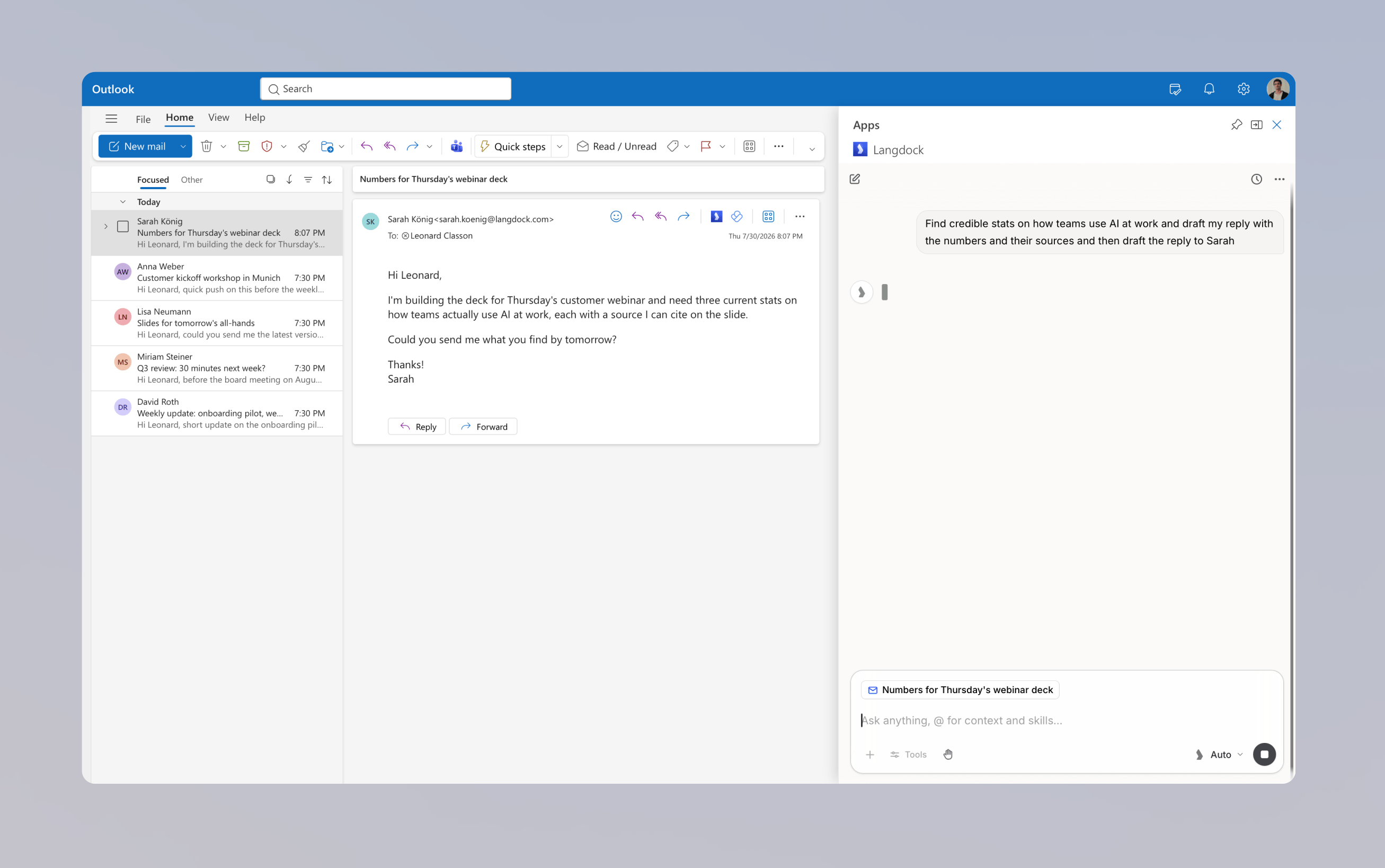 Langdock searches the web, collects the numbers with their sources, and writes the reply into the draft. You review the text in Outlook exactly as it will be sent, with every stat linked to its source.
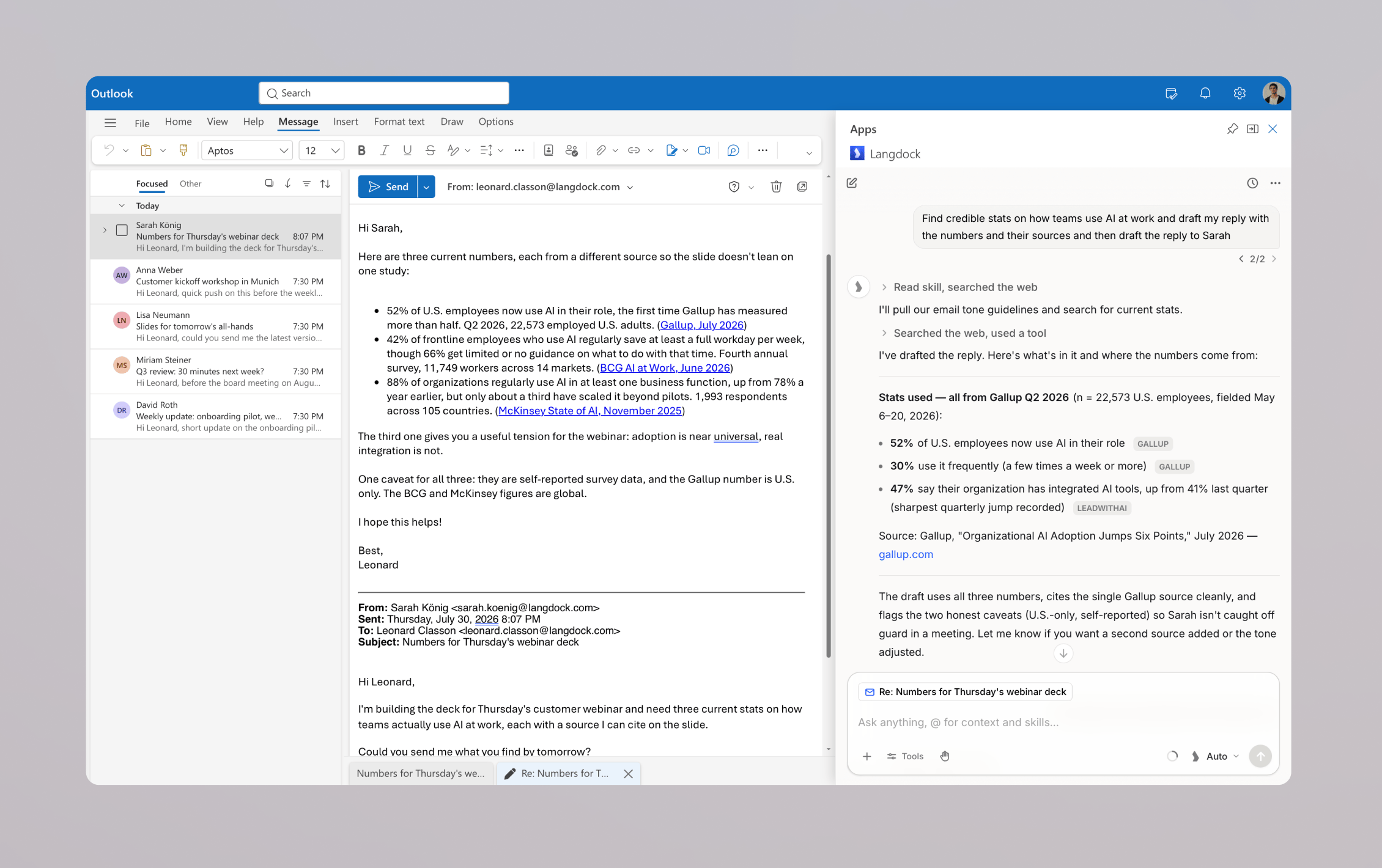 In the chat, Langdock summarizes which numbers it used and flags the caveats. From there, keep refining: make it shorter, adjust the tone, or add a second source.
### Next steps
After the first response, you can keep working from the same panel:
* Ask follow-up questions about the thread or event
* Use your [Skills](/en/using-langdock/guides/skills/skills-guide) to draft replies that follow your team's writing guidelines
* Enrich your reply with results from a [Web Search](/en/using-langdock/chat/tools/web-search)
* Work with your connected [integrations](/en/using-langdock/integrations/introduction) without leaving Outlook
## Edit permissions
Langdock always asks before changing an open draft by default. You can switch from **Ask before edits** to **Accept all edits** in the **Edit permissions** menu in the chat input.
When Langdock wants to write into the draft, the **Edit Outlook draft?** dialog shows the fields it is about to change:
* **Allow once**: Applies the edit. Langdock asks again for the next one.
* **Always allow edits**: Applies the edit and skips the dialog for the rest of the current chat.
* **Deny**: Rejects the edit and leaves the draft unchanged.
In both modes, edits apply only to the open draft and never send it. Langdock sends an email or invitation only when you ask it to and confirm the action.
## Preferences
Open the plugin menu in the top bar and select **Preferences** to customize the plugin. Two settings shape how your plugin chats behave:
* **Instructions**: Add custom instructions that apply only to chats in the Outlook plugin, for example `Keep replies short and to the point`.
* **Default model**: Choose the model that is preselected whenever you start a new plugin chat.
Both are independent of your global [account settings](/en/using-langdock/account/account). You can also switch the theme and delete all plugin conversations here.
In the chat, Langdock summarizes which numbers it used and flags the caveats. From there, keep refining: make it shorter, adjust the tone, or add a second source.
### Next steps
After the first response, you can keep working from the same panel:
* Ask follow-up questions about the thread or event
* Use your [Skills](/en/using-langdock/guides/skills/skills-guide) to draft replies that follow your team's writing guidelines
* Enrich your reply with results from a [Web Search](/en/using-langdock/chat/tools/web-search)
* Work with your connected [integrations](/en/using-langdock/integrations/introduction) without leaving Outlook
## Edit permissions
Langdock always asks before changing an open draft by default. You can switch from **Ask before edits** to **Accept all edits** in the **Edit permissions** menu in the chat input.
When Langdock wants to write into the draft, the **Edit Outlook draft?** dialog shows the fields it is about to change:
* **Allow once**: Applies the edit. Langdock asks again for the next one.
* **Always allow edits**: Applies the edit and skips the dialog for the rest of the current chat.
* **Deny**: Rejects the edit and leaves the draft unchanged.
In both modes, edits apply only to the open draft and never send it. Langdock sends an email or invitation only when you ask it to and confirm the action.
## Preferences
Open the plugin menu in the top bar and select **Preferences** to customize the plugin. Two settings shape how your plugin chats behave:
* **Instructions**: Add custom instructions that apply only to chats in the Outlook plugin, for example `Keep replies short and to the point`.
* **Default model**: Choose the model that is preselected whenever you start a new plugin chat.
Both are independent of your global [account settings](/en/using-langdock/account/account). You can also switch the theme and delete all plugin conversations here.