> ## Documentation Index
> Fetch the complete documentation index at: https://docs.langdock.com/llms.txt
> Use this file to discover all available pages before exploring further.
# Recent Files
> Access every file generated or uploaded in your Langdock workspace from one place. Preview, download, organize, and manage files without digging through individual chats.
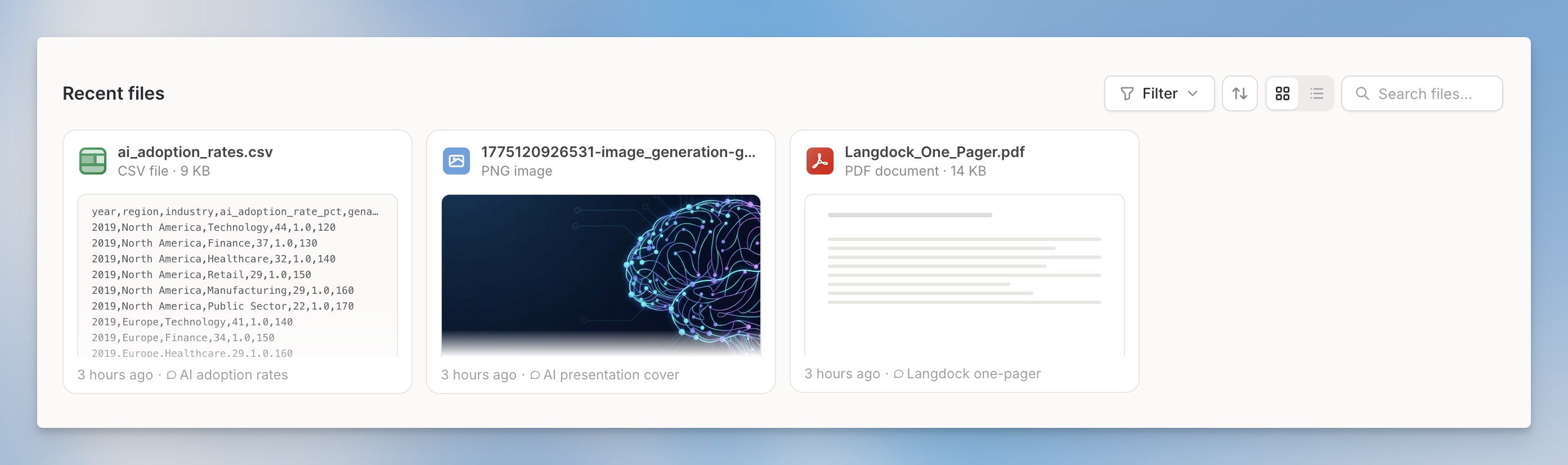
Recent Files shows files you create, upload, or import in Langdock. Documents, spreadsheets, presentations, files uploaded to chats or the Library, and files imported from connected integrations all appear here.
 ## What appears in Recent Files
Recent Files shows files based on their origin:
| Origin | What it includes |
| ------------- | -------------------------------------------------------- |
| **Generated** | Documents and presentations created by Langdock in chat |
| **Uploaded** | Files uploaded directly to a conversation or the Library |
| **Imported** | Files pulled in from connected integrations |
Files stored in Folders and workflow-only files are not shown here.
Recent Files follows your workspace's chat data retention settings. When a chat is deleted, only files associated with that chat are removed from Recent Files.
## Grid and list view
Toggle between grid view (thumbnails) and list view (rows with details) using the view switcher in the top-right corner of the Recent Files section. Your preference is saved automatically.
## Filtering
Use the filter controls to narrow down files:
* **File type**: Documents, Presentations, or PDFs
* **Date**: Filter by creation date range
* **Origin**: Uploaded, Generated, or Imported
## File actions
Each file has a set of actions available from its context menu or action bar:
| Action | Description |
| -------------- | -------------------------------------------------------------------- |
| Preview | Open a preview of the file |
| Download | Download the file; generated documents offer Word, PDF, and Markdown |
| Jump to chat | Open the original chat when the file came from a chat |
| Start chat | Open a new chat with this file attached |
| Move to folder | Move the file into a Folder |
| Delete | Remove the file permanently |
## File preview
Files can be previewed in these ways:
**Inline thumbnail.** Visible directly on each file card in grid view. Hover over a multi-page file to scrub through its pages.
**Side panel.** Click a file to open a resizable side panel preview without leaving the Library.
**Full-screen.** Open the full-screen view for a larger preview. Multi-page files (documents, presentations) show a slide thumbnail strip for quick navigation. Presentations also support a presenter mode.
**Spreadsheet preview.** Open spreadsheets with sheet tabs, zoom, column resizing, and formula inspection.
## Batch actions
Select multiple files to enable batch actions in one of these ways:
* **Shift + click** to select a range of files
* In list view, hover over the list and click the checkbox in the header to select every file in the current view
Once files are selected, a bar appears at the bottom with options to:
* **Download** all selected files
* **Move to folder**: moves all selected files into a Folder at once
* **Delete** all selected files
Selecting all respects your active filters, so you can narrow the list by file type, date, or origin first and then apply a batch action to exactly that set.
## Moving files to a Folder
From any file's context menu, select **Move to folder** and choose the destination Folder. You can also drag files onto a Folder or Knowledge base, or do this in bulk using batch selection.
Once moved, the file is accessible within that Folder and can be used for AI search via @mentions in chat.
## What appears in Recent Files
Recent Files shows files based on their origin:
| Origin | What it includes |
| ------------- | -------------------------------------------------------- |
| **Generated** | Documents and presentations created by Langdock in chat |
| **Uploaded** | Files uploaded directly to a conversation or the Library |
| **Imported** | Files pulled in from connected integrations |
Files stored in Folders and workflow-only files are not shown here.
Recent Files follows your workspace's chat data retention settings. When a chat is deleted, only files associated with that chat are removed from Recent Files.
## Grid and list view
Toggle between grid view (thumbnails) and list view (rows with details) using the view switcher in the top-right corner of the Recent Files section. Your preference is saved automatically.
## Filtering
Use the filter controls to narrow down files:
* **File type**: Documents, Presentations, or PDFs
* **Date**: Filter by creation date range
* **Origin**: Uploaded, Generated, or Imported
## File actions
Each file has a set of actions available from its context menu or action bar:
| Action | Description |
| -------------- | -------------------------------------------------------------------- |
| Preview | Open a preview of the file |
| Download | Download the file; generated documents offer Word, PDF, and Markdown |
| Jump to chat | Open the original chat when the file came from a chat |
| Start chat | Open a new chat with this file attached |
| Move to folder | Move the file into a Folder |
| Delete | Remove the file permanently |
## File preview
Files can be previewed in these ways:
**Inline thumbnail.** Visible directly on each file card in grid view. Hover over a multi-page file to scrub through its pages.
**Side panel.** Click a file to open a resizable side panel preview without leaving the Library.
**Full-screen.** Open the full-screen view for a larger preview. Multi-page files (documents, presentations) show a slide thumbnail strip for quick navigation. Presentations also support a presenter mode.
**Spreadsheet preview.** Open spreadsheets with sheet tabs, zoom, column resizing, and formula inspection.
## Batch actions
Select multiple files to enable batch actions in one of these ways:
* **Shift + click** to select a range of files
* In list view, hover over the list and click the checkbox in the header to select every file in the current view
Once files are selected, a bar appears at the bottom with options to:
* **Download** all selected files
* **Move to folder**: moves all selected files into a Folder at once
* **Delete** all selected files
Selecting all respects your active filters, so you can narrow the list by file type, date, or origin first and then apply a batch action to exactly that set.
## Moving files to a Folder
From any file's context menu, select **Move to folder** and choose the destination Folder. You can also drag files onto a Folder or Knowledge base, or do this in bulk using batch selection.
Once moved, the file is accessible within that Folder and can be used for AI search via @mentions in chat.