> ## Documentation Index
> Fetch the complete documentation index at: https://docs.langdock.com/llms.txt
> Use this file to discover all available pages before exploring further.
# Knowledge bases
> Create searchable document collections for chat, Agents, Workflows, and the Knowledge Folder API.
 Knowledge bases help you find specific information across larger document collections. Instead of opening every file in chat, add your reference material once and use the Knowledge base when you need the model to search for the most relevant sections.
Use Knowledge bases for policies, handbooks, product documentation, support articles, manuals, and other reference material. Use [Folders](/en/using-langdock/library/folders) when you want to work directly with files, compare them, update them, or save generated files back.
Knowledge bases were previously called Knowledge Folders. The Knowledge Folder API keeps its existing endpoint names.
## Search a Knowledge base from chat
Knowledge bases are most useful when you need an answer from a large set of reference documents. Select a Knowledge base in chat, then ask the model to find the information you need.
For example, you can ask Langdock to:
* Find the parental leave policy in an employee handbook
* Compare onboarding guidance across several internal documents
* Answer a support question from product documentation
* Find the right security policy for a customer questionnaire
Start a new chat or open an existing one.
Knowledge bases help you find specific information across larger document collections. Instead of opening every file in chat, add your reference material once and use the Knowledge base when you need the model to search for the most relevant sections.
Use Knowledge bases for policies, handbooks, product documentation, support articles, manuals, and other reference material. Use [Folders](/en/using-langdock/library/folders) when you want to work directly with files, compare them, update them, or save generated files back.
Knowledge bases were previously called Knowledge Folders. The Knowledge Folder API keeps its existing endpoint names.
## Search a Knowledge base from chat
Knowledge bases are most useful when you need an answer from a large set of reference documents. Select a Knowledge base in chat, then ask the model to find the information you need.
For example, you can ask Langdock to:
* Find the parental leave policy in an employee handbook
* Compare onboarding guidance across several internal documents
* Answer a support question from product documentation
* Find the right security policy for a customer questionnaire
Start a new chat or open an existing one.
 Type `@`, search for the Knowledge base, and select it from the list.
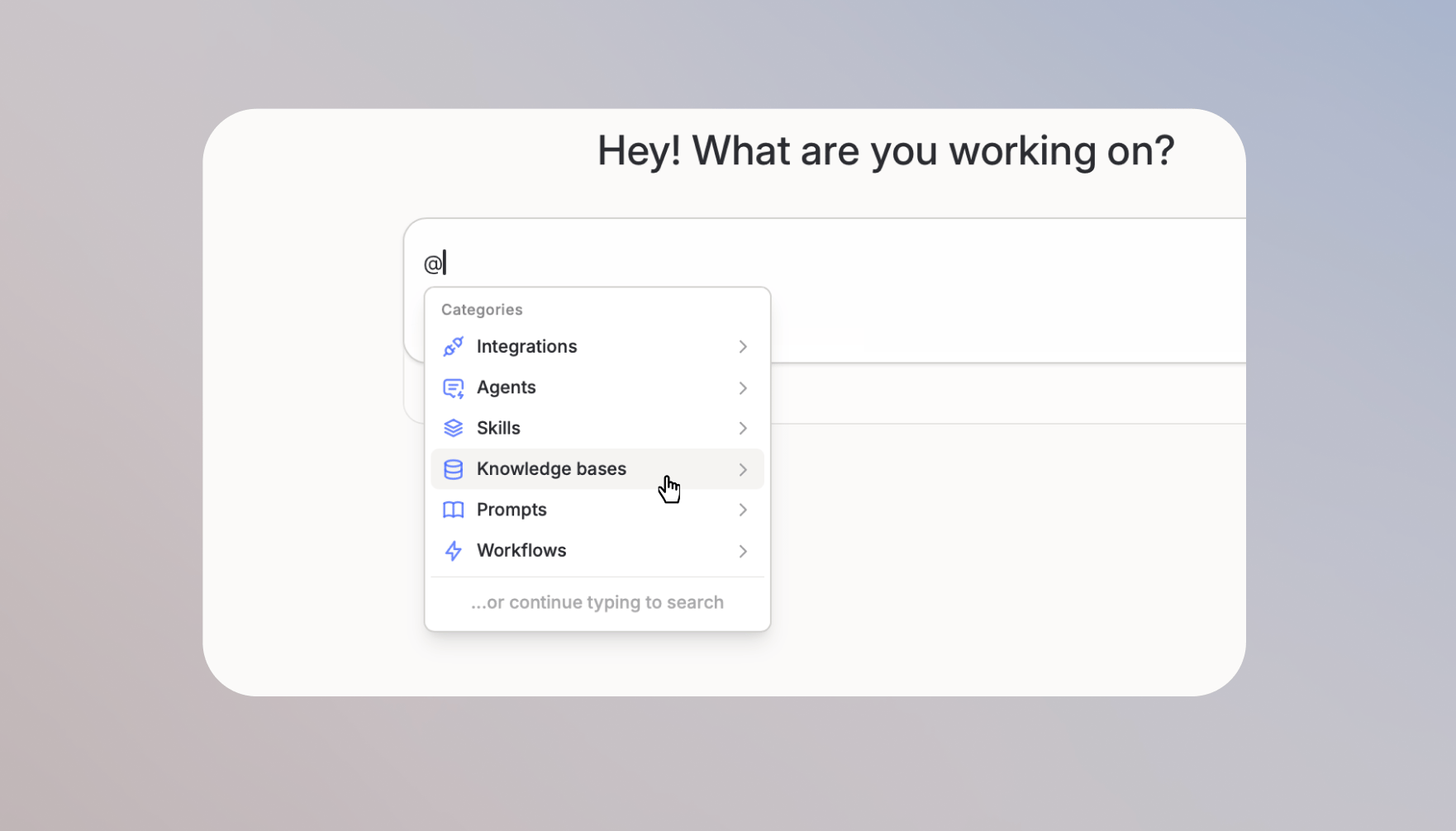 For example, ask the model to find the parental leave policy in the employee handbook. The model searches the Knowledge base for relevant sections and answers from those sources.
When you use a Knowledge base in chat, Langdock searches for relevant sections from your documents. It does not send every document to the model.
## Create a Knowledge base and add documents
You can create Knowledge bases from the [Library](/en/using-langdock/library/introduction). Open the Library from the left sidebar, find the Folders section, click the arrow next to **Create folder**, and select **Knowledge base**.
For example, ask the model to find the parental leave policy in the employee handbook. The model searches the Knowledge base for relevant sections and answers from those sources.
When you use a Knowledge base in chat, Langdock searches for relevant sections from your documents. It does not send every document to the model.
## Create a Knowledge base and add documents
You can create Knowledge bases from the [Library](/en/using-langdock/library/introduction). Open the Library from the left sidebar, find the Folders section, click the arrow next to **Create folder**, and select **Knowledge base**.
 After you create a Knowledge base, upload documents from your computer or use the Knowledge Folder API for automated uploads. Knowledge bases are built for text-based reference material that should be searched later.
1. Open your Knowledge base
2. Click **Upload files** or drag documents into the Knowledge base
3. Wait until the files finish processing
Use the Knowledge Folder API when you need to upload, update, delete, retrieve, or search files programmatically. For write operations, the API key itself needs the Editor role on the Knowledge base. The Viewer role covers search and retrieval.
See the [Knowledge Folder API reference](/en/developer/knowledge-folder-api/sharing) for authentication, rate limits, and endpoint details.
Knowledge bases accept supported text-based formats such as PDF, DOCX, TXT, Markdown, and presentations. They do not accept tabular files, images, or audio.
Knowledge bases can contain up to **1,000 files**. Each file can contain up to **8 million characters**.
## Share search access with the right people
You can share Knowledge bases with individuals, groups, or your entire workspace. Use Viewer access when someone should search documents, and Editor access when they should also add, remove, or manage documents.
| Permission | Owner | Editor | Viewer |
| --------------------------------- | ----- | ------ | ------ |
| View Knowledge base and documents | ✓ | ✓ | ✓ |
| Search documents in chat | ✓ | ✓ | ✓ |
| Use in Agents | ✓ | ✓ | ✓ |
| Add documents | ✓ | ✓ | |
| Remove documents | ✓ | ✓ | |
| Share with others | ✓ | ✓ | |
| Delete Knowledge base | ✓ | | |
| Transfer ownership | ✓ | | |
Workspace admins have full control over all Knowledge bases.
## Convert a Knowledge base to a folder
If you started with a Knowledge base but want to work with the files directly instead of searching them, you can convert it to a regular [folder](/en/using-langdock/library/folders). Files and sharing access move to the new folder, and the original Knowledge base is removed.
Convert a Knowledge base when you want to:
* Open files in chat, compare them, or edit them
* Save generated files back to the same location
* Add spreadsheets, images, or other file types that Knowledge bases don't accept
In the [Library](/en/using-langdock/library/introduction), open the Knowledge base you want to convert. You need Editor or Owner access.
Open the more actions menu and select **Convert to folder**.
Review the confirmation dialog, then confirm. The files and existing sharing access move to a new folder, and the Knowledge base is removed.
Folders have lower limits than Knowledge bases: up to **100 files** and **250 MB** total. If your Knowledge base has more files, remove some before converting.
You can't convert a Knowledge base that's still connected through API access, Assistants, chats, or Automations. Remove those connections first, then try again.
## Choosing the right setup
Knowledge bases work best when you need to search across many documents. Use the options below when you want to work directly with files or give an Agent access to the same reference material.
### Use a Folder to work with files
Use a [Folder](/en/using-langdock/library/folders) when you want to open files in chat, compare them, update them, or save generated files back. Folders are better for active work with a smaller set of files.
Use a Knowledge base when you want to search a larger collection for the right answer.
### Add a Knowledge base to an Agent for search
Add a Knowledge base to an [Agent](/en/using-langdock/agents/configuration) when the Agent should search the same reference material while answering. This is useful for HR policies, product documentation, compliance documents, and support knowledge.
## FAQ
Check that you have at least Viewer access, then type more of the Knowledge base name to narrow the results.
Check that your documents finished processing, then rephrase your question with more specific terms. Verify that the information exists in the uploaded documents.
Knowledge bases accept supported text-based formats such as PDF, DOCX, TXT, Markdown, and presentations. Use a [Folder](/en/using-langdock/library/folders) when you need to work with spreadsheets, images, audio, or generated files.
Use a Knowledge base for information that should be reused across chats, agents, workflows, or API usage. It is best for larger or longer-lived document collections where Langdock should search relevant sections instead of sending every file in full each time.
Uploaded Knowledge base content is available after processing. Synced content depends on the sync source and refresh process, so newly added or changed files may not be searchable immediately. If recent content is missing, check processing or sync status before assuming the model ignored the file.
Files may not be searchable if the format is unsupported, the file failed processing, the content cannot be extracted reliably, or the source permissions prevent access. Spreadsheets and tabular data are not supported by Knowledge bases and should be used directly in chat instead.
After you create a Knowledge base, upload documents from your computer or use the Knowledge Folder API for automated uploads. Knowledge bases are built for text-based reference material that should be searched later.
1. Open your Knowledge base
2. Click **Upload files** or drag documents into the Knowledge base
3. Wait until the files finish processing
Use the Knowledge Folder API when you need to upload, update, delete, retrieve, or search files programmatically. For write operations, the API key itself needs the Editor role on the Knowledge base. The Viewer role covers search and retrieval.
See the [Knowledge Folder API reference](/en/developer/knowledge-folder-api/sharing) for authentication, rate limits, and endpoint details.
Knowledge bases accept supported text-based formats such as PDF, DOCX, TXT, Markdown, and presentations. They do not accept tabular files, images, or audio.
Knowledge bases can contain up to **1,000 files**. Each file can contain up to **8 million characters**.
## Share search access with the right people
You can share Knowledge bases with individuals, groups, or your entire workspace. Use Viewer access when someone should search documents, and Editor access when they should also add, remove, or manage documents.
| Permission | Owner | Editor | Viewer |
| --------------------------------- | ----- | ------ | ------ |
| View Knowledge base and documents | ✓ | ✓ | ✓ |
| Search documents in chat | ✓ | ✓ | ✓ |
| Use in Agents | ✓ | ✓ | ✓ |
| Add documents | ✓ | ✓ | |
| Remove documents | ✓ | ✓ | |
| Share with others | ✓ | ✓ | |
| Delete Knowledge base | ✓ | | |
| Transfer ownership | ✓ | | |
Workspace admins have full control over all Knowledge bases.
## Convert a Knowledge base to a folder
If you started with a Knowledge base but want to work with the files directly instead of searching them, you can convert it to a regular [folder](/en/using-langdock/library/folders). Files and sharing access move to the new folder, and the original Knowledge base is removed.
Convert a Knowledge base when you want to:
* Open files in chat, compare them, or edit them
* Save generated files back to the same location
* Add spreadsheets, images, or other file types that Knowledge bases don't accept
In the [Library](/en/using-langdock/library/introduction), open the Knowledge base you want to convert. You need Editor or Owner access.
Open the more actions menu and select **Convert to folder**.
Review the confirmation dialog, then confirm. The files and existing sharing access move to a new folder, and the Knowledge base is removed.
Folders have lower limits than Knowledge bases: up to **100 files** and **250 MB** total. If your Knowledge base has more files, remove some before converting.
You can't convert a Knowledge base that's still connected through API access, Assistants, chats, or Automations. Remove those connections first, then try again.
## Choosing the right setup
Knowledge bases work best when you need to search across many documents. Use the options below when you want to work directly with files or give an Agent access to the same reference material.
### Use a Folder to work with files
Use a [Folder](/en/using-langdock/library/folders) when you want to open files in chat, compare them, update them, or save generated files back. Folders are better for active work with a smaller set of files.
Use a Knowledge base when you want to search a larger collection for the right answer.
### Add a Knowledge base to an Agent for search
Add a Knowledge base to an [Agent](/en/using-langdock/agents/configuration) when the Agent should search the same reference material while answering. This is useful for HR policies, product documentation, compliance documents, and support knowledge.
## FAQ
Check that you have at least Viewer access, then type more of the Knowledge base name to narrow the results.
Check that your documents finished processing, then rephrase your question with more specific terms. Verify that the information exists in the uploaded documents.
Knowledge bases accept supported text-based formats such as PDF, DOCX, TXT, Markdown, and presentations. Use a [Folder](/en/using-langdock/library/folders) when you need to work with spreadsheets, images, audio, or generated files.
Use a Knowledge base for information that should be reused across chats, agents, workflows, or API usage. It is best for larger or longer-lived document collections where Langdock should search relevant sections instead of sending every file in full each time.
Uploaded Knowledge base content is available after processing. Synced content depends on the sync source and refresh process, so newly added or changed files may not be searchable immediately. If recent content is missing, check processing or sync status before assuming the model ignored the file.
Files may not be searchable if the format is unsupported, the file failed processing, the content cannot be extracted reliably, or the source permissions prevent access. Spreadsheets and tabular data are not supported by Knowledge bases and should be used directly in chat instead.