> ## Documentation Index
> Fetch the complete documentation index at: https://docs.langdock.com/llms.txt
> Use this file to discover all available pages before exploring further.
# Introduction to Library
> The Library brings functionality related to files into one place: create new files, manage Folders and Knowledge bases, and access every file you've generated or uploaded.
The Library is your central hub for working with files in Langdock. It replaces scattered file access across individual chats and gives you one place to create, find, and organize everything. Whether you're starting a new document from scratch, reusing a team template, browsing files from past conversations, working in Folders, or managing Knowledge bases, it all lives here.
## The four sections
### Create New File
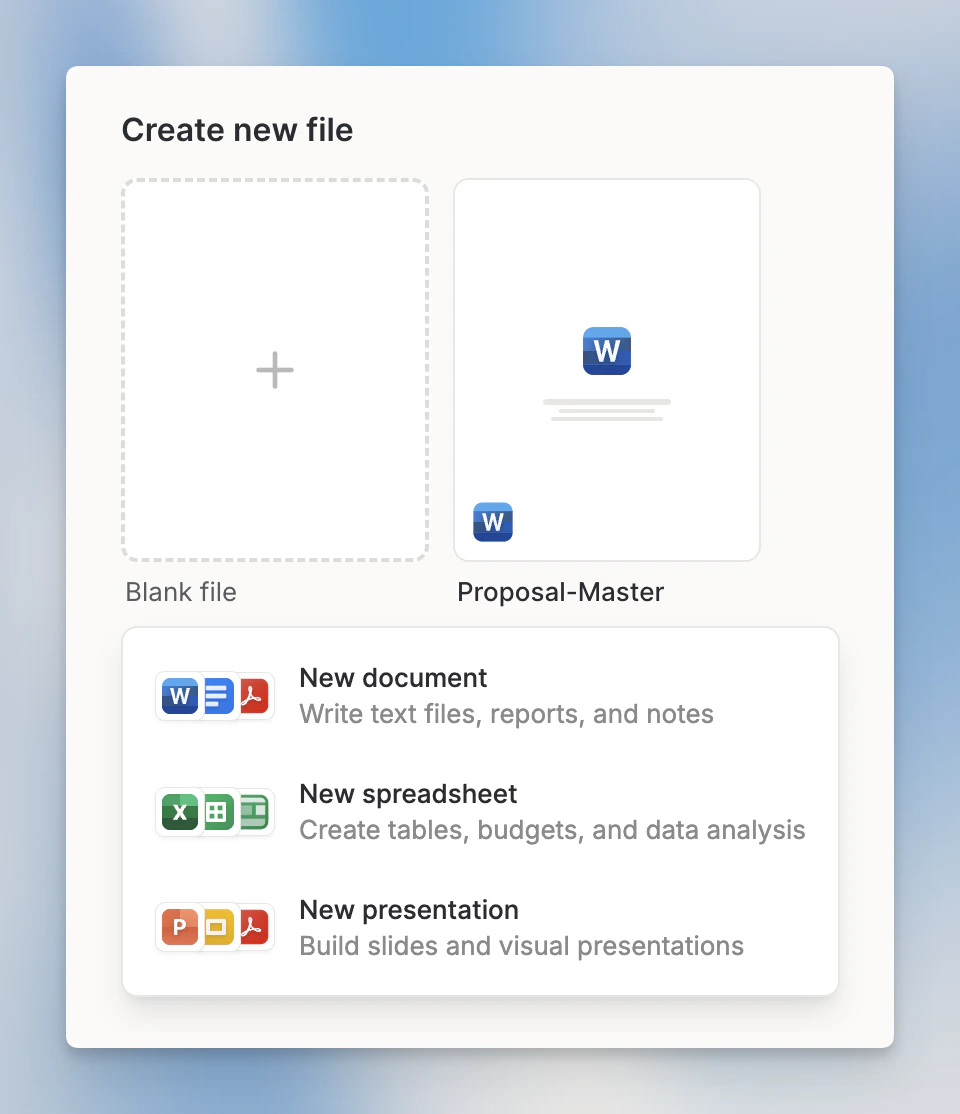
Start a new document, spreadsheet, or presentation directly from the Library. Clicking Document, Spreadsheet, or Presentation opens a new chat with the corresponding mode pre-selected.
If your workspace has templates enabled, you'll also see a horizontal row of recently used templates here. Click **All templates** to open the full template gallery.
Templates are only available when Skills are enabled in your workspace. See [File Templates](/en/using-langdock/library/file-templates) for details.
### Folders
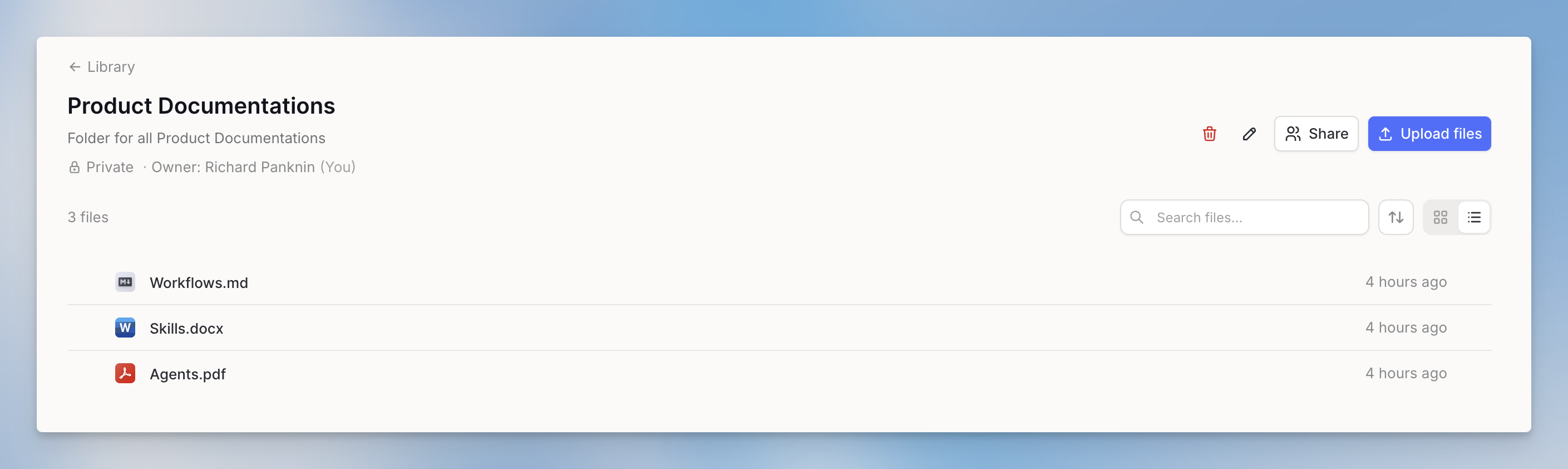
Folders are for active file work with AI in chat. Create a folder, add files, share access, then select it from chat with **Work in a folder**. The AI can use the folder files as context and save generated files back to the folder when you have edit access. Use the search field in the Folders section to filter folders and Knowledge bases by name as you type.
See [Folders](/en/using-langdock/library/folders) for details on creating, sharing, and using Folders in chat.
### Knowledge bases
Knowledge bases are searchable document collections for chat, Agents, Workflows, and the Knowledge Folder API. Use them for larger reference sets where the AI should find relevant sections through semantic search.
See [Knowledge bases](/en/using-langdock/library/knowledge-bases) for details on creating, sharing, and searching Knowledge bases.
### Recent Files
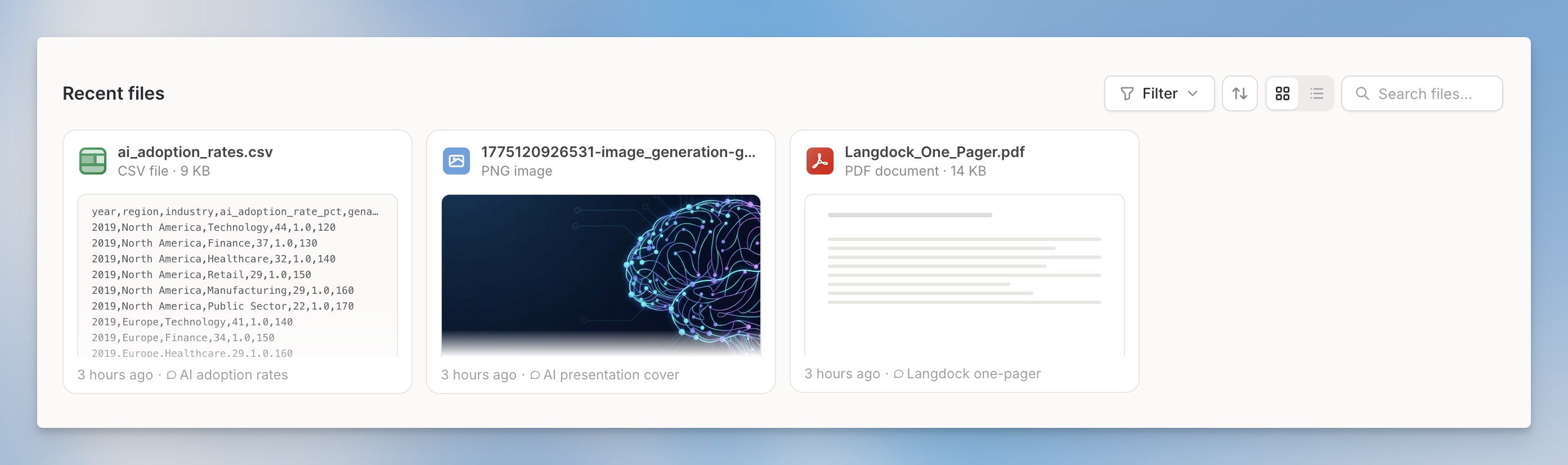
Files you create, upload, or import in Langdock appear here: documents, spreadsheets, presentations, files uploaded to chats or the Library, files imported from integrations, and files generated in Langdock.
Recent Files follows your workspace's chat data retention settings. When a chat is deleted, only files associated with that chat are removed from Recent Files.
See [Recent Files](/en/using-langdock/library/recent-files) for details on browsing, previewing, and managing your files.
## Getting to the Library
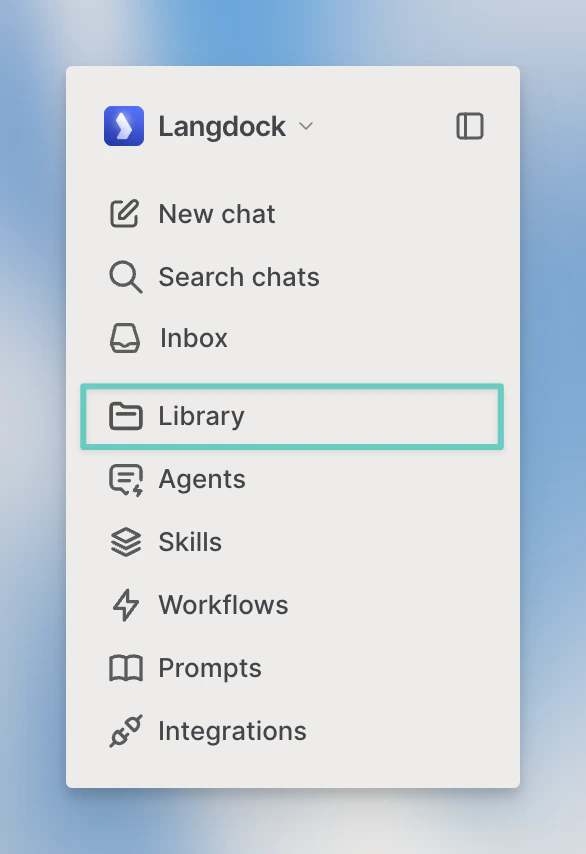
Click **Library** in the left sidebar to open it.
## FAQ
Use the Library to find and manage files, folders, templates, and Knowledge bases in Langdock. It is the place to organize reusable file-related assets instead of searching through individual chats.
A chat attachment is tied to the current conversation. Library items are easier to find, reuse, organize, and share depending on permissions and file type.
 See [Folders](/en/using-langdock/library/folders) for details on creating, sharing, and using Folders in chat.
### Knowledge bases
Knowledge bases are searchable document collections for chat, Agents, Workflows, and the Knowledge Folder API. Use them for larger reference sets where the AI should find relevant sections through semantic search.
See [Folders](/en/using-langdock/library/folders) for details on creating, sharing, and using Folders in chat.
### Knowledge bases
Knowledge bases are searchable document collections for chat, Agents, Workflows, and the Knowledge Folder API. Use them for larger reference sets where the AI should find relevant sections through semantic search.
 See [Knowledge bases](/en/using-langdock/library/knowledge-bases) for details on creating, sharing, and searching Knowledge bases.
### Recent Files
Files you create, upload, or import in Langdock appear here: documents, spreadsheets, presentations, files uploaded to chats or the Library, files imported from integrations, and files generated in Langdock.
See [Knowledge bases](/en/using-langdock/library/knowledge-bases) for details on creating, sharing, and searching Knowledge bases.
### Recent Files
Files you create, upload, or import in Langdock appear here: documents, spreadsheets, presentations, files uploaded to chats or the Library, files imported from integrations, and files generated in Langdock.