> ## Documentation Index
> Fetch the complete documentation index at: https://docs.langdock.com/llms.txt
> Use this file to discover all available pages before exploring further.
# Folders
> Create shared folders for files you want to work on with AI in chat.
 Instead of attaching the same files to every chat, create a folder once, add the files you need, and open it from chat with **Work in a folder**. The model can read the files in the folder, help you compare or update them, and save generated files back when you have edit access.
Use Folders for active work: preparing a report with source material, reviewing a set of spreadsheets, collecting files for a project, or creating deliverables with your team. Use [Knowledge bases](/en/using-langdock/library/knowledge-bases) when you want semantic search across a larger document collection.
## Work in a folder from chat
Folders are most useful when the same set of files belongs to an ongoing task. Select a folder in chat, then ask the model to work with the files inside it.
For example, you can ask Langdock to:
* Prepare a weekly meeting from the agenda, project updates, feedback, and previous notes
* Summarize a spreadsheet and draft follow-up notes
* Create a presentation from files in the folder
* Update a document and save the result back to the folder
Start a new chat or open an existing one.
Instead of attaching the same files to every chat, create a folder once, add the files you need, and open it from chat with **Work in a folder**. The model can read the files in the folder, help you compare or update them, and save generated files back when you have edit access.
Use Folders for active work: preparing a report with source material, reviewing a set of spreadsheets, collecting files for a project, or creating deliverables with your team. Use [Knowledge bases](/en/using-langdock/library/knowledge-bases) when you want semantic search across a larger document collection.
## Work in a folder from chat
Folders are most useful when the same set of files belongs to an ongoing task. Select a folder in chat, then ask the model to work with the files inside it.
For example, you can ask Langdock to:
* Prepare a weekly meeting from the agenda, project updates, feedback, and previous notes
* Summarize a spreadsheet and draft follow-up notes
* Create a presentation from files in the folder
* Update a document and save the result back to the folder
Start a new chat or open an existing one.
 Click **Work in a folder** and select the folder you want to use.
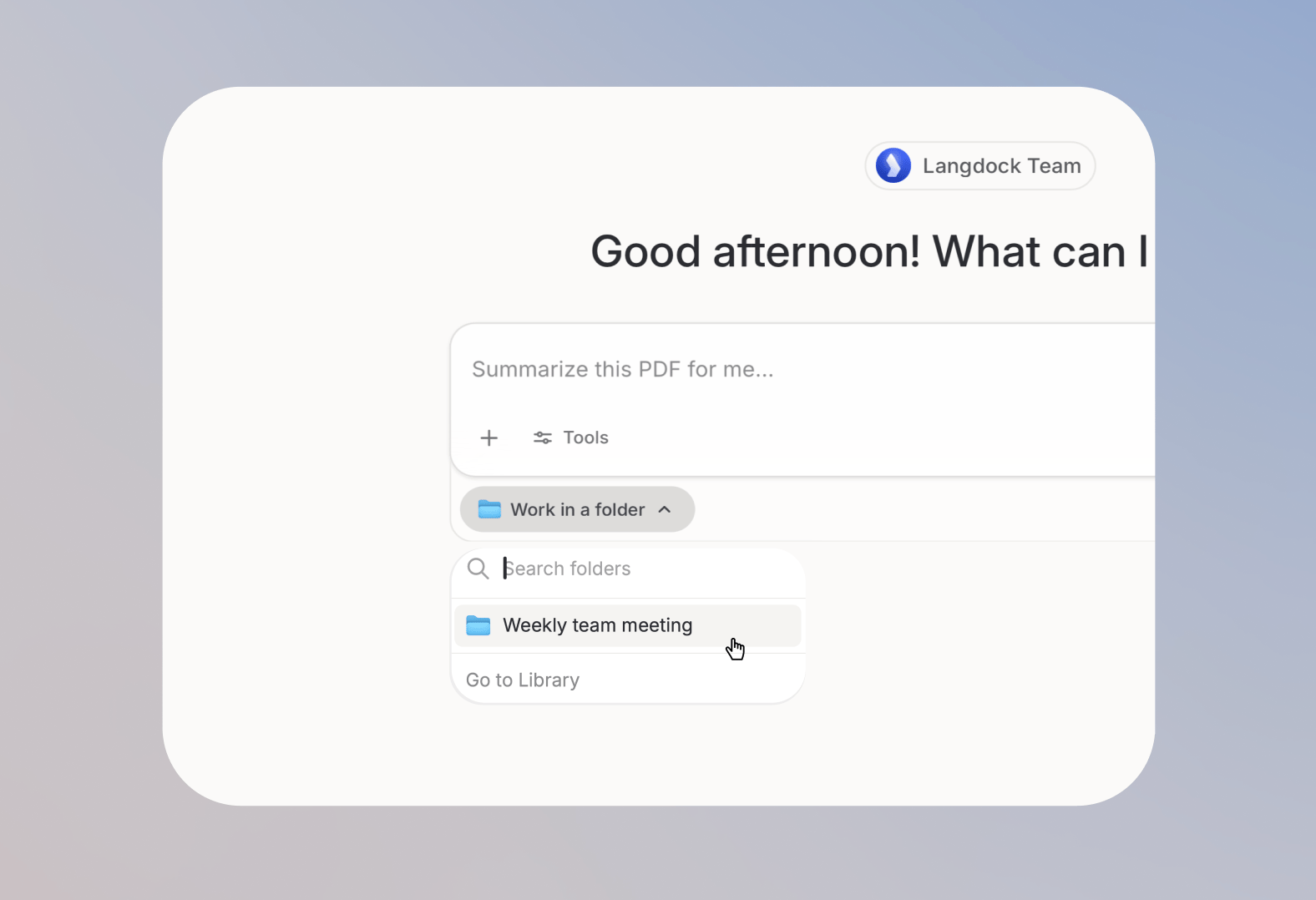 For example, ask the model to use the agenda, project updates, customer feedback, and previous notes to prepare the weekly team meeting. The model can summarize the files, list open questions, and draft follow-up tasks.
Any files in the selected folder are available to the chat. If you are an Editor or Owner of a folder, files generated in the chat can also be saved back to the folder.
## Create a folder and add files
You can create Folders from the [Library](/en/using-langdock/library/introduction). Open the Library from the left sidebar, find the Folders section, and click **Create folder**. To find an existing folder, use the search field next to **Create folder**. It filters the list by name as you type.
For example, ask the model to use the agenda, project updates, customer feedback, and previous notes to prepare the weekly team meeting. The model can summarize the files, list open questions, and draft follow-up tasks.
Any files in the selected folder are available to the chat. If you are an Editor or Owner of a folder, files generated in the chat can also be saved back to the folder.
## Create a folder and add files
You can create Folders from the [Library](/en/using-langdock/library/introduction). Open the Library from the left sidebar, find the Folders section, and click **Create folder**. To find an existing folder, use the search field next to **Create folder**. It filters the list by name as you type.
 After you create a folder, add files from your computer or move files from [Recent Files](/en/using-langdock/library/recent-files). Folders are built for files you actively work with in Langdock, including documents, spreadsheets, presentations, images, and generated files. The model can visually analyze images in a folder, for example to describe a screenshot or read a diagram.
1. Open your folder
2. Click **Upload files** or drag files into the folder
3. Wait until the files finish uploading
1. Open [Recent Files](/en/using-langdock/library/recent-files)
2. Open the file menu
3. Click **Move to folder**
4. Choose the destination folder
Folders can contain up to **100 files** and **250 MB** total.
## Share work with the right people
You can share folders with individuals, groups, or your entire workspace. Use Viewer access when someone should use files as context, and Editor access when they should also add, remove, or save files to your folder.
| Permission | Owner | Editor | Viewer |
| -------------------------- | ----- | ------ | ------ |
| View folder and files | ✓ | ✓ | ✓ |
| Use files in chat | ✓ | ✓ | ✓ |
| Edit file contents | ✓ | ✓ | |
| Add files | ✓ | ✓ | |
| Remove files | ✓ | ✓ | |
| Move files into the folder | ✓ | ✓ | |
| Share with others | ✓ | ✓ | |
| Delete folder | ✓ | | |
| Transfer ownership | ✓ | | |
Workspace admins have full control over all Folders. When a Folder is linked to a [Project](/en/using-langdock/chat/projects), the Project controls who can access the Folder. Such Folders cannot be shared separately.
## Choosing the right setup
Folders work best when you are actively working with a set of files. Use the options below when you want to collaborate on those files, give an Agent reference material, or search across a larger document collection.
### Use a Project to collaborate on files
Use a [Project](/en/using-langdock/chat/projects) when several people should work with the same folder together. Everyone in the Project can use the project files as shared context in chat, and people with edit access can add files or save generated files back to the project folder.
You link a folder from the project itself with **Work in a folder**, either selecting an existing folder or creating a new one.
Removing a folder from a project does not delete the folder or its files. You can still find them in the Library.
You can only attach a Folder to a Project when you are the Owner of both. After the Folder is linked, Project permissions control access to the folder.
Use a Library Folder when the files should stay independent from a Project and be reused across different chats.
### Attach a Folder to an Agent for reference
Attach a Folder to an Agent when it should read from the same set of files while answering. You manage the Folder, and the Agent uses the files as context for questions, project work, or recurring tasks. It cannot change files or save generated files back to the Folder.
### Use a Knowledge base for search
Use a [Knowledge base](/en/using-langdock/library/knowledge-bases) when you need to find specific information across many documents. The model searches the Knowledge base for the most relevant sections and uses them as reference.
Use a Folder when you want to work with files directly. Use a Knowledge base when you want to search a larger collection for the right answer.
## FAQ
Check that you have Editor or Owner access. Viewers can use folder files as context, but cannot save generated files there.
Files open as read-only documents when you have Viewer access. Ask the folder Owner or an Editor for edit access.
Folders can contain up to 100 files and 250 MB total. Remove files or choose another folder before adding more.
Check that you have at least Viewer access to the folder. If the folder still does not appear, check the folder name and confirm that it still exists in the Library.
Check whether the file type is supported and whether the folder has reached the 100 files or 250 MB limit. See [Supported file types](/en/using-langdock/troubleshooting/faq/supported-file-types) for the full list.
Use a [Knowledge base](/en/using-langdock/library/knowledge-bases) instead. Knowledge bases are built for semantic search across larger document collections.
Use folders to organize files you want to work with in Langdock, especially when several files belong to the same project or team workflow. Use Knowledge bases when the files should become a reusable searchable source for AI answers.
No. Folders help organize files in the Library. Knowledge bases are designed for retrieval, so Langdock can search relevant content and use it in chats, agents, workflows, or API usage.
After you create a folder, add files from your computer or move files from [Recent Files](/en/using-langdock/library/recent-files). Folders are built for files you actively work with in Langdock, including documents, spreadsheets, presentations, images, and generated files. The model can visually analyze images in a folder, for example to describe a screenshot or read a diagram.
1. Open your folder
2. Click **Upload files** or drag files into the folder
3. Wait until the files finish uploading
1. Open [Recent Files](/en/using-langdock/library/recent-files)
2. Open the file menu
3. Click **Move to folder**
4. Choose the destination folder
Folders can contain up to **100 files** and **250 MB** total.
## Share work with the right people
You can share folders with individuals, groups, or your entire workspace. Use Viewer access when someone should use files as context, and Editor access when they should also add, remove, or save files to your folder.
| Permission | Owner | Editor | Viewer |
| -------------------------- | ----- | ------ | ------ |
| View folder and files | ✓ | ✓ | ✓ |
| Use files in chat | ✓ | ✓ | ✓ |
| Edit file contents | ✓ | ✓ | |
| Add files | ✓ | ✓ | |
| Remove files | ✓ | ✓ | |
| Move files into the folder | ✓ | ✓ | |
| Share with others | ✓ | ✓ | |
| Delete folder | ✓ | | |
| Transfer ownership | ✓ | | |
Workspace admins have full control over all Folders. When a Folder is linked to a [Project](/en/using-langdock/chat/projects), the Project controls who can access the Folder. Such Folders cannot be shared separately.
## Choosing the right setup
Folders work best when you are actively working with a set of files. Use the options below when you want to collaborate on those files, give an Agent reference material, or search across a larger document collection.
### Use a Project to collaborate on files
Use a [Project](/en/using-langdock/chat/projects) when several people should work with the same folder together. Everyone in the Project can use the project files as shared context in chat, and people with edit access can add files or save generated files back to the project folder.
You link a folder from the project itself with **Work in a folder**, either selecting an existing folder or creating a new one.
Removing a folder from a project does not delete the folder or its files. You can still find them in the Library.
You can only attach a Folder to a Project when you are the Owner of both. After the Folder is linked, Project permissions control access to the folder.
Use a Library Folder when the files should stay independent from a Project and be reused across different chats.
### Attach a Folder to an Agent for reference
Attach a Folder to an Agent when it should read from the same set of files while answering. You manage the Folder, and the Agent uses the files as context for questions, project work, or recurring tasks. It cannot change files or save generated files back to the Folder.
### Use a Knowledge base for search
Use a [Knowledge base](/en/using-langdock/library/knowledge-bases) when you need to find specific information across many documents. The model searches the Knowledge base for the most relevant sections and uses them as reference.
Use a Folder when you want to work with files directly. Use a Knowledge base when you want to search a larger collection for the right answer.
## FAQ
Check that you have Editor or Owner access. Viewers can use folder files as context, but cannot save generated files there.
Files open as read-only documents when you have Viewer access. Ask the folder Owner or an Editor for edit access.
Folders can contain up to 100 files and 250 MB total. Remove files or choose another folder before adding more.
Check that you have at least Viewer access to the folder. If the folder still does not appear, check the folder name and confirm that it still exists in the Library.
Check whether the file type is supported and whether the folder has reached the 100 files or 250 MB limit. See [Supported file types](/en/using-langdock/troubleshooting/faq/supported-file-types) for the full list.
Use a [Knowledge base](/en/using-langdock/library/knowledge-bases) instead. Knowledge bases are built for semantic search across larger document collections.
Use folders to organize files you want to work with in Langdock, especially when several files belong to the same project or team workflow. Use Knowledge bases when the files should become a reusable searchable source for AI answers.
No. Folders help organize files in the Library. Knowledge bases are designed for retrieval, so Langdock can search relevant content and use it in chats, agents, workflows, or API usage.