> ## Documentation Index
> Fetch the complete documentation index at: https://docs.langdock.com/llms.txt
> Use this file to discover all available pages before exploring further.
# File Templates
> Upload documents and presentations as reusable templates. Anyone in your workspace can then use them to generate new files in the same format and style.
File templates let you save existing documents or slide decks and reuse them as the starting point for new AI-generated files. When you start a new document or presentation in chat, you can pick a template. Langdock will generate the new file matching its format and style.
## Supported formats
Templates can be uploaded in the following formats:
| File type | Extensions |
| ------------- | ------------------------ |
| Presentations | `.pptx`, `.ppt`, `.potx` |
| Documents | `.docx`, `.dotx` |
| PDFs | `.pdf` |
Maximum file size: **100 MB**
## Browsing and using templates
### Opening the template gallery
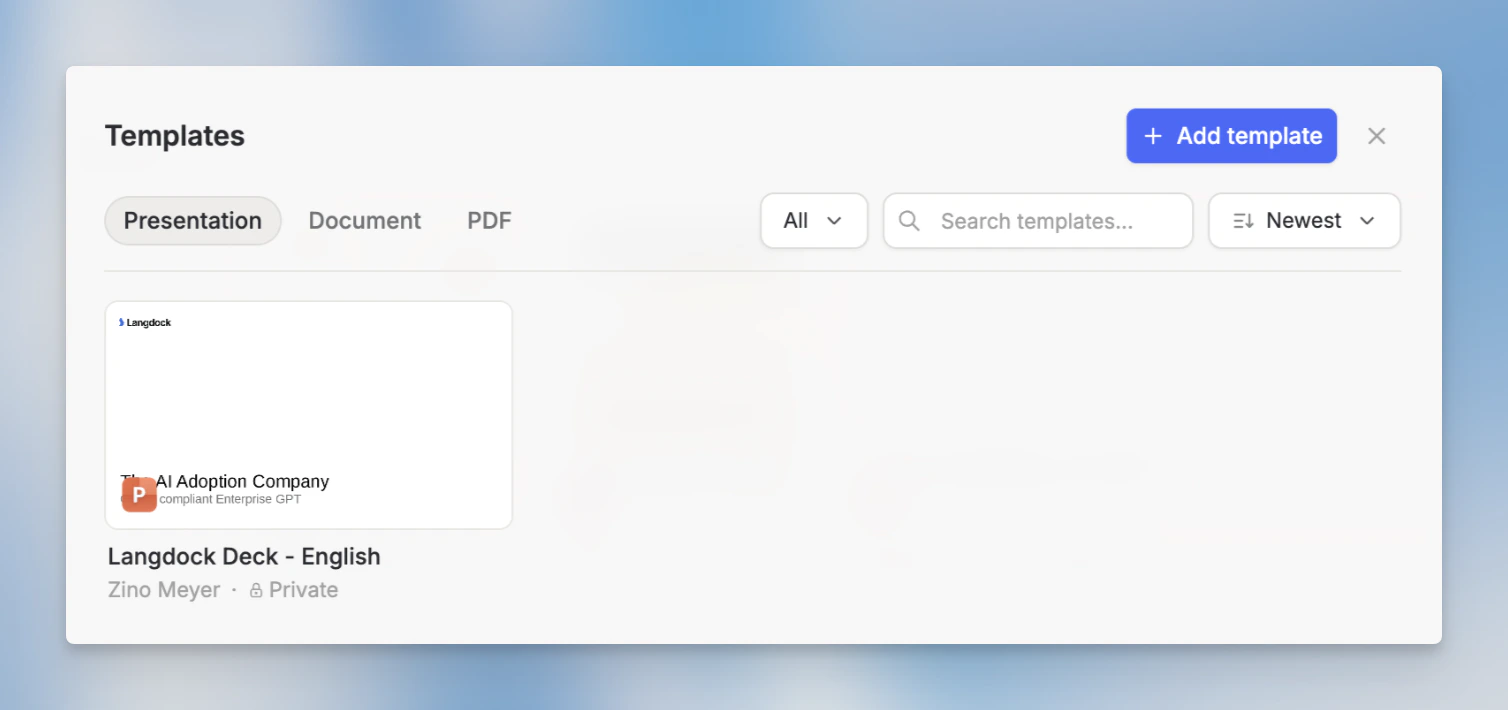
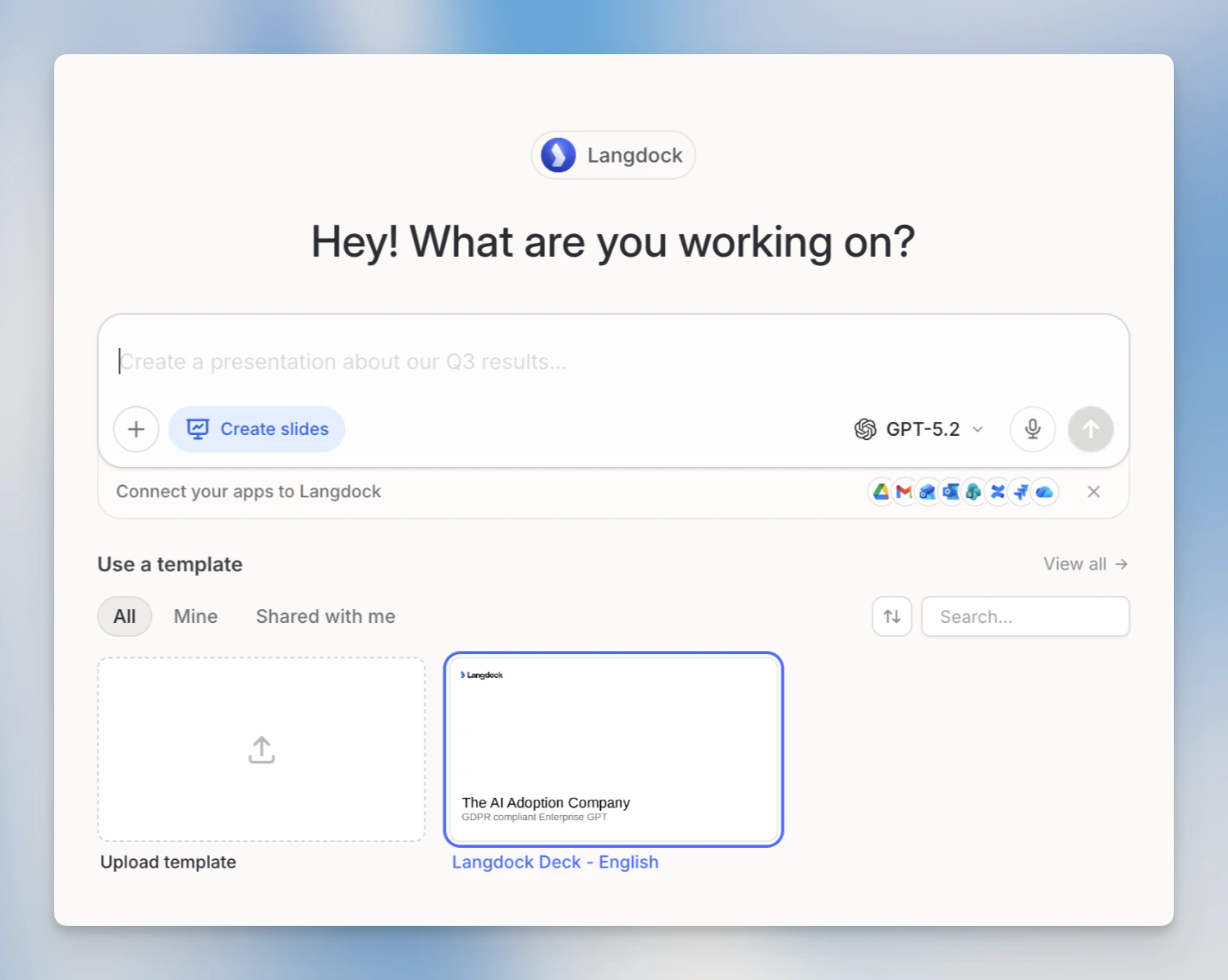
From the [Library](/en/using-langdock/library/introduction), click **All templates** in the Create New section to open the template gallery. You can also access templates directly when starting a new file in chat. Each mode (Document, Slides) shows a **Use a Template** section.
 ### Filtering and sorting
The gallery lets you narrow down templates by:
* **Type**: All types, Presentation, or Document
* **Ownership**: All templates, only yours, or shared with you
* **Sort**: Newest, A–Z, or most used
### Previewing a template
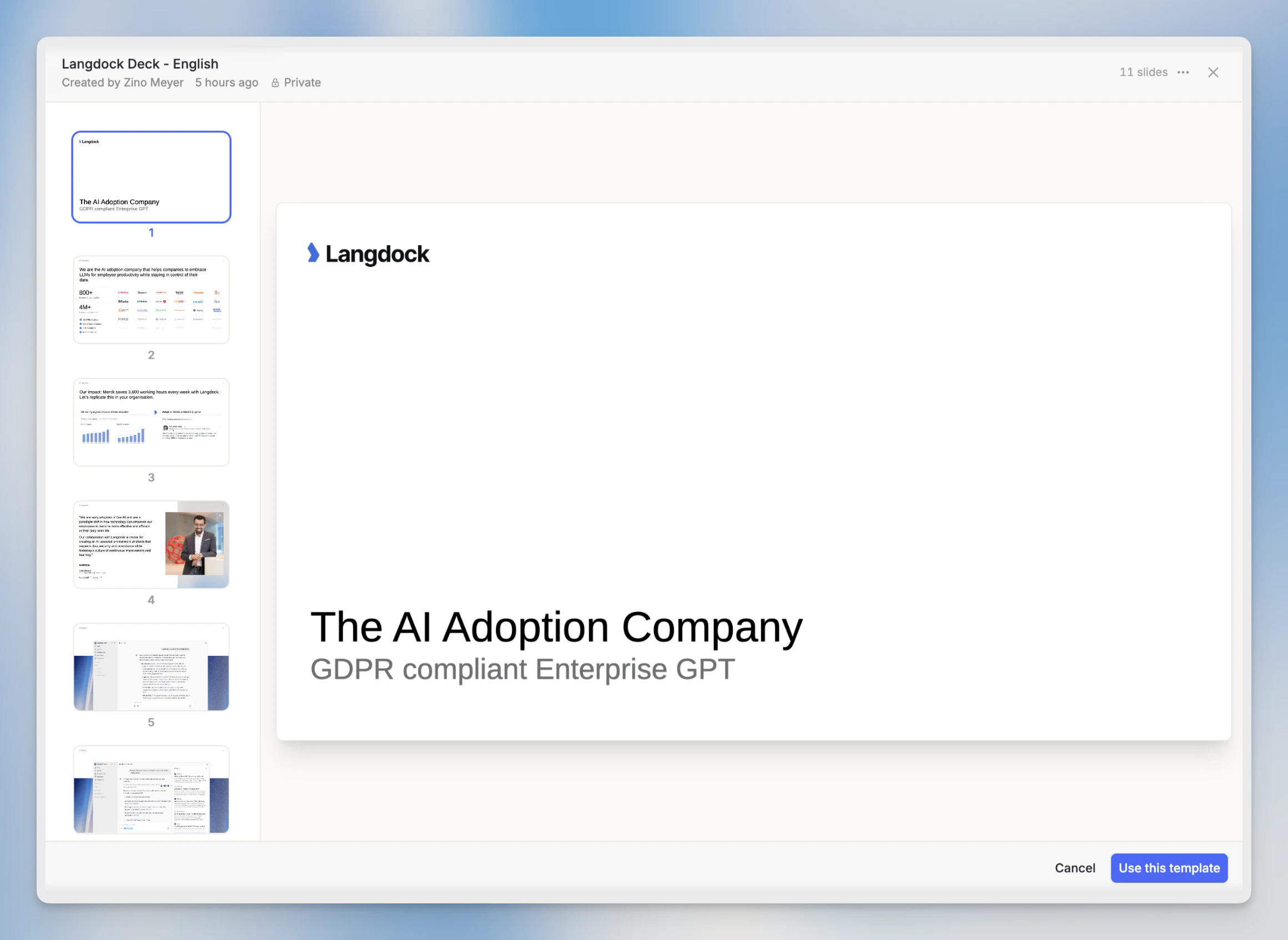
Click any template card to open a full-screen preview with a carousel of all pages. From the preview you can see the layout and content before committing to it.
### Filtering and sorting
The gallery lets you narrow down templates by:
* **Type**: All types, Presentation, or Document
* **Ownership**: All templates, only yours, or shared with you
* **Sort**: Newest, A–Z, or most used
### Previewing a template
Click any template card to open a full-screen preview with a carousel of all pages. From the preview you can see the layout and content before committing to it.
 ### Using a template
Click **Use Template** in the preview to open a new chat with the template already attached. Langdock will use the template's format and style when generating your file.
### Using a template
Click **Use Template** in the preview to open a new chat with the template already attached. Langdock will use the template's format and style when generating your file.
 ### Attaching a template to an agent
You can also attach file templates to an agent so it always generates files in that format. In the agent editor, go to the **Actions** section, click **Add action**, and pick the template from the **File Templates** tab. To remove it, click the **X** on its card in the Actions section.
Alternatively, ask in the Agent Builder chat: *"Attach the quarterly report template to this agent"* or *"Remove the pitch deck template"*. The builder searches templates you have access to, attaches matching ones, and shows the change inline.
## Uploading a template
In the Library, click **All templates** to open the gallery, then click the **+** button (Add template). You can also drag and drop a file directly onto the gallery dialog.
You have two ways to provide the file:
* **From your computer**: select a file directly. Supported formats: `.pptx`, `.ppt`, `.potx`, `.docx`, `.dotx`, `.pdf` (max 100 MB).
* **From a connected integration**: import from Google Drive, OneDrive, or another connected source using the integration picker in the upload dialog.
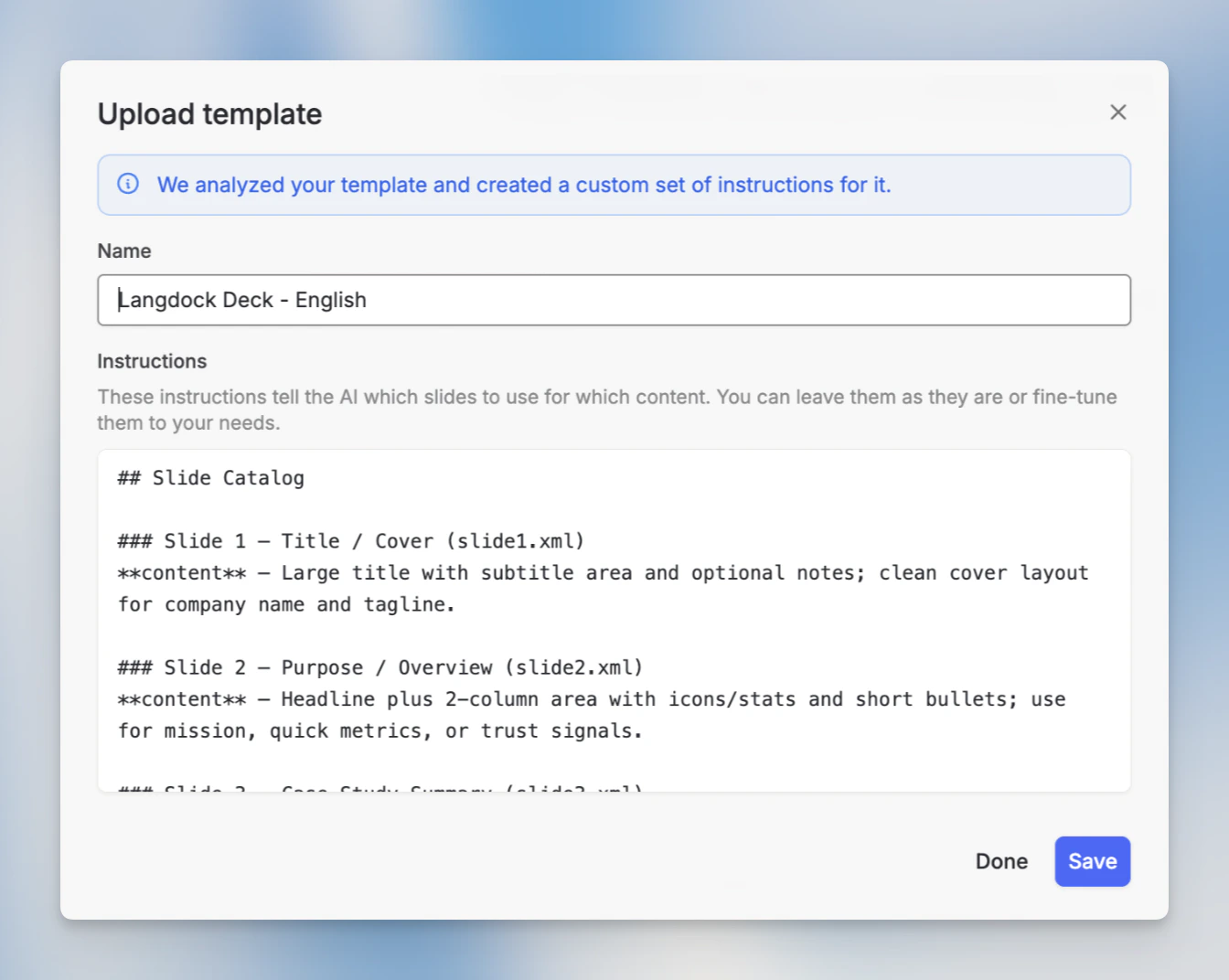
Langdock analyzes the file to extract a suggested name and description. This takes a moment. You'll see a progress indicator while it runs.
Check the extracted name and instructions, edit them if needed, and click **Save**. The template is now available in the gallery for you and anyone you share it with.
### Attaching a template to an agent
You can also attach file templates to an agent so it always generates files in that format. In the agent editor, go to the **Actions** section, click **Add action**, and pick the template from the **File Templates** tab. To remove it, click the **X** on its card in the Actions section.
Alternatively, ask in the Agent Builder chat: *"Attach the quarterly report template to this agent"* or *"Remove the pitch deck template"*. The builder searches templates you have access to, attaches matching ones, and shows the change inline.
## Uploading a template
In the Library, click **All templates** to open the gallery, then click the **+** button (Add template). You can also drag and drop a file directly onto the gallery dialog.
You have two ways to provide the file:
* **From your computer**: select a file directly. Supported formats: `.pptx`, `.ppt`, `.potx`, `.docx`, `.dotx`, `.pdf` (max 100 MB).
* **From a connected integration**: import from Google Drive, OneDrive, or another connected source using the integration picker in the upload dialog.
Langdock analyzes the file to extract a suggested name and description. This takes a moment. You'll see a progress indicator while it runs.
Check the extracted name and instructions, edit them if needed, and click **Save**. The template is now available in the gallery for you and anyone you share it with.
 ## Managing templates
Each template card has a context menu with the following actions:
| Action | What it does |
| -------- | ----------------------------------------- |
| Edit | Change the template name and instructions |
| Share | Share with specific users or groups |
| Download | Download the original file |
| Delete | Remove the template permanently |
## Sharing templates
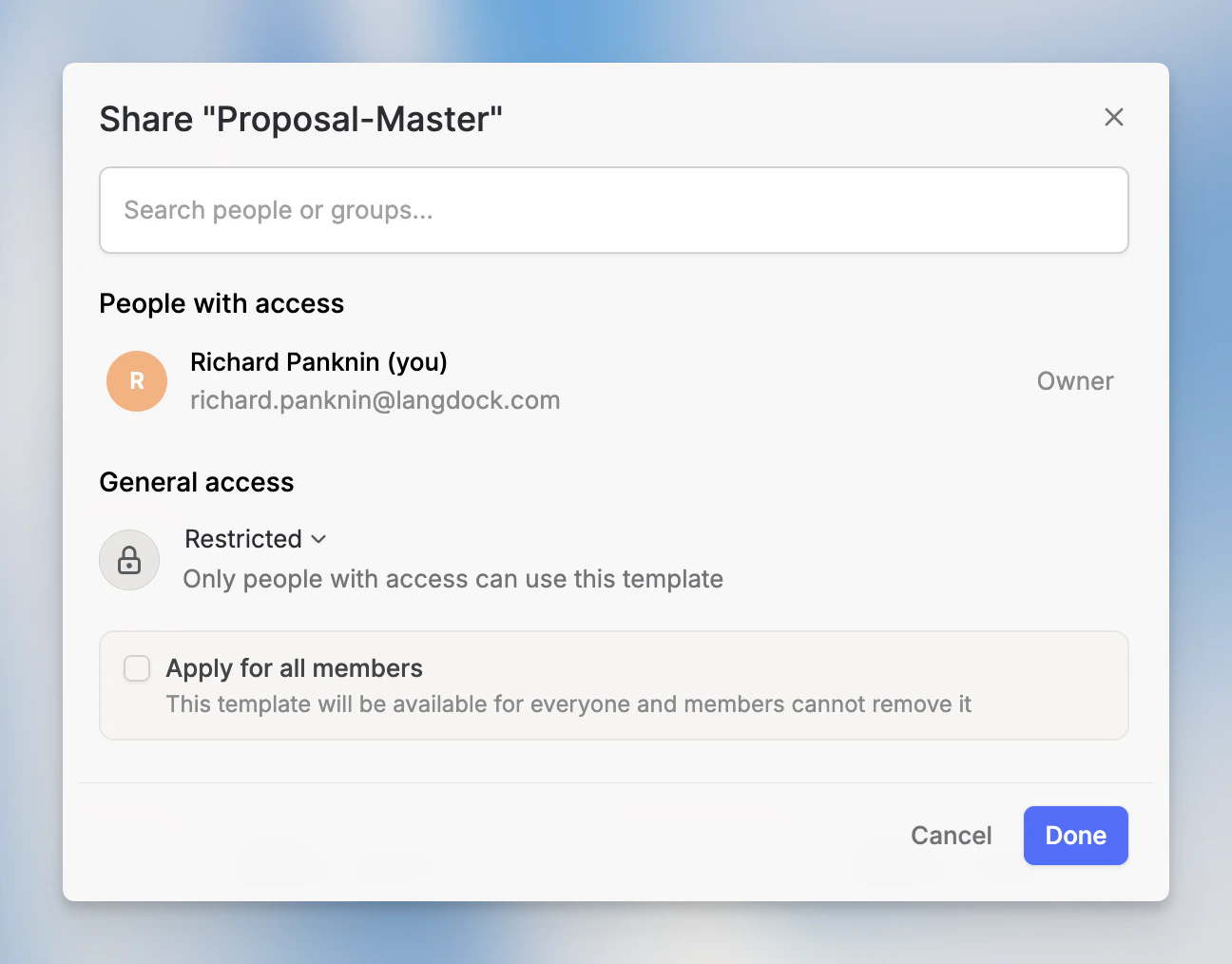
You can share a template with individual users or groups in your workspace. Open the share dialog from the template card's context menu, search for users or groups, and confirm.
Template sharing follows the same permission model as Skills. There are two permissions in workspace roles that control what users can do:
* **Share with users and groups**: Enabled for everyone by default. Any user can share a template with specific people or groups.
* **Promote to workspace**: Admin-only by default. Only admins can make a template available to the entire workspace.
You can adjust these defaults in [User Management → Roles](https://app.langdock.com/settings/workspace/user-management/roles).
## Admin: enabling templates
Templates are built on top of Skills and require Skills to be enabled in your workspace. When Skills are disabled, templates will not appear in the Library or in chat.
By default, any user can share a template with specific users or groups, but only admins can promote a template to the entire workspace. You can adjust both defaults under [User Management → Roles](https://app.langdock.com/settings/workspace/user-management/roles).
Go to **Settings → Workspace** to manage Skills availability for your workspace.
## FAQ
Templates work best when the structure is clear, reusable, and not overly dependent on fragile formatting. Use consistent headings, placeholders, and example content. Complex presentations or documents with strict brand layouts may require more testing and iteration.
Keep the template focused on the structure you want to preserve. Remove outdated content, use clear placeholder text, and include examples for sections that should be generated. If brand assets, fonts, or layout rules matter, include them directly in the template and describe the expected output in the prompt.
Generated files may differ when the model has to adapt content length, infer missing structure, or recreate formatting from ambiguous examples. More complex layouts, charts, tables, and presentations are more likely to need manual review or multiple iterations.
## Managing templates
Each template card has a context menu with the following actions:
| Action | What it does |
| -------- | ----------------------------------------- |
| Edit | Change the template name and instructions |
| Share | Share with specific users or groups |
| Download | Download the original file |
| Delete | Remove the template permanently |
## Sharing templates
You can share a template with individual users or groups in your workspace. Open the share dialog from the template card's context menu, search for users or groups, and confirm.
Template sharing follows the same permission model as Skills. There are two permissions in workspace roles that control what users can do:
* **Share with users and groups**: Enabled for everyone by default. Any user can share a template with specific people or groups.
* **Promote to workspace**: Admin-only by default. Only admins can make a template available to the entire workspace.
You can adjust these defaults in [User Management → Roles](https://app.langdock.com/settings/workspace/user-management/roles).
## Admin: enabling templates
Templates are built on top of Skills and require Skills to be enabled in your workspace. When Skills are disabled, templates will not appear in the Library or in chat.
By default, any user can share a template with specific users or groups, but only admins can promote a template to the entire workspace. You can adjust both defaults under [User Management → Roles](https://app.langdock.com/settings/workspace/user-management/roles).
Go to **Settings → Workspace** to manage Skills availability for your workspace.
## FAQ
Templates work best when the structure is clear, reusable, and not overly dependent on fragile formatting. Use consistent headings, placeholders, and example content. Complex presentations or documents with strict brand layouts may require more testing and iteration.
Keep the template focused on the structure you want to preserve. Remove outdated content, use clear placeholder text, and include examples for sections that should be generated. If brand assets, fonts, or layout rules matter, include them directly in the template and describe the expected output in the prompt.
Generated files may differ when the model has to adapt content length, infer missing structure, or recreate formatting from ambiguous examples. More complex layouts, charts, tables, and presentations are more likely to need manual review or multiple iterations.