> ## Documentation Index
> Fetch the complete documentation index at: https://docs.langdock.com/llms.txt
> Use this file to discover all available pages before exploring further.
# Building Presentation Templates
> Build a PowerPoint template that Langdock fills with new content, so every generated deck stays on brand without manual touch-up.
Langdock builds every presentation from your approved slide designs. It picks the example slides that fit the story and fills them with new content, while layout, fonts and colors stay as your brand team designed them. The better your template slides, the better your decks. Every slide type you want needs a filled-in example slide. Layouts without one are never used. Whether you're setting up a company template, cleaning up an old master, or checking one before upload, a few habits make the difference.
## Master basics
Set these once in the slide master. Every generated slide keeps them.
| Area | Recommendation | Why |
| - | - | - |
| Slide size | 16:9 | Matches screens and video calls |
| Theme colors | Define the full palette and use only theme colors | Off-palette colors spread to every deck |
| Fonts | Set heading and body fonts as theme fonts. Use fonts all users have, or embed them | Missing fonts change line breaks in previews |
| Font sizes | Body text 12 pt or more, diagram and chart labels 10 pt or more, nothing under 8 pt | The quality check flags smaller text |
| Contrast | Clear contrast on every slide | Low contrast is flagged |
| Margins | One consistent margin, every shape fully on the slide | Shapes off the edge are flagged |
| Master and layouts | Fixed elements only: logo, background, footer, brand shapes | They appear unchanged on every slide |
| Shape names | Name shapes by role in the **Selection Pane** | Names tell the AI what goes where |
## Recommended Template Structure
A general company template needs about 40 to 60 slides. That covers most stories and keeps each slide distinct, so the AI picks reliably.
The set below is a starting point, not a rule. Shape it around the presentations your company actually makes. Offer common slide types in the item counts people need. Langdock uses up to as many items as a slide shows.
### Opening and structure
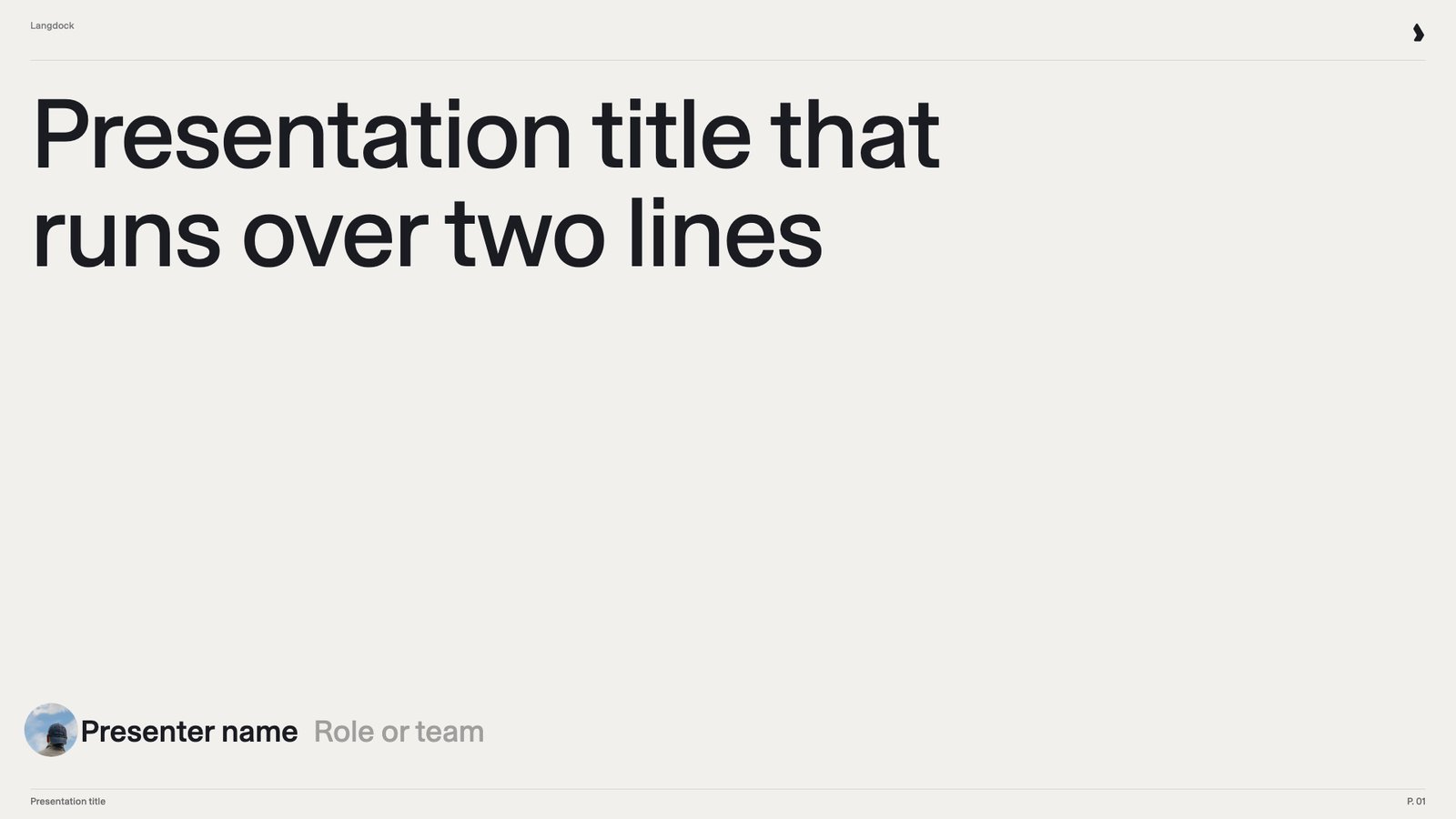 A quiet opening slide with a large two-line title and a presenter line at the bottom with avatar, name and role. It sets the topic and tells the audience who is speaking. Every deck starts here, so Langdock needs one title slide it can always rely on.
 The title slide with a brand photo filling the right half and the occasion, place and date at the bottom left. It gives customer workshops, events and external decks a stronger first impression. Offer it next to the plain title slide so Langdock can match the opening to the audience.
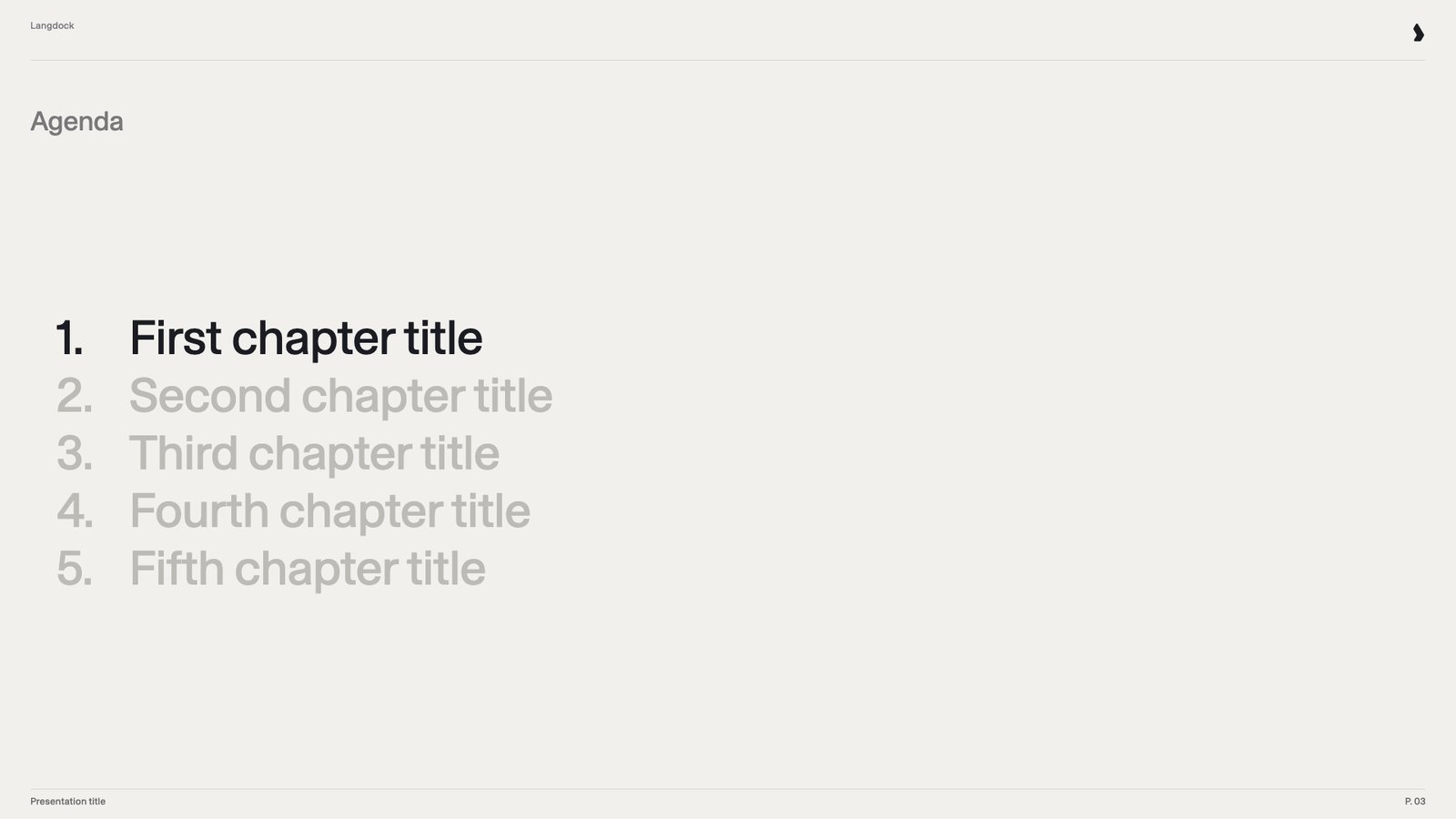 A numbered list of chapter titles, with the current chapter in ink and the others in gray. It shows the audience the path through the presentation and where they are. Langdock fills as many rows as the deck has chapters, up to the number on the slide.
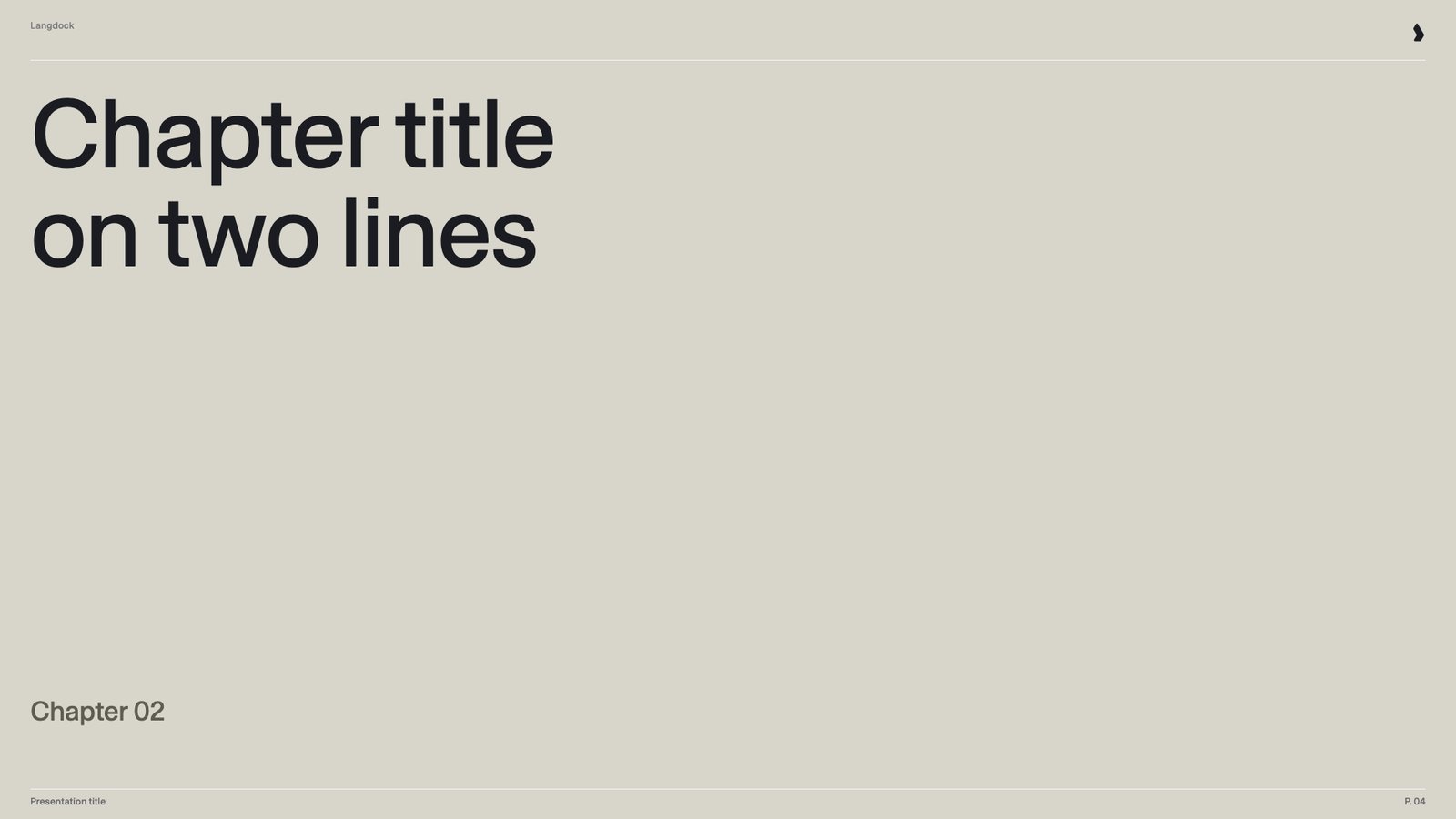 A full sand colored slide with the chapter title in large type and a small chapter number at the bottom. It marks the start of each part and gives the audience a pause. Langdock can place it before each chapter, so long decks stay easy to follow.
 A full-bleed brand photo behind a blurred glass panel, with the company logo in the center and no other text. It ends the deck calmly and leaves a lasting brand impression. A fixed closing slide means every deck ends on brand, while contact details go on the separate contact slide.
### Text
A full-bleed brand photo behind a blurred glass panel, with the company logo in the center and no other text. It ends the deck calmly and leaves a lasting brand impression. A fixed closing slide means every deck ends on brand, while contact details go on the separate contact slide.
### Text
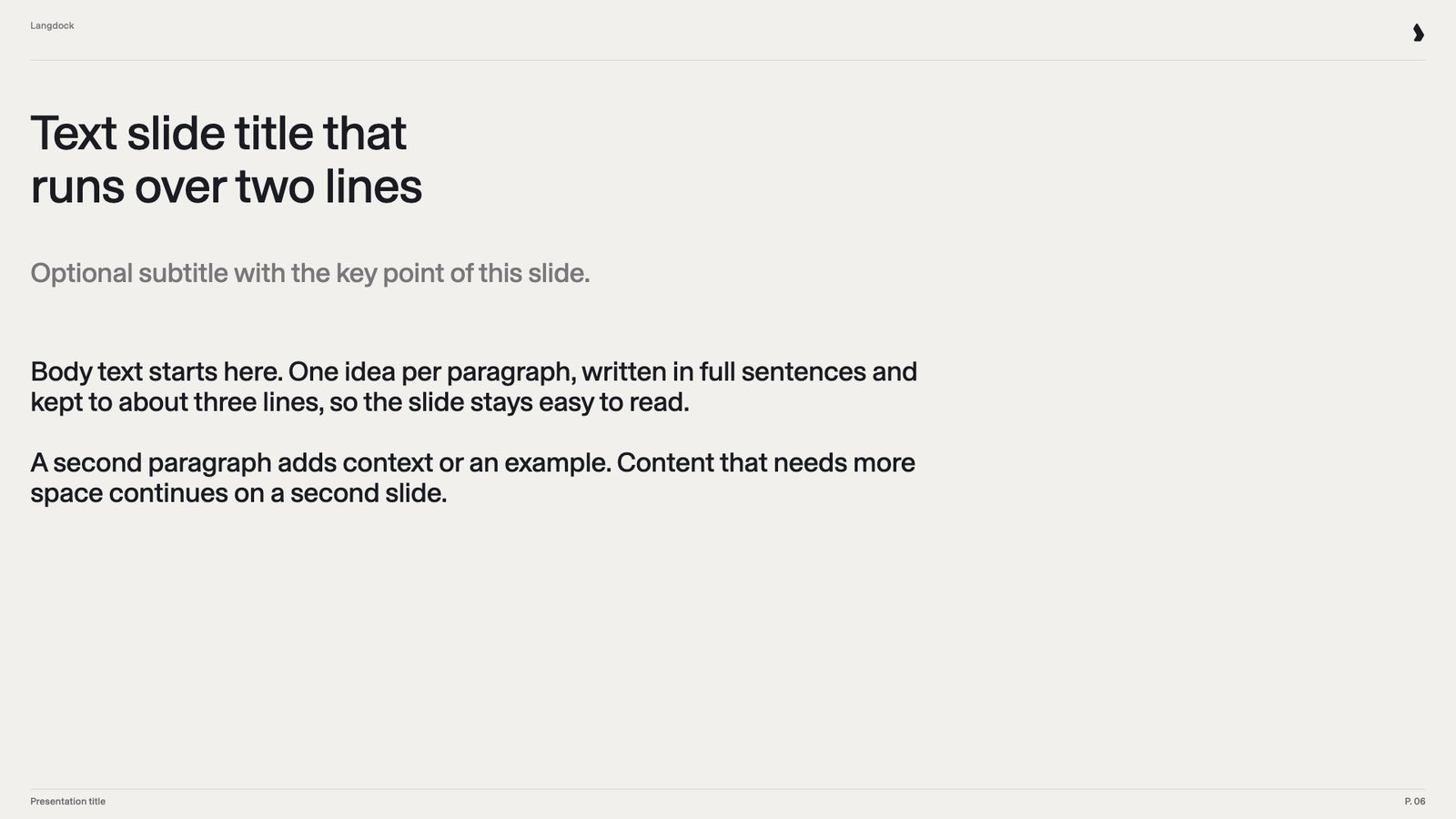 A two-line title, a gray subtitle and two short paragraphs of body text. It explains a topic in plain prose when no diagram fits. This is the most flexible slide in the template and the fallback for any content.
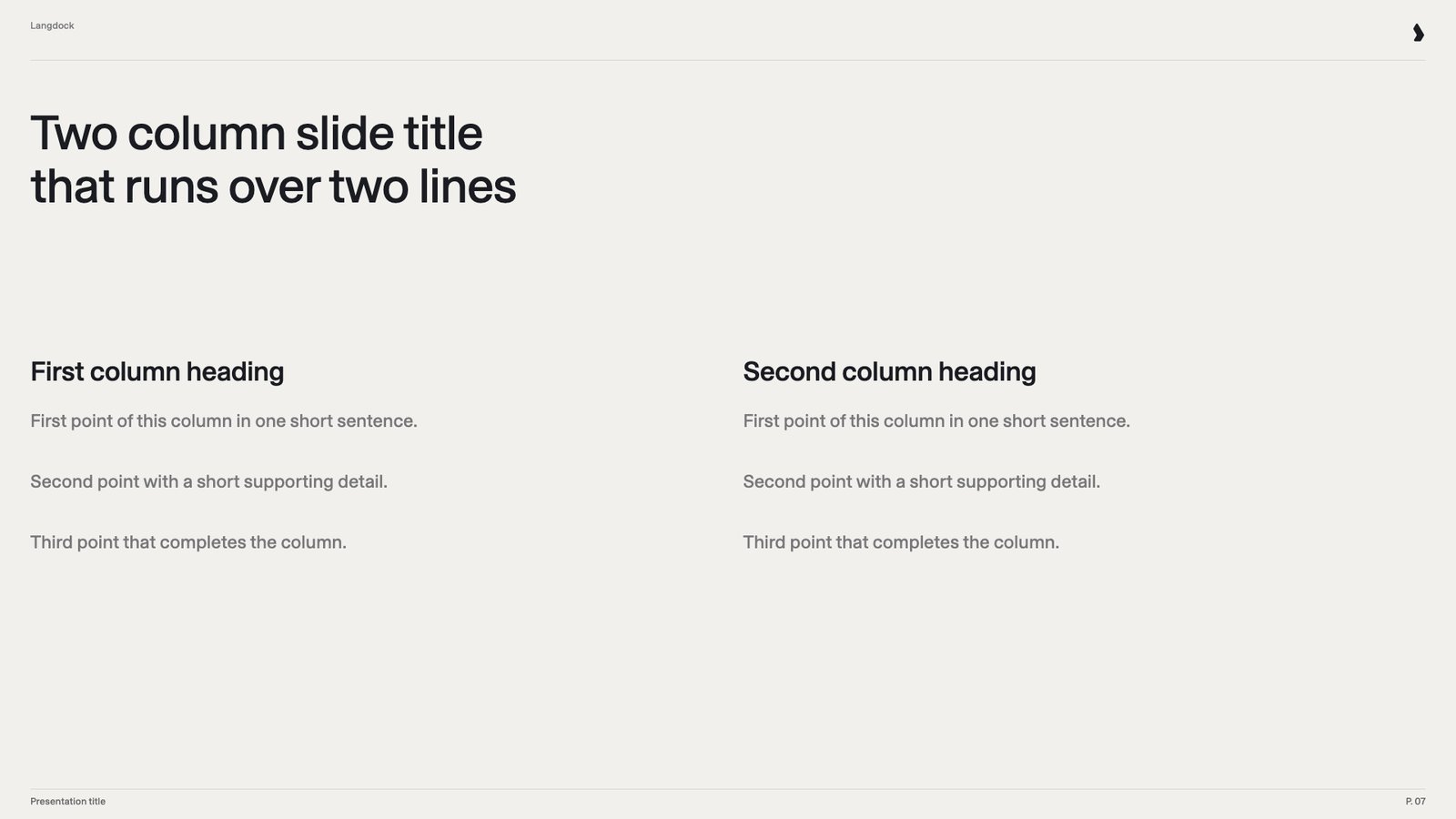 Two equal columns, each with a heading and three short points. It presents two related topics, such as what changes for two groups. It breaks up long text and makes the relationship between both sides visible at a glance.
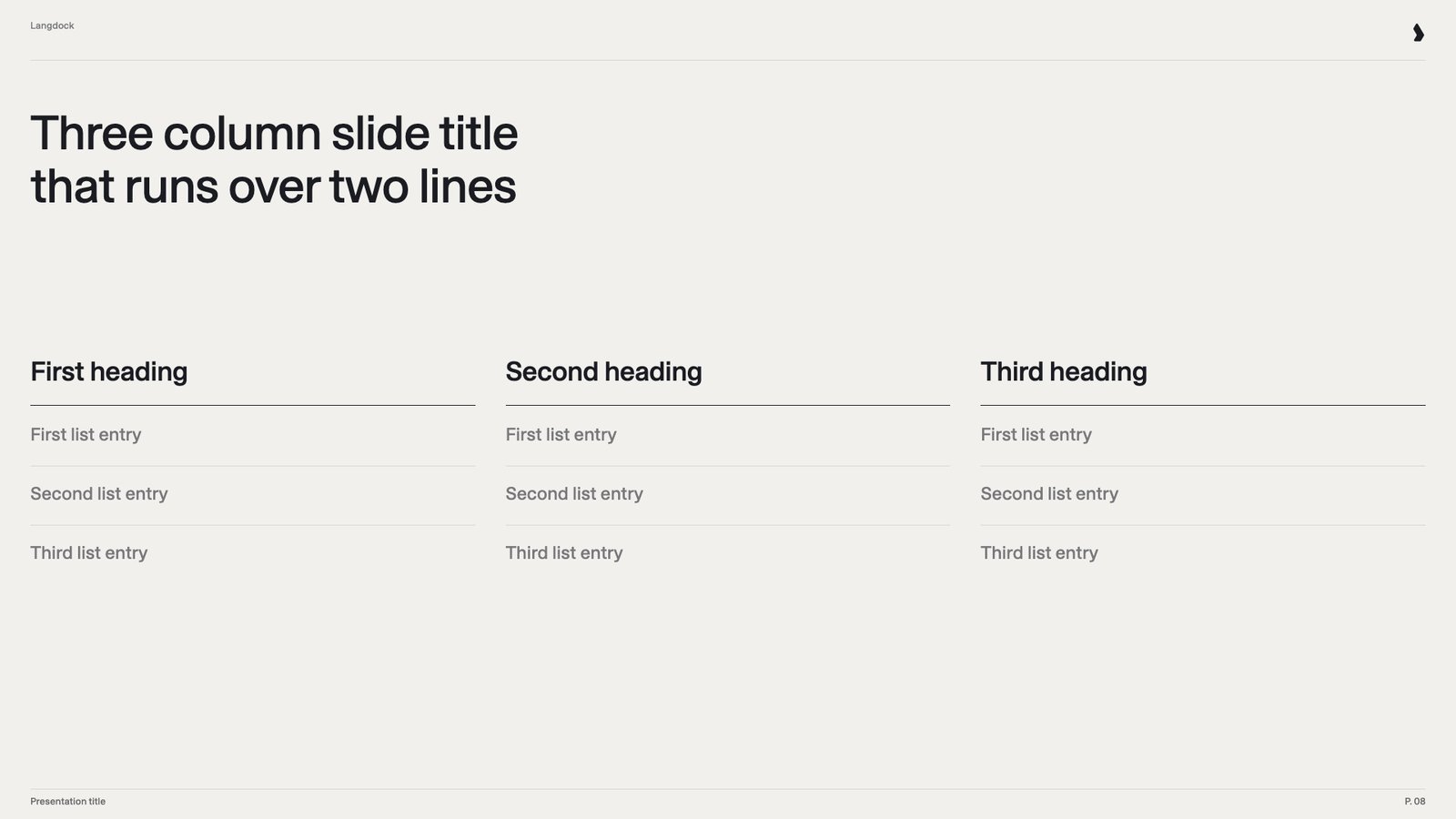 Three ruled columns, each with a heading and three list entries separated by thin lines. It shows three parallel ideas, such as pillars or principles. Many messages come in threes, so this layout is used often.
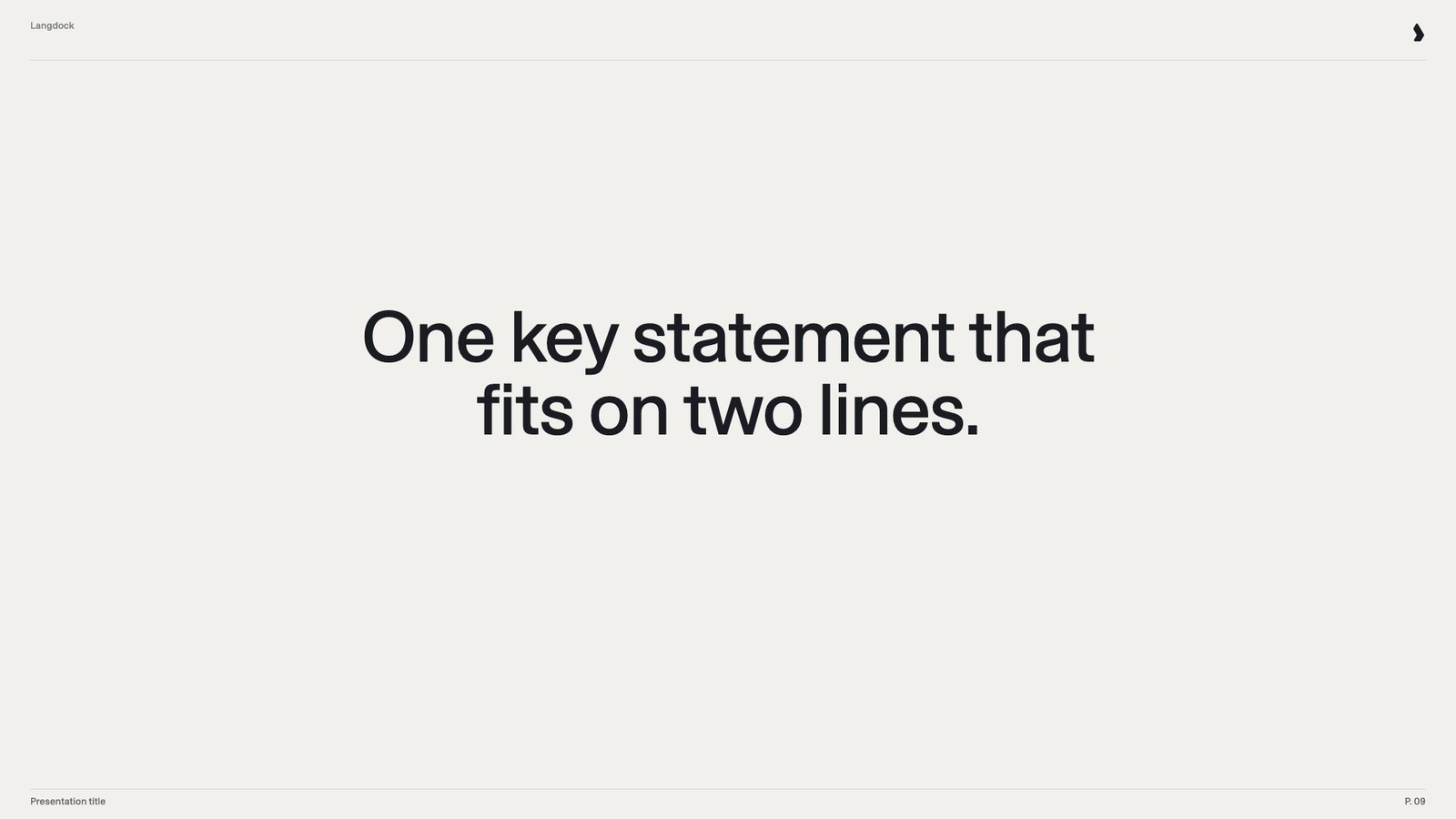 One short sentence in large type, centered on a quiet background. It puts the single most important message of a section front and center. It gives decks a strong rhythm between denser slides.
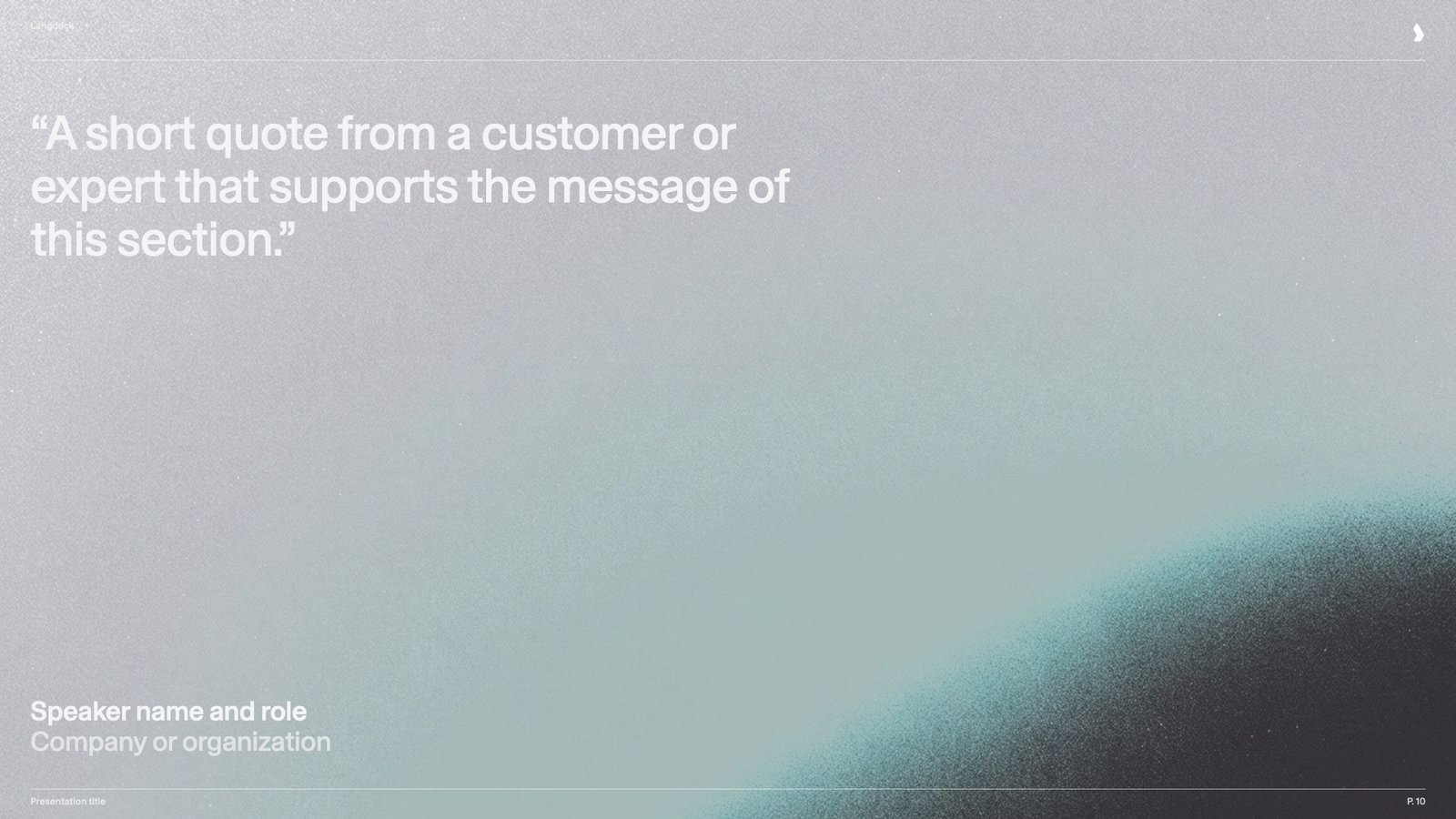 A quote in large type on a brand gradient, with the speaker's role and company at the bottom left. It brings in the voice of a customer, expert or leader. Quotes add credibility that plain text can't.
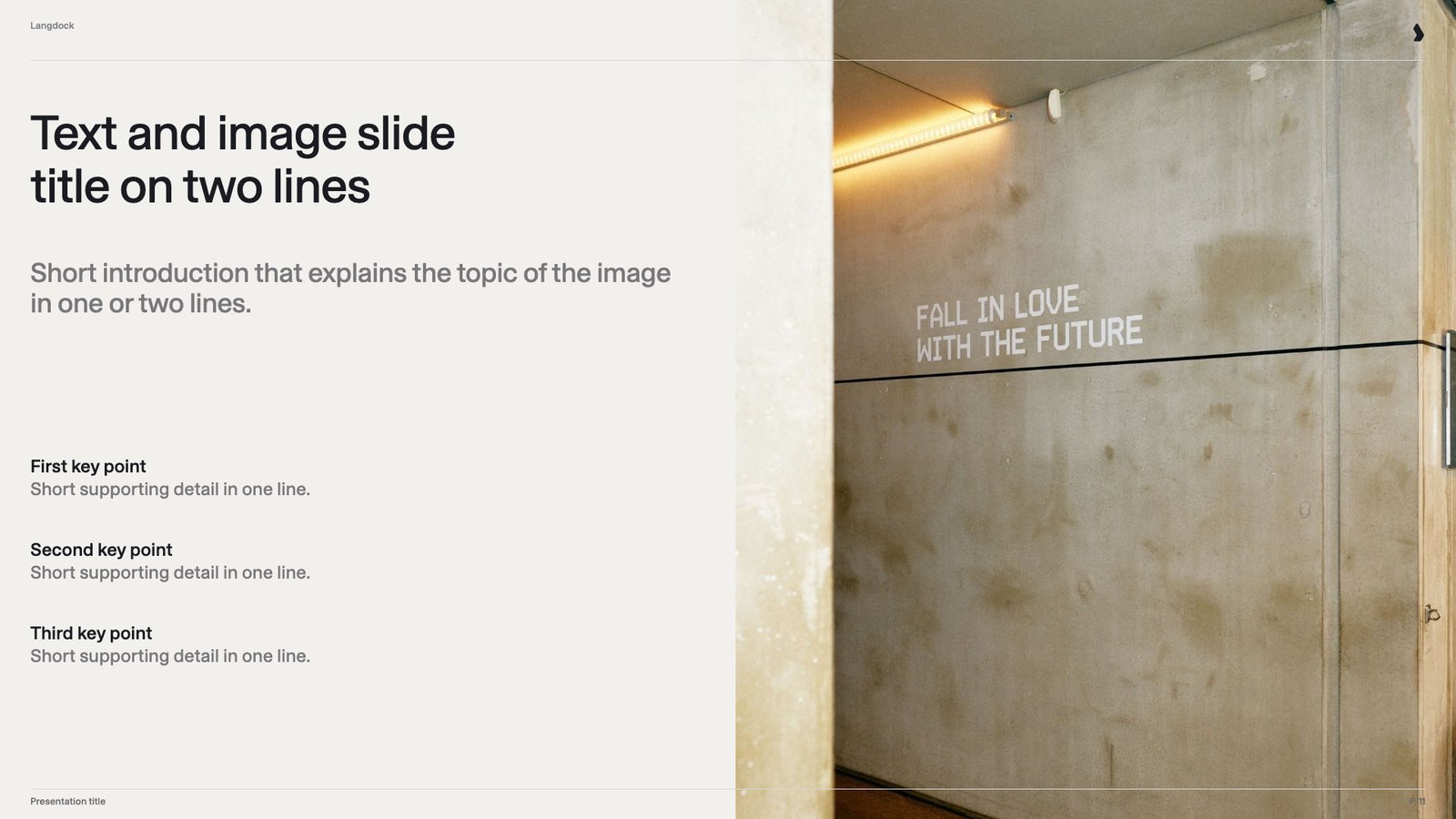 A title, a short introduction and three key points with one line of detail each, next to a photo on the right half. It explains a topic while the image sets the mood or shows the subject. It makes text slides more engaging without needing a diagram.
### Processes and timelines
A title, a short introduction and three key points with one line of detail each, next to a photo on the right half. It explains a topic while the image sets the mood or shows the subject. It makes text slides more engaging without needing a diagram.
### Processes and timelines
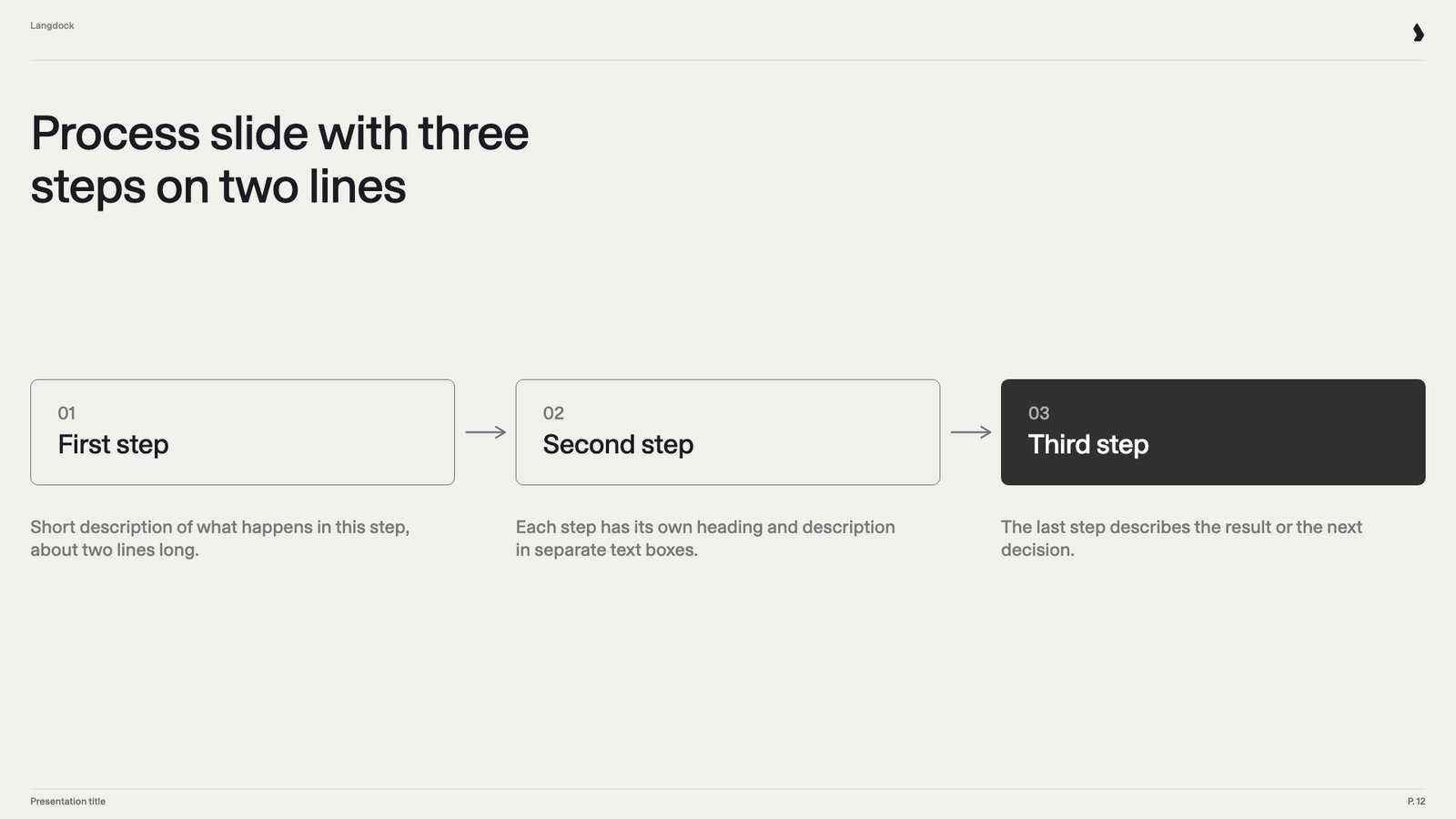 Three numbered step boxes connected by arrows, each with a short description below, with the final step highlighted. It shows a simple sequence, such as prepare, pilot, scale. Short processes are common, and a dedicated three step layout looks balanced instead of half empty.
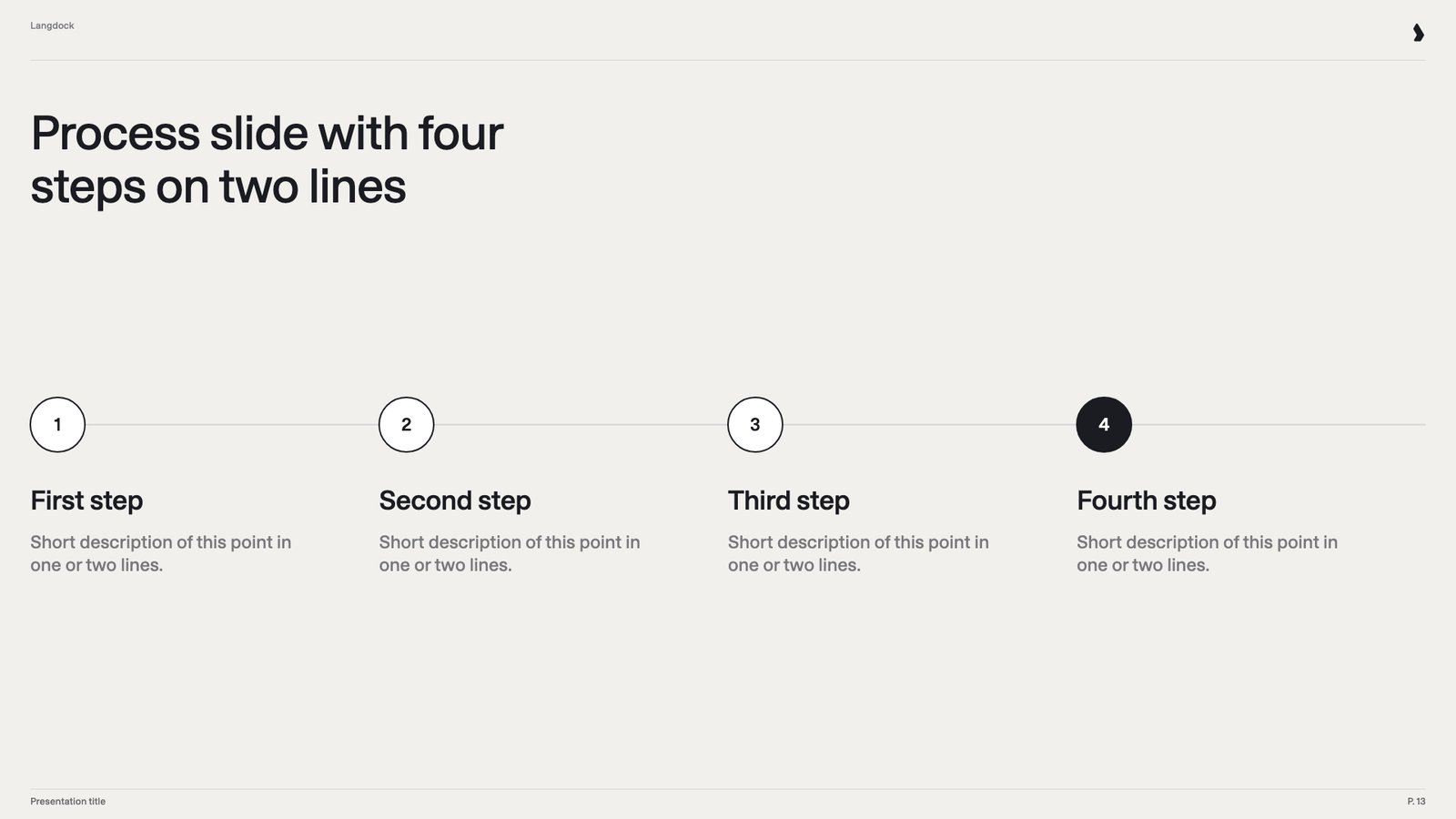 Four numbered circles on a line, each with a heading and a two-line description, with the last step filled. It fits most workflows, such as building and sharing something step by step. Matching the number of steps to the content keeps the layout tidy.
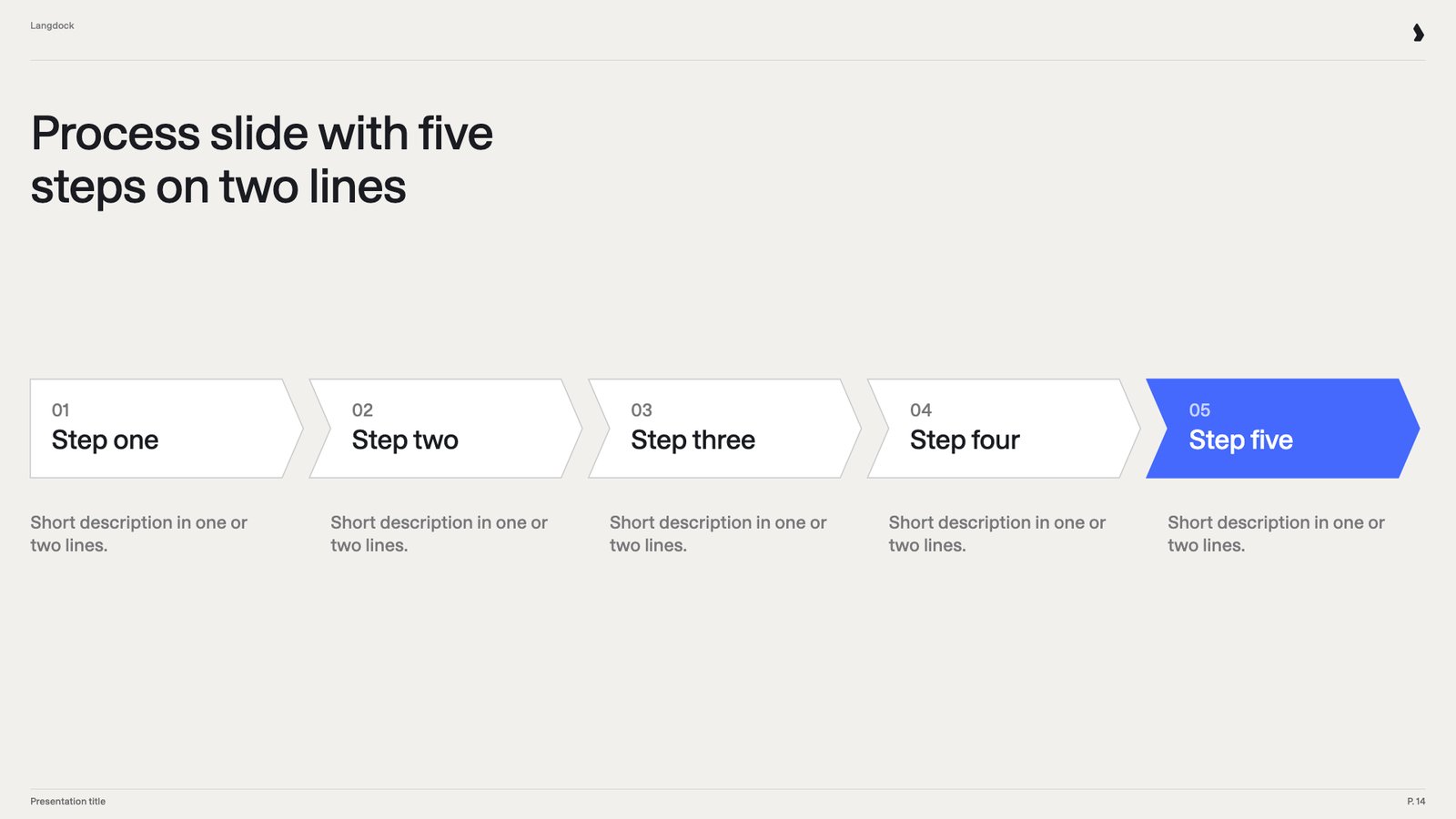 Five arrow-shaped steps in a row, each with a short description below, with the last step in brand blue. It covers longer flows, such as what happens behind the scenes of a request. With three, four and five steps available, Langdock can always pick the exact fit.
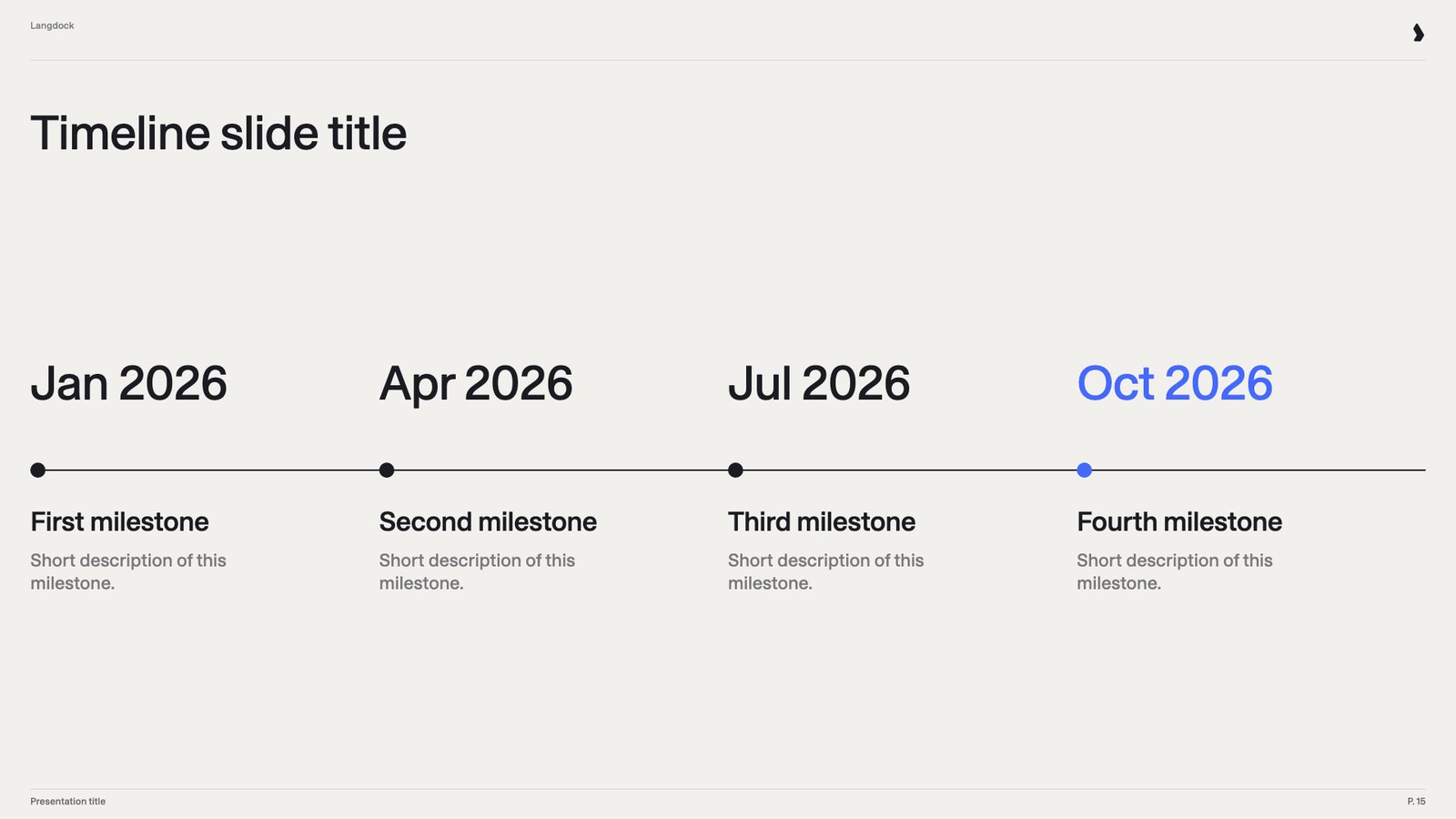 Four large dates on a horizontal line, each with a milestone and a short description, with the latest date in brand blue. It shows what happens when, for example in a rollout plan. Timelines make dates easy to scan and compare.
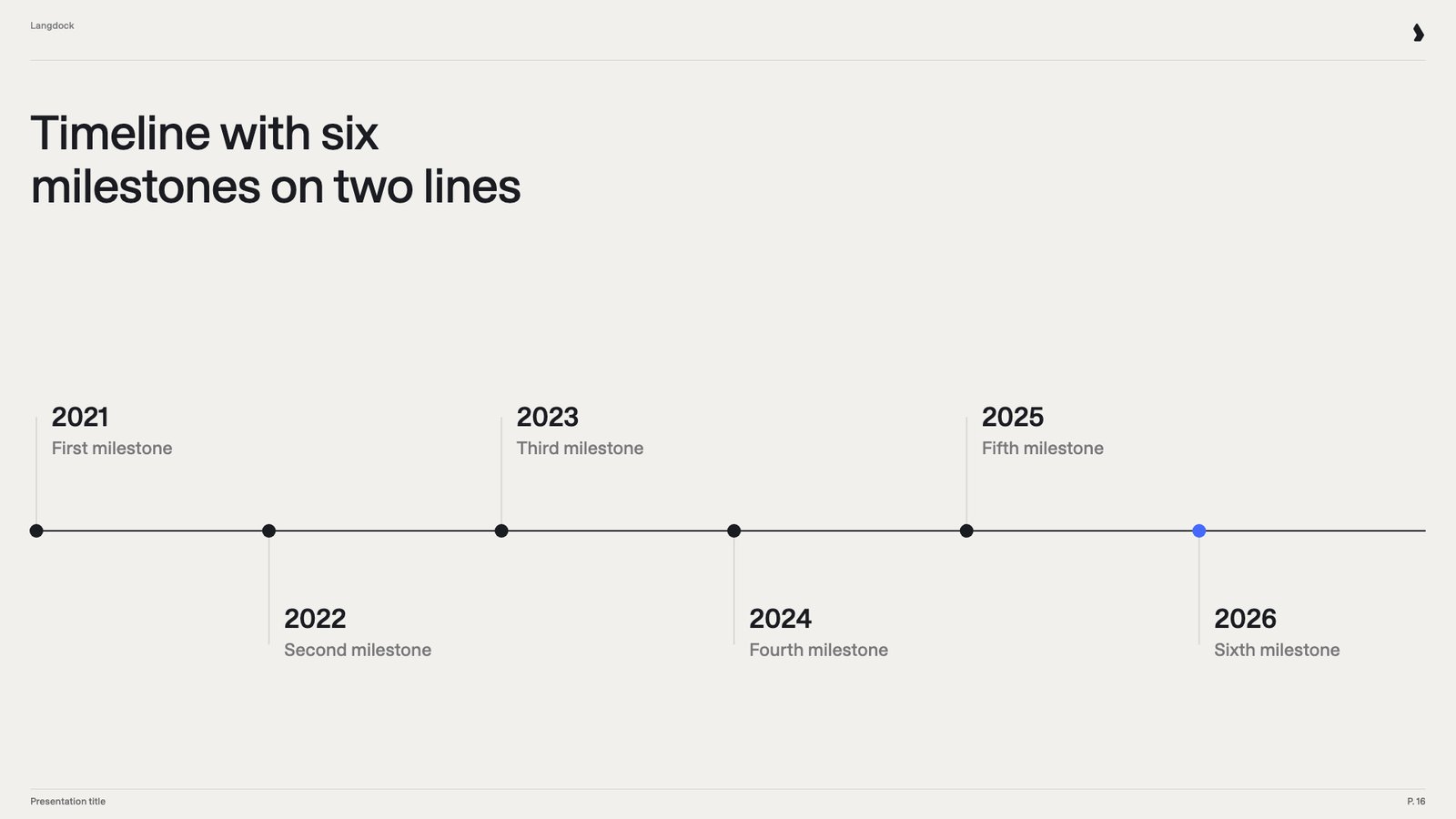 Six milestones placed alternately above and below a line, each with a year and a short label. It covers longer periods, such as a company history or a multi year plan. Alternating labels keep six milestones readable on one slide.
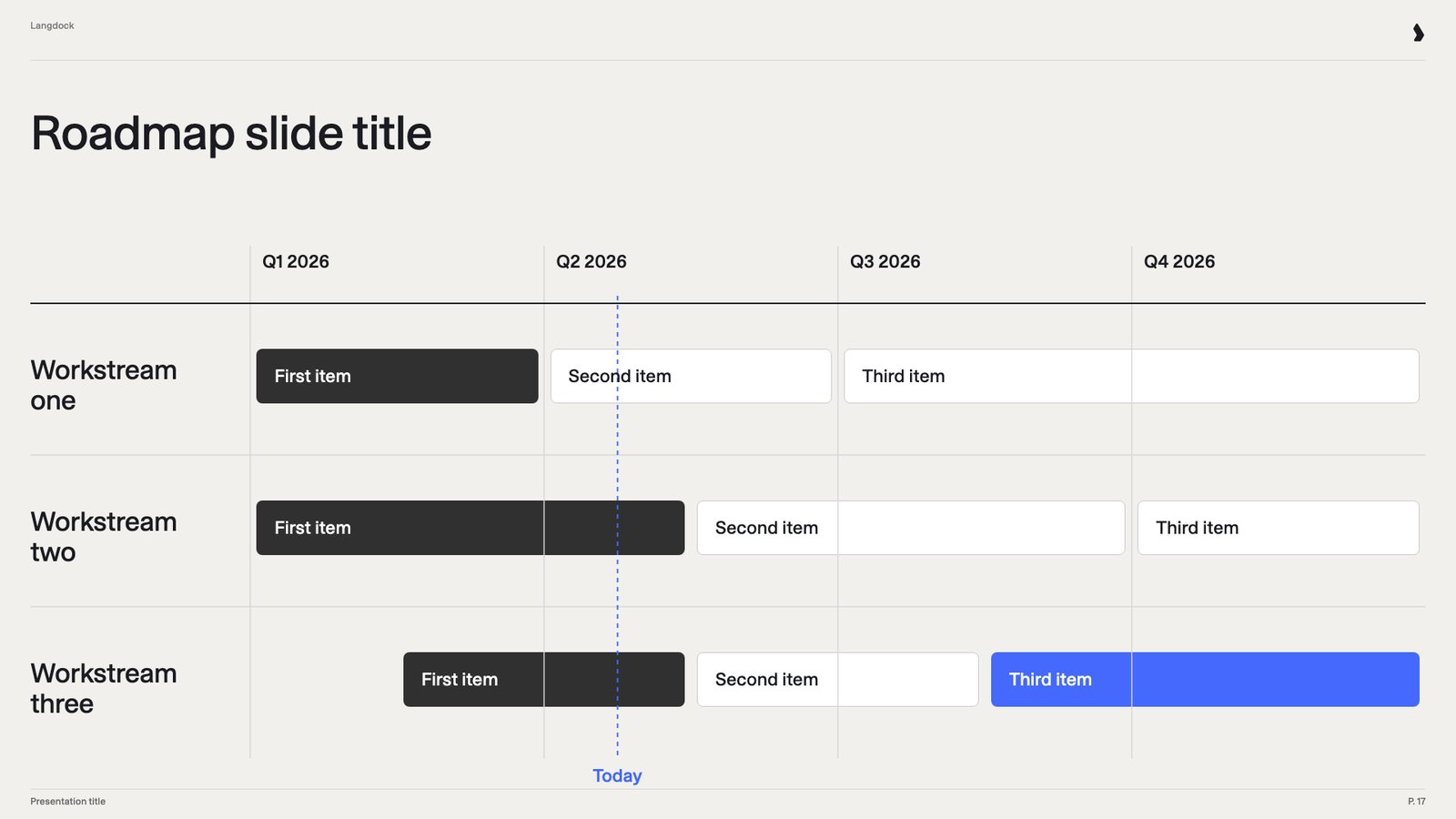 A grid with quarters as columns and workstreams as rows, with bars for each item and a line marking today. It shows several parallel streams of work over time. Strategy and product decks rely on it to show plans at a glance.
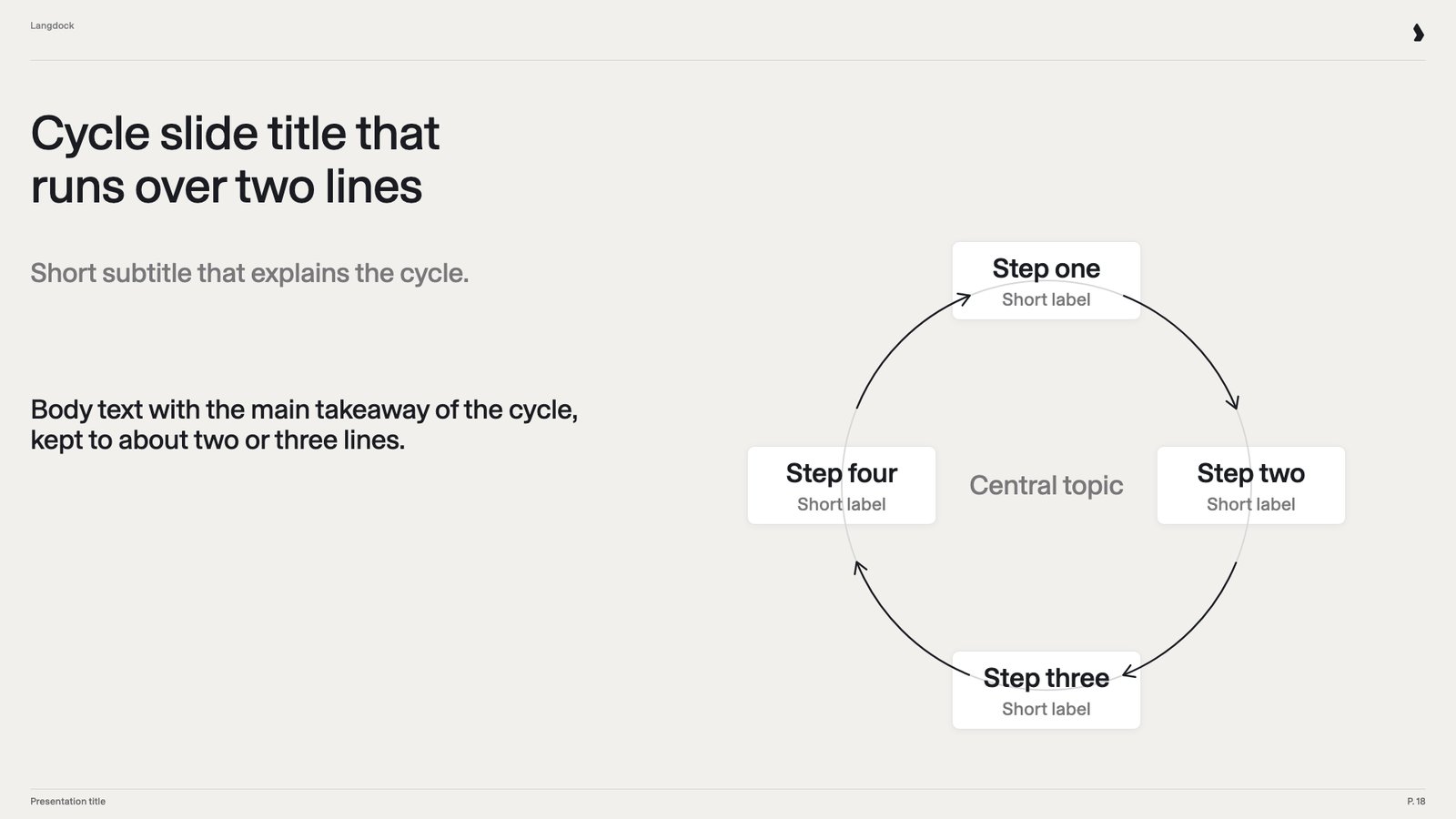 Four steps arranged in a circle with arrows around a central topic, next to a subtitle and a short takeaway. It shows a process that repeats, such as an adoption or feedback loop. A circle makes the recurring nature clear in a way a straight process can't.
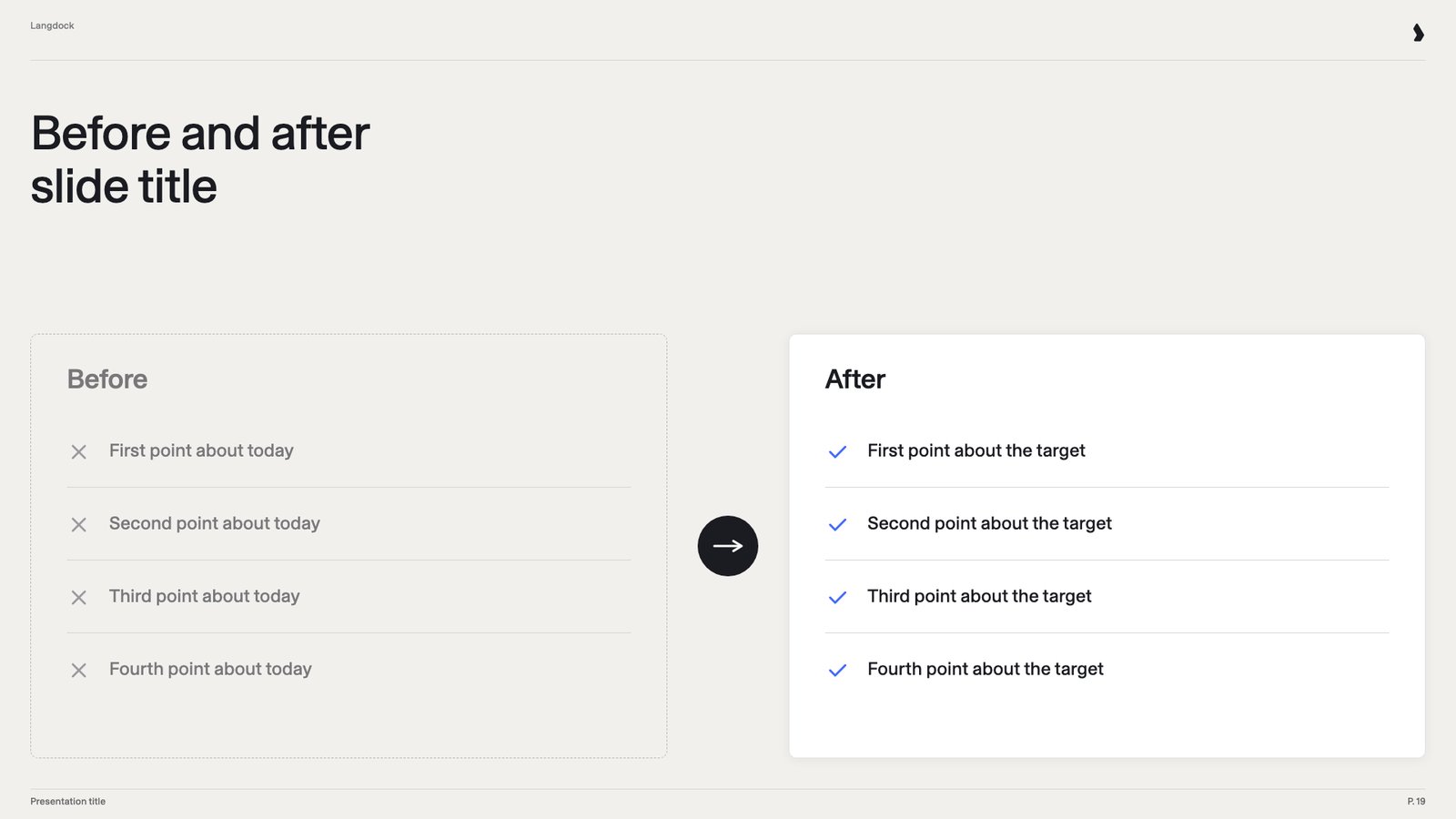 Two panels connected by an arrow: a gray before panel with four crossed points and a white after panel with four checked points. It shows the change a project or product brings. It's one of the most persuasive slides in sales and change decks.
### Numbers and data
Two panels connected by an arrow: a gray before panel with four crossed points and a white after panel with four checked points. It shows the change a project or product brings. It's one of the most persuasive slides in sales and change decks.
### Numbers and data
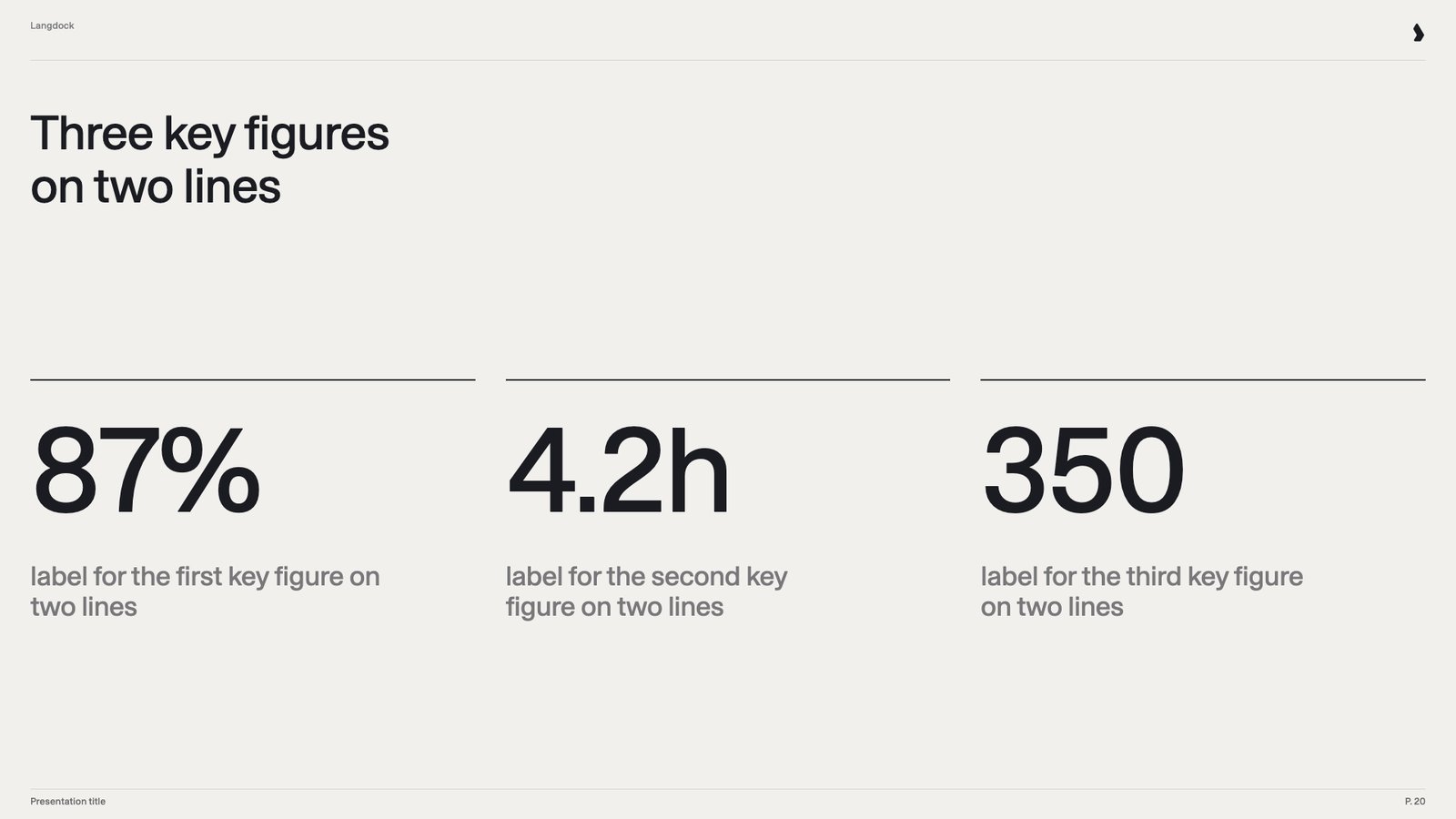 Three large numbers side by side, each under a thin line with a two-line label. It highlights the most important results at a glance. Management and update decks open their results section with it.
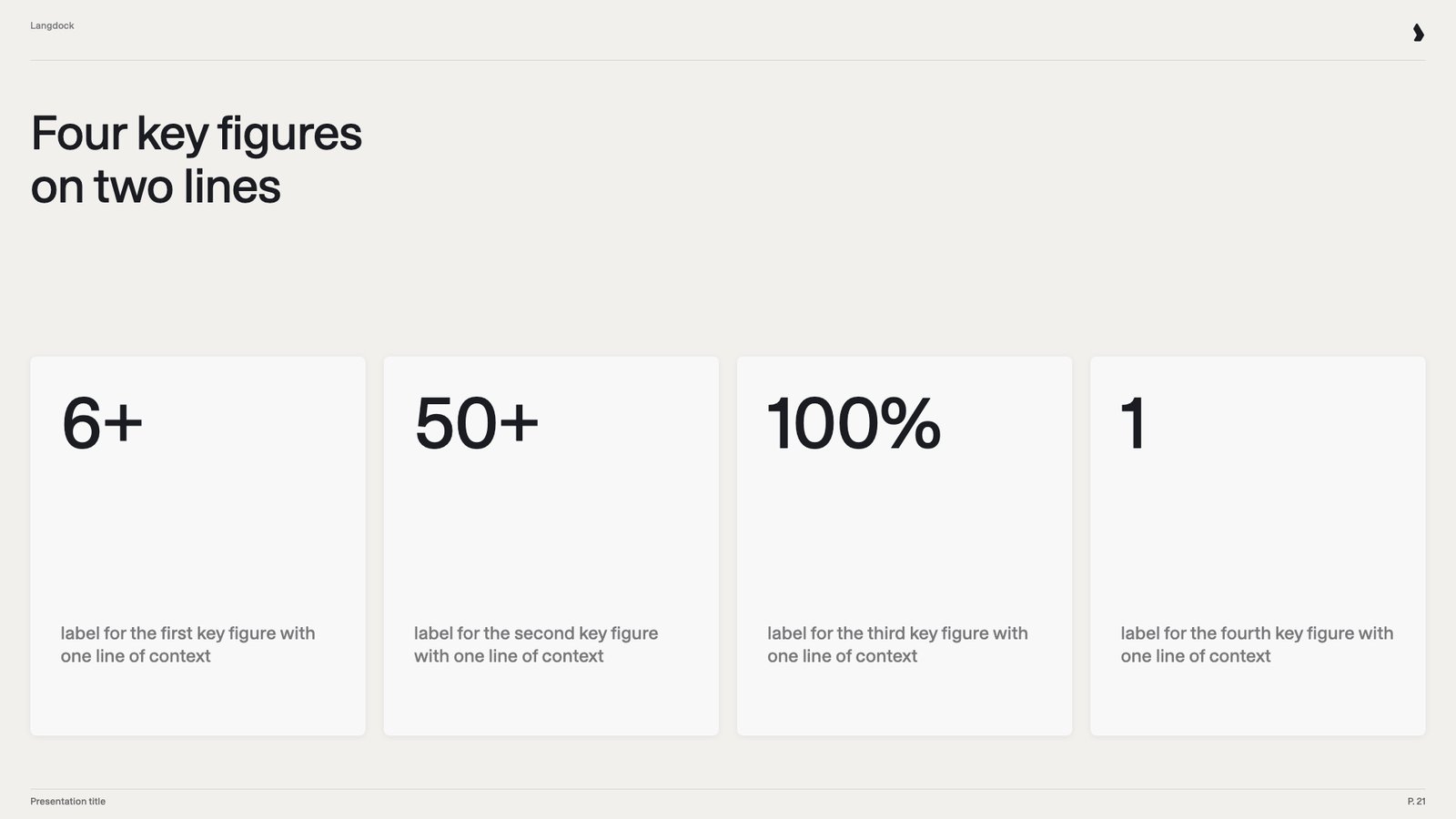 Four light cards, each with a number at the top and a context line at the bottom. It covers facts and reports that track four metrics. With both variants, numbers never have to be dropped or padded to fit.
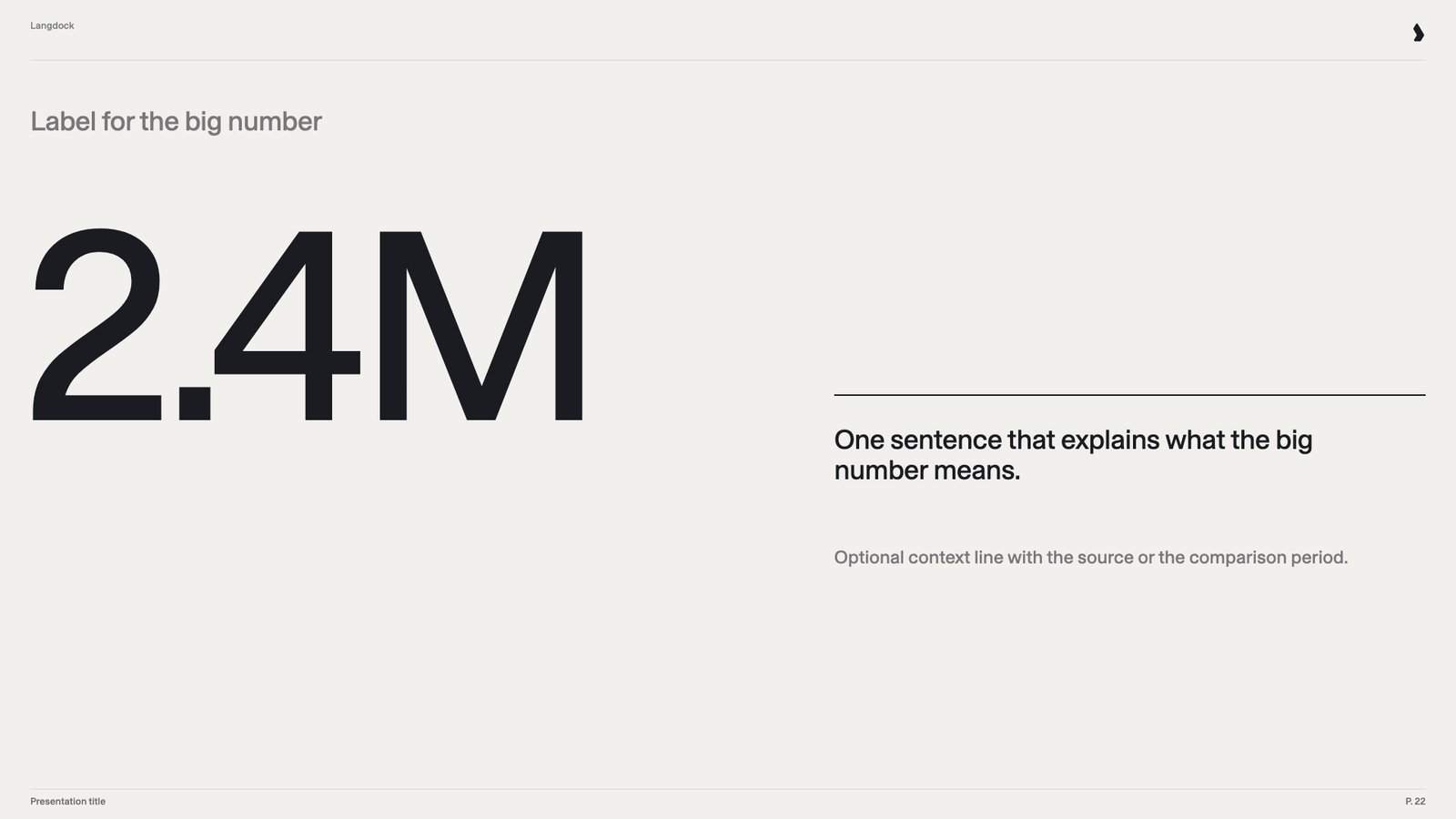 One very large number with a small label above and a short explanation and context line on the right. It makes one striking fact stick, such as growth or volume. One big number often lands harder than a full chart.
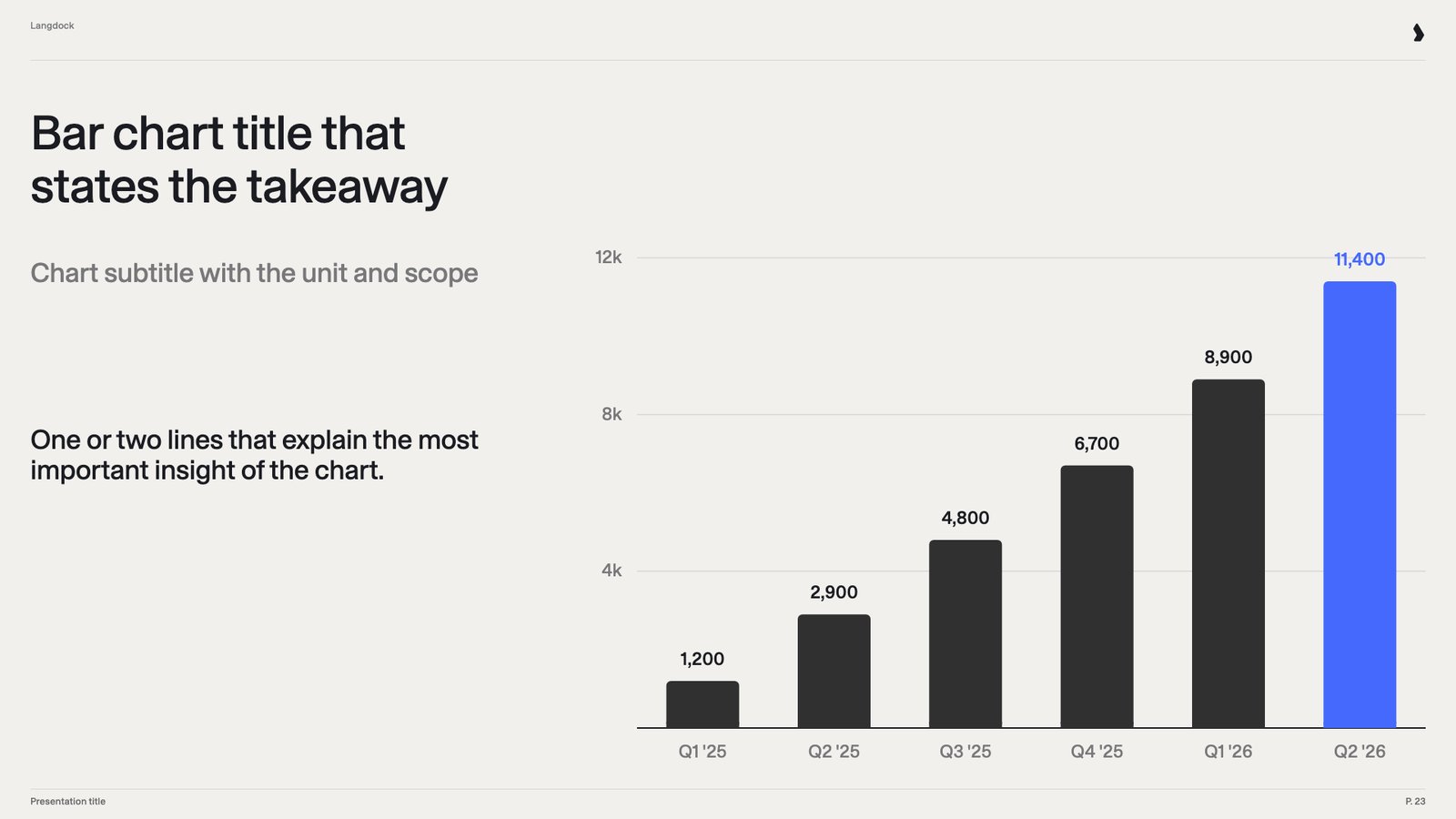 A native column chart with value labels, the latest bar in brand blue, next to a takeaway title and a short explanation. It compares values across periods or categories. Data driven decks need it on almost every topic.
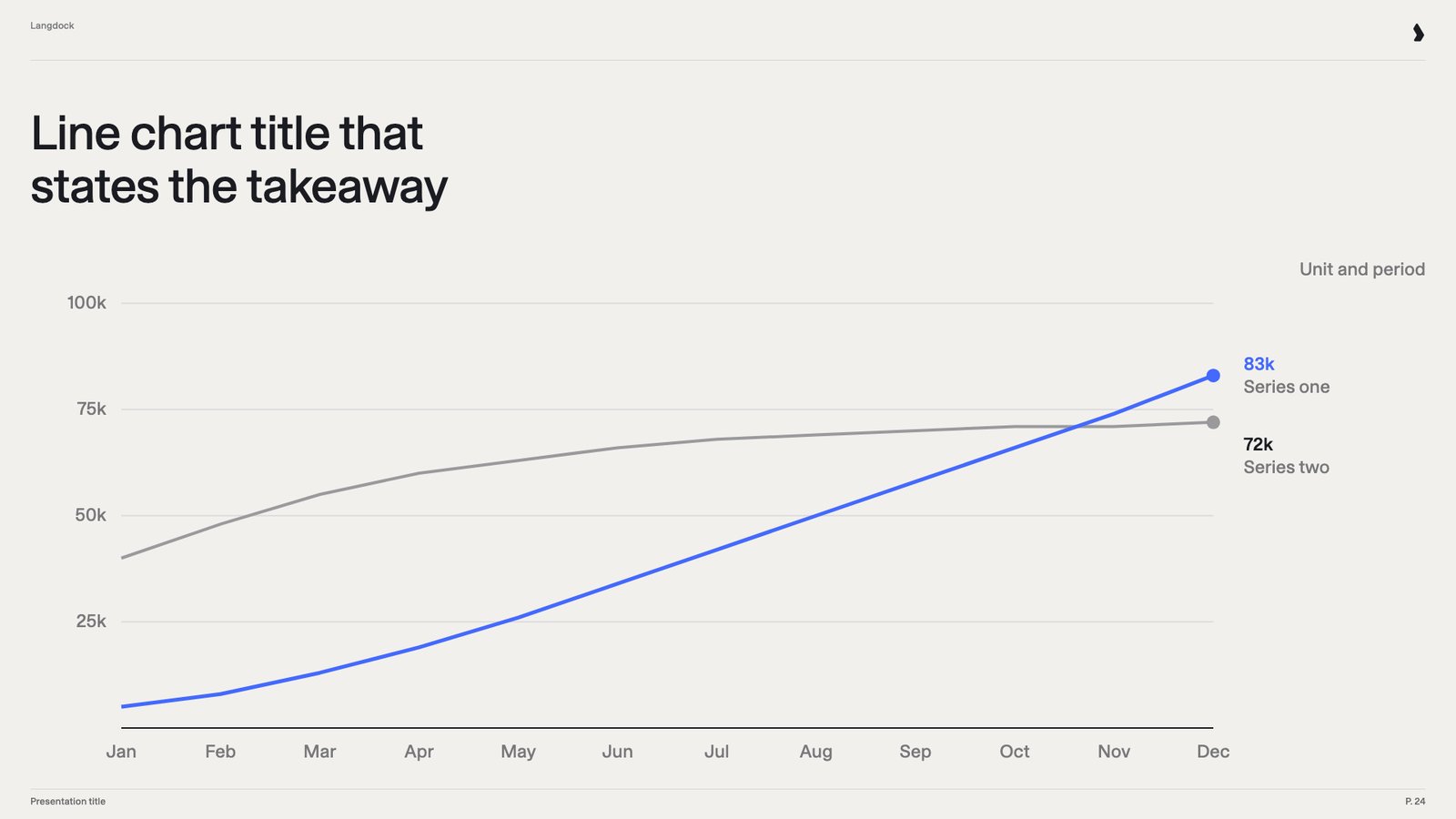 A native line chart with two series over twelve months and labeled end values, under a takeaway title. It shows how values develop over time and when one overtakes the other. Trends are clearer as lines than as tables or bars.
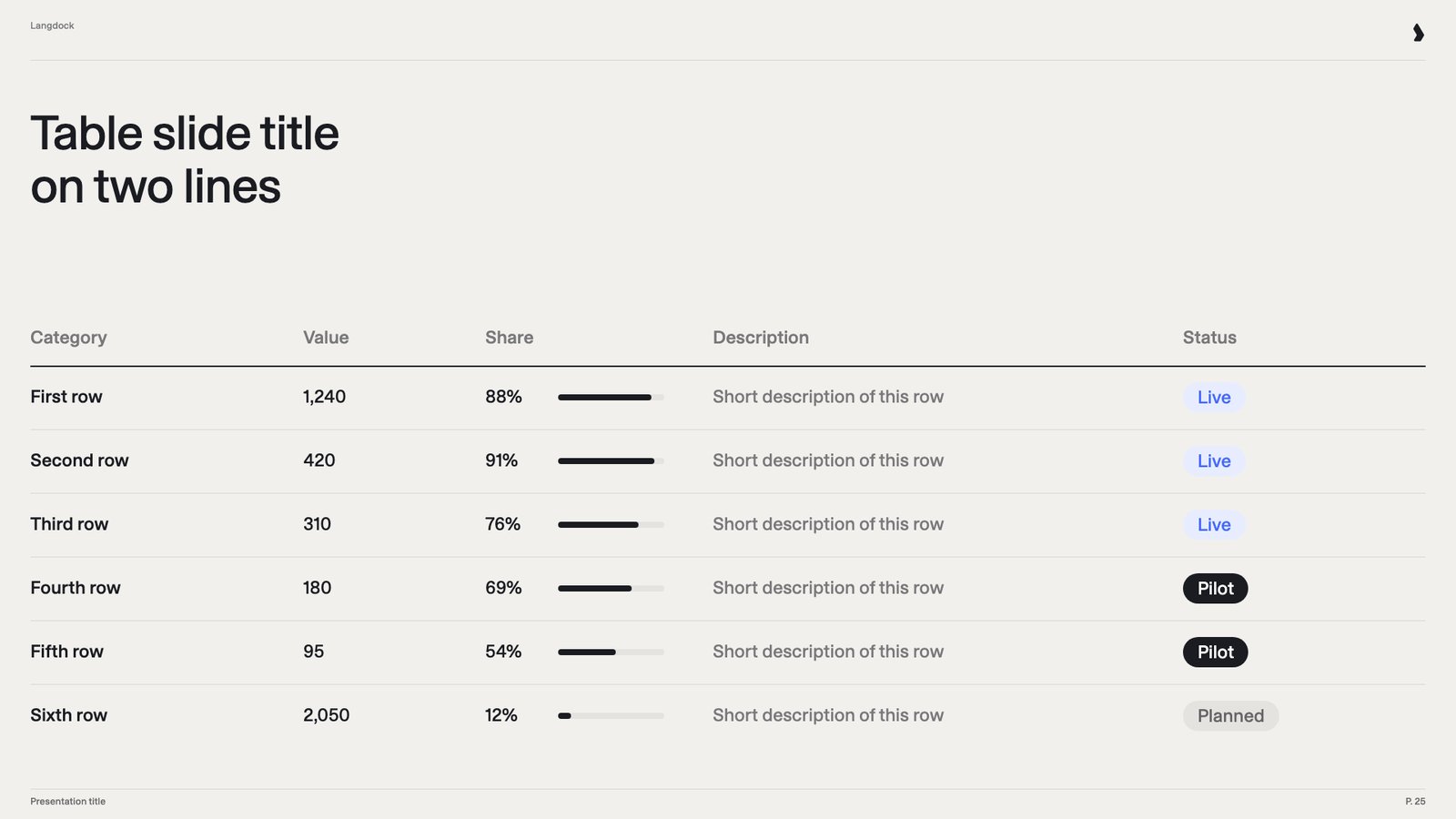 A native table with a header row, six rows, small bar indicators for shares and status labels. It shows structured details, such as the status of each team or project. Some information only makes sense in rows and columns.
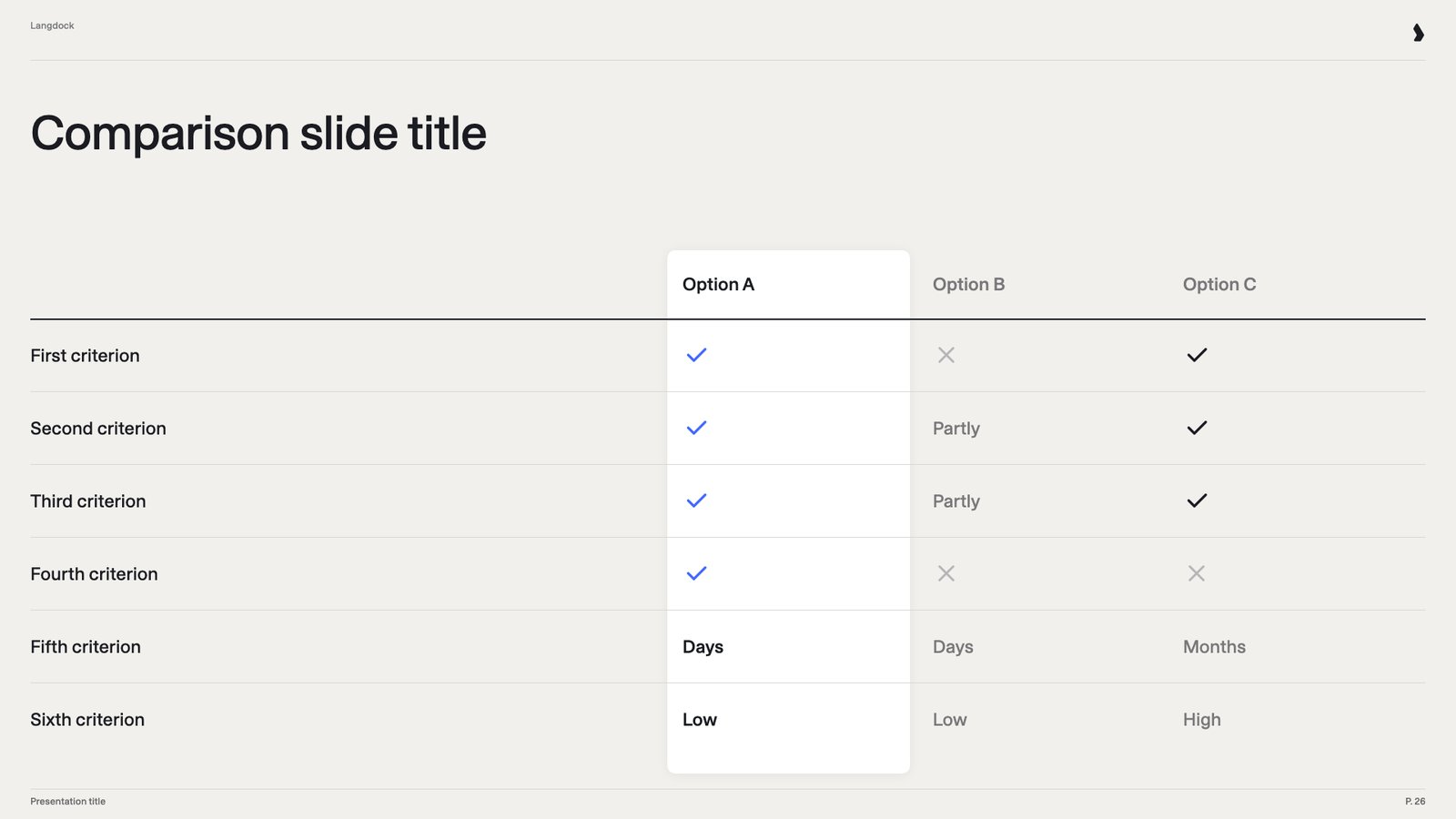 Three options as columns, with the recommended one highlighted, compared on six criteria with check marks, crosses and short ratings. It helps the audience choose, for example between vendors or approaches. Decision decks depend on a clear comparison.
### Diagrams
Three options as columns, with the recommended one highlighted, compared on six criteria with check marks, crosses and short ratings. It helps the audience choose, for example between vendors or approaches. Decision decks depend on a clear comparison.
### Diagrams
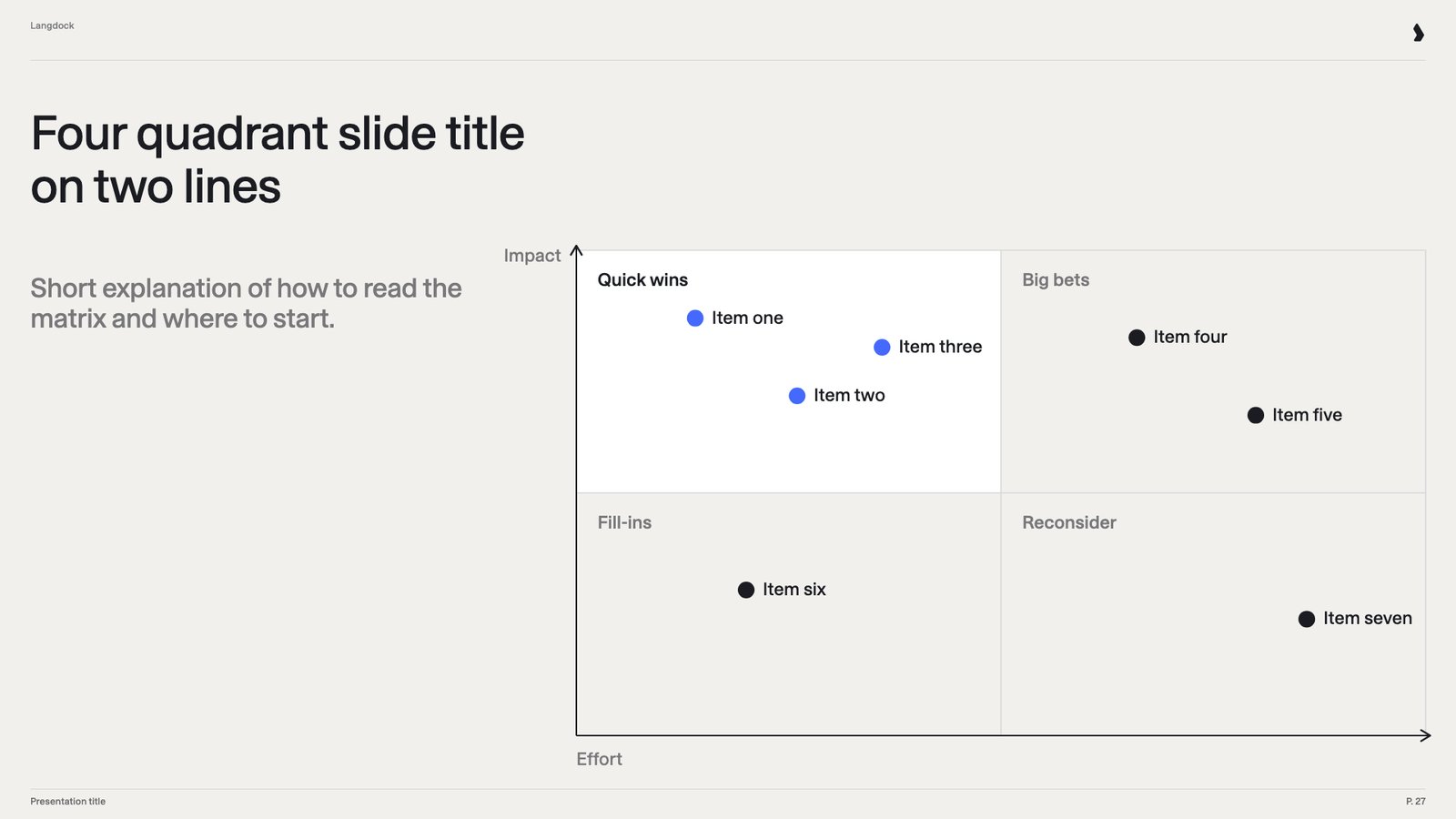 A 2×2 matrix with labeled axes and quadrants, with items plotted as dots, next to a short reading guide. It sorts items by two criteria, such as impact and effort. Strategy teams use it to prioritize options.
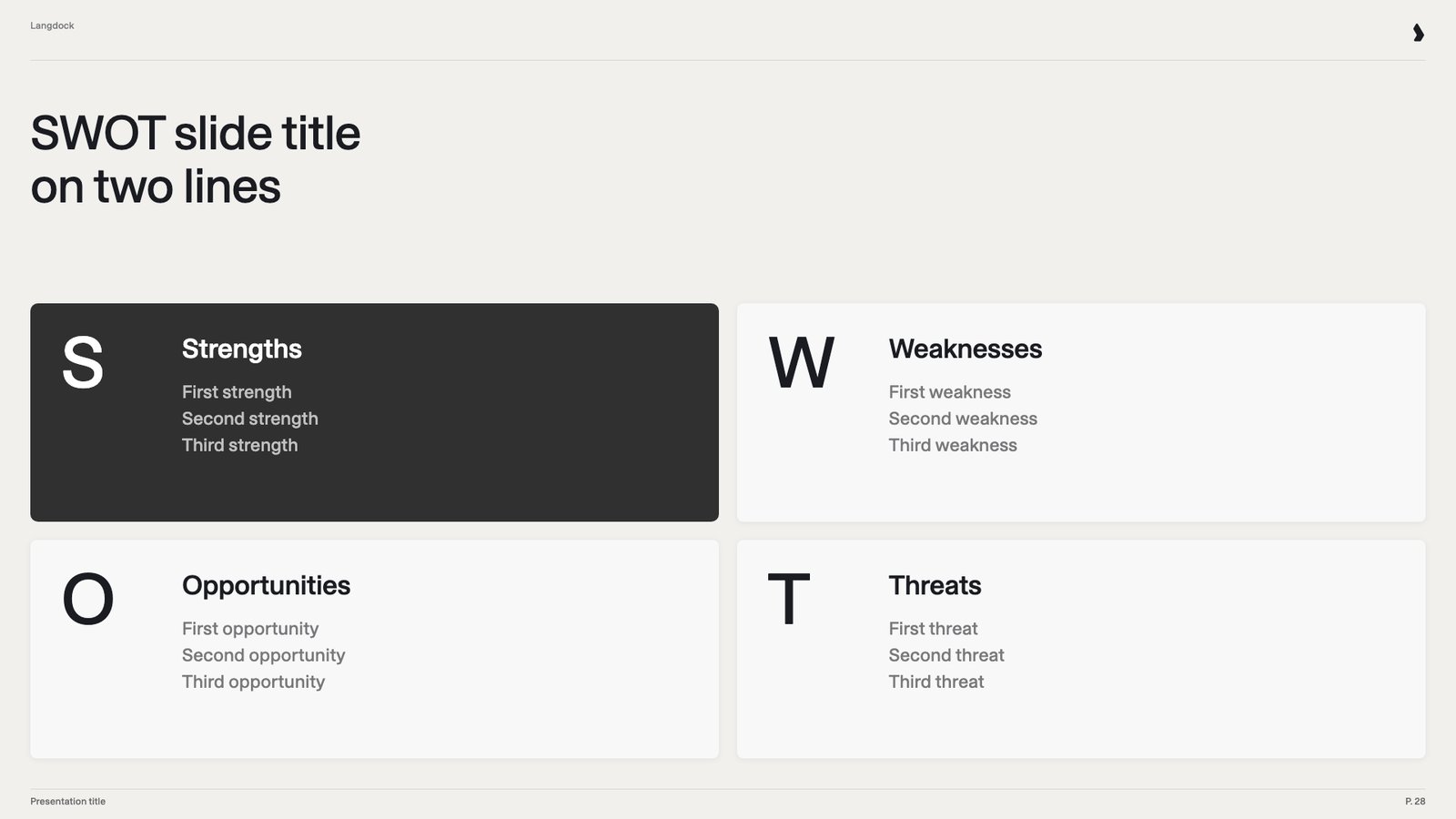 Four boxes with a large letter each for strengths, weaknesses, opportunities and threats, with three points per box. It sums up a situation for planning or strategy work. It's a familiar format, so audiences grasp it immediately.
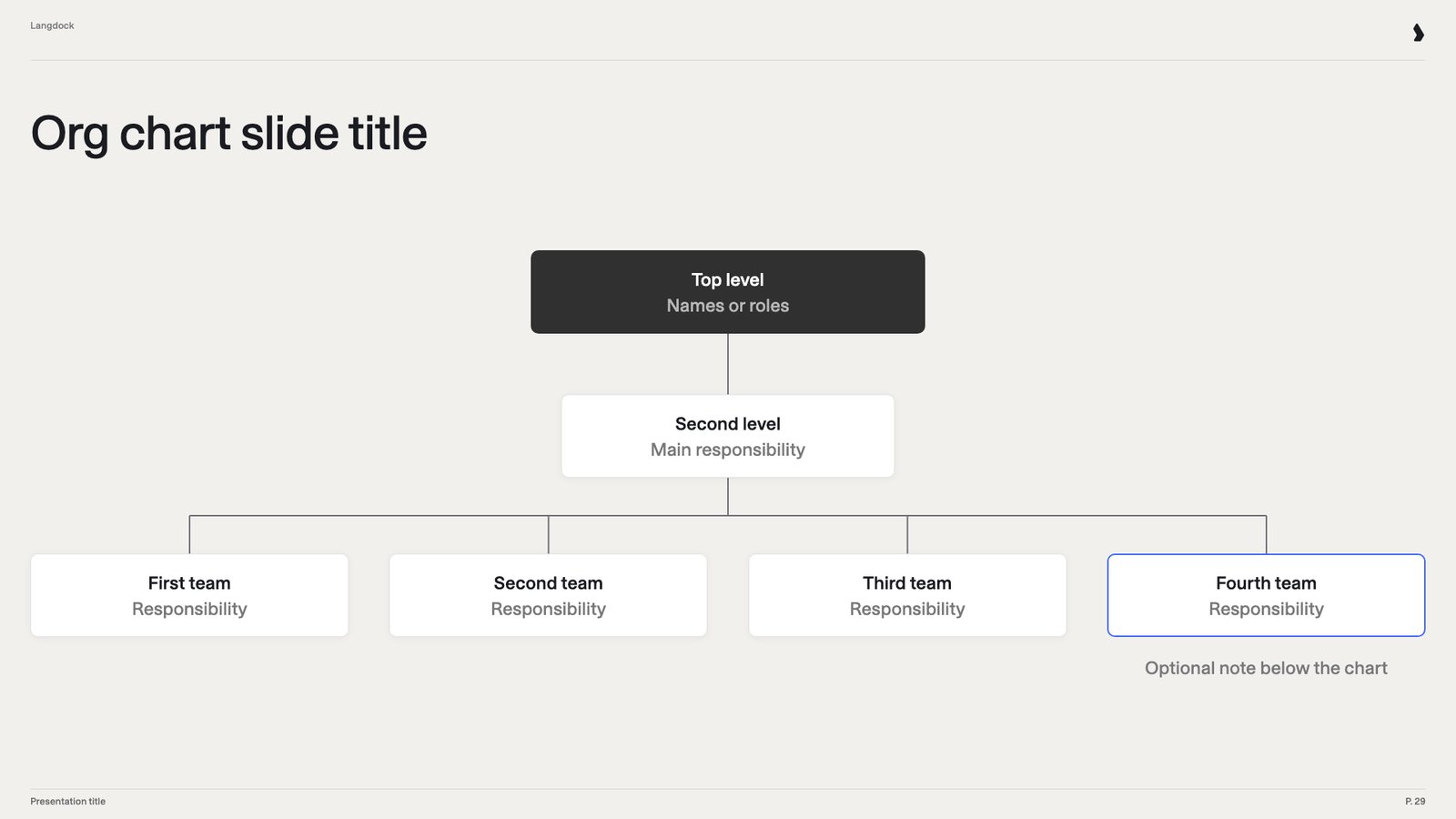 Boxes on three levels connected by lines, each with a name or team and a responsibility, plus an optional note. It shows who reports to whom or how a program is set up. Introductions and project kickoffs need it often.
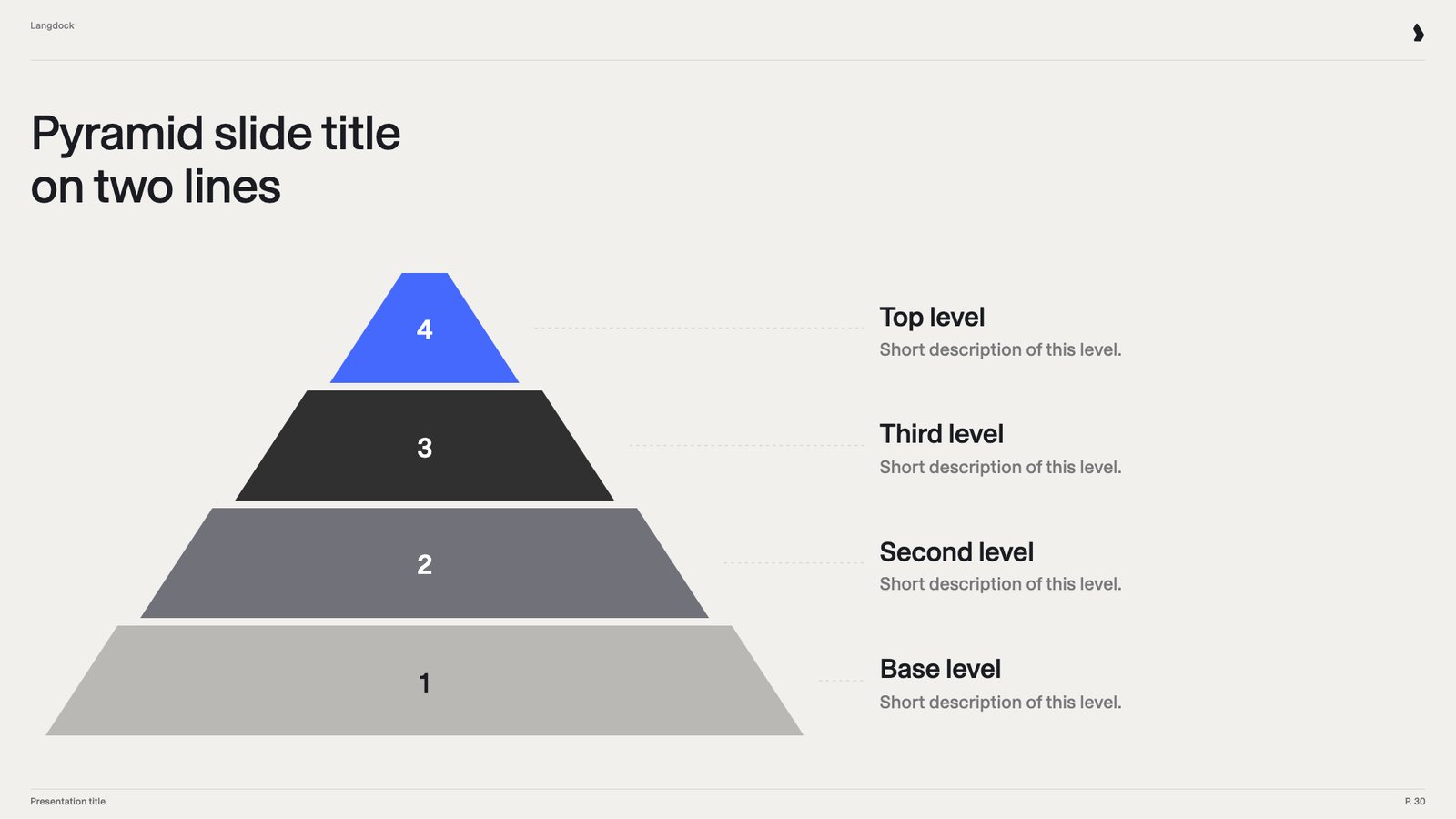 Four stacked levels that narrow toward a blue top, each numbered, with a label and description beside it. It shows maturity levels, priorities or building blocks that rest on each other. The shape makes order and importance visible.
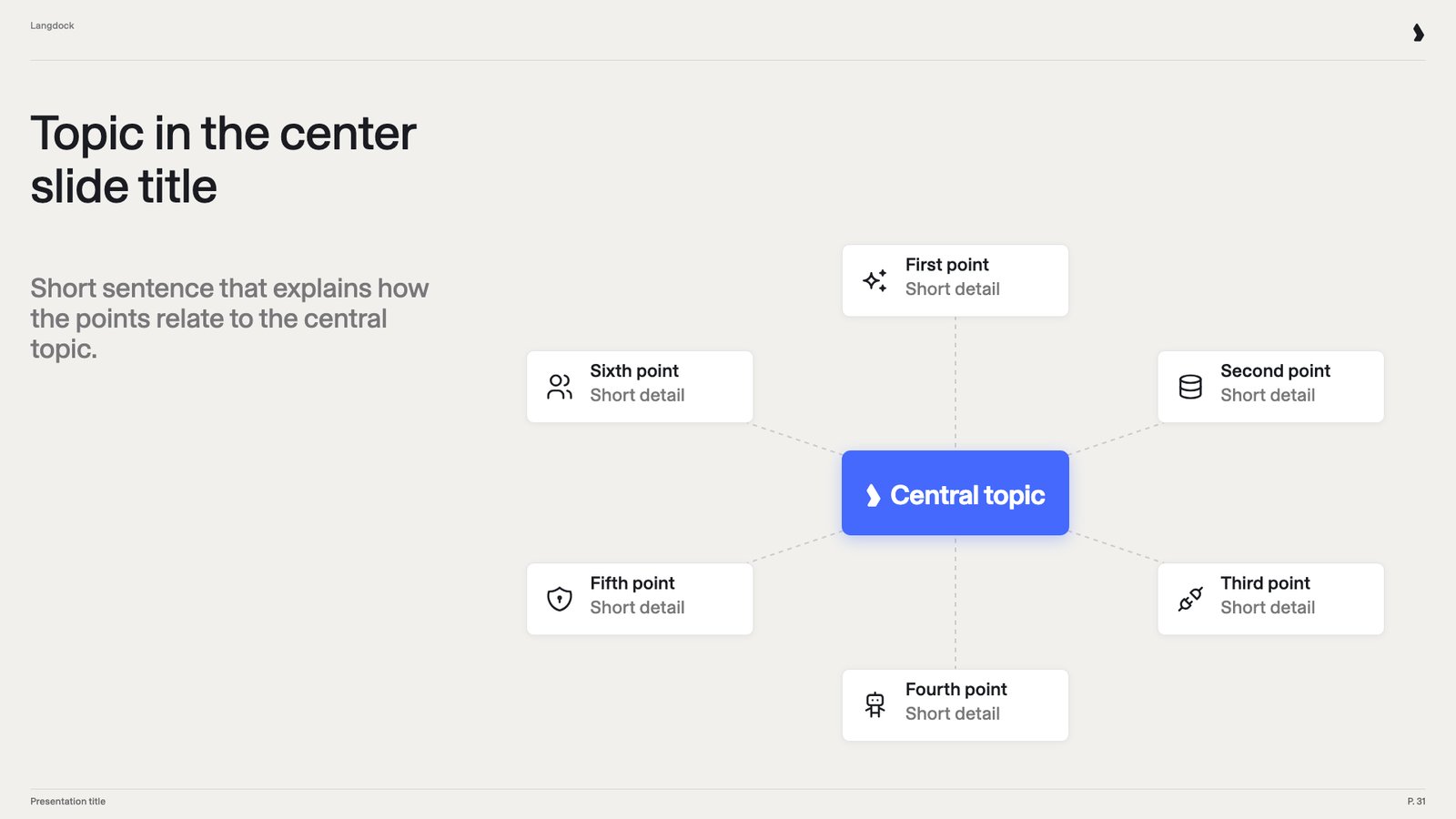 One central topic in brand blue with six points arranged around it, each with an icon, label and short detail. It shows what belongs to a topic, such as the parts of a platform. It works when the points have no fixed order.
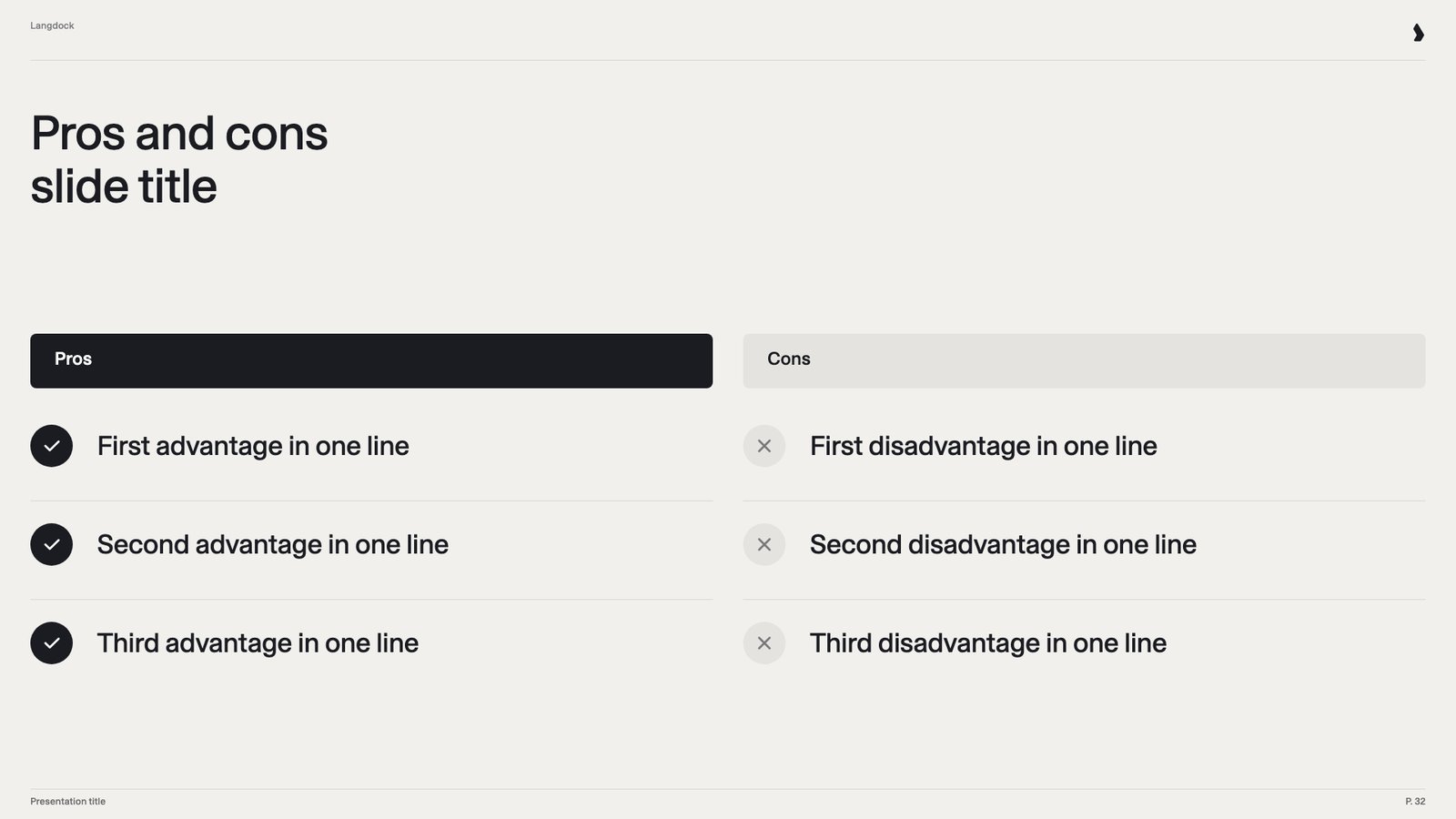 Two columns with a dark pros header and a light cons header, three points each, marked with checks and crosses. It weighs a decision fairly. It's a quick, familiar way to show both sides.
### Cards
Two columns with a dark pros header and a light cons header, three points each, marked with checks and crosses. It weighs a decision fairly. It's a quick, familiar way to show both sides.
### Cards
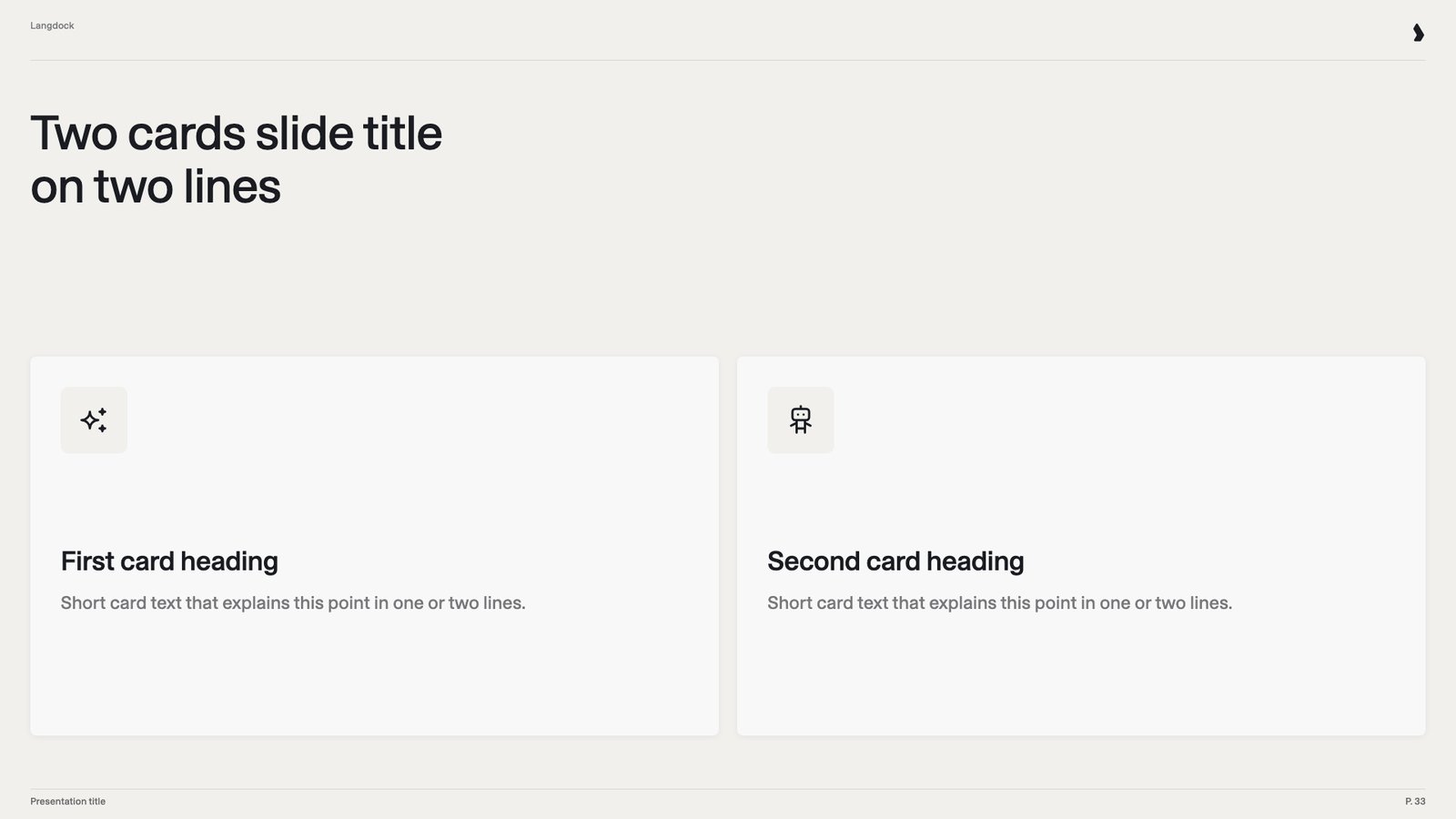 Two wide cards side by side, each with an icon, a heading and a short text. It presents two options or ways of working with equal weight. Cards make short content more visual than plain columns.
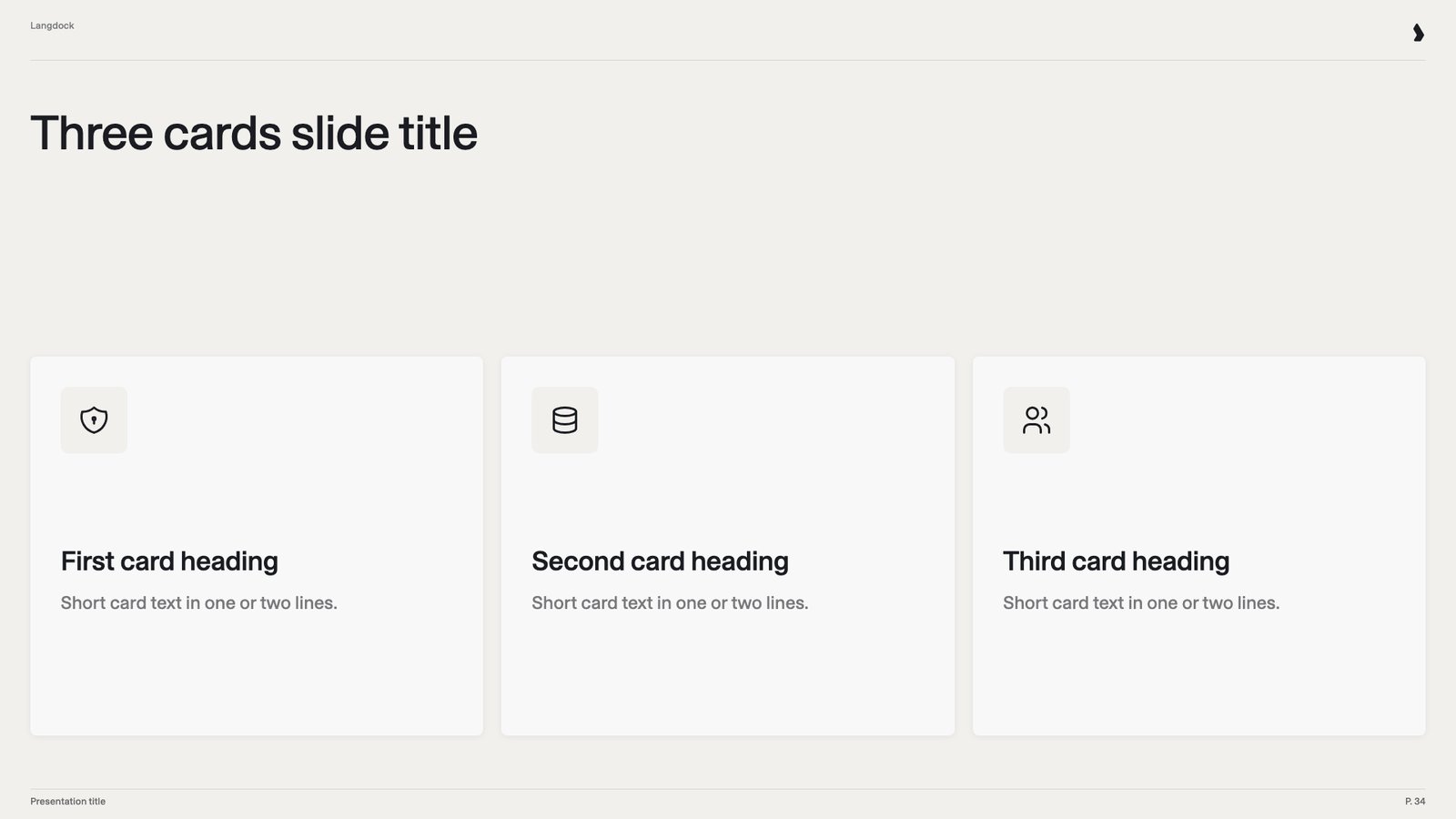 The same card design with three cards. It suits benefits, features or principles, which often come in threes. It's one of the most used layouts in product and sales decks.
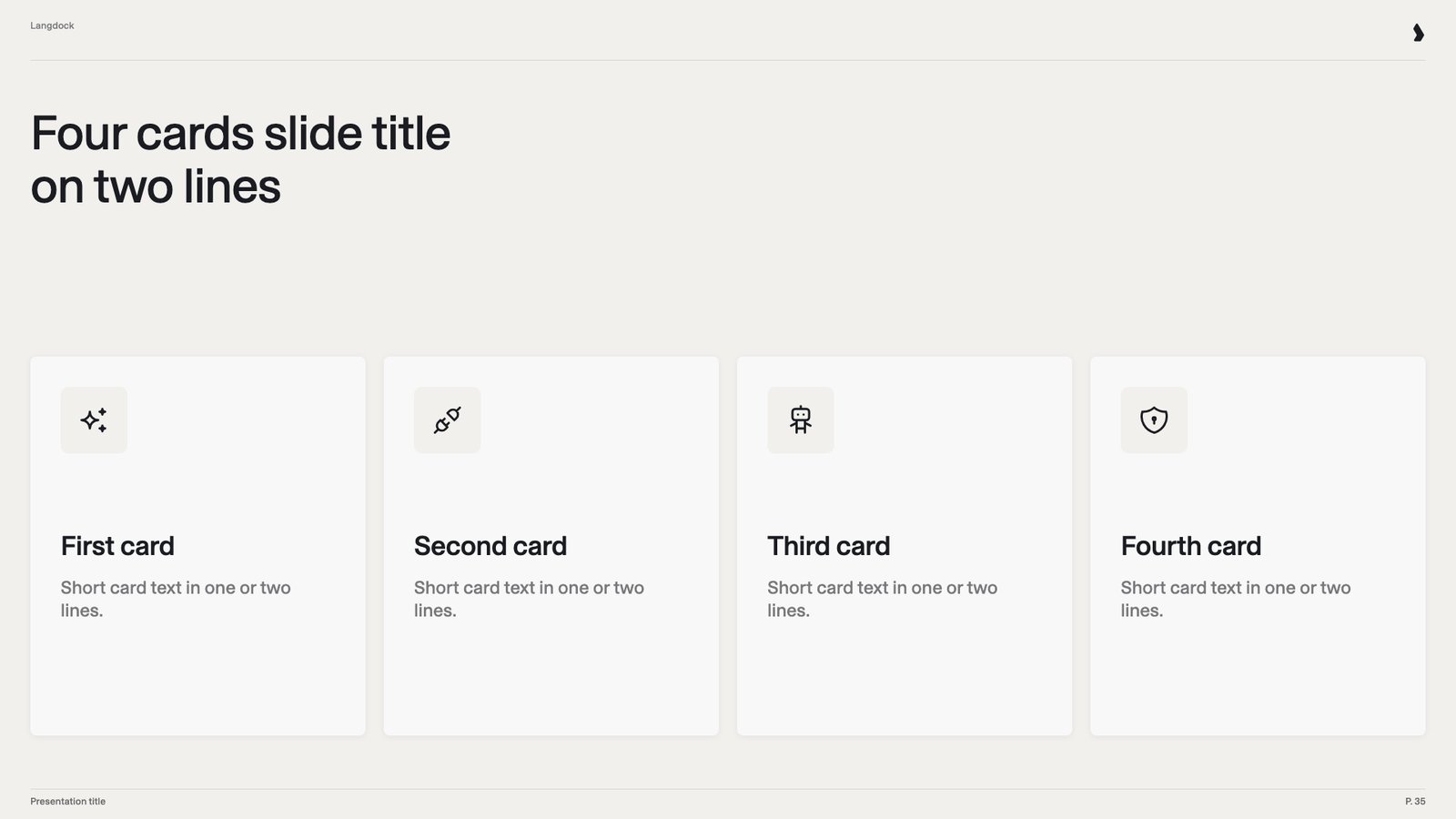 The same card design with four narrower cards. It covers four services, values or capabilities. With two, three and four cards available, Langdock never leaves an empty card or drops one.
### Images
The same card design with four narrower cards. It covers four services, values or capabilities. With two, three and four cards available, Langdock never leaves an empty card or drops one.
### Images
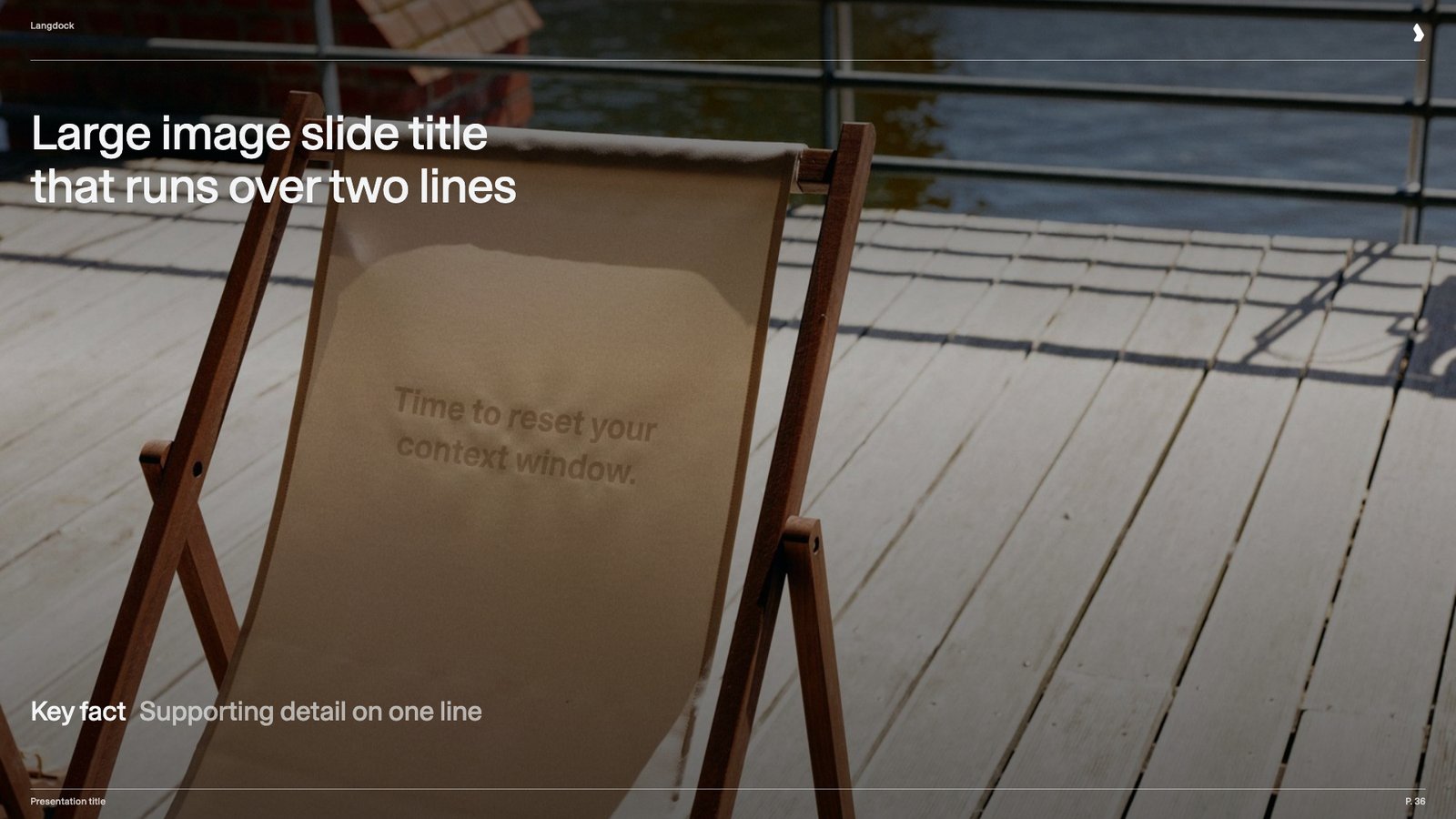 A full-bleed photo with a white two-line title at the top and a key fact line at the bottom. It creates impact, for example to open a chapter or set a mood. It gives decks visual breathing room between dense slides.
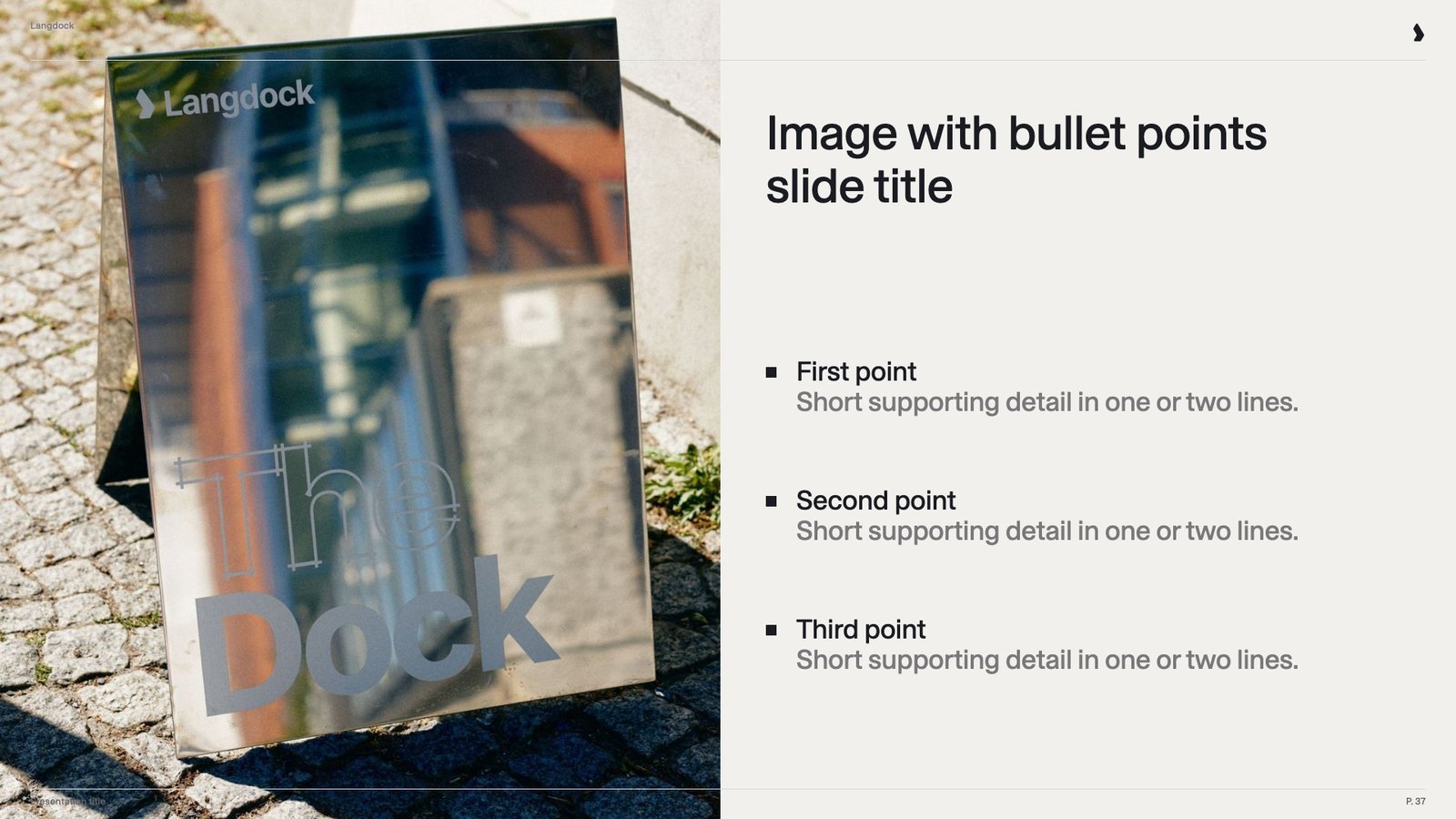 A photo filling the left half, with a title and three bullet points with one line of detail each on the right. It connects a picture with key facts or lessons about it. It suits product, site and project descriptions.
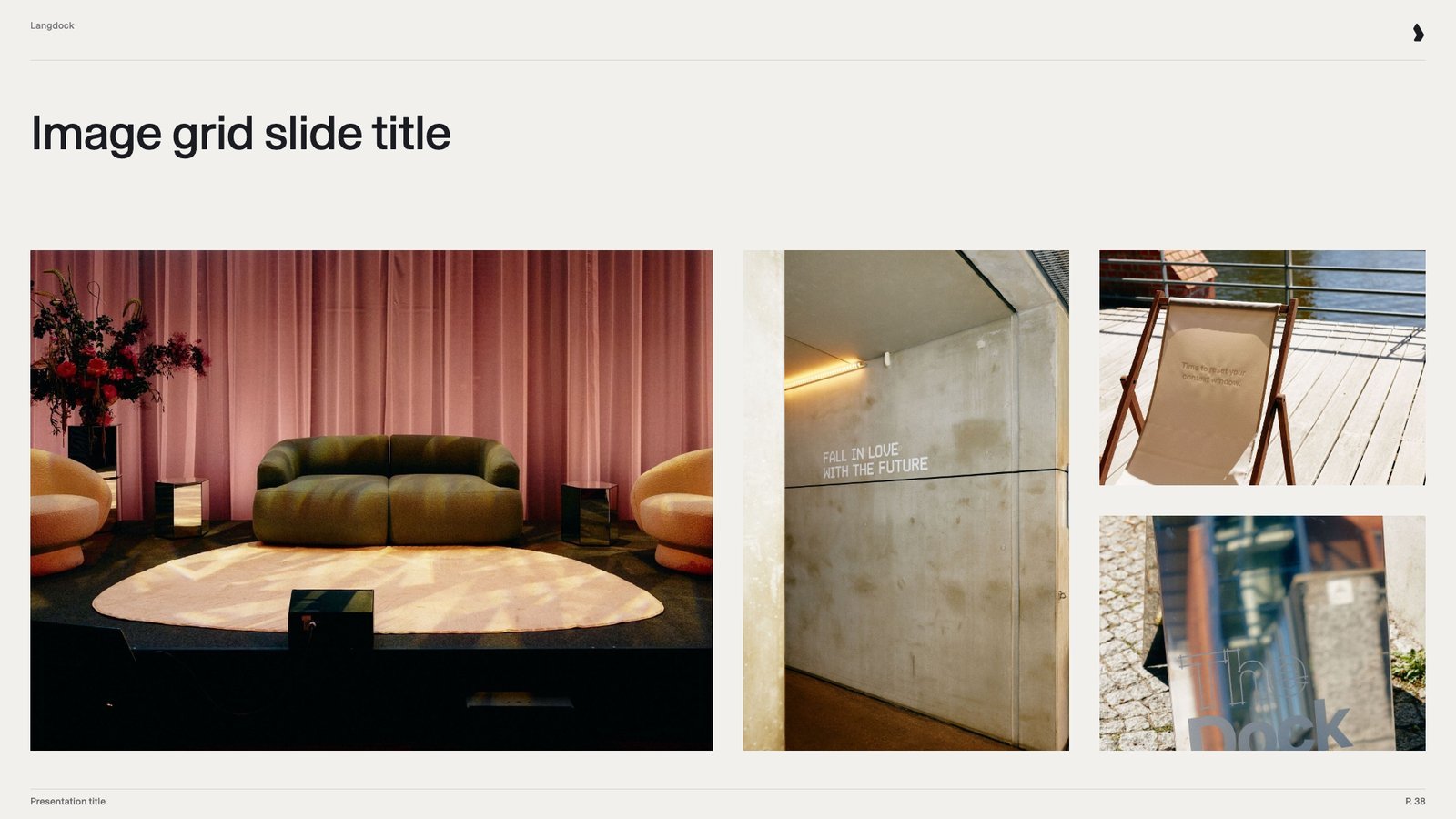 One large and three smaller photos in a grid under a short title. It shows several moments, locations or examples at once. It gives an overview where one image isn't enough.
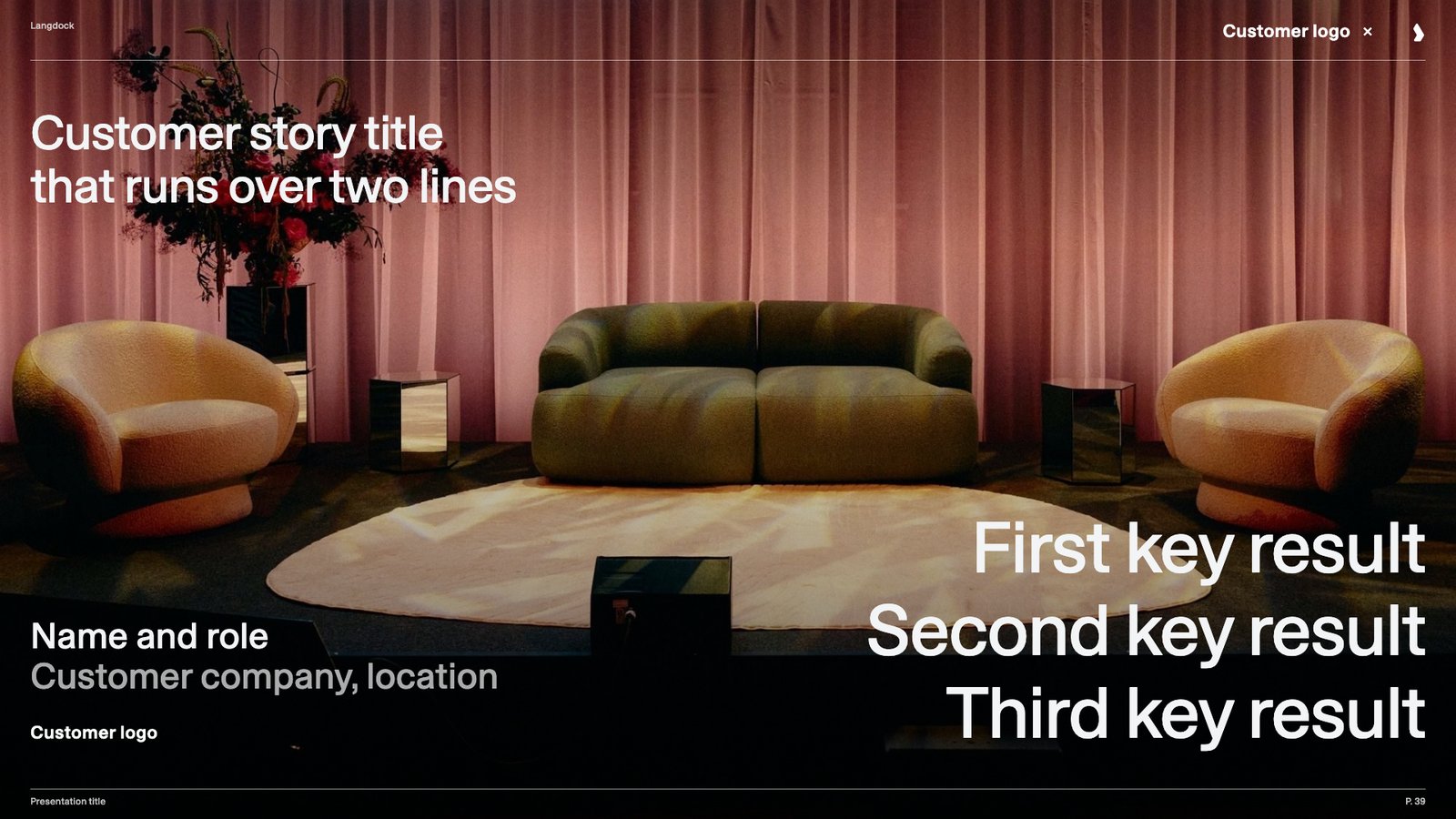 A dark full-bleed photo with a customer logo, a title, the contact's role and company and three key results in large type. It proves value with a real example. Sales and marketing decks use it to build trust.
### Team and contact
A dark full-bleed photo with a customer logo, a title, the contact's role and company and three key results in large type. It proves value with a real example. Sales and marketing decks use it to build trust.
### Team and contact
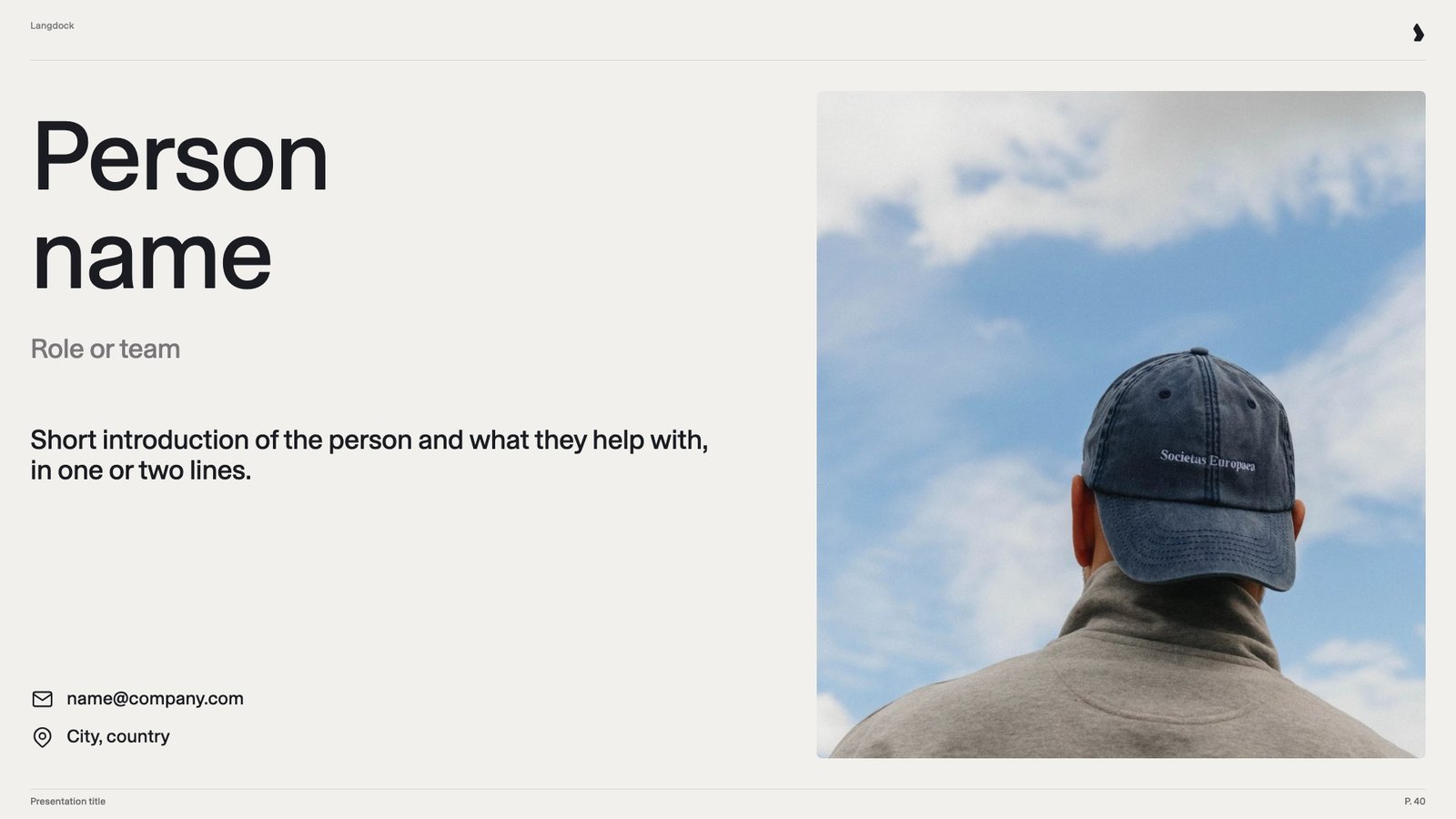 A large name with role, a short introduction and contact details next to a large photo frame for a portrait. It introduces one contact person, such as the account owner. Audiences like to know who they'll work with.
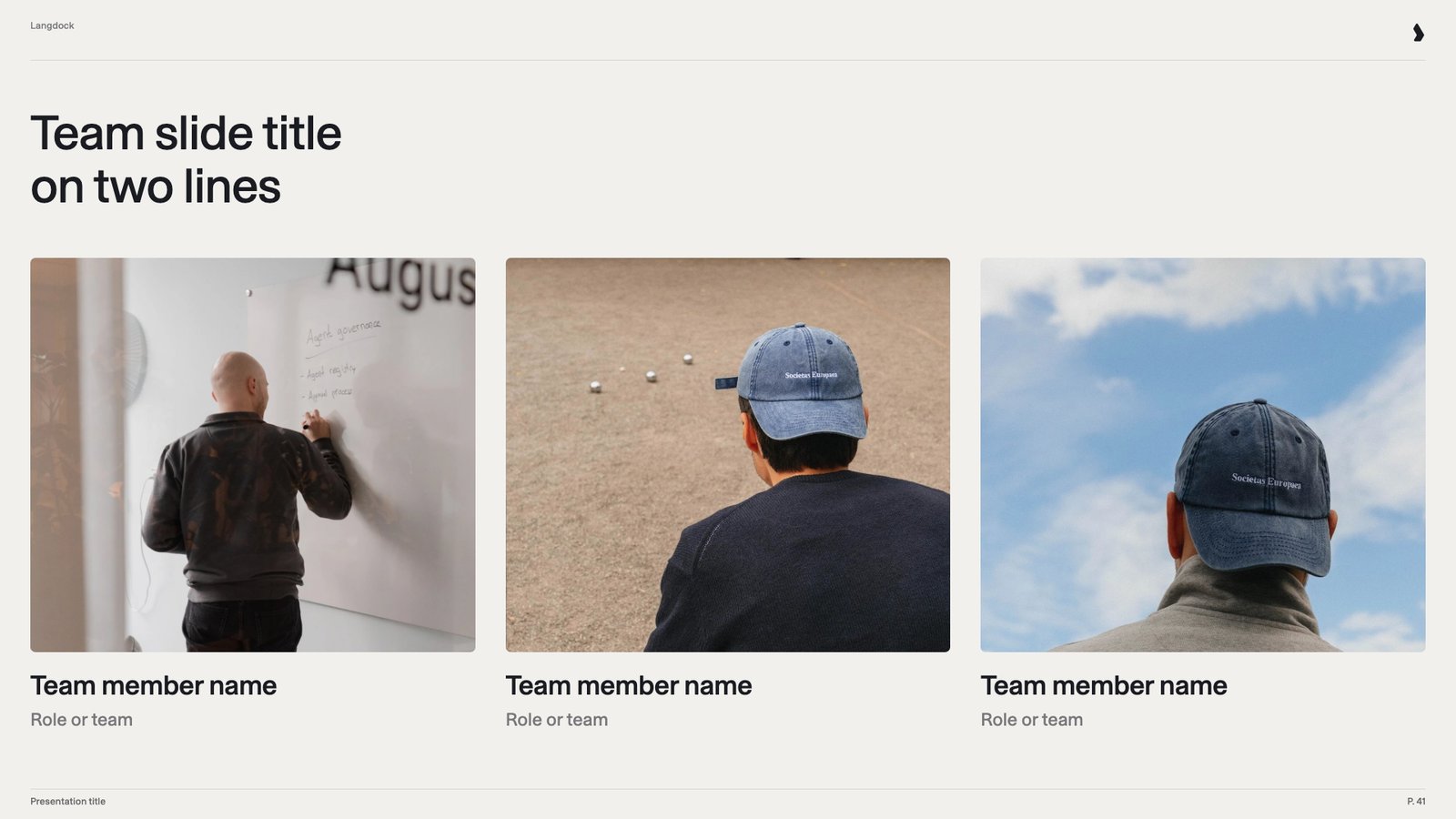 Three photo frames for portraits side by side, each with a name and role below. It introduces the project team or the contacts for a rollout. Showing faces makes the team tangible.
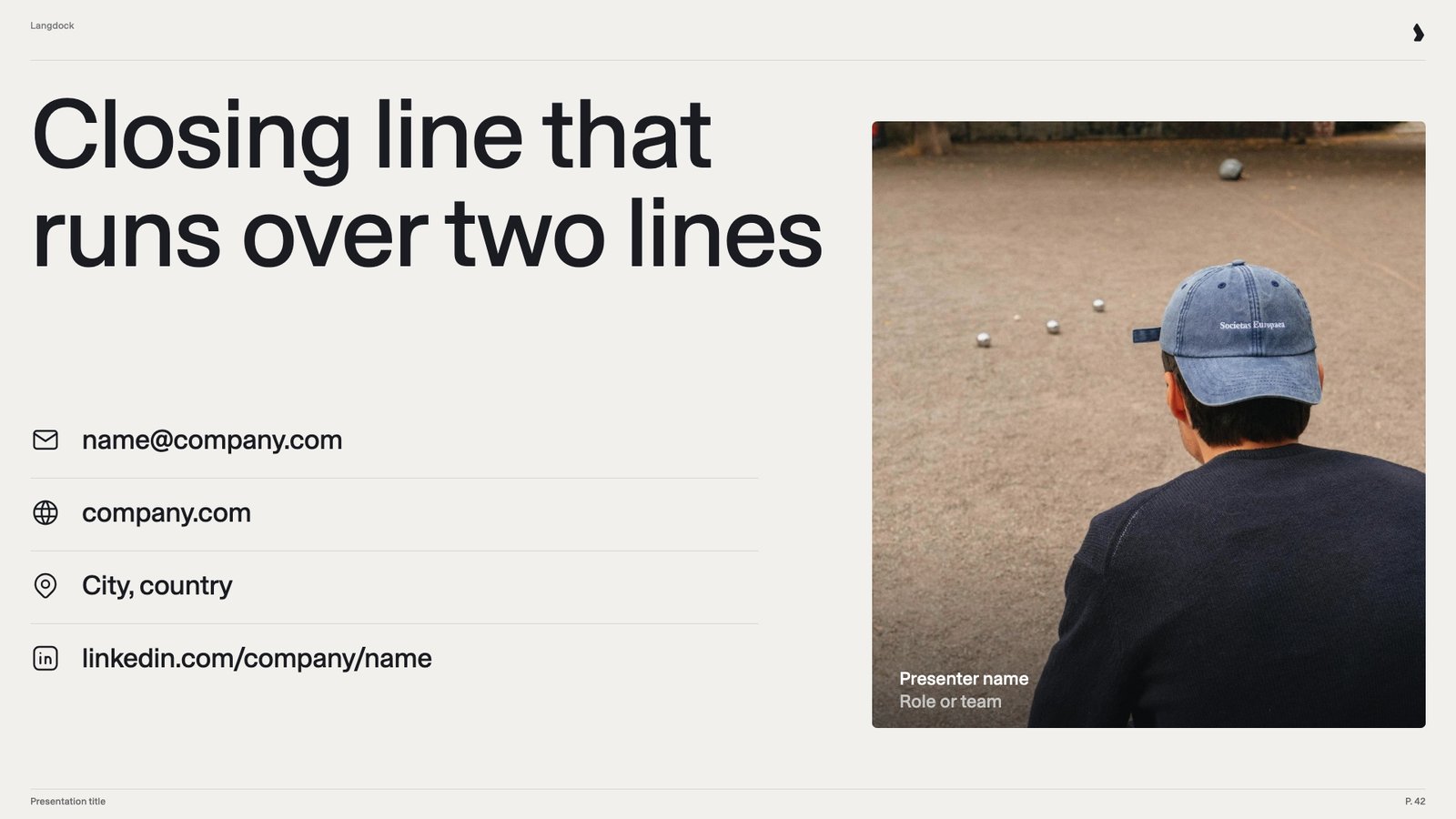 A two-line closing line, four contact details with icons, and a photo frame for a portrait with name and role. It tells the audience how to follow up. External decks should end with a clear way to get in touch.
Adapt the set: drop types nobody uses and add frequent ones, such as a product overview or pricing slide. Keep one slide per type and item count. Hide slides you want to keep in the file but not use. Langdock skips them.
## Slide examples: good vs. bad
The test for a good example slide: filled with new content, it becomes a finished slide without manual touch-up. Size each box for realistic text, and show every bullet level you want. Pick a slide type in the tabs below. Each tab shows a good slide first, then a bad one. The bad slides are built the way many real templates are, for a person to finish by hand. New content alone can't fix them. Where a bad slide has several problems, its numbers match the points below it.
A two-line closing line, four contact details with icons, and a photo frame for a portrait with name and role. It tells the audience how to follow up. External decks should end with a clear way to get in touch.
Adapt the set: drop types nobody uses and add frequent ones, such as a product overview or pricing slide. Keep one slide per type and item count. Hide slides you want to keep in the file but not use. Langdock skips them.
## Slide examples: good vs. bad
The test for a good example slide: filled with new content, it becomes a finished slide without manual touch-up. Size each box for realistic text, and show every bullet level you want. Pick a slide type in the tabs below. Each tab shows a good slide first, then a bad one. The bad slides are built the way many real templates are, for a person to finish by hand. New content alone can't fix them. Where a bad slide has several problems, its numbers match the points below it.
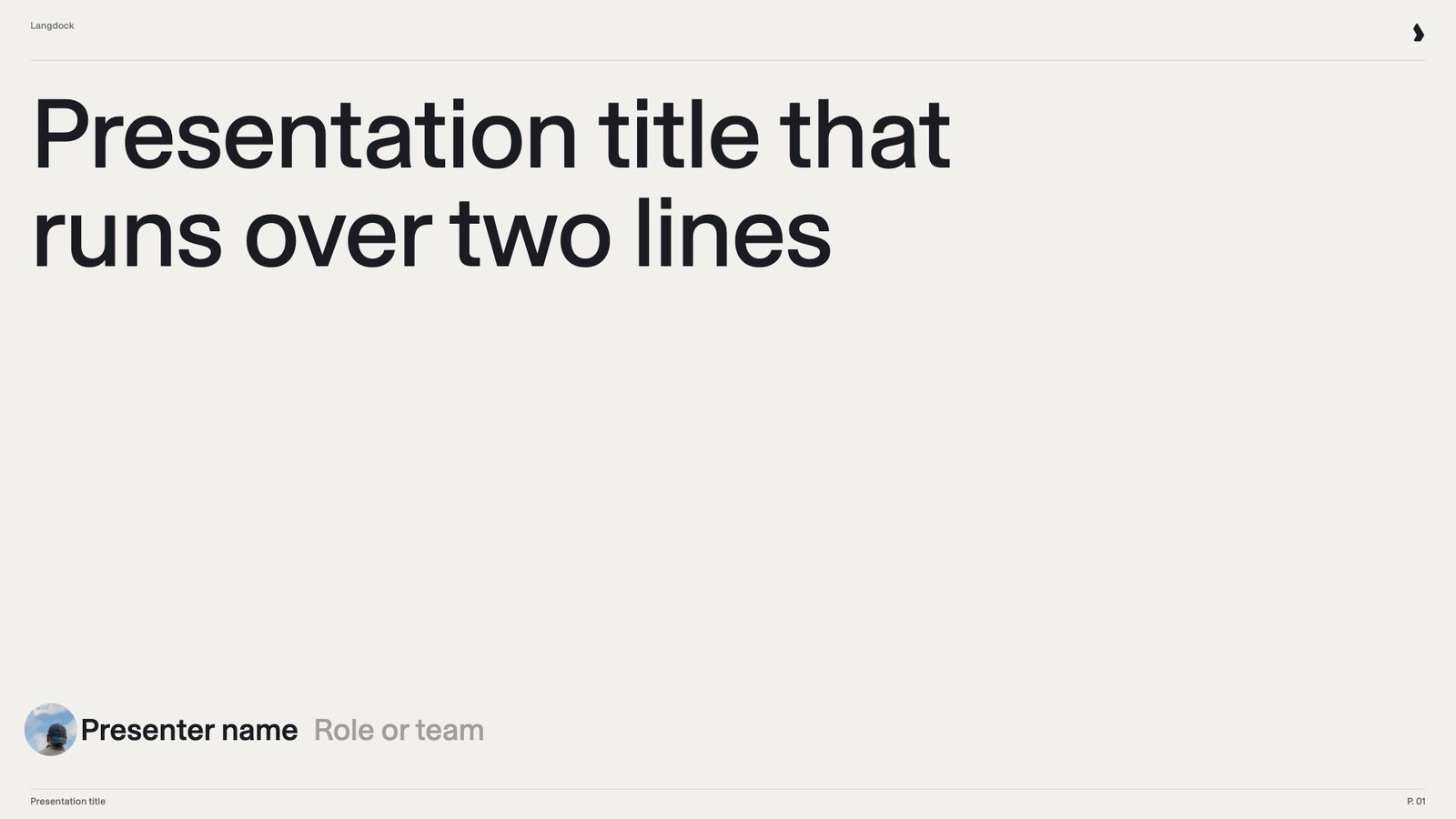 **Why this slide works:** A two-line placeholder title and a presenter line, both in their final formatting.
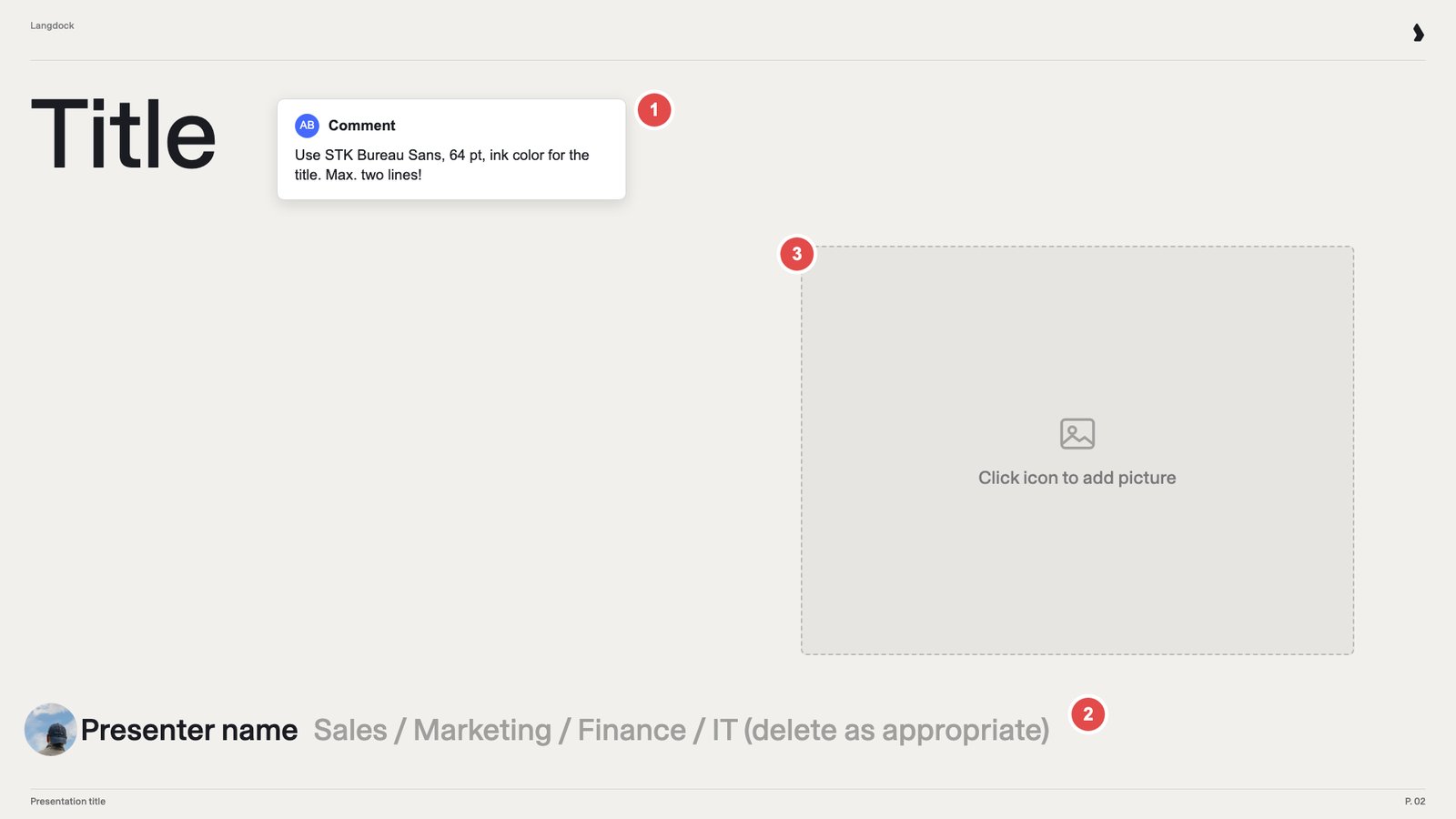 **What to fix:**
1. **Font comment.** Put formatting rules in the theme, not on the slide.
2. **Team picker.** "Delete as appropriate" asks a person to choose. Show one realistic example instead.
3. **Empty picture placeholder.** Use a fixed image, or leave the placeholder out.
**What to fix:**
1. **Font comment.** Put formatting rules in the theme, not on the slide.
2. **Team picker.** "Delete as appropriate" asks a person to choose. Show one realistic example instead.
3. **Empty picture placeholder.** Use a fixed image, or leave the placeholder out.
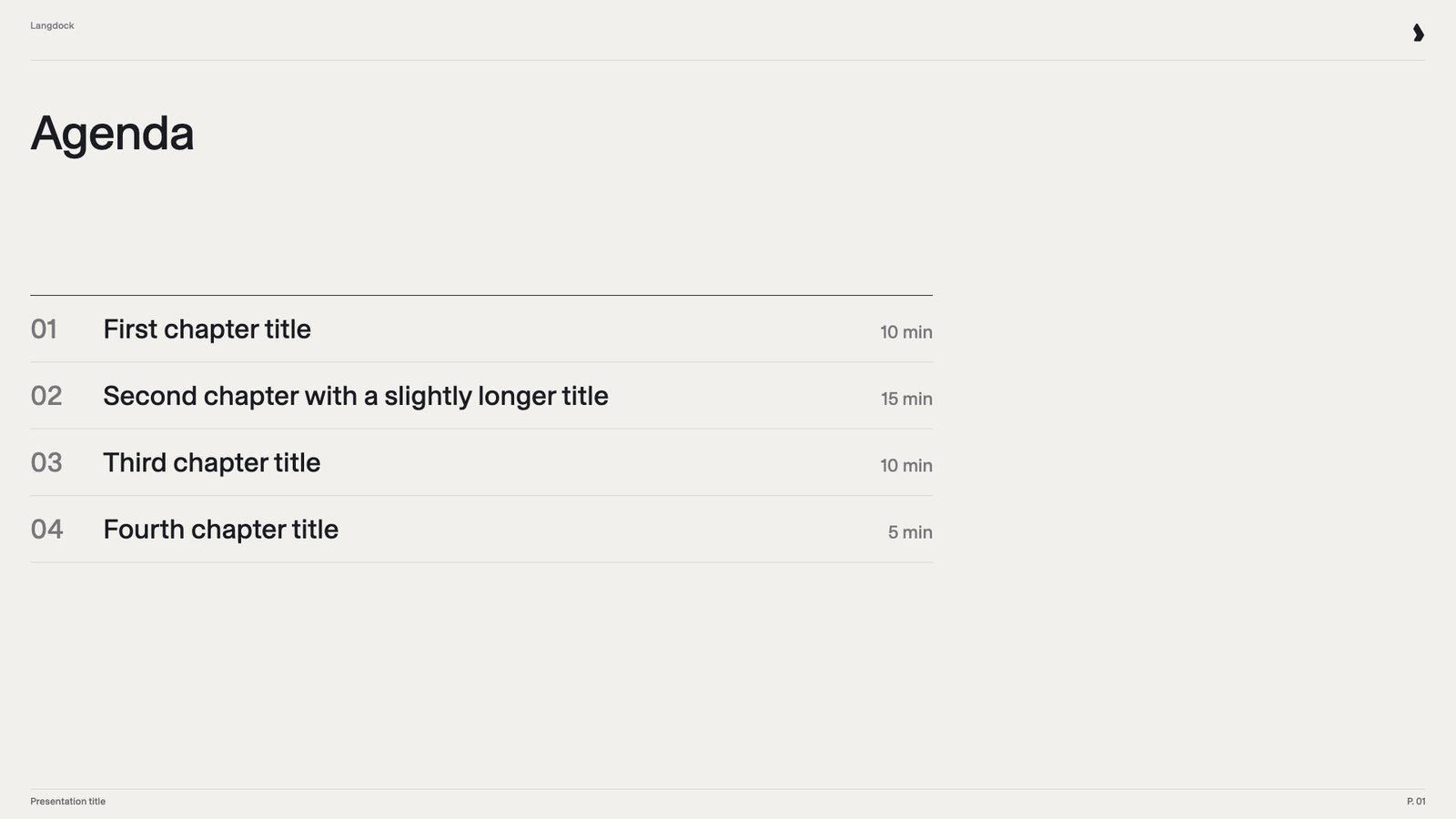 **Why this slide works:** Each chapter title and duration sits in its own text box.
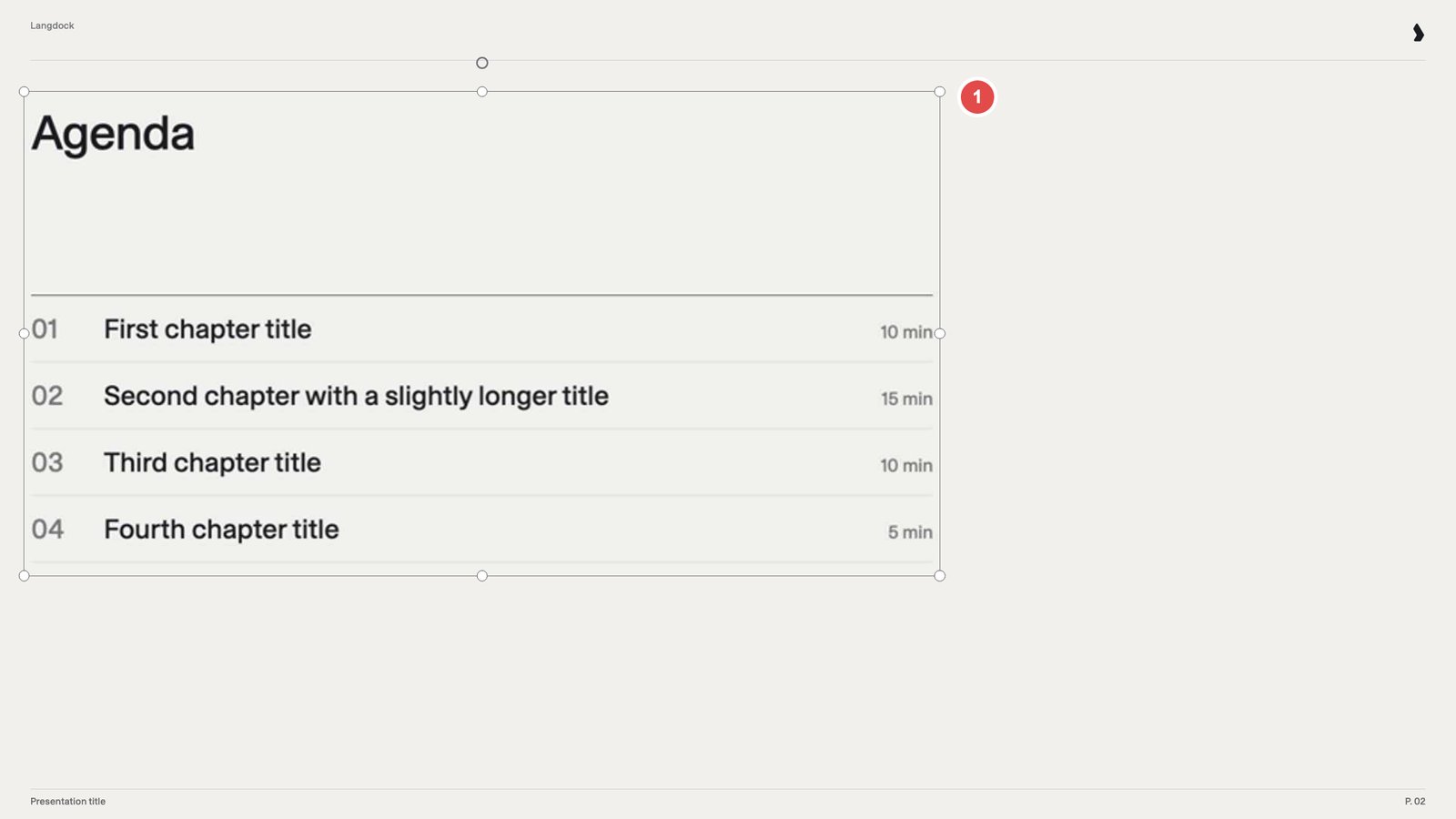 **What to fix:** The whole agenda is one picture, so there's no text to change. Build it from text boxes.
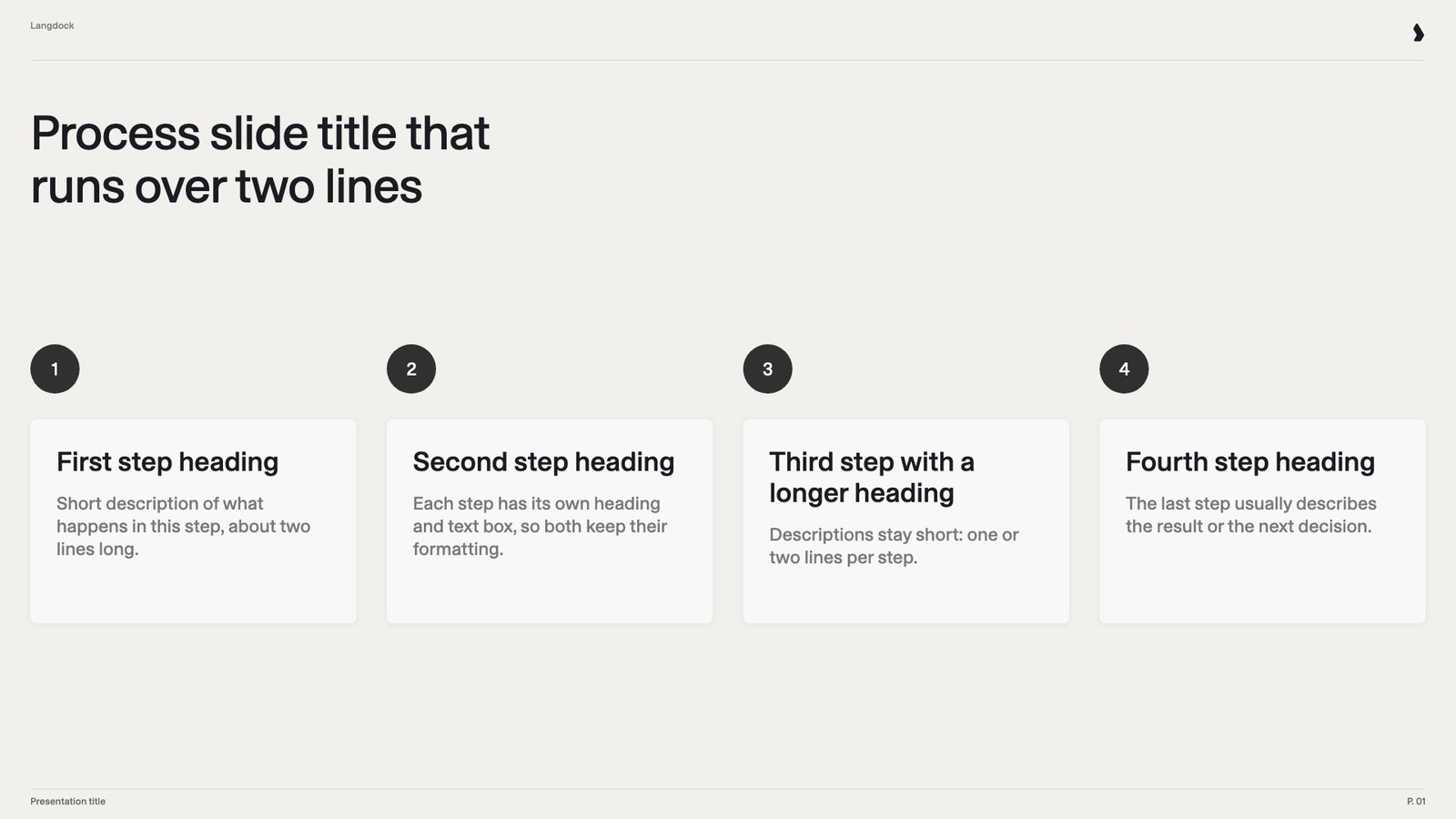 **Why this slide works:** Every step card has a heading and a short description.
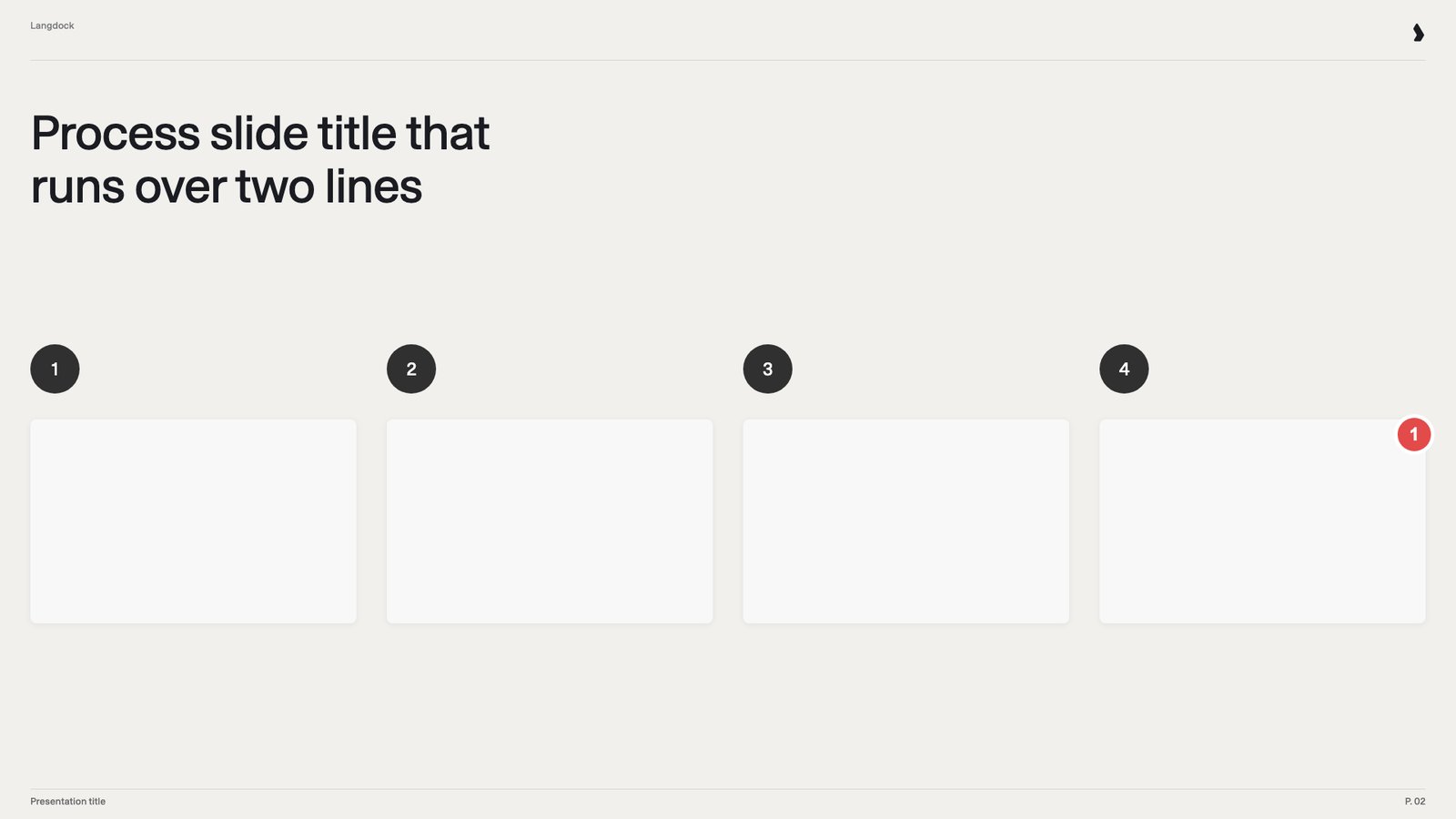 **What to fix:** The step cards are empty, so there's nothing to fill and no formatting to follow. Fill every box with sample text.
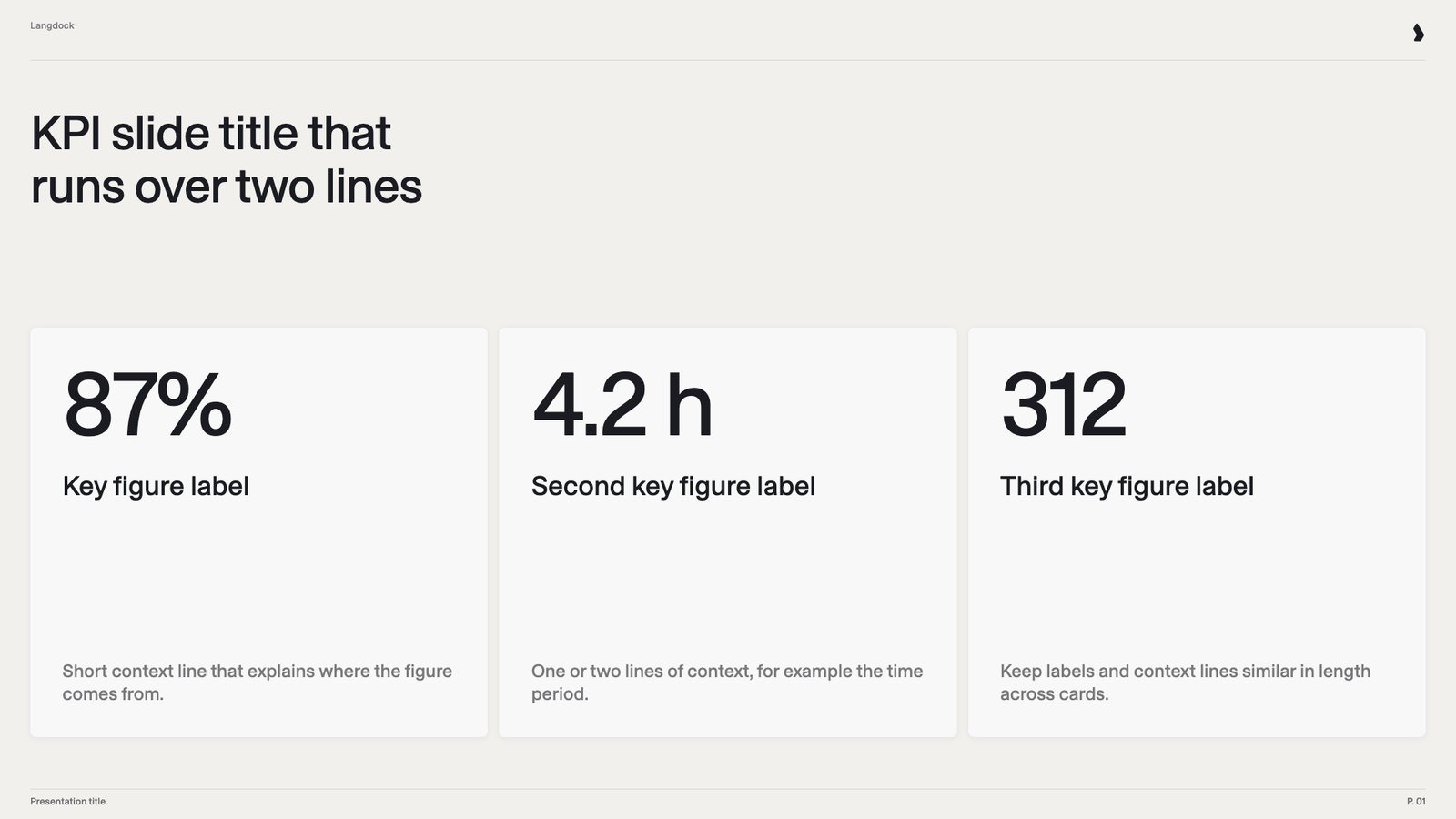 **Why this slide works:** Number, label and context line each have their own text box.
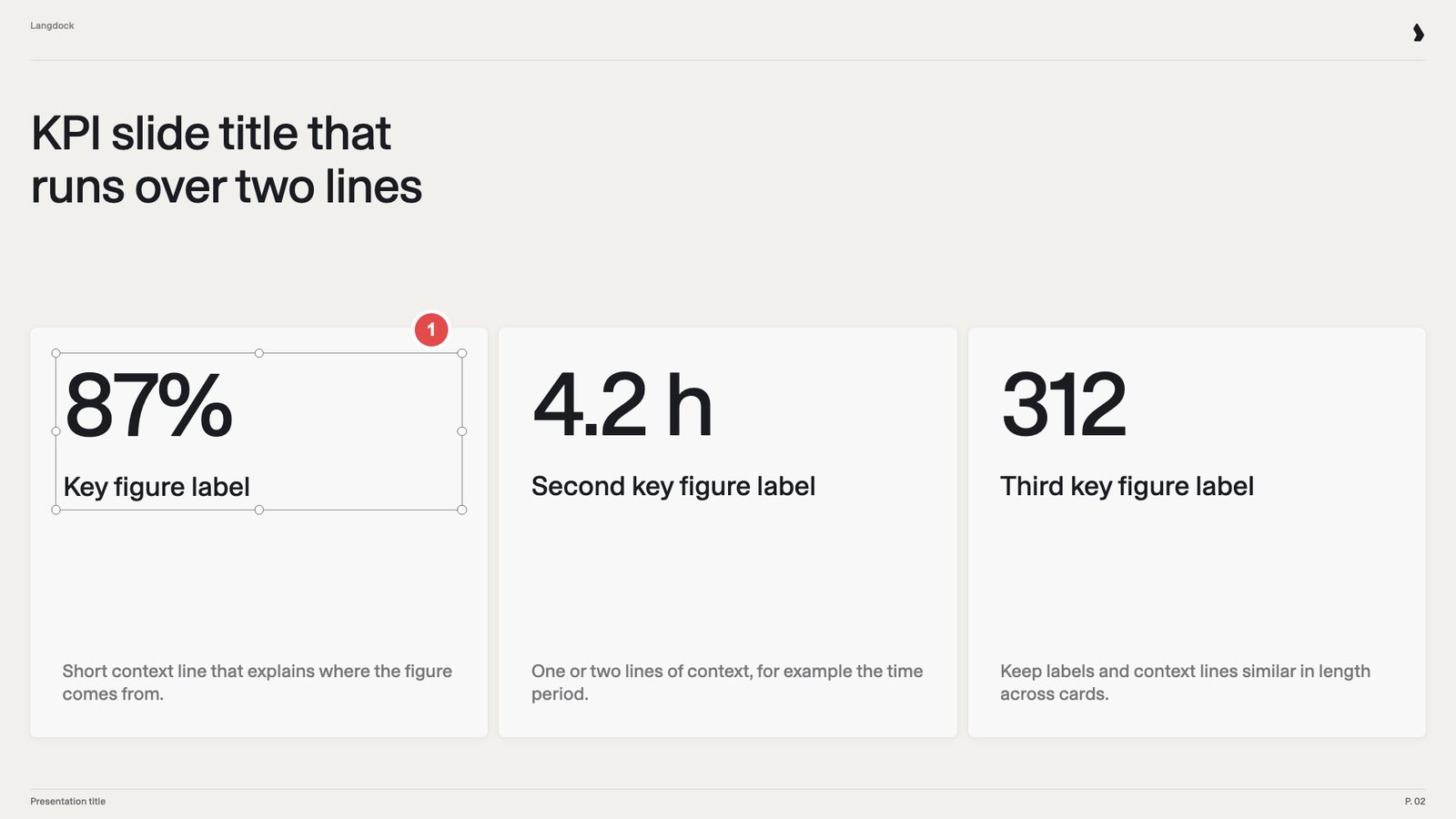 **What to fix:** Number and label share one text box, so new text can mix up their formatting. Use one box per element.
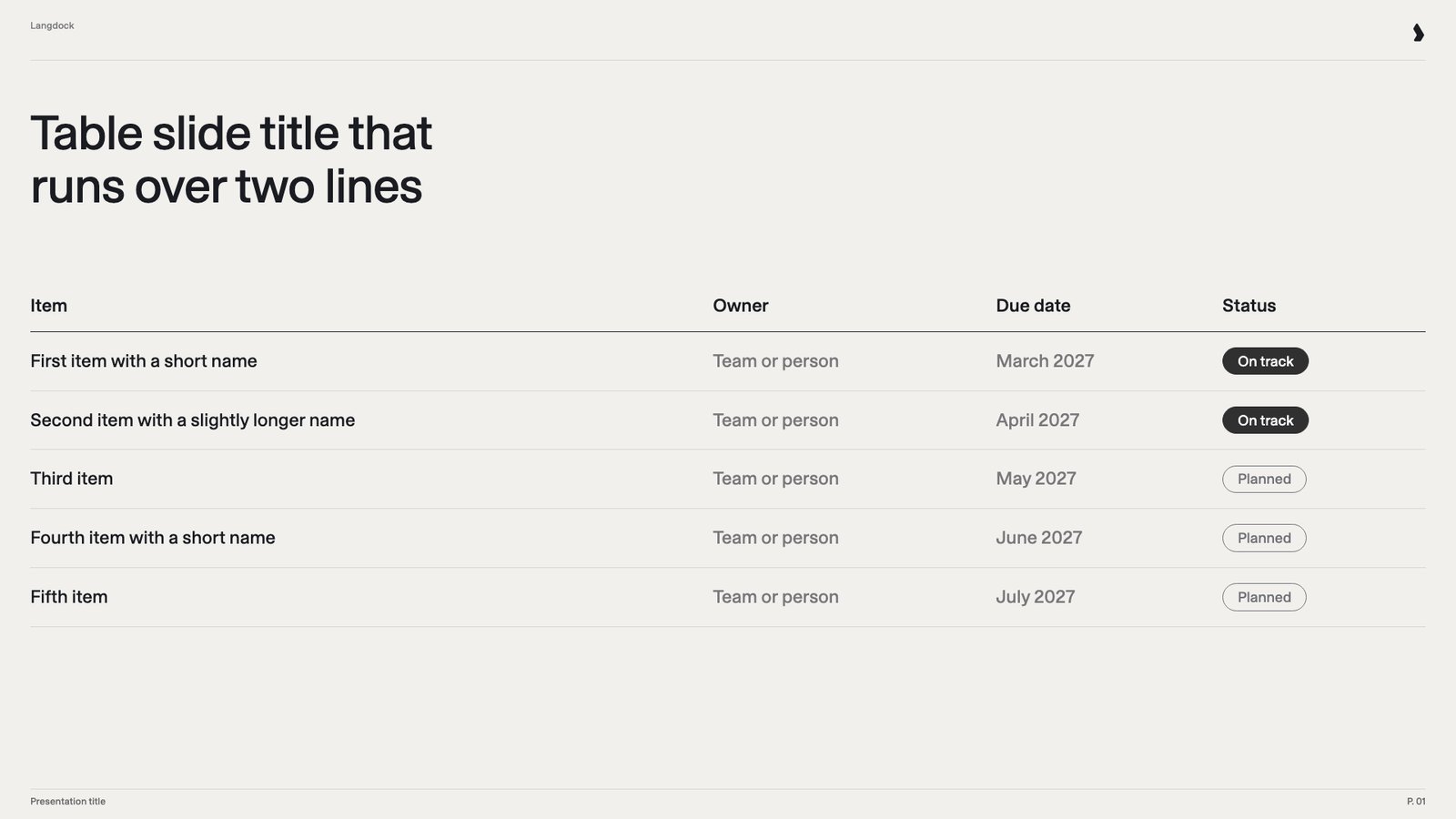 **Why this slide works:** A native table in the template's style, with realistic text in every cell.
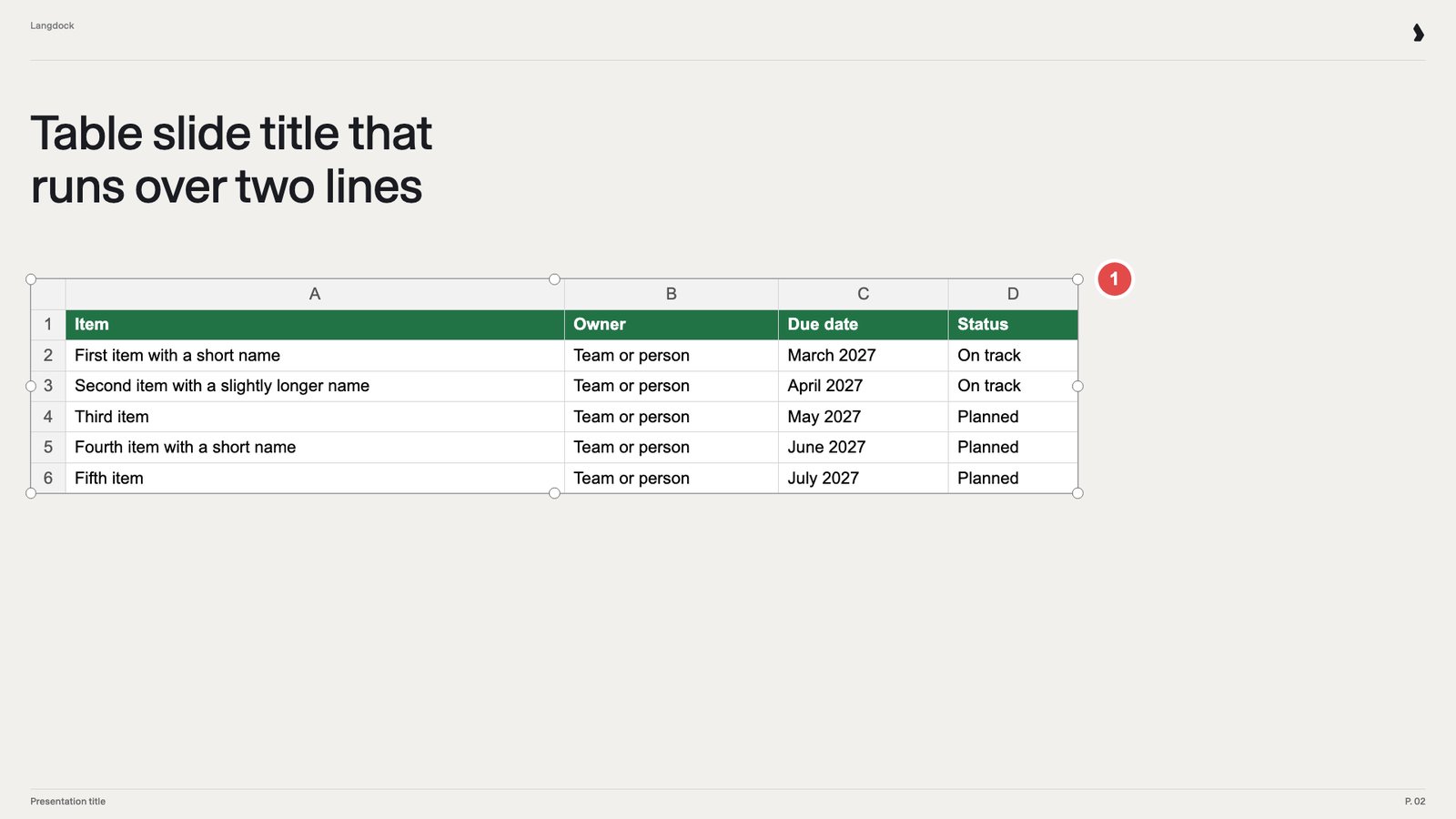 **What to fix:** The table is an Excel screenshot, so the cells are pixels, not text. Insert a native table via **Insert** → **Table**.
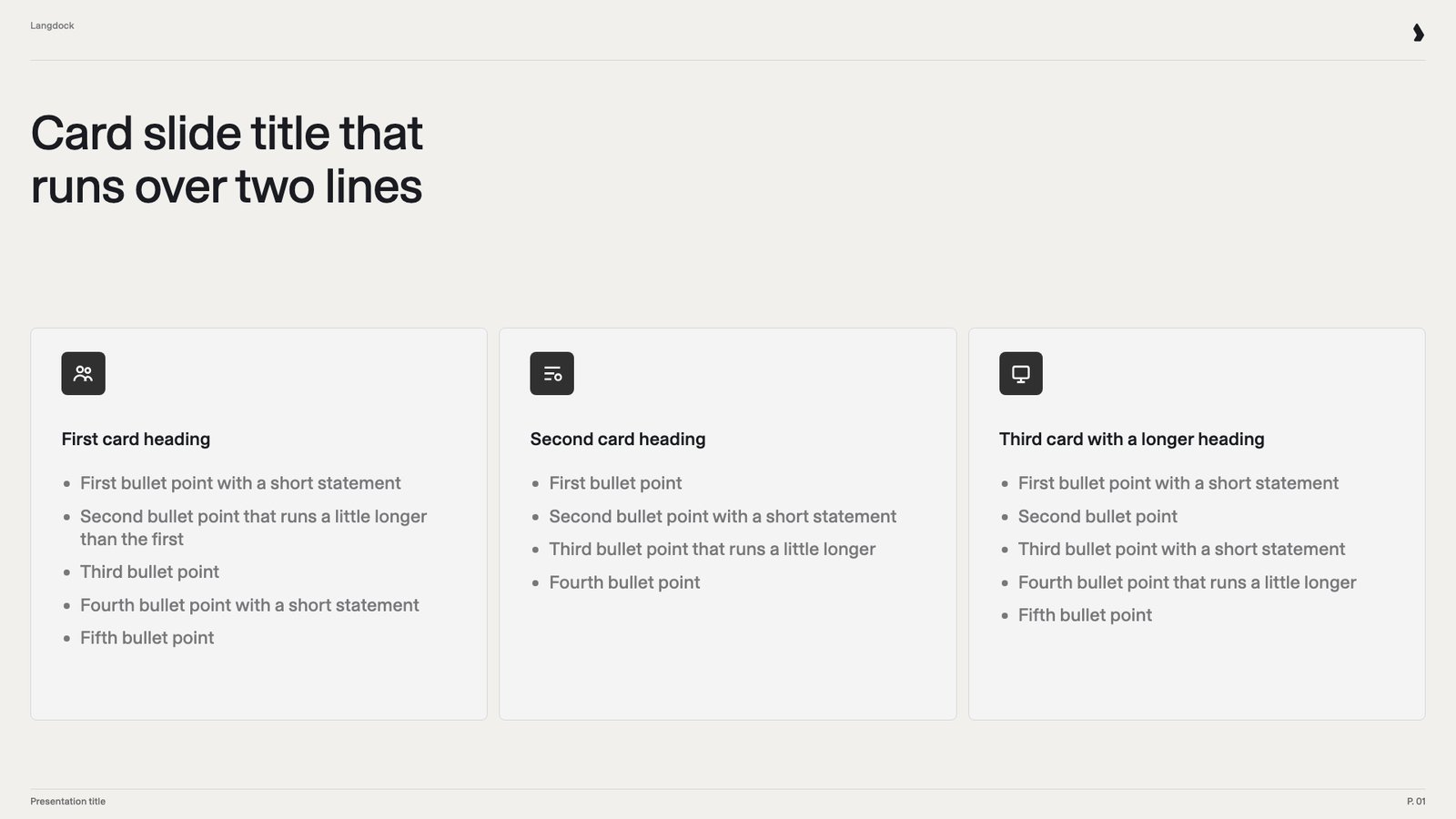 **Why this slide works:** Each card shows a heading and four to five bullet points.
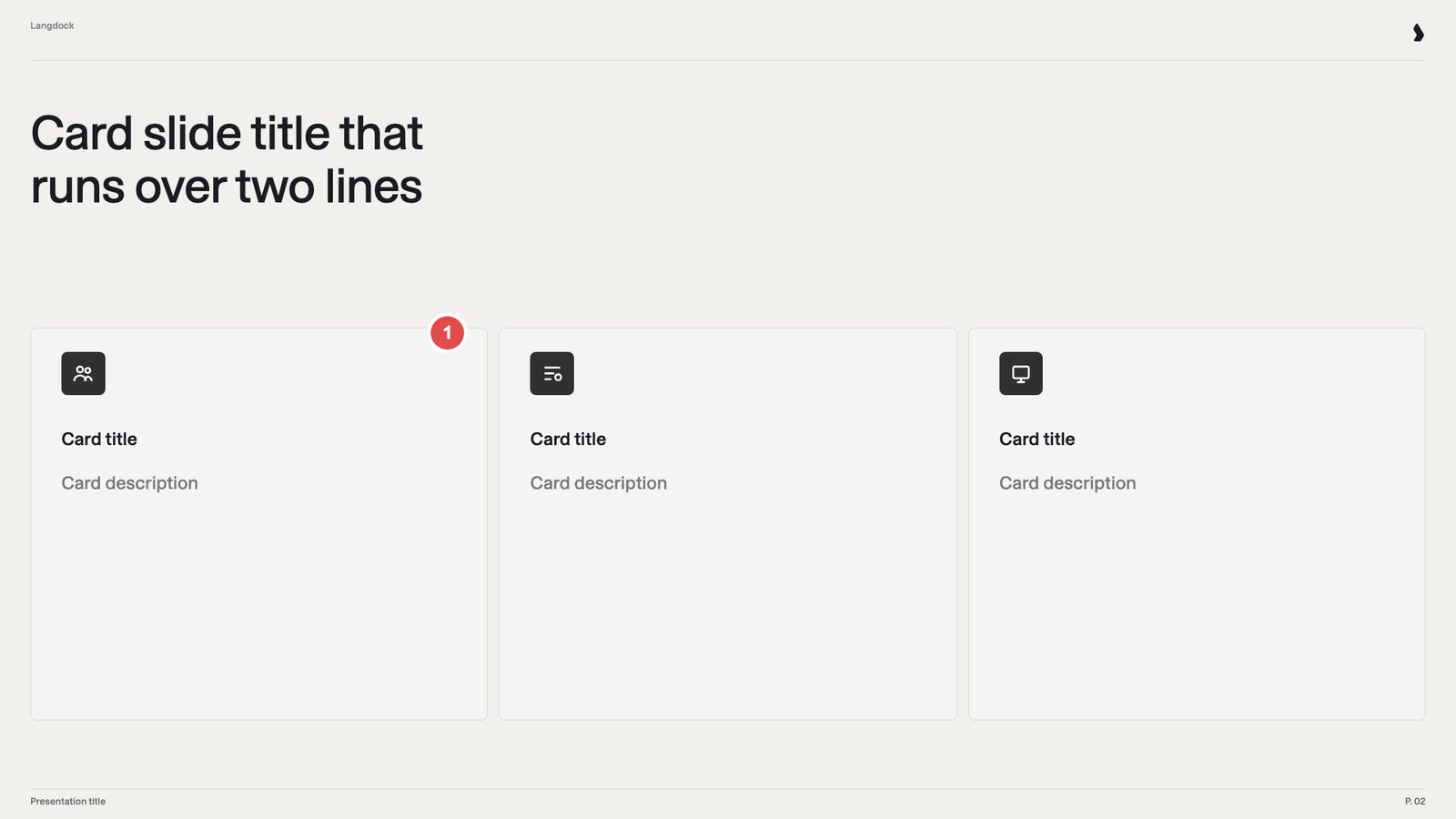 **What to fix:** Each card shows only a title and one line. Langdock can't tell the card holds a list, so new bullets take the description style. Show the full structure.
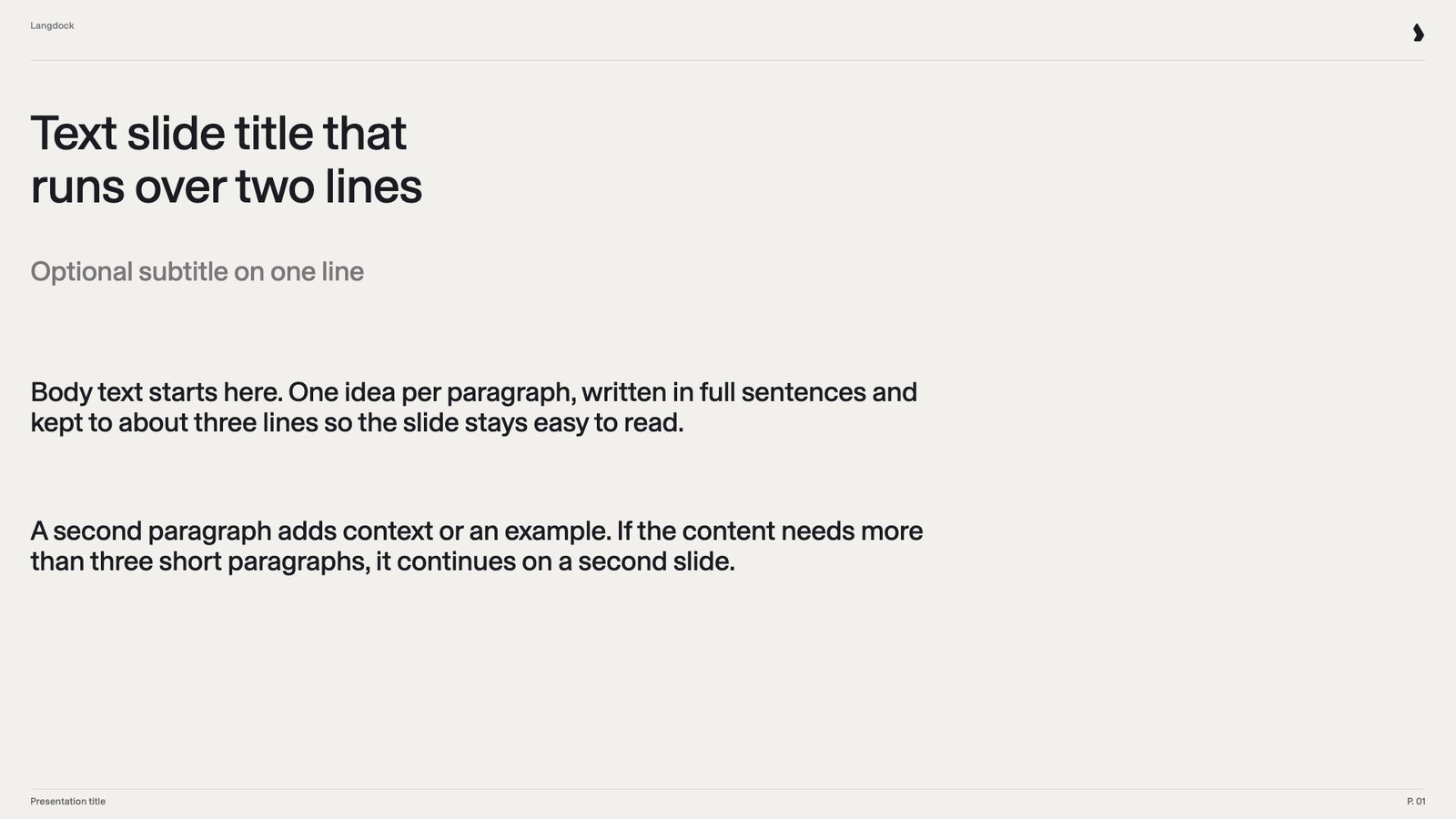 **Why this slide works:** Title, subtitle and two short paragraphs in their final formatting.
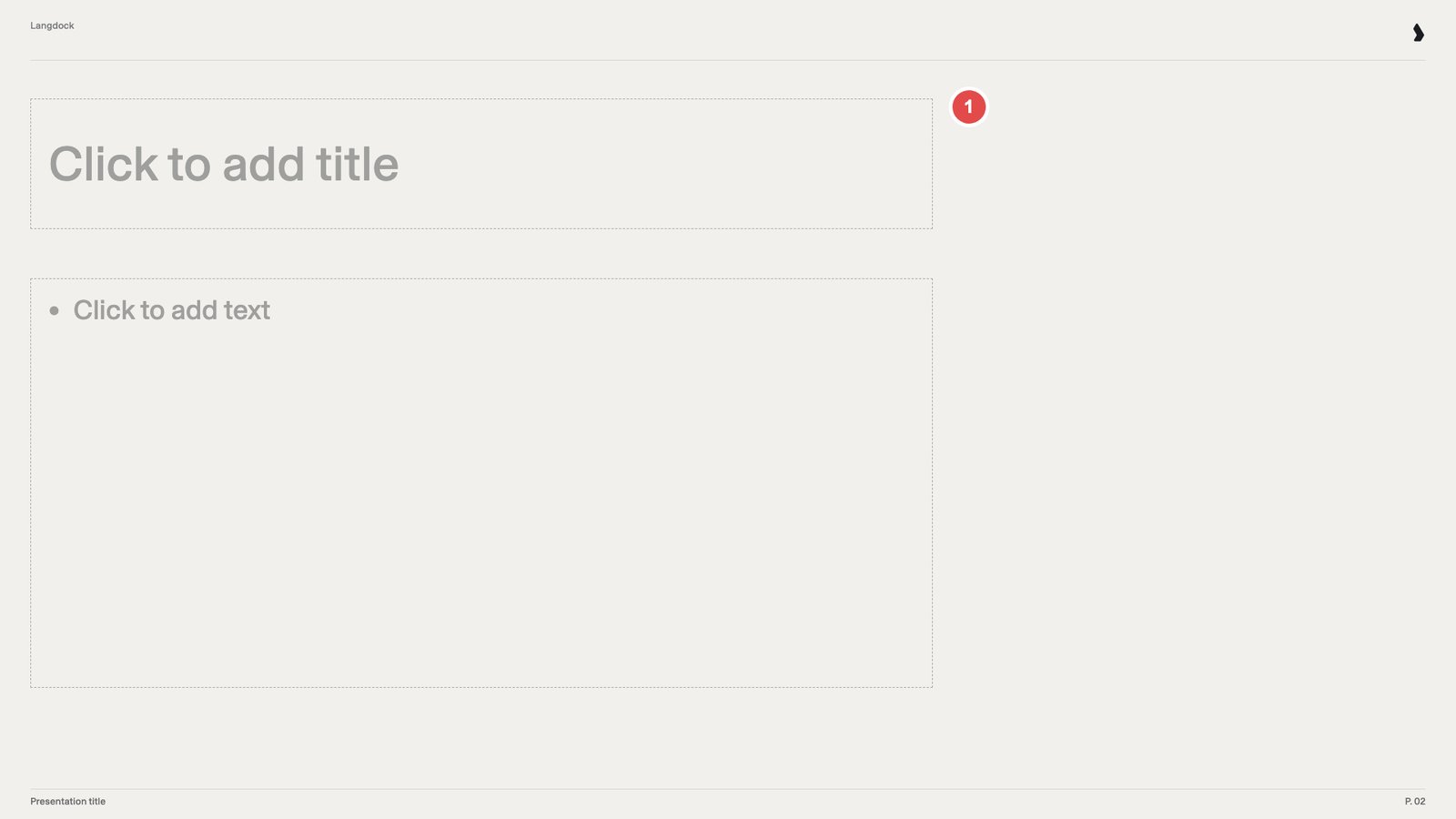 **What to fix:** The slide only has empty placeholders, so Langdock has no design to build on. Fill it with formatted sample text.
## Name your shapes
Name every text box and placeholder by what it holds. Langdock reads shape names to decide which content goes where. "Text Placeholder 4" says nothing. "KPI value" says it all.
| Default name | Better name |
| - | - |
| Text Placeholder 4 | KPI value |
| Text Placeholder 5 | KPI label |
| TextBox 9 | Source line |
| Rectangle 12 | Step 2 heading |
Open the example slide in normal view, go to **Home** → **Arrange** → **Selection Pane**, then double-click a name and type the new one. Rename shapes on each example slide. Renaming in Slide Master view only affects new slides.
## Fonts
Generated files keep your fonts. Langdock's previews and visual checks, though, use the fonts installed in Langdock. Missing fonts are replaced by similar ones, so preview line breaks can differ from PowerPoint.
| Group | Installed fonts |
| - | - |
| Office-compatible | Liberation Sans (same widths as Arial), Liberation Serif (Times New Roman), Liberation Mono (Courier New), Carlito (Calibri) |
| Sans serif | Inter, Open Sans, Roboto, Montserrat, Poppins, DM Sans, Source Sans 3, Oswald, Bebas Neue, Noto Sans, DejaVu Sans |
| Serif | Merriweather, Playfair Display, Source Serif 4, EB Garamond, Noto Serif, DejaVu Serif |
| Monospace and handwriting | JetBrains Mono, Fira Code, Caveat |
| Other scripts and emoji | Noto CJK, Noto Color Emoji |
An unlisted house font still works. Check the line breaks in one generated deck.
## Improve the slide catalog
At upload, Langdock writes a slide catalog: one entry per slide, saying what it's for. Langdock uses the catalog to pick slides, so it's your main lever for better results. You can edit it any time in the template's instructions, and the next presentation uses the new version. If Langdock picks the wrong slide or ignores a convention, fix the catalog, not the file.
* **Correct descriptions** that misread a slide.
* **Add rules below the catalog**, such as "Always end with the closing slide". Text above the first catalog heading still works, but the editor hides it when you reopen the template.
* **Connect other skills**, such as a storyline skill that asks about audience and goal before building. Share the skill with the template's users and name it exactly.
* **Keep the slide markers** such as `` unchanged.
* **Click Save, not Done.** In the upload dialog, **Done** closes without saving your edits.
## Set up and share
Upload a `.pptx` or `.potx` file under 200 MB with at least one slide. An admin approves one company template, or a small set such as general and sales, and shares it with the whole workspace. Everyone uses the same slides, without duplicates. See [File Templates](/en/using-langdock/library/file-templates) for uploading and sharing.
## Check your template with AI
Paste this prompt into a chat with your template attached. The AI checks every slide against this guide and returns a verdict per slide, fixes and a priority list. Use Langdock or any assistant that reads PowerPoint files. Assistants that can edit files ask before changing anything.
```text theme={null}
You are reviewing a PowerPoint template that will be uploaded to Langdock and used to generate presentations automatically. Review the attached file slide by slide against the rules below. Answer in the language of the template.
BEFORE YOU START
Check whether the file looks converted from a PDF or images: no placeholders or layouts, text split into one box per line, many unnamed shapes, unusual fallback fonts. If so, say this first. Then review only the visible content (instruction texts, empty slides, missing slide types, sample text) and skip findings about the master, layouts, shape names and fonts, because those come from the conversion.
HOW LANGDOCK USES A TEMPLATE
- Langdock builds every presentation from the template's example slides: it selects the slides that fit the story and fills them with new content. The slide master, layouts and design stay exactly as defined, and Langdock does not add new shapes.
- A slide type that exists only as a layout, with no filled-in example slide, is never used.
- The test for every slide: if Langdock fills it with new content, is the result a finished, high-quality slide without manual touch-up?
RULES
File and size
1. The file is .pptx or .potx, under 200 MB, and contains at least one slide.
2. A general company template has about 40 to 60 example slides. Common slide types exist in the item counts people need (for example a process with 3, 4 and 5 steps), with no near-duplicates.
3. Every layout people should use has its own filled example slide, for example both an internal and an external title slide. Compare the layouts with the example slides and list every layout that has none.
Master and layouts
4. Theme colors and theme fonts are defined, and example slides use only them. The theme fonts are the house fonts.
5. Master and layouts hold only fixed elements: logo, background, fixed footer. The logo is a normal picture on the master, not inside a placeholder.
6. Decoration that depends on the number of items (process circles, cards, dividers) sits on the slide, not on the layout.
Example slides
7. All text that should change sits in placeholders or text boxes on the slide itself.
8. Every box, card and column contains sample text in its final formatting. No empty boxes, no empty placeholders.
9. Sample text has a realistic length and structure: a two-line title where titles run two lines, the intended number of bullet points, realistic numbers.
10. Sample text may describe what belongs in the box ("Presentation title", "Presenter name"), but never gives instructions about the template ("This layout holds...", "Keep this empty", "Delete as appropriate").
11. Each element has its own text box: heading and explanation separate, number and label separate.
12. No placeholder residue: no lorem ipsum, "xx.xxx", "Click to add text", "[Insert ...]" or "DD.MM.YYYY".
13. Text is real text, never part of a picture. No agendas or tables pasted as images or screenshots. Tables are native PowerPoint tables. Charts are inserted via Insert > Chart, not through a content placeholder.
14. No pick-one options for a person to resolve: no logo menus, no "choose one, delete the others", no lists of alternatives in one field.
15. Pictures on example slides are neutral and fit any presentation.
16. Body text is 12 pt or larger, labels inside diagrams and charts are at least 10 pt, nothing is under 8 pt, and contrast is good. Fixed footer elements such as page numbers are exempt.
17. Shapes on each example slide have role names in the Selection Pane (for example "KPI value", "KPI label", "Step 2 heading").
What to remove
18. Instruction slides (color guides, how-to pages), comments, sticky notes and hint boxes on content slides.
19. Asset pages such as icon libraries and device mockups.
20. Near-duplicate slides. Hide a slide to mark it as "don't use".
21. Shapes parked outside the visible slide area, such as tip boxes, spare icons or notes. They are invisible in the slide view but still part of the file.
OUTPUT
1. A table with one row per slide: slide number, slide type, verdict (Keep, Fix or Remove), the rules it breaks (by number), and the concrete fix.
2. Deck-level findings: slide count, layouts without an example slide, slide types missing from a typical company template, missing item-count variants, near-duplicates, master and theme issues.
3. The five most important changes, in order of impact.
Do not change the file unless I ask you to. If you can edit PowerPoint files, offer to apply the fixes after the review.
```
This documentation is built and hosted on [Mintlify](https://mintlify.com), a developer documentation platform.
**What to fix:** The slide only has empty placeholders, so Langdock has no design to build on. Fill it with formatted sample text.
## Name your shapes
Name every text box and placeholder by what it holds. Langdock reads shape names to decide which content goes where. "Text Placeholder 4" says nothing. "KPI value" says it all.
| Default name | Better name |
| - | - |
| Text Placeholder 4 | KPI value |
| Text Placeholder 5 | KPI label |
| TextBox 9 | Source line |
| Rectangle 12 | Step 2 heading |
Open the example slide in normal view, go to **Home** → **Arrange** → **Selection Pane**, then double-click a name and type the new one. Rename shapes on each example slide. Renaming in Slide Master view only affects new slides.
## Fonts
Generated files keep your fonts. Langdock's previews and visual checks, though, use the fonts installed in Langdock. Missing fonts are replaced by similar ones, so preview line breaks can differ from PowerPoint.
| Group | Installed fonts |
| - | - |
| Office-compatible | Liberation Sans (same widths as Arial), Liberation Serif (Times New Roman), Liberation Mono (Courier New), Carlito (Calibri) |
| Sans serif | Inter, Open Sans, Roboto, Montserrat, Poppins, DM Sans, Source Sans 3, Oswald, Bebas Neue, Noto Sans, DejaVu Sans |
| Serif | Merriweather, Playfair Display, Source Serif 4, EB Garamond, Noto Serif, DejaVu Serif |
| Monospace and handwriting | JetBrains Mono, Fira Code, Caveat |
| Other scripts and emoji | Noto CJK, Noto Color Emoji |
An unlisted house font still works. Check the line breaks in one generated deck.
## Improve the slide catalog
At upload, Langdock writes a slide catalog: one entry per slide, saying what it's for. Langdock uses the catalog to pick slides, so it's your main lever for better results. You can edit it any time in the template's instructions, and the next presentation uses the new version. If Langdock picks the wrong slide or ignores a convention, fix the catalog, not the file.
* **Correct descriptions** that misread a slide.
* **Add rules below the catalog**, such as "Always end with the closing slide". Text above the first catalog heading still works, but the editor hides it when you reopen the template.
* **Connect other skills**, such as a storyline skill that asks about audience and goal before building. Share the skill with the template's users and name it exactly.
* **Keep the slide markers** such as `` unchanged.
* **Click Save, not Done.** In the upload dialog, **Done** closes without saving your edits.
## Set up and share
Upload a `.pptx` or `.potx` file under 200 MB with at least one slide. An admin approves one company template, or a small set such as general and sales, and shares it with the whole workspace. Everyone uses the same slides, without duplicates. See [File Templates](/en/using-langdock/library/file-templates) for uploading and sharing.
## Check your template with AI
Paste this prompt into a chat with your template attached. The AI checks every slide against this guide and returns a verdict per slide, fixes and a priority list. Use Langdock or any assistant that reads PowerPoint files. Assistants that can edit files ask before changing anything.
```text theme={null}
You are reviewing a PowerPoint template that will be uploaded to Langdock and used to generate presentations automatically. Review the attached file slide by slide against the rules below. Answer in the language of the template.
BEFORE YOU START
Check whether the file looks converted from a PDF or images: no placeholders or layouts, text split into one box per line, many unnamed shapes, unusual fallback fonts. If so, say this first. Then review only the visible content (instruction texts, empty slides, missing slide types, sample text) and skip findings about the master, layouts, shape names and fonts, because those come from the conversion.
HOW LANGDOCK USES A TEMPLATE
- Langdock builds every presentation from the template's example slides: it selects the slides that fit the story and fills them with new content. The slide master, layouts and design stay exactly as defined, and Langdock does not add new shapes.
- A slide type that exists only as a layout, with no filled-in example slide, is never used.
- The test for every slide: if Langdock fills it with new content, is the result a finished, high-quality slide without manual touch-up?
RULES
File and size
1. The file is .pptx or .potx, under 200 MB, and contains at least one slide.
2. A general company template has about 40 to 60 example slides. Common slide types exist in the item counts people need (for example a process with 3, 4 and 5 steps), with no near-duplicates.
3. Every layout people should use has its own filled example slide, for example both an internal and an external title slide. Compare the layouts with the example slides and list every layout that has none.
Master and layouts
4. Theme colors and theme fonts are defined, and example slides use only them. The theme fonts are the house fonts.
5. Master and layouts hold only fixed elements: logo, background, fixed footer. The logo is a normal picture on the master, not inside a placeholder.
6. Decoration that depends on the number of items (process circles, cards, dividers) sits on the slide, not on the layout.
Example slides
7. All text that should change sits in placeholders or text boxes on the slide itself.
8. Every box, card and column contains sample text in its final formatting. No empty boxes, no empty placeholders.
9. Sample text has a realistic length and structure: a two-line title where titles run two lines, the intended number of bullet points, realistic numbers.
10. Sample text may describe what belongs in the box ("Presentation title", "Presenter name"), but never gives instructions about the template ("This layout holds...", "Keep this empty", "Delete as appropriate").
11. Each element has its own text box: heading and explanation separate, number and label separate.
12. No placeholder residue: no lorem ipsum, "xx.xxx", "Click to add text", "[Insert ...]" or "DD.MM.YYYY".
13. Text is real text, never part of a picture. No agendas or tables pasted as images or screenshots. Tables are native PowerPoint tables. Charts are inserted via Insert > Chart, not through a content placeholder.
14. No pick-one options for a person to resolve: no logo menus, no "choose one, delete the others", no lists of alternatives in one field.
15. Pictures on example slides are neutral and fit any presentation.
16. Body text is 12 pt or larger, labels inside diagrams and charts are at least 10 pt, nothing is under 8 pt, and contrast is good. Fixed footer elements such as page numbers are exempt.
17. Shapes on each example slide have role names in the Selection Pane (for example "KPI value", "KPI label", "Step 2 heading").
What to remove
18. Instruction slides (color guides, how-to pages), comments, sticky notes and hint boxes on content slides.
19. Asset pages such as icon libraries and device mockups.
20. Near-duplicate slides. Hide a slide to mark it as "don't use".
21. Shapes parked outside the visible slide area, such as tip boxes, spare icons or notes. They are invisible in the slide view but still part of the file.
OUTPUT
1. A table with one row per slide: slide number, slide type, verdict (Keep, Fix or Remove), the rules it breaks (by number), and the concrete fix.
2. Deck-level findings: slide count, layouts without an example slide, slide types missing from a typical company template, missing item-count variants, near-duplicates, master and theme issues.
3. The five most important changes, in order of impact.
Do not change the file unless I ask you to. If you can edit PowerPoint files, offer to apply the fixes after the review.
```
This documentation is built and hosted on [Mintlify](https://mintlify.com), a developer documentation platform.