> ## Documentation Index
> Fetch the complete documentation index at: https://docs.langdock.com/llms.txt
> Use this file to discover all available pages before exploring further.
# How to use the Slack Bot
> Use Langdock models and Agents directly in Slack
To use Langdock in Slack, the Langdock app must be installed in your Slack
workspace. This can only be done by a workspace admin following the steps
detailed on the [Slack Bot integration
page](/en/admin/manage-integrations/chatbot-setup-guides/slack).
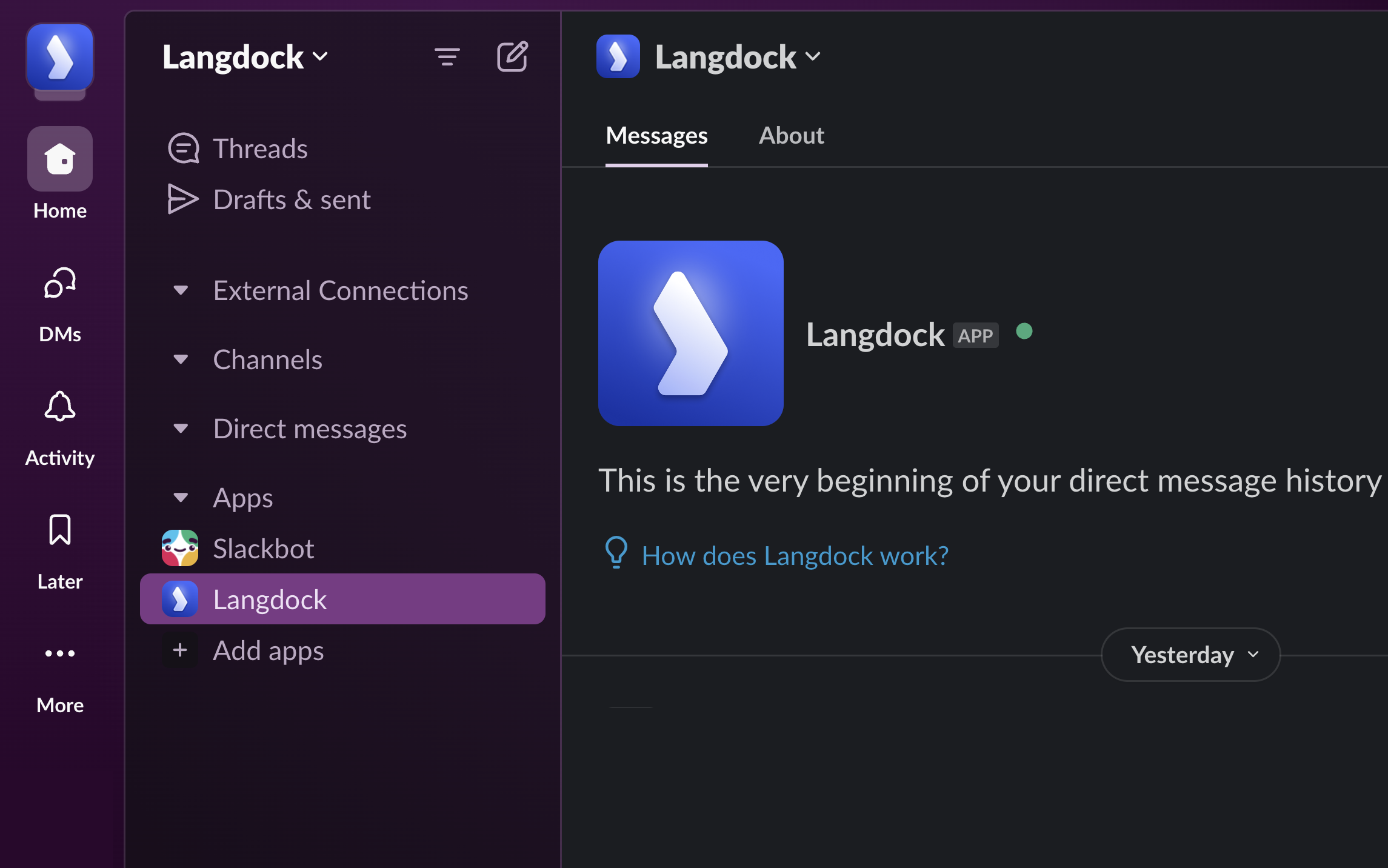
Afterwards, make sure that you have the app installed in your account. It should appear in the "Apps" section at the bottom left. If it's not installed, please click on "Add apps" to add the app to your Slack account.
 ## Basic Usage
The Langdock Slack Bot gives you full access to Langdock models and Agents directly in Slack. Once installed, you can interact with it by:
* Tagging **@Langdock** in any channel where the app is a member
* Sending a direct message to **@Langdock** (find it under "Apps" in your left sidebar)
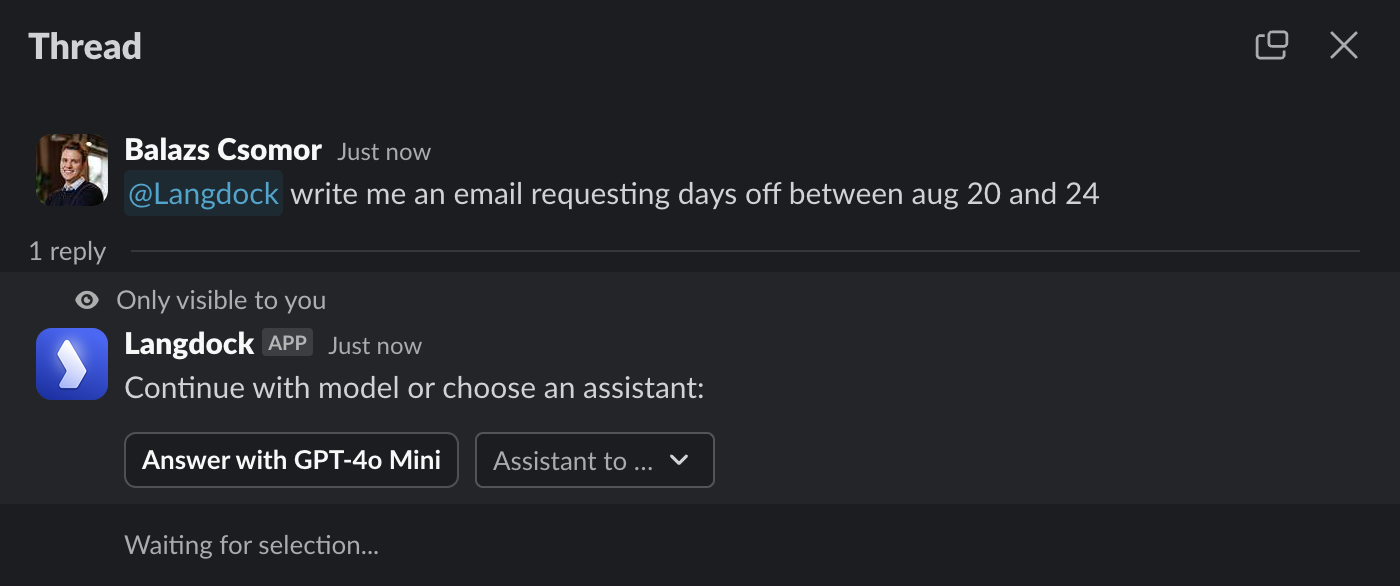
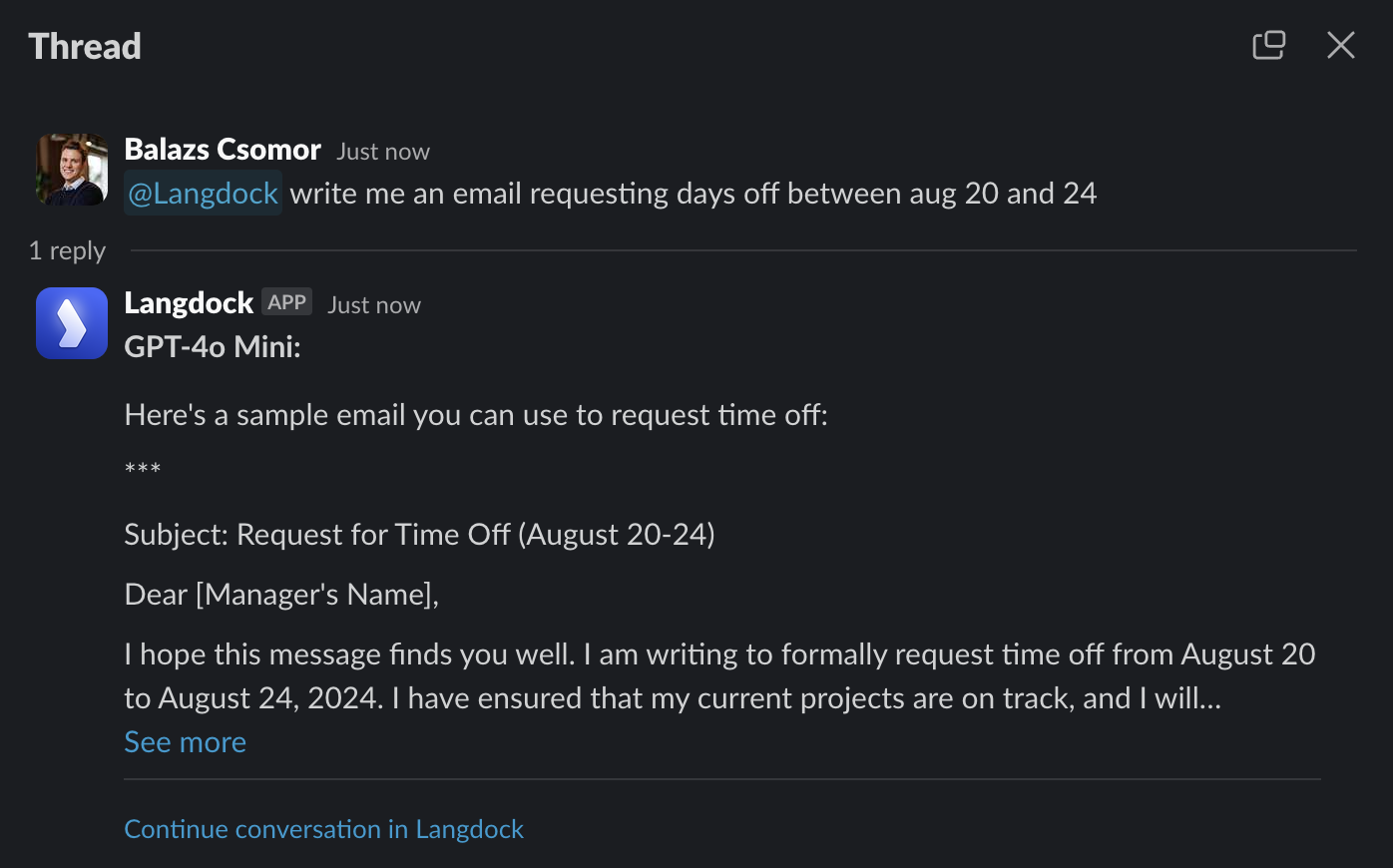
After tagging **@Langdock** or messaging it directly, the bot responds in a thread where you can choose your default model or any Agent. The default model comes from your workspace settings or your personal preferences in [Langdock Preferences](https://app.langdock.com/settings/account/preferences).
## Basic Usage
The Langdock Slack Bot gives you full access to Langdock models and Agents directly in Slack. Once installed, you can interact with it by:
* Tagging **@Langdock** in any channel where the app is a member
* Sending a direct message to **@Langdock** (find it under "Apps" in your left sidebar)
After tagging **@Langdock** or messaging it directly, the bot responds in a thread where you can choose your default model or any Agent. The default model comes from your workspace settings or your personal preferences in [Langdock Preferences](https://app.langdock.com/settings/account/preferences).
 ## What does the Slack Bot see?
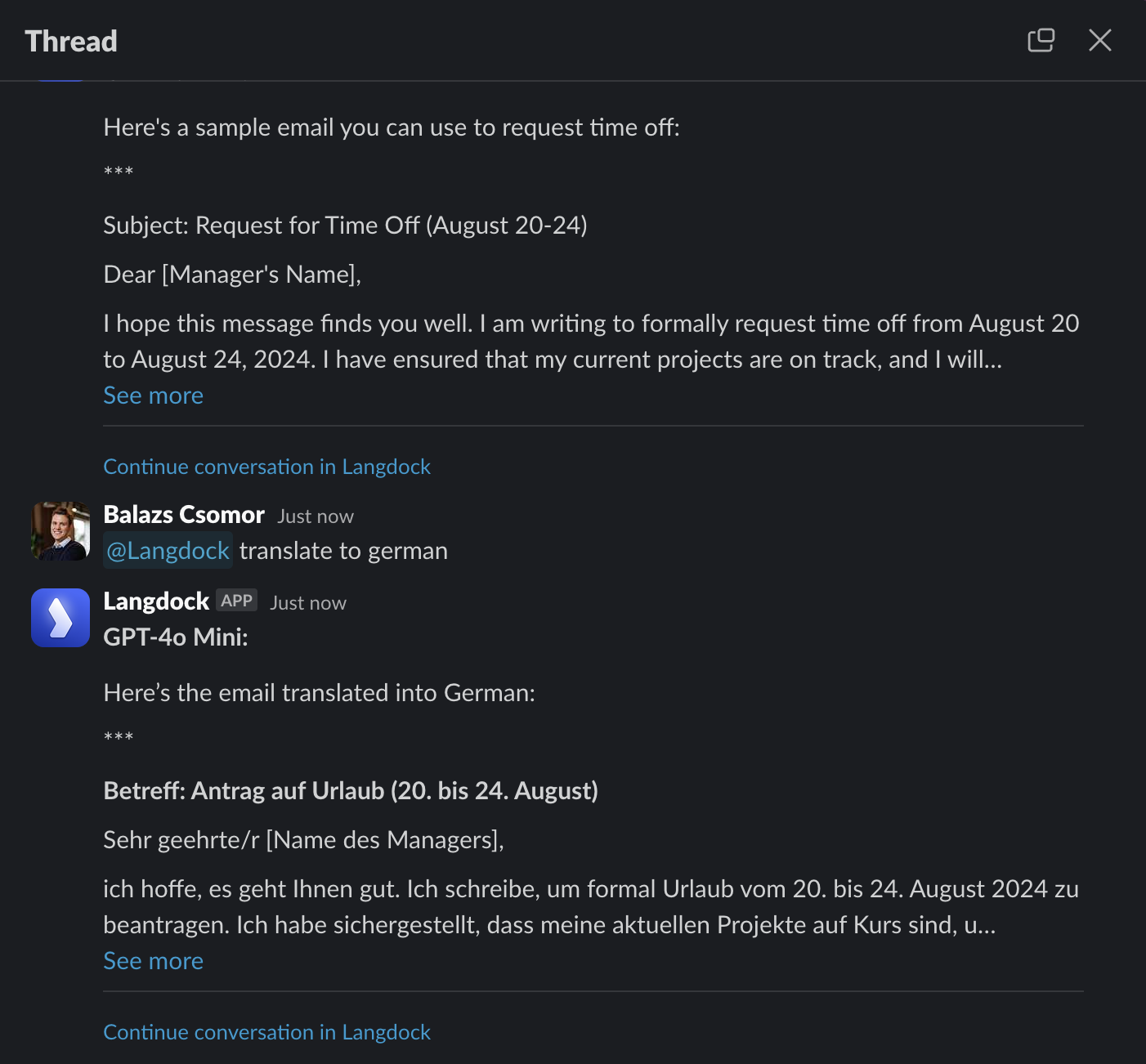
The Langdock Slack Bot only sees messages in threads where it's tagged or messaged directly. This is by design for privacy, it doesn't monitor other channel messages or threads. To ensure the bot sees a specific message, tag it in that same thread.
In the example below, the bot can see and translate the previous message because they're in the same thread:
## What does the Slack Bot see?
The Langdock Slack Bot only sees messages in threads where it's tagged or messaged directly. This is by design for privacy, it doesn't monitor other channel messages or threads. To ensure the bot sees a specific message, tag it in that same thread.
In the example below, the bot can see and translate the previous message because they're in the same thread:
 ## Using Agents
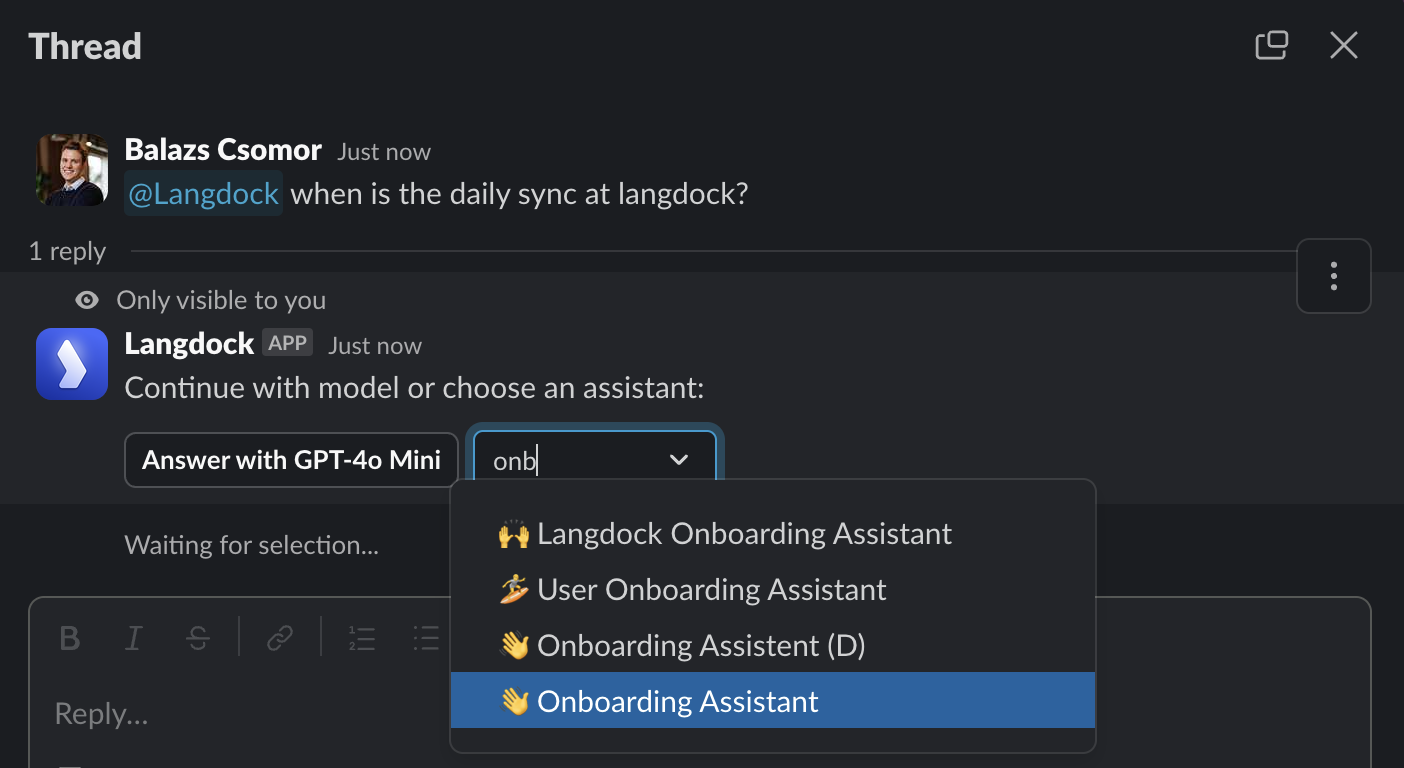
You have access to all Agents available in your Langdock workspace. After tagging **@Langdock** or messaging it directly, search and select any Agent as shown below. The Agent will respond using all its knowledge and capabilities.
## Using Agents
You have access to all Agents available in your Langdock workspace. After tagging **@Langdock** or messaging it directly, search and select any Agent as shown below. The Agent will respond using all its knowledge and capabilities.
 ## Continue conversation in Langdock
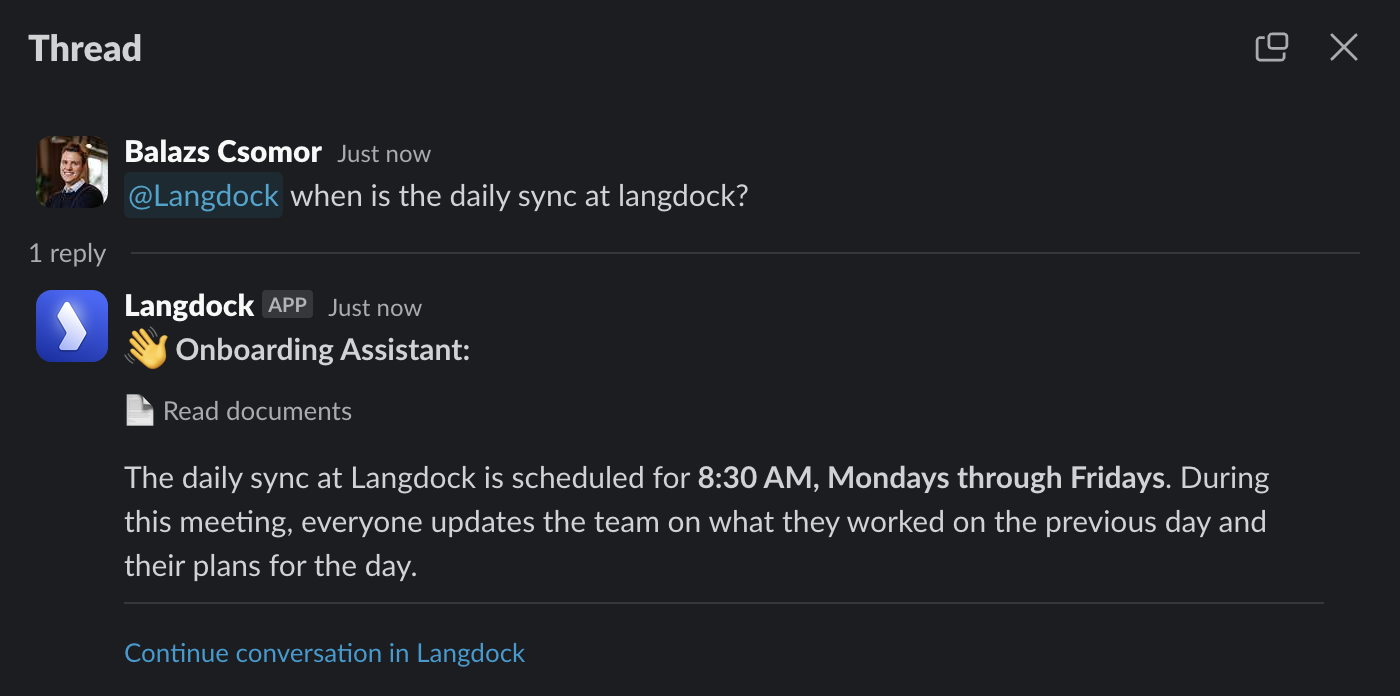
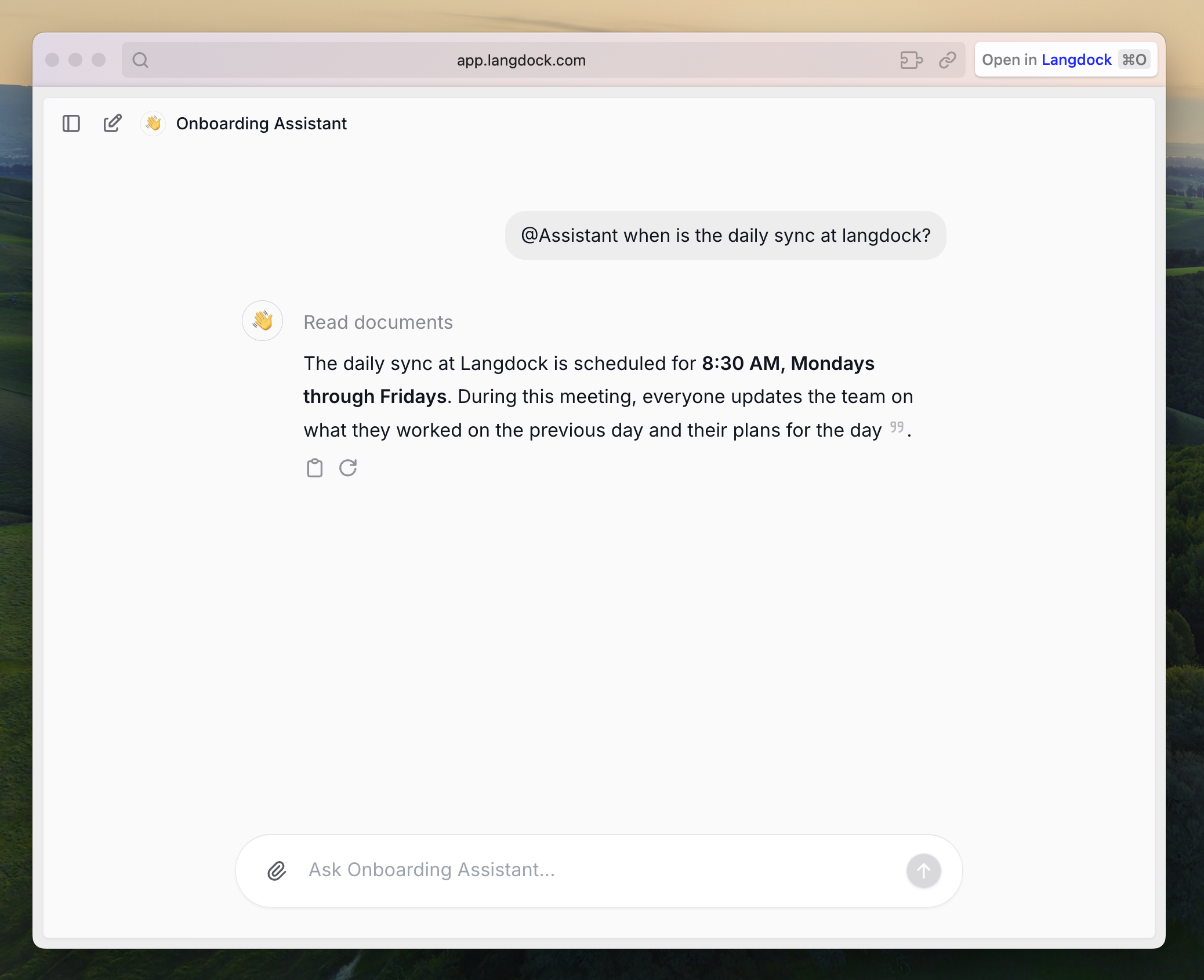
By default, Slack Bot messages don't appear in your Langdock message history. To continue the conversation in Langdock, click "Continue conversation in Langdock" in any bot reply. This opens the conversation in your browser, picking up exactly where you left off in Slack.
While you can see what the bot replies to other users in Slack, you can only continue your own conversations. To join an existing thread, send a new message in that thread.
## Continue conversation in Langdock
By default, Slack Bot messages don't appear in your Langdock message history. To continue the conversation in Langdock, click "Continue conversation in Langdock" in any bot reply. This opens the conversation in your browser, picking up exactly where you left off in Slack.
While you can see what the bot replies to other users in Slack, you can only continue your own conversations. To join an existing thread, send a new message in that thread.
 ## Web search, file work, image generation
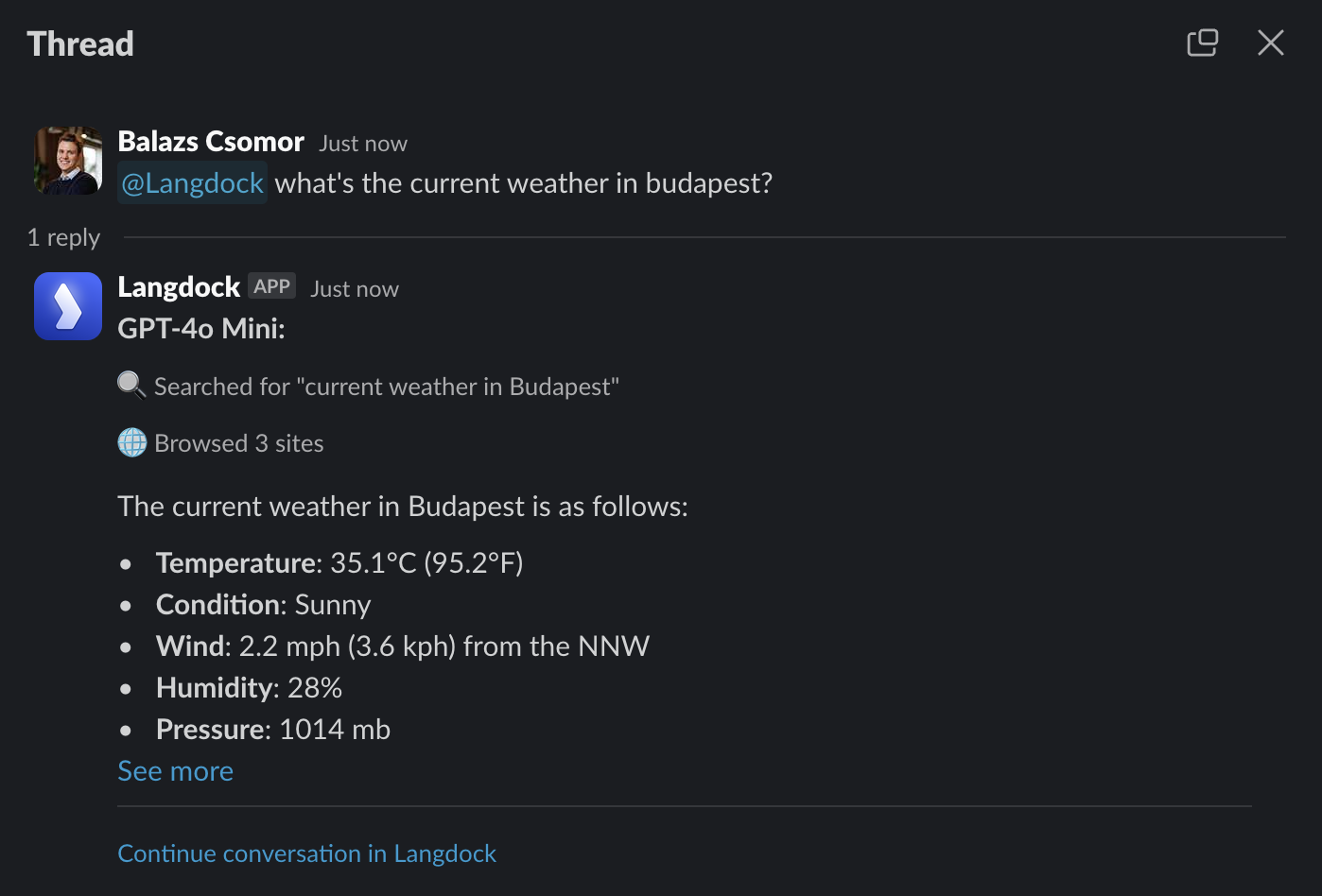
The Slack Bot has identical capabilities to the Langdock web app. You'll get the same results whether you're using Slack or the web interface.
## Web search, file work, image generation
The Slack Bot has identical capabilities to the Langdock web app. You'll get the same results whether you're using Slack or the web interface.
 ## Images and documents
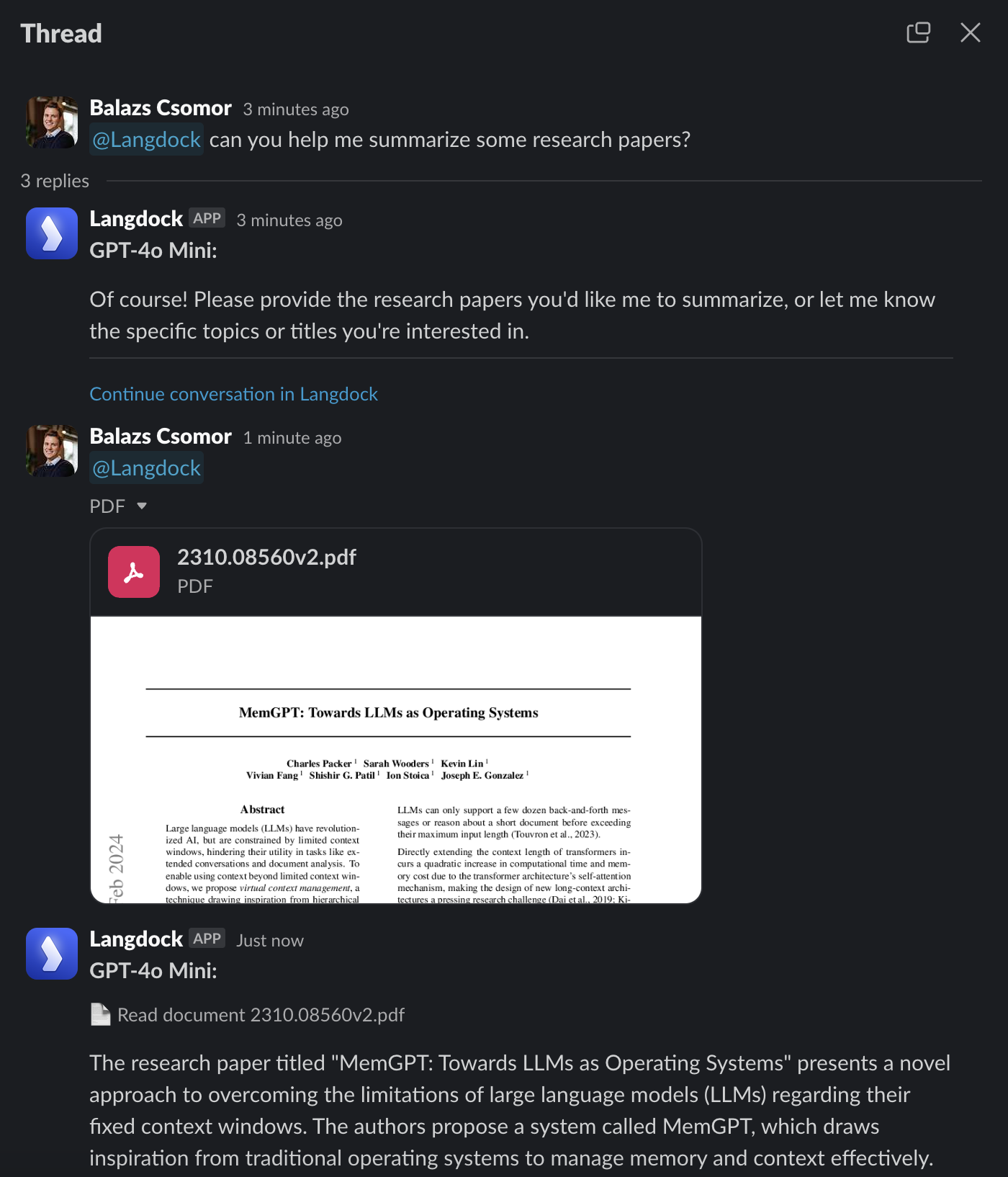
The Slack Bot handles images and documents just like the web app. Attach any file to your message and the bot will read and analyze it.
## Images and documents
The Slack Bot handles images and documents just like the web app. Attach any file to your message and the bot will read and analyze it.
 ## Limitations of the Slack Bot
* Cannot be used in Direct Messages with other users, only in channels or direct messages to the bot
* Only sees content in threads where it's tagged, no access to broader workspace information like channel members or other messages
## FAQ
Use the Slack Bot when users should access Langdock models or agents directly from Slack. It is useful for quick team questions, lightweight workflows, and bringing agents into existing Slack conversations.
Check that the app is installed, the user has Langdock access, the relevant agent or model is available, and Slack permissions are configured correctly. If the issue affects one channel, check channel access and app permissions.
## Limitations of the Slack Bot
* Cannot be used in Direct Messages with other users, only in channels or direct messages to the bot
* Only sees content in threads where it's tagged, no access to broader workspace information like channel members or other messages
## FAQ
Use the Slack Bot when users should access Langdock models or agents directly from Slack. It is useful for quick team questions, lightweight workflows, and bringing agents into existing Slack conversations.
Check that the app is installed, the user has Langdock access, the relevant agent or model is available, and Slack permissions are configured correctly. If the issue affects one channel, check channel access and app permissions.