> ## Documentation Index
> Fetch the complete documentation index at: https://docs.langdock.com/llms.txt
> Use this file to discover all available pages before exploring further.
# Scheduled tasks
> Run a saved prompt on a recurring schedule, like a daily briefing or a weekly summary.
## What are scheduled tasks?
Scheduled tasks run a saved prompt for you on a recurring schedule, such as daily briefings, weekday recaps, and weekly summaries, or as one-off manual runs you can trigger any time. Each run produces a new chat you can open, read, and continue like any other conversation.
Typical use cases:
* A daily briefing that reviews your calendar and unread emails
* A weekly summary across selected agents or Knowledge bases
* A manual task you keep ready in your sidebar and trigger on demand
You can create up to 10 scheduled tasks per user.
## Creating a scheduled task
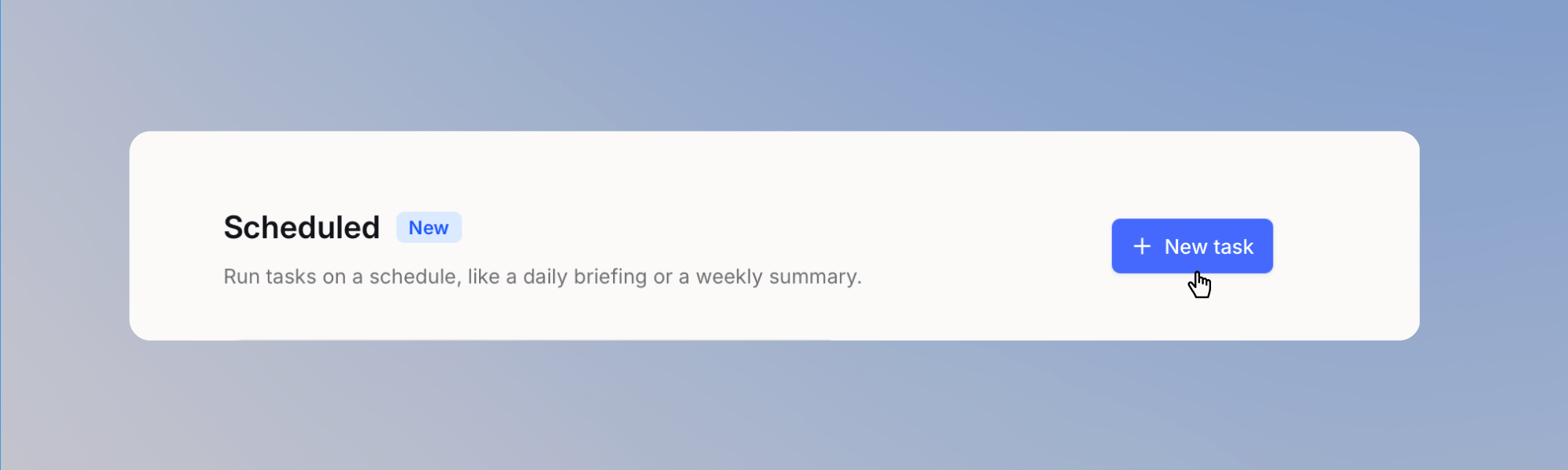
Open **Scheduled** from the sidebar.
 Click **New task**.
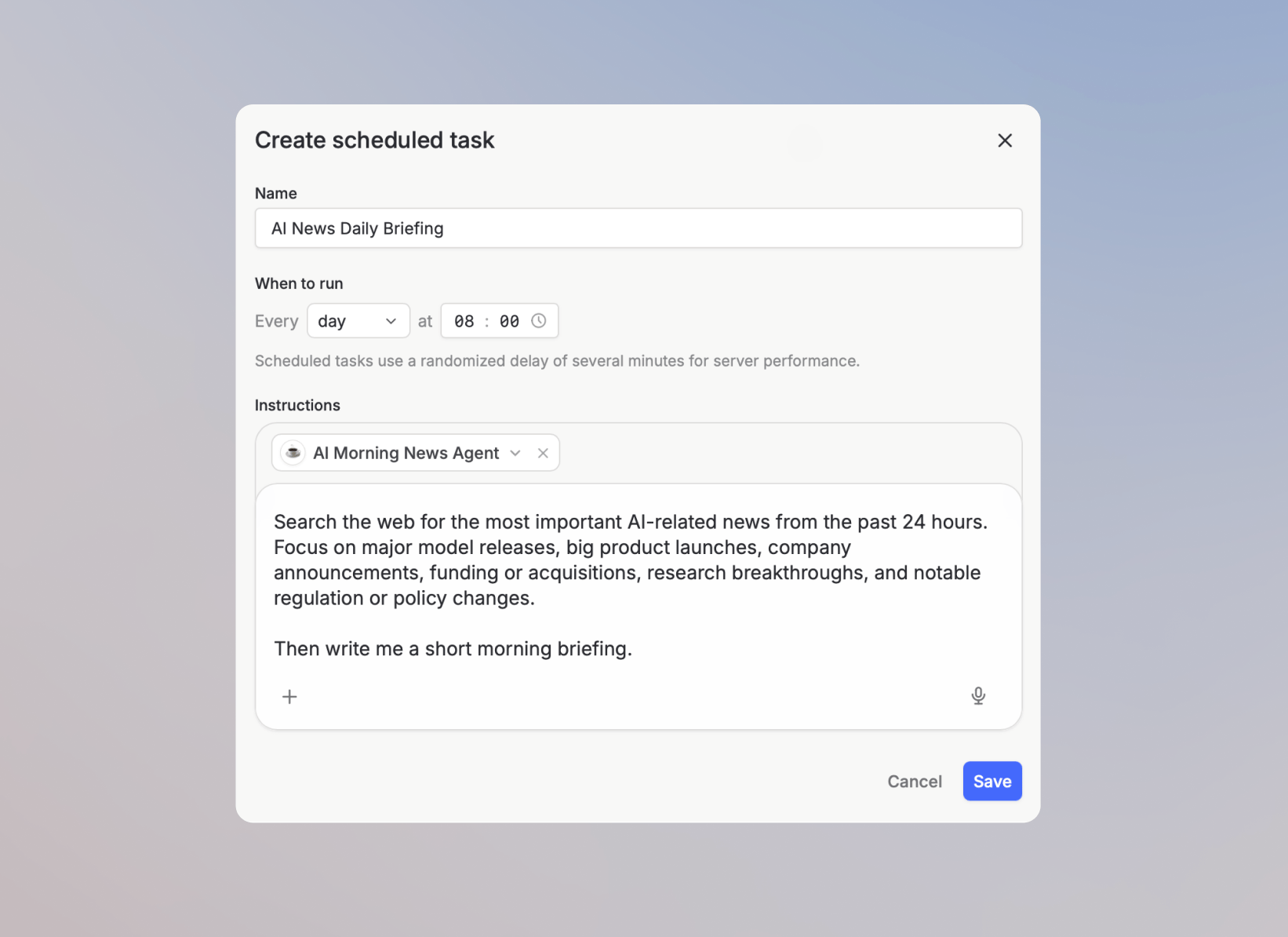
 Fill in:
* **Name**: for example, *Daily briefing*.
* **Agent (optional)**: pick an agent to run the prompt with, so it inherits the agent's instructions, tools, and knowledge.
* **Instructions**: the prompt that runs on every execution.
* **When to run**: choose a frequency (see below).
Fill in:
* **Name**: for example, *Daily briefing*.
* **Agent (optional)**: pick an agent to run the prompt with, so it inherits the agent's instructions, tools, and knowledge.
* **Instructions**: the prompt that runs on every execution.
* **When to run**: choose a frequency (see below).
 Click **Save**.
The task appears in your **Scheduled** list. From there you can open the detail view, edit, pause, run it now, or delete it.
You can also start a scheduled task from an agent's editor. Click **Schedule** in the top bar to open the same dialog with that agent preselected.
## Choosing a frequency
| Frequency | When it runs |
| ----------------- | --------------------------------------------------------- |
| **Manual** | Only when you trigger it from the task detail view |
| **Daily** | Every day at the time you choose |
| **Weekdays** | Monday through Friday at the time you choose |
| **Weekly** | On the weekday and time you choose |
| **Selected days** | On the specific weekdays you pick, at the time you choose |
| **Monthly** | On the day of the month and time you choose |
For monthly schedules, if a month has fewer days than the day you picked (for example, day 31 in February), the task runs on the last day of that month.
Scheduled runs use a randomized delay of a few minutes to spread load across the platform, so the exact start time can vary slightly from the time you set.
## Working with runs
Each execution creates a chat under the task. From the task detail view you can:
Click **Save**.
The task appears in your **Scheduled** list. From there you can open the detail view, edit, pause, run it now, or delete it.
You can also start a scheduled task from an agent's editor. Click **Schedule** in the top bar to open the same dialog with that agent preselected.
## Choosing a frequency
| Frequency | When it runs |
| ----------------- | --------------------------------------------------------- |
| **Manual** | Only when you trigger it from the task detail view |
| **Daily** | Every day at the time you choose |
| **Weekdays** | Monday through Friday at the time you choose |
| **Weekly** | On the weekday and time you choose |
| **Selected days** | On the specific weekdays you pick, at the time you choose |
| **Monthly** | On the day of the month and time you choose |
For monthly schedules, if a month has fewer days than the day you picked (for example, day 31 in February), the task runs on the last day of that month.
Scheduled runs use a randomized delay of a few minutes to spread load across the platform, so the exact start time can vary slightly from the time you set.
## Working with runs
Each execution creates a chat under the task. From the task detail view you can:
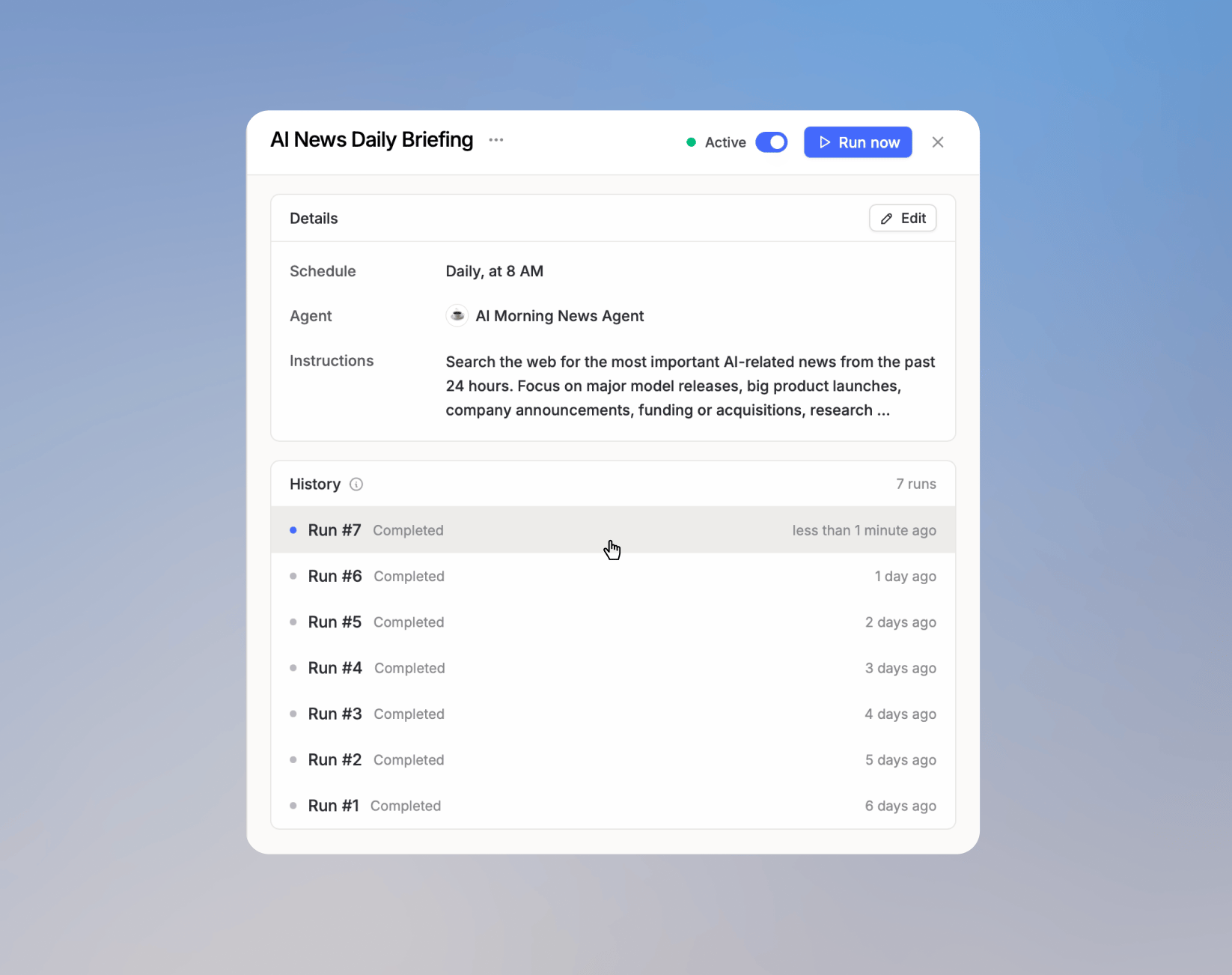 * Open the chat the run produced and continue the conversation
* See whether a run completed, was skipped, or failed
* Trigger a manual run at any time, regardless of the schedule
* Pause the schedule without losing the task
If a task references an agent that's no longer available to you, the next run is skipped and a reason is shown in the run history. Edit the task to pick a different agent or remove the agent reference to resume runs.
## Allowing actions to run without confirmation
If the task's agent uses actions that require confirmation, runs pause until you open the chat and approve the action. From the approval prompt, choose:
* **Allow once**: approves only this run. The next run asks for confirmation again.
* **Allow for future runs**: approves this run and lets the same action run automatically in this task from now on.
Always-allowed actions apply to a single scheduled task and don't change confirmation behavior in chat or other tasks. To remove one, open the task detail view and click **Remove** next to the action under **Always allowed**.
## Tips
* Keep the instructions specific. "Summarize my unread emails and highlight urgent items" produces a more useful chat than "Give me an update."
* Attach an agent when you need tools (calendar, email, Knowledge bases) or want the prompt to follow agent-specific instructions.
* Use **Manual** for tasks you want one click away in the sidebar but don't want to run on a schedule.
## FAQ
Use scheduled tasks when you want a saved prompt to run on a recurring schedule from chat. They are useful for simple recurring summaries, reminders, briefings, or checks that do not need a full workflow.
Scheduled tasks run a prompt on a schedule. Workflows are better when the process needs multiple steps, structured logic, integrations, approvals, or outputs passed between nodes.
* Open the chat the run produced and continue the conversation
* See whether a run completed, was skipped, or failed
* Trigger a manual run at any time, regardless of the schedule
* Pause the schedule without losing the task
If a task references an agent that's no longer available to you, the next run is skipped and a reason is shown in the run history. Edit the task to pick a different agent or remove the agent reference to resume runs.
## Allowing actions to run without confirmation
If the task's agent uses actions that require confirmation, runs pause until you open the chat and approve the action. From the approval prompt, choose:
* **Allow once**: approves only this run. The next run asks for confirmation again.
* **Allow for future runs**: approves this run and lets the same action run automatically in this task from now on.
Always-allowed actions apply to a single scheduled task and don't change confirmation behavior in chat or other tasks. To remove one, open the task detail view and click **Remove** next to the action under **Always allowed**.
## Tips
* Keep the instructions specific. "Summarize my unread emails and highlight urgent items" produces a more useful chat than "Give me an update."
* Attach an agent when you need tools (calendar, email, Knowledge bases) or want the prompt to follow agent-specific instructions.
* Use **Manual** for tasks you want one click away in the sidebar but don't want to run on a schedule.
## FAQ
Use scheduled tasks when you want a saved prompt to run on a recurring schedule from chat. They are useful for simple recurring summaries, reminders, briefings, or checks that do not need a full workflow.
Scheduled tasks run a prompt on a schedule. Workflows are better when the process needs multiple steps, structured logic, integrations, approvals, or outputs passed between nodes.