> ## Documentation Index
> Fetch the complete documentation index at: https://docs.langdock.com/llms.txt
> Use this file to discover all available pages before exploring further.
# Prompt Library
> Save, organize, and share your best prompts with the prompt library. Use variables for flexible templates and collaborate with your team.
# Prompt Library
The prompt library lets you save prompts you want to reuse, organize them in folders, and share them with your team. All saved prompts can be used in any chat or with agents.
## Adding Prompts
### From a chat
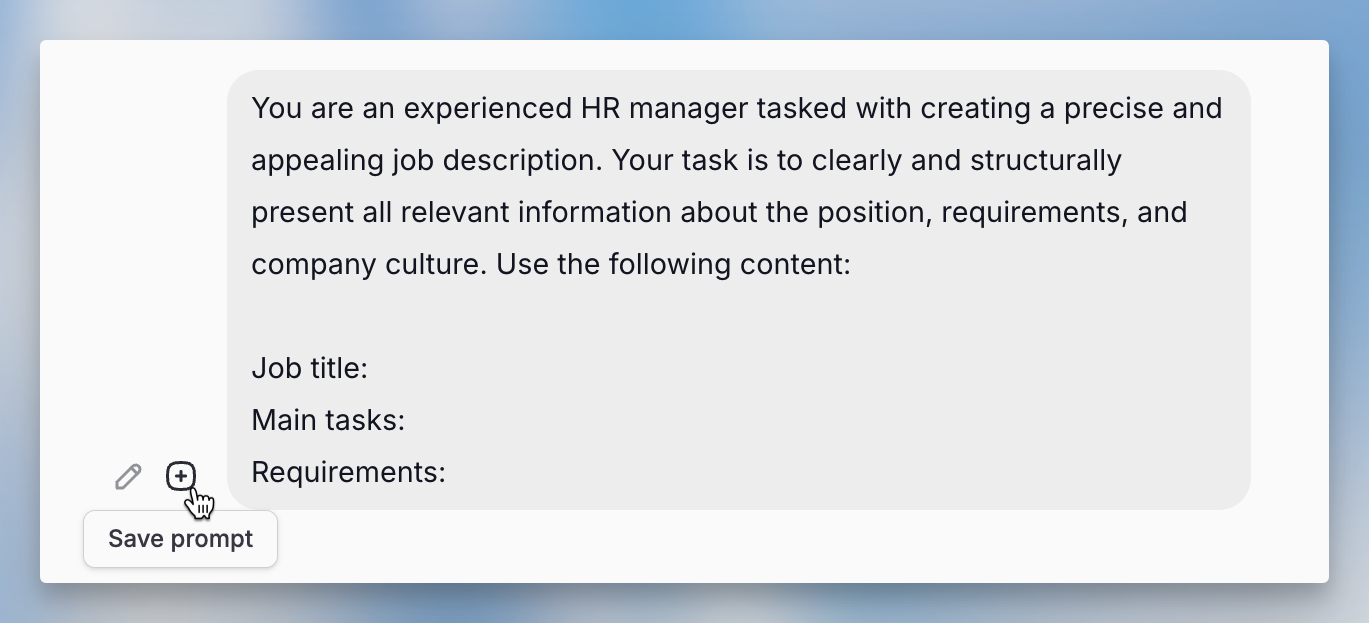
Hover over any message you've written and click the **+** icon to save it to your library. You'll choose a folder and give it a name.
 ### From the library
Go to the prompt library and click **Add Prompt** in the upper right corner. Enter the prompt's name, the text, and choose where to save it.
### From the library
Go to the prompt library and click **Add Prompt** in the upper right corner. Enter the prompt's name, the text, and choose where to save it.
 ## Using Variables
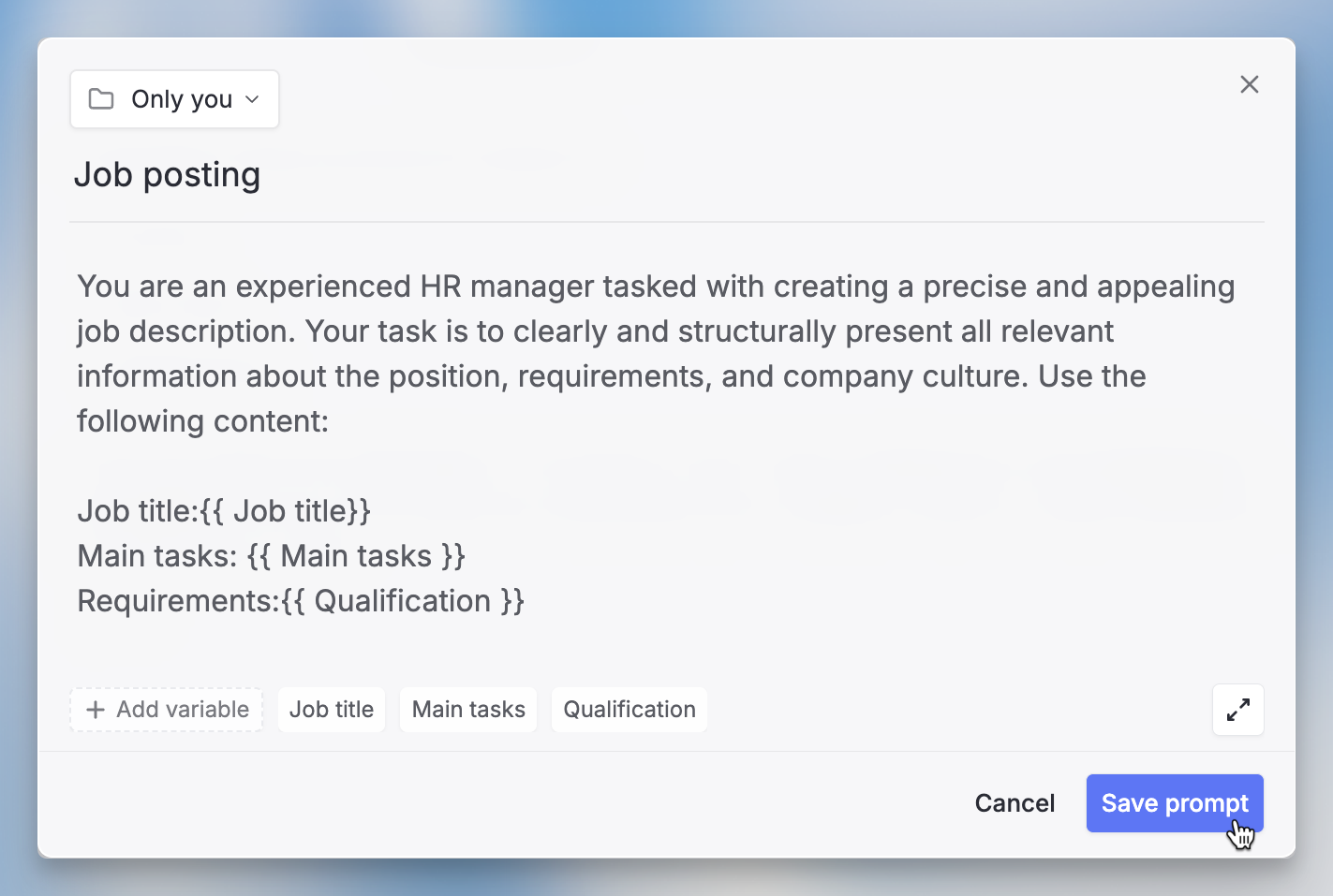
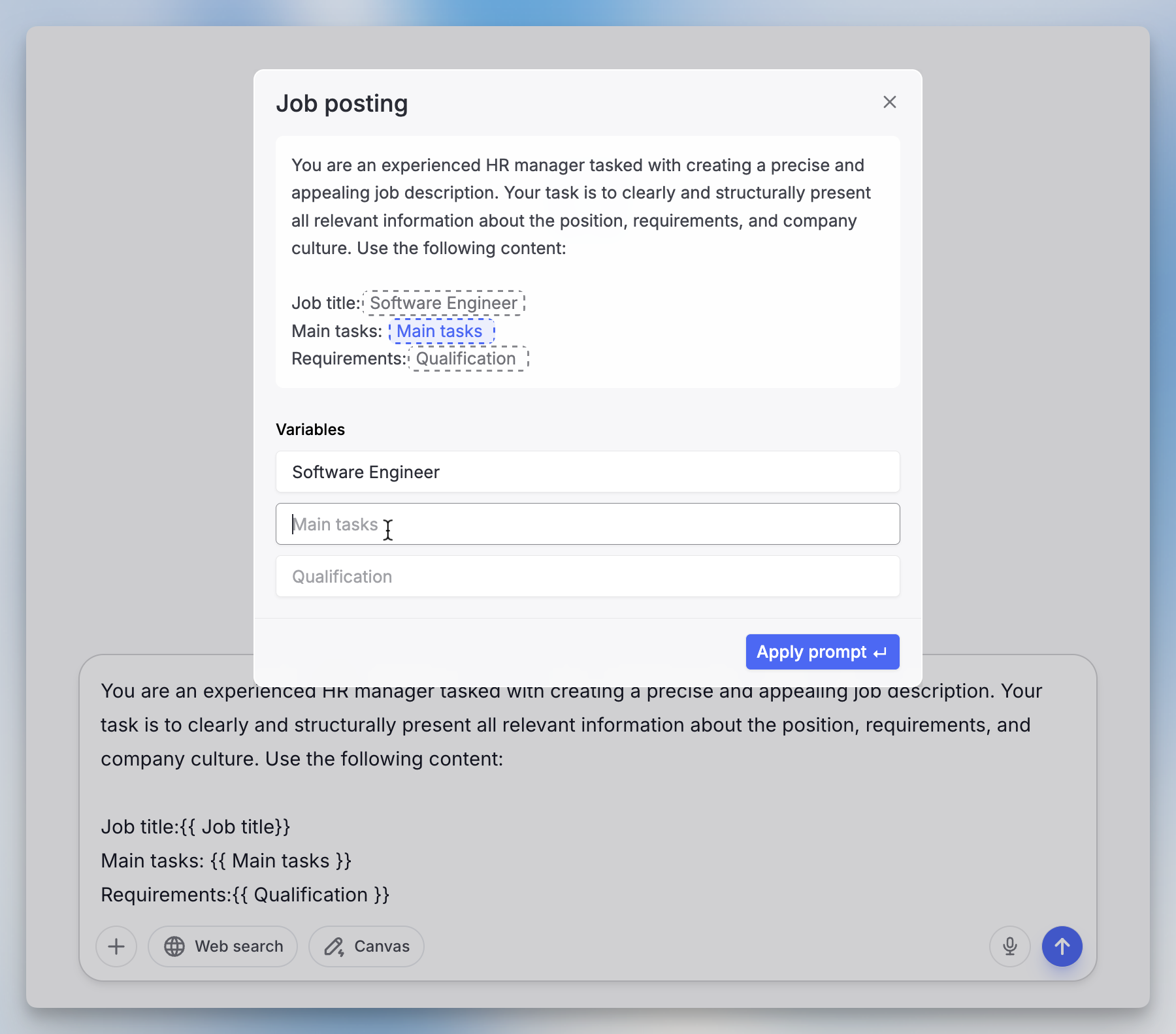
Add variables to make prompts flexible using `{{ }}` with your variable name between the brackets. When you or someone else uses the prompt, they'll be asked to fill in values for each variable.
Example: `Write a {{ tone }} email to {{ recipient }} about {{ topic }}`
You can also click the variable button in the bottom left corner when editing a prompt.
## Using Prompts in Chat
**Click to start**: Click any prompt in the library to open a new chat with it loaded in the input field.
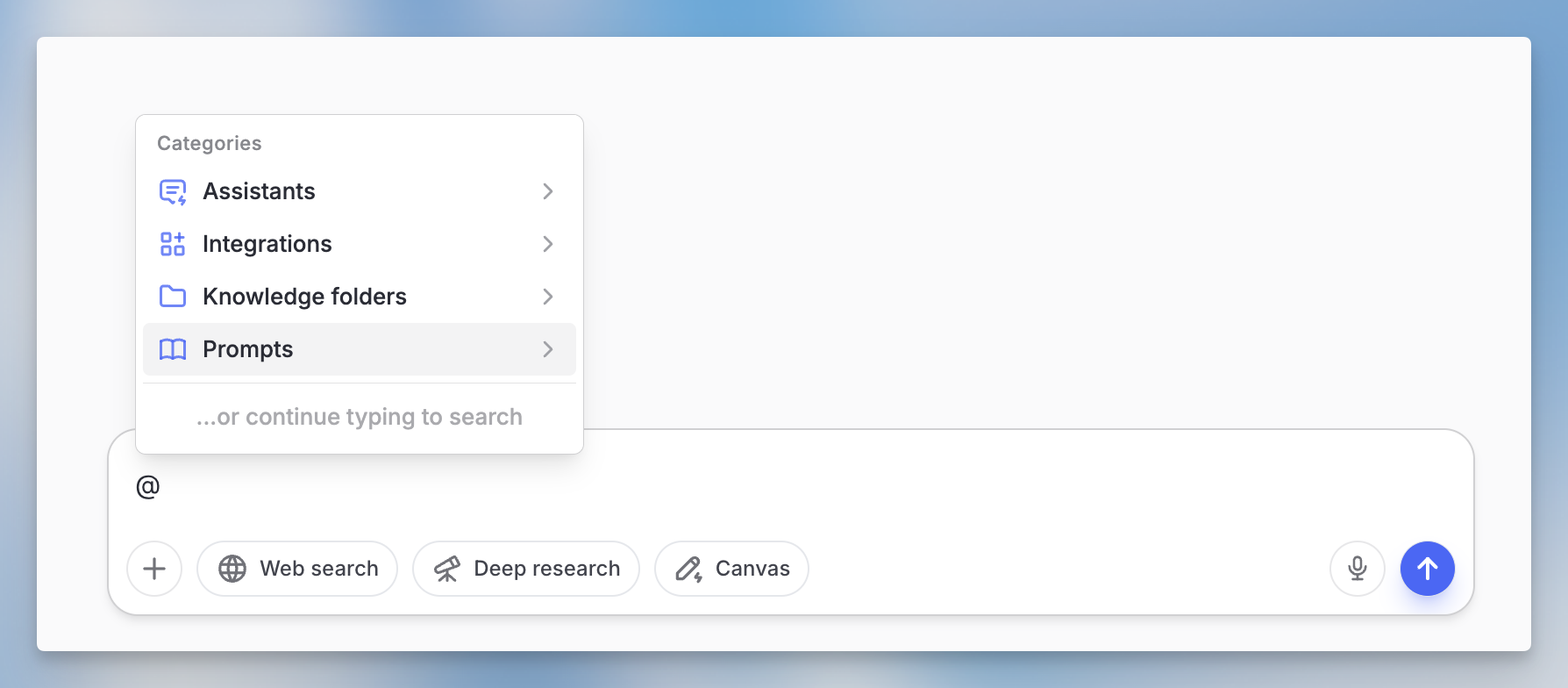
**Use @ in chat**: Type `@` in any chat to open the context menu. Select the "Prompts" category or start typing to filter and find your prompt.
## Using Variables
Add variables to make prompts flexible using `{{ }}` with your variable name between the brackets. When you or someone else uses the prompt, they'll be asked to fill in values for each variable.
Example: `Write a {{ tone }} email to {{ recipient }} about {{ topic }}`
You can also click the variable button in the bottom left corner when editing a prompt.
## Using Prompts in Chat
**Click to start**: Click any prompt in the library to open a new chat with it loaded in the input field.
**Use @ in chat**: Type `@` in any chat to open the context menu. Select the "Prompts" category or start typing to filter and find your prompt.
 ## Organizing with Folders
Folders help you organize prompts by project, team, or topic.
### Creating folders
1. Go to the prompt library
2. Click **New Folder**
3. Name the folder and set sharing options
### Folder sharing options
When creating or editing a folder, you can:
* **Keep it private** - Only you can see the folder and its prompts
* **Share with workspace** - Everyone in your workspace can access the folder
* **Share with a group** - Only members of a specific group can access the folder
## Sharing Individual Prompts
You can also share individual prompts with your entire workspace without putting them in a shared folder. When saving or editing a prompt, toggle the workspace sharing option to make it visible to everyone.
You can combine agents with prompts from the library. If you have an agent that follows a series of steps, save those steps as prompts in the library and execute them one by one in the agent chat.
## FAQ
Use Prompt Library for prompts that you or your team reuse often. It is useful for standardized requests, onboarding examples, repeatable writing tasks, and prompts that include variables.
Check whether variables were filled correctly, whether the prompt is specific enough, and whether the selected model or attached files match the task. Update shared prompts when team workflows or terminology changes.
## Organizing with Folders
Folders help you organize prompts by project, team, or topic.
### Creating folders
1. Go to the prompt library
2. Click **New Folder**
3. Name the folder and set sharing options
### Folder sharing options
When creating or editing a folder, you can:
* **Keep it private** - Only you can see the folder and its prompts
* **Share with workspace** - Everyone in your workspace can access the folder
* **Share with a group** - Only members of a specific group can access the folder
## Sharing Individual Prompts
You can also share individual prompts with your entire workspace without putting them in a shared folder. When saving or editing a prompt, toggle the workspace sharing option to make it visible to everyone.
You can combine agents with prompts from the library. If you have an agent that follows a series of steps, save those steps as prompts in the library and execute them one by one in the agent chat.
## FAQ
Use Prompt Library for prompts that you or your team reuse often. It is useful for standardized requests, onboarding examples, repeatable writing tasks, and prompts that include variables.
Check whether variables were filled correctly, whether the prompt is specific enough, and whether the selected model or attached files match the task. Update shared prompts when team workflows or terminology changes.