> ## Documentation Index
> Fetch the complete documentation index at: https://docs.langdock.com/llms.txt
> Use this file to discover all available pages before exploring further.
# Basic Chat functionalities
> To select a model and interact with the messages and responses in the chat, there are a few functionalities in the chat. These are the model selector in the top left corner and the buttons to interact with prompts and responses.
## Model Selector
Langdock is model-agnostic, integrating the best AI models in a GDPR-compliant EU setting - regardless of provider.
Available models include offerings from:
* **OpenAI** - GPT series and reasoning models
* **Anthropic** - Claude family (Opus, Sonnet, Haiku)
* **Google** - Gemini Pro and Flash variants
* **Others** - Mistral, Meta LLaMA, and more
Langdock also offers an [**Auto mode**](/en/using-langdock/models-and-limits/models#auto-mode). When selected, Langdock analyzes your first message to estimate the complexity of the request and picks a suitable model for the conversation automatically.
See our complete [model guide](/en/using-langdock/models-and-limits/models) for help choosing the right model for your task.
To choose a model for your next response:
1. Click the model name in the top-left corner of the chat window
2. Pick the model that best fits your task - your next message will use it automatically
You can switch models mid-conversation. Use a more capable model for brainstorming and complex reasoning, then switch to a faster one to summarize or draft the final output.
## Prompt functionalities
Hover over your prompt to see available actions.
### Edit prompt
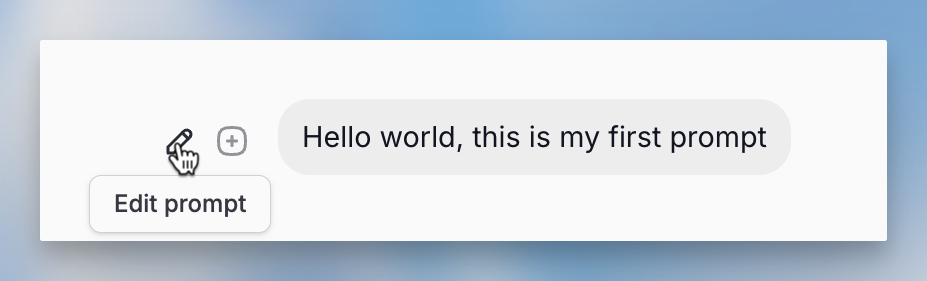
If you're unsatisfied with a response, edit the prompt by clicking the pen icon. Click save when ready. It's normal to iterate on your instructions when using AI models and add more context where needed.
 ### Save prompt
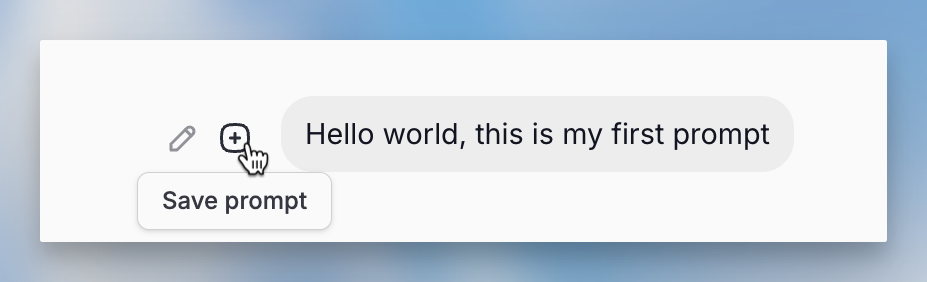
To reuse a prompt, save it by clicking the "+" icon. Choose a folder in your prompt library and give your prompt a name. Learn more about the prompt library [here](/en/using-langdock/chat/prompt-library).
### Save prompt
To reuse a prompt, save it by clicking the "+" icon. Choose a folder in your prompt library and give your prompt a name. Learn more about the prompt library [here](/en/using-langdock/chat/prompt-library).
 ## Response functionalities
If you move the cursor of your mouse over the response, you can see the functionalities connected to the response.
### Copy response
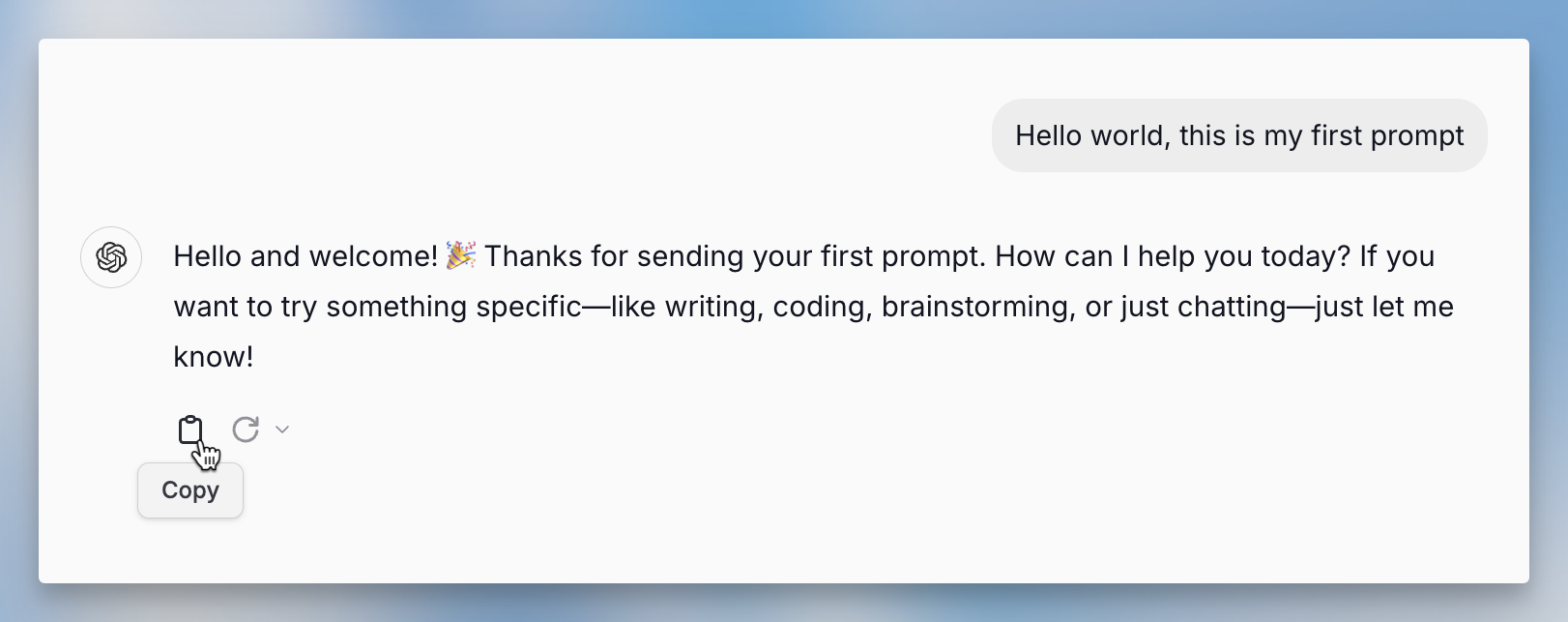
Click the copy button to save the response to your clipboard, then paste it into other tools and applications.
## Response functionalities
If you move the cursor of your mouse over the response, you can see the functionalities connected to the response.
### Copy response
Click the copy button to save the response to your clipboard, then paste it into other tools and applications.
 ### Regenerate response
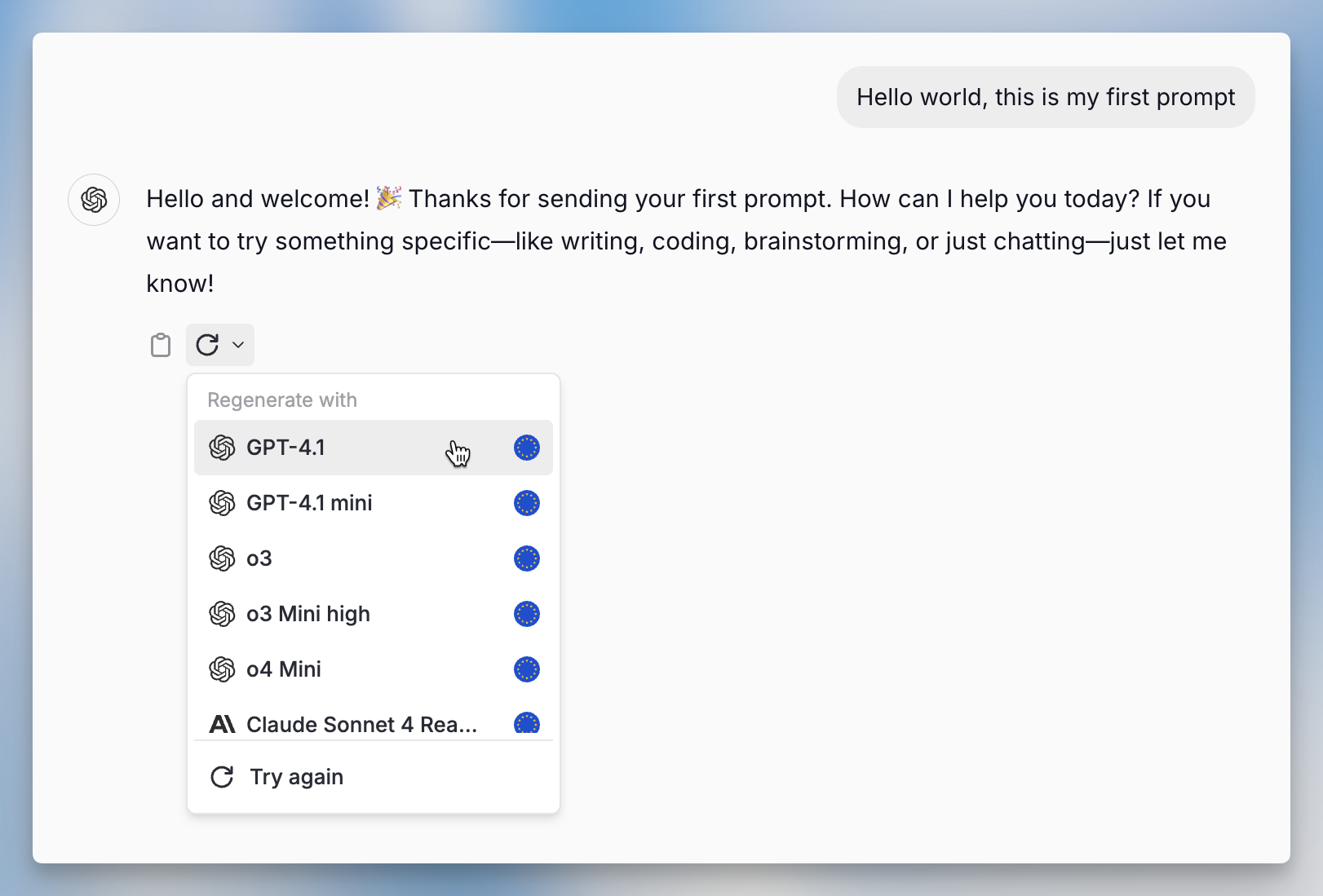
If you're unsatisfied with a response, click the circular arrow to regenerate it. This works because AI models are non-deterministic, meaning you'll get slightly different results for the same prompt. You can compare multiple responses and pick the best one. If responses are still insufficient, try editing your prompt with more specific details.
### Regenerate response
If you're unsatisfied with a response, click the circular arrow to regenerate it. This works because AI models are non-deterministic, meaning you'll get slightly different results for the same prompt. You can compare multiple responses and pick the best one. If responses are still insufficient, try editing your prompt with more specific details.
 ## Tool availability
Chat tools like web search, image generation, Create & work with files, canvas, and memory are available based on multiple factors working together.
### What determines tool availability
Tool availability depends on a combination of settings:
1. **Workspace settings** - Your admin can enable or disable tools at the workspace level
2. **User settings** - Your personal preferences for which tools you want active
3. **Agent settings** - When using an agent, the agent's configuration determines which tools are available
4. **Model capabilities** - Some models don't support certain tools
For a tool to be available in regular chat, both the workspace setting AND your user setting must be enabled.
### Specific tool conditions
| Tool | Requirements |
| ---------------------------- | --------------------------------------------------------------------- |
| **Web search** | Workspace + user enabled |
| **Image generation** | Workspace + user enabled |
| **Create & work with files** | Workspace + user enabled when available for your workspace |
| **Canvas** | Workspace + user enabled, plus the model must support canvas creation |
| **Memory** | Workspace + user enabled, but NOT available when using agents |
If a tool you expect isn't available, check your personal settings first. If it's still missing, your workspace admin may have disabled it.
## FAQ
Check the selected model, active tools, attached files, project context, and whether the conversation is long or has changed topics. Starting a fresh chat with a short summary can help isolate context-related issues.
Start a new chat when the topic changes, the conversation has become very long, or you want to reduce old context influencing the answer. Bring over only the goal, key decisions, and relevant files.
## Tool availability
Chat tools like web search, image generation, Create & work with files, canvas, and memory are available based on multiple factors working together.
### What determines tool availability
Tool availability depends on a combination of settings:
1. **Workspace settings** - Your admin can enable or disable tools at the workspace level
2. **User settings** - Your personal preferences for which tools you want active
3. **Agent settings** - When using an agent, the agent's configuration determines which tools are available
4. **Model capabilities** - Some models don't support certain tools
For a tool to be available in regular chat, both the workspace setting AND your user setting must be enabled.
### Specific tool conditions
| Tool | Requirements |
| ---------------------------- | --------------------------------------------------------------------- |
| **Web search** | Workspace + user enabled |
| **Image generation** | Workspace + user enabled |
| **Create & work with files** | Workspace + user enabled when available for your workspace |
| **Canvas** | Workspace + user enabled, plus the model must support canvas creation |
| **Memory** | Workspace + user enabled, but NOT available when using agents |
If a tool you expect isn't available, check your personal settings first. If it's still missing, your workspace admin may have disabled it.
## FAQ
Check the selected model, active tools, attached files, project context, and whether the conversation is long or has changed topics. Starting a fresh chat with a short summary can help isolate context-related issues.
Start a new chat when the topic changes, the conversation has become very long, or you want to reduce old context influencing the answer. Bring over only the goal, key decisions, and relevant files.