> ## Documentation Index
> Fetch the complete documentation index at: https://docs.langdock.com/llms.txt
> Use this file to discover all available pages before exploring further.
# Agent Evals
> Agent Evals lets you test your agent with structured test sets before publishing a new version, so you can catch issues before they reach your team.
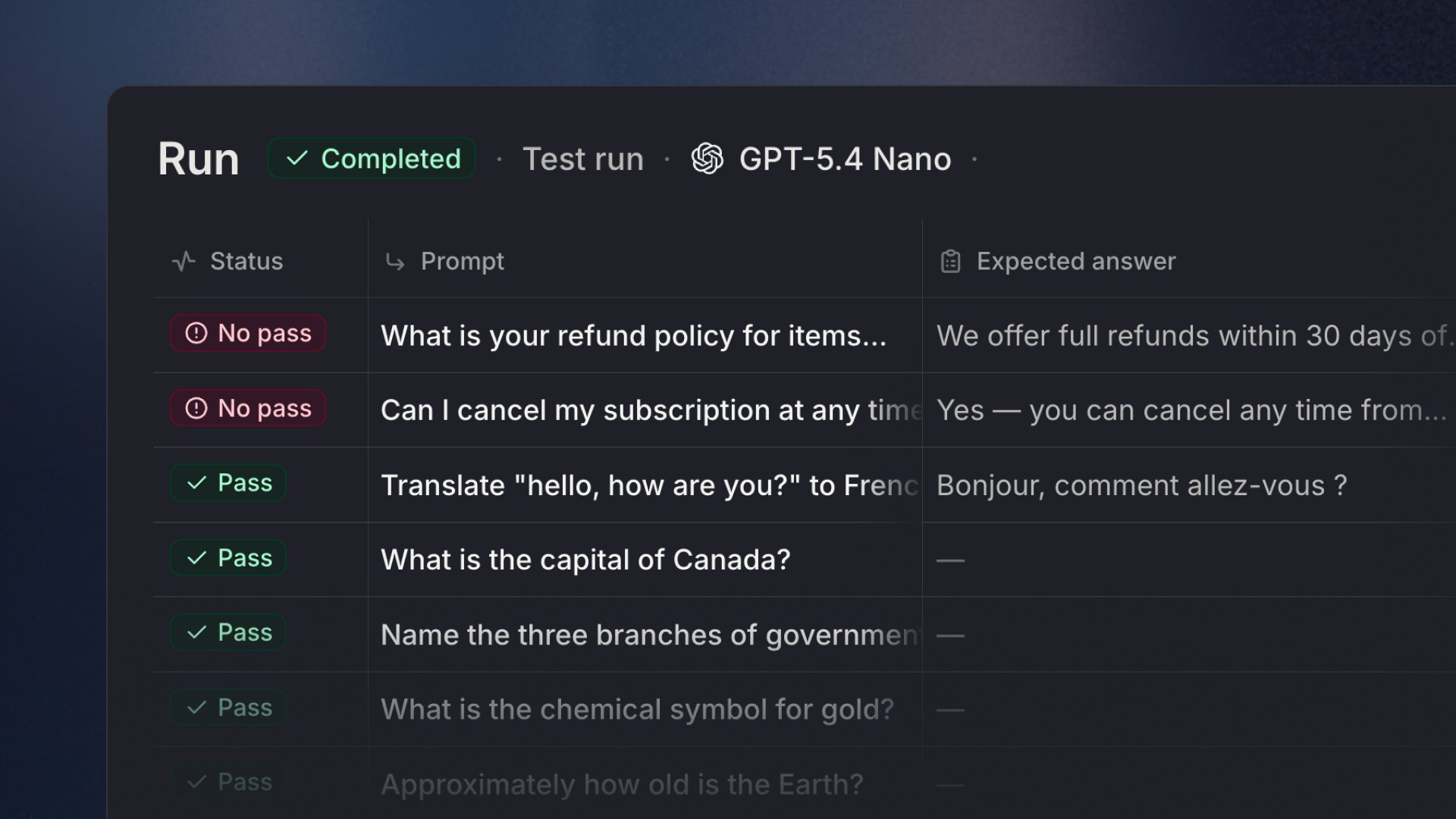 Agent Evals is a testing tool built into the agent editor. It lets you run structured evaluations against your agent to verify it still behaves correctly after making changes. Instead of manually testing prompts one by one, you define test cases, select how they should be graded, and run them all at once.
Open your agent and click the **Agent Evals** tab at the top of the agent editor. The tab contains two sections: **Test sets** and **Runs**.
## Test sets
A test set is a collection of test cases with shared configuration. Each test set defines the conversation shape, which checks to apply, and how tools should behave during the evaluation.
### Creating a test set
1. Click **New test set** in the Agent Evals tab.
Agent Evals is a testing tool built into the agent editor. It lets you run structured evaluations against your agent to verify it still behaves correctly after making changes. Instead of manually testing prompts one by one, you define test cases, select how they should be graded, and run them all at once.
Open your agent and click the **Agent Evals** tab at the top of the agent editor. The tab contains two sections: **Test sets** and **Runs**.
## Test sets
A test set is a collection of test cases with shared configuration. Each test set defines the conversation shape, which checks to apply, and how tools should behave during the evaluation.
### Creating a test set
1. Click **New test set** in the Agent Evals tab.
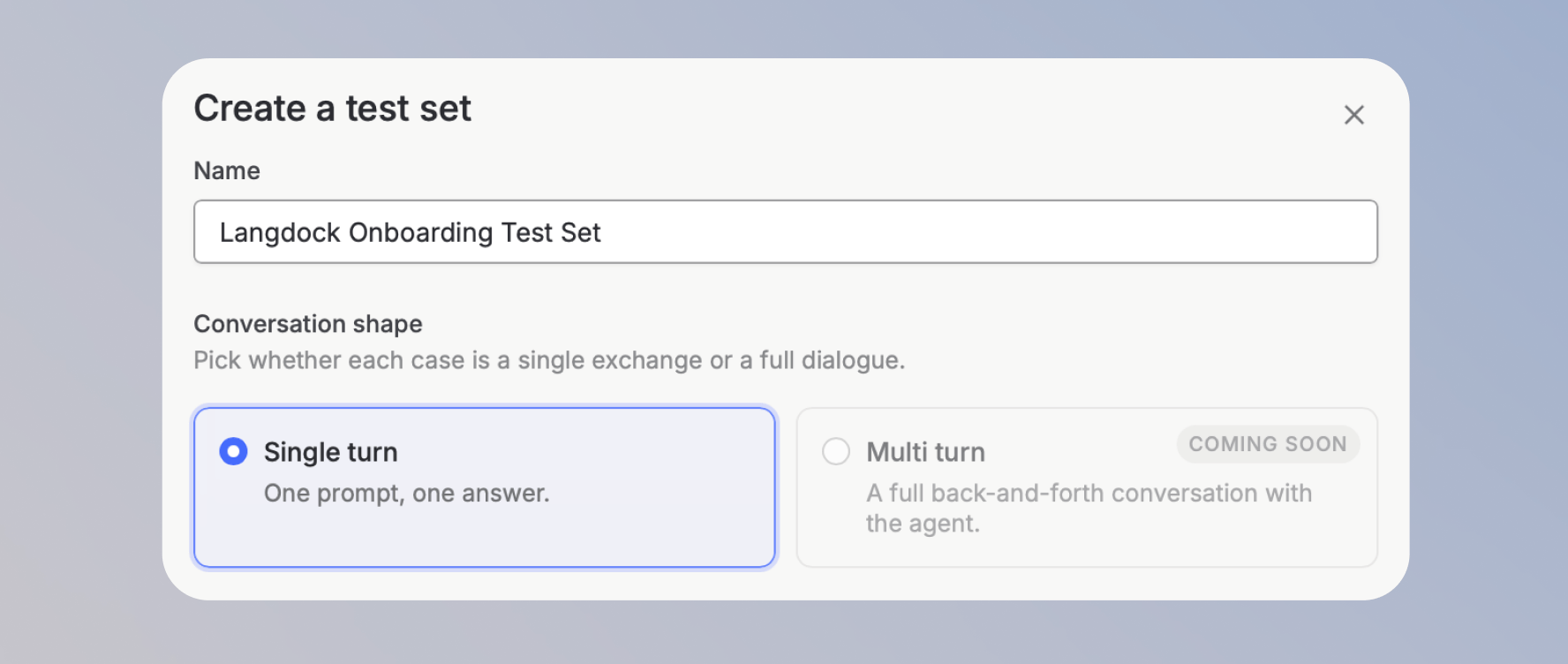
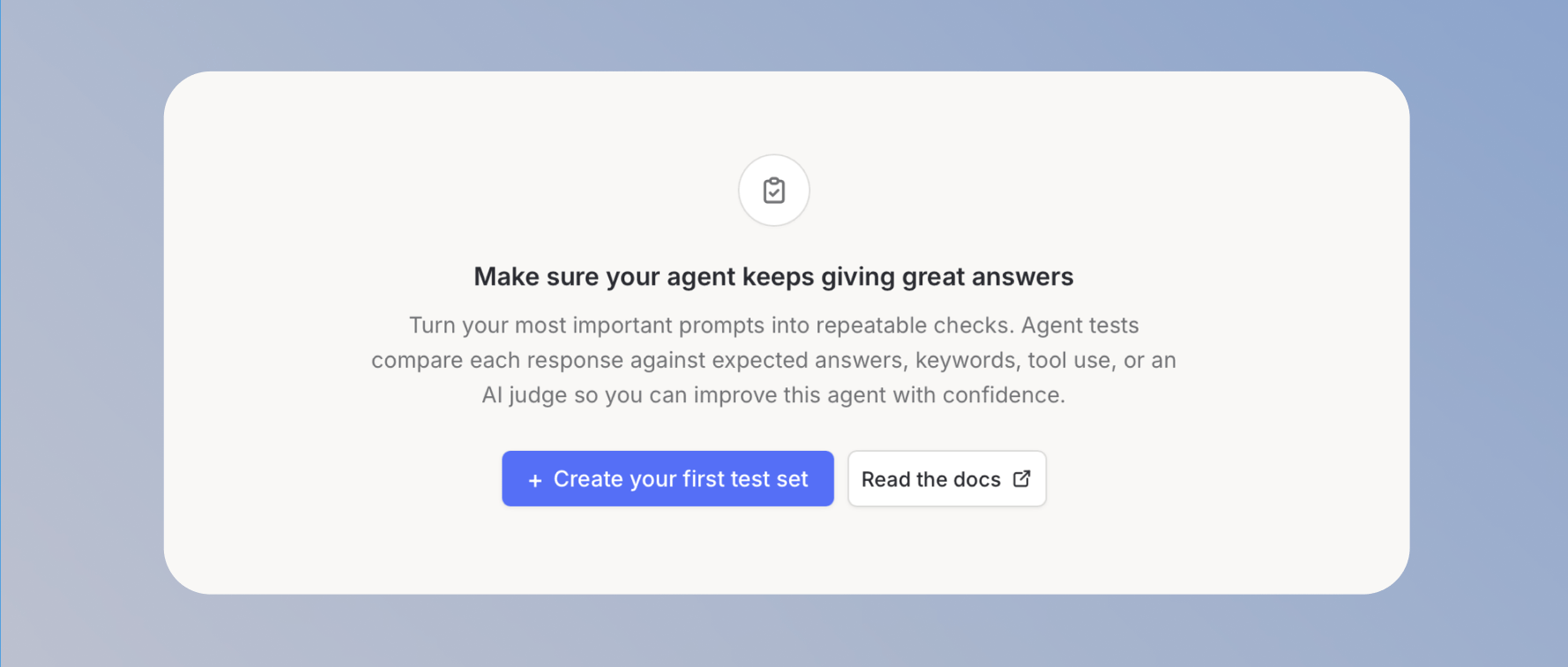 2. Enter a name for the test set and select a conversation shape. Currently, only **Single turn** is available.
 3. Select one or more checks to grade your test cases: **AI judge**, **Tool check**, or **Keyword check**.
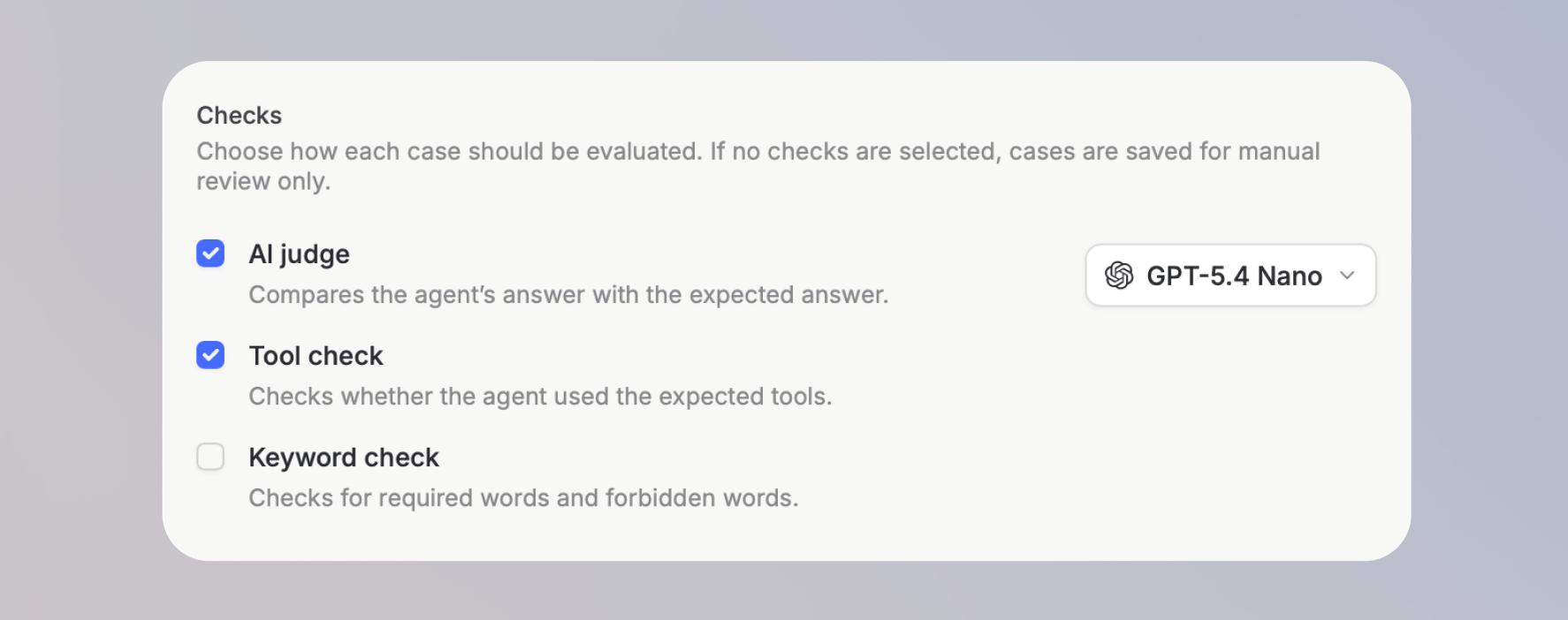 4. If you selected AI judge, choose which model to use as the judge.
 5. Click **Create test set**.
Expand the **Advanced** section in the creation dialog to configure tool execution mode. By default, evals run in **dry run** mode where no tools actually execute. See [Tool execution modes](#tool-execution-modes) for details.
## Check types
Checks define how each test case is graded. You select them when creating a test set, and they apply to every case in that set.
### AI judge
AI judge compares your agent's actual response to an expected answer you define for each test case. It uses a language model to evaluate whether the response meets the intent and content of the expected answer, even if the wording differs.
You choose which model serves as the judge when creating the test set.
### Tool check
Tool check verifies whether your agent called the expected tools for a given prompt. Define the tools you expect to be used, and the check confirms whether the agent called them during the evaluation.
This is useful for agents with integration actions where calling the correct tool matters as much as the response itself.
### Keyword check
Keyword check verifies whether the agent's response contains required words or avoids forbidden words. Unlike AI judge, it does not involve a model and produces a deterministic pass or fail result.
Each test case has two fields for this check: **Must mention** and **Must not mention**. Use it for compliance requirements, brand guidelines, or any case where certain terms must appear or must be avoided in the response.
## Test cases
After creating a test set, you add the individual test cases that will be evaluated.
### Adding cases manually
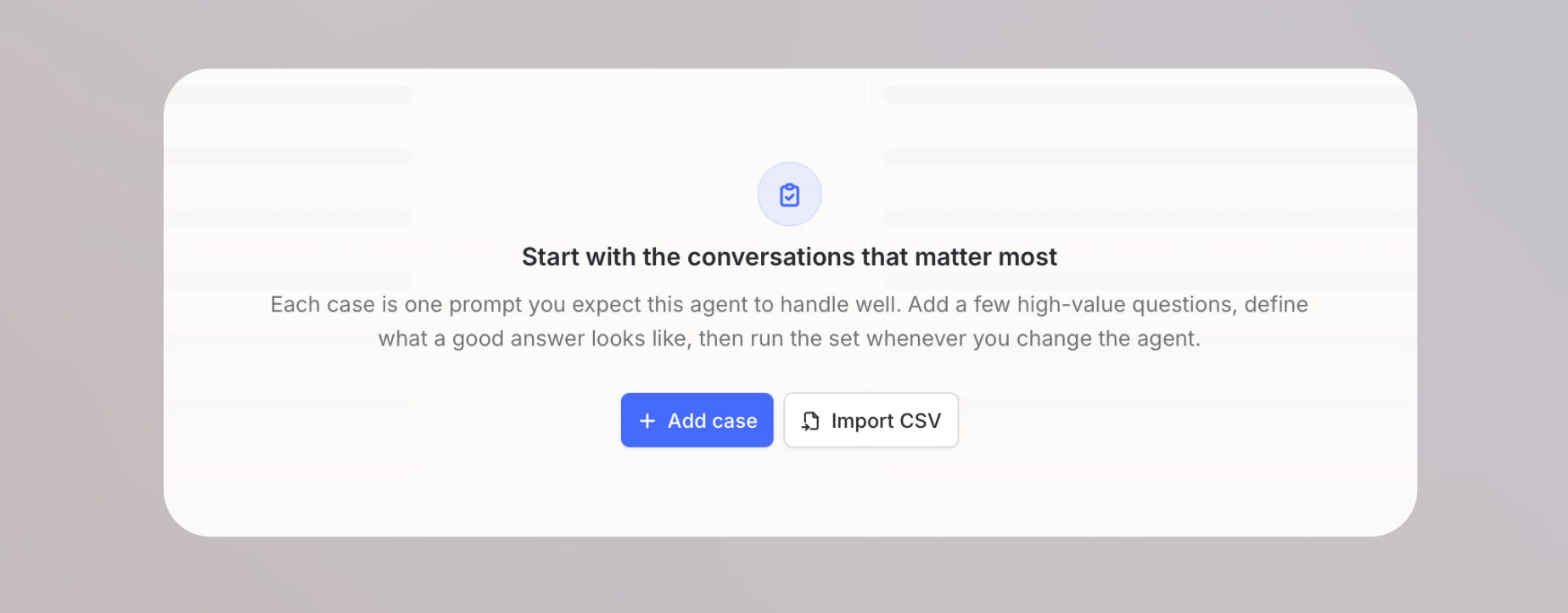
Click **Add case** on the test set page to create a single test case. Each case includes a prompt and the expected outputs that your selected checks will grade against.
5. Click **Create test set**.
Expand the **Advanced** section in the creation dialog to configure tool execution mode. By default, evals run in **dry run** mode where no tools actually execute. See [Tool execution modes](#tool-execution-modes) for details.
## Check types
Checks define how each test case is graded. You select them when creating a test set, and they apply to every case in that set.
### AI judge
AI judge compares your agent's actual response to an expected answer you define for each test case. It uses a language model to evaluate whether the response meets the intent and content of the expected answer, even if the wording differs.
You choose which model serves as the judge when creating the test set.
### Tool check
Tool check verifies whether your agent called the expected tools for a given prompt. Define the tools you expect to be used, and the check confirms whether the agent called them during the evaluation.
This is useful for agents with integration actions where calling the correct tool matters as much as the response itself.
### Keyword check
Keyword check verifies whether the agent's response contains required words or avoids forbidden words. Unlike AI judge, it does not involve a model and produces a deterministic pass or fail result.
Each test case has two fields for this check: **Must mention** and **Must not mention**. Use it for compliance requirements, brand guidelines, or any case where certain terms must appear or must be avoided in the response.
## Test cases
After creating a test set, you add the individual test cases that will be evaluated.
### Adding cases manually
Click **Add case** on the test set page to create a single test case. Each case includes a prompt and the expected outputs that your selected checks will grade against.
 ### Importing from CSV
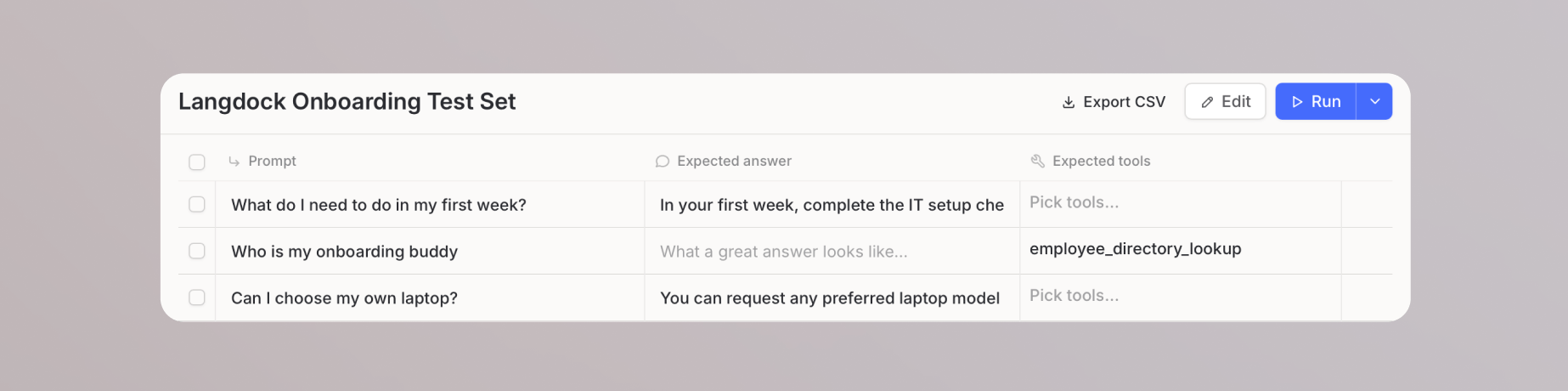
For larger test sets, click **Import CSV** to load multiple cases at once. The CSV can include prompts, expected answers, expected tools, and other fields that map to your selected checks.
Importing from CSV is the fastest way to build comprehensive test sets, especially if you already maintain a spreadsheet of prompts you use for manual testing.
## Running evals
Click **Run** in the top right of the test set page to start the evaluation. Results appear live as each case completes, showing the status, prompt, output, grader results, and duration for each case.
### Importing from CSV
For larger test sets, click **Import CSV** to load multiple cases at once. The CSV can include prompts, expected answers, expected tools, and other fields that map to your selected checks.
Importing from CSV is the fastest way to build comprehensive test sets, especially if you already maintain a spreadsheet of prompts you use for manual testing.
## Running evals
Click **Run** in the top right of the test set page to start the evaluation. Results appear live as each case completes, showing the status, prompt, output, grader results, and duration for each case.
 A single run can evaluate up to 100 cases at once.
Every eval case consumes usage in the same way as a regular agent conversation. Only one run can be active at a time.
### Reviewing results
Once a case finishes, click on it to open the detail view. You can review:
A single run can evaluate up to 100 cases at once.
Every eval case consumes usage in the same way as a regular agent conversation. Only one run can be active at a time.
### Reviewing results
Once a case finishes, click on it to open the detail view. You can review:
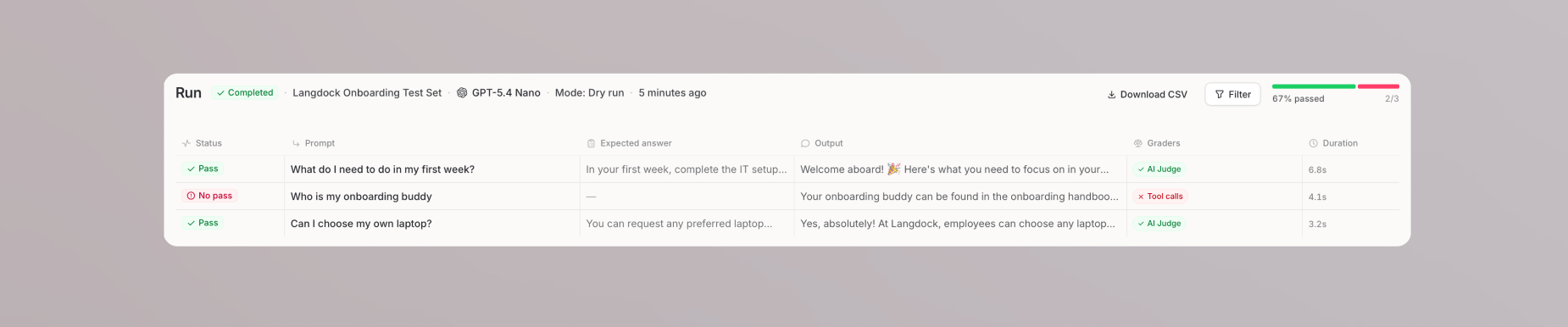 * The full conversation between the prompt and the agent
* The agent's response
* Token usage and duration
* The status of each grader (passed or failed)
To analyze results outside Langdock, click **Download CSV** to export the full run as a spreadsheet.
## Tool execution modes
The tool execution mode determines whether your agent's tools actually run during an evaluation. You configure this in the **Advanced** section when creating a test set.
| Mode | Behavior | When to use |
| --------------------- | ---------------------------------------------------------------------------------------------------------------------------- | ------------------------------------------------------------------------------------------------------- |
| **Dry run** (default) | Records action and MCP calls without executing them. No real actions are taken. | Most evaluations. Safe for testing without side effects. |
| **Live mode** | Executes action and MCP calls that do not require approval. Actions that require approval stop the run instead of executing. | When you need to verify the full execution flow, including tool behavior and external system responses. |
Live mode can change external systems, such as sending emails, creating tickets, or updating records. Use it only when you intentionally want an end-to-end integration test.
* The full conversation between the prompt and the agent
* The agent's response
* Token usage and duration
* The status of each grader (passed or failed)
To analyze results outside Langdock, click **Download CSV** to export the full run as a spreadsheet.
## Tool execution modes
The tool execution mode determines whether your agent's tools actually run during an evaluation. You configure this in the **Advanced** section when creating a test set.
| Mode | Behavior | When to use |
| --------------------- | ---------------------------------------------------------------------------------------------------------------------------- | ------------------------------------------------------------------------------------------------------- |
| **Dry run** (default) | Records action and MCP calls without executing them. No real actions are taken. | Most evaluations. Safe for testing without side effects. |
| **Live mode** | Executes action and MCP calls that do not require approval. Actions that require approval stop the run instead of executing. | When you need to verify the full execution flow, including tool behavior and external system responses. |
Live mode can change external systems, such as sending emails, creating tickets, or updating records. Use it only when you intentionally want an end-to-end integration test.