> ## Documentation Index
> Fetch the complete documentation index at: https://docs.langdock.com/llms.txt
> Use this file to discover all available pages before exploring further.
# Sharing Agents with API Keys
> Learn how to create an API key in Langdock and share an agent with it for programmatic access.
This is the Agents API with native Vercel AI SDK compatibility.
An admin needs to create the API key and share the agent with it. If you're not an admin, invite one as an editor to your agent using the "Share" button.
## How to create an API key
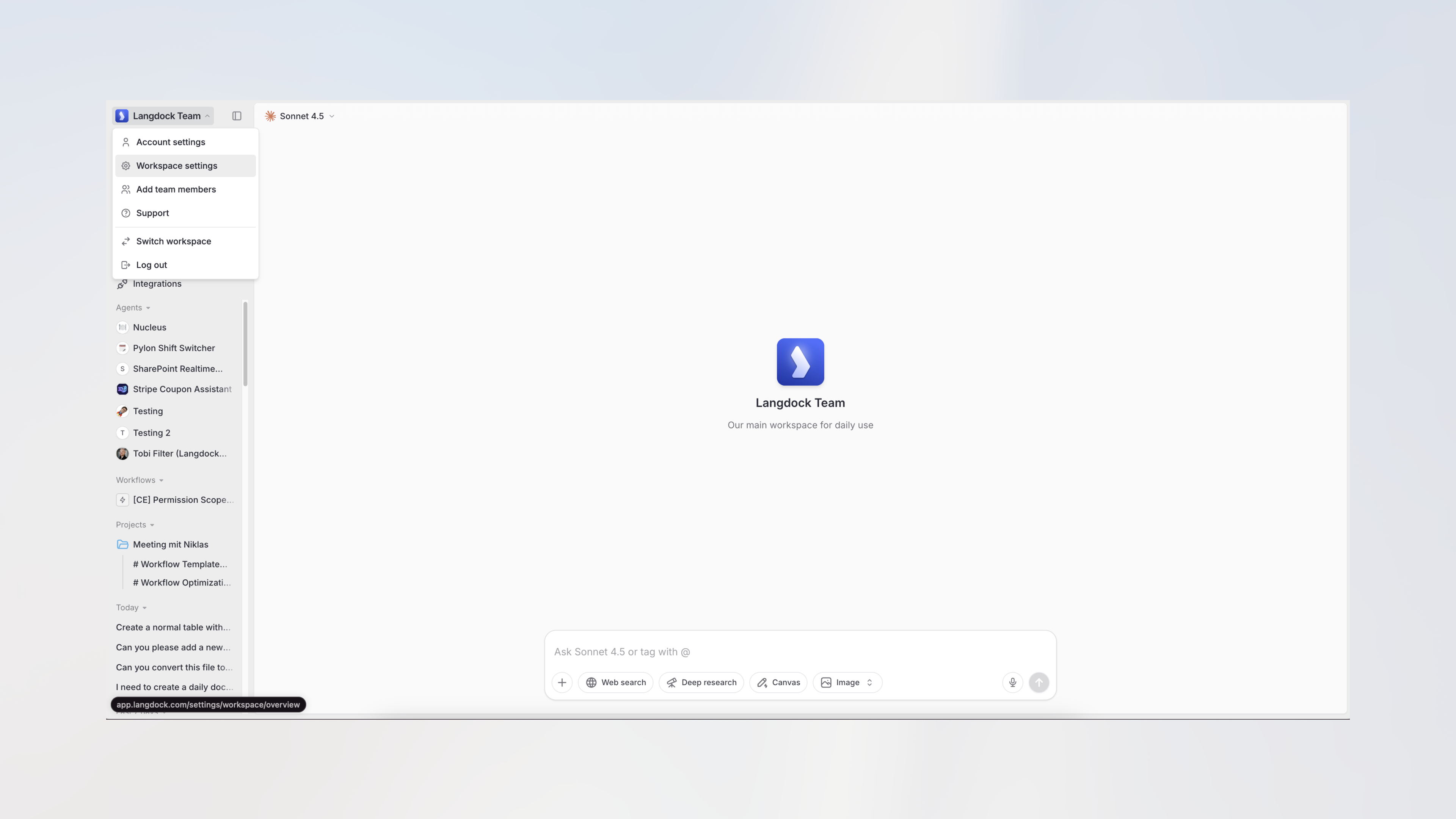
1. Navigate to [Langdock](https://app.langdock.com) and open the workspace settings from the dropdown menu.
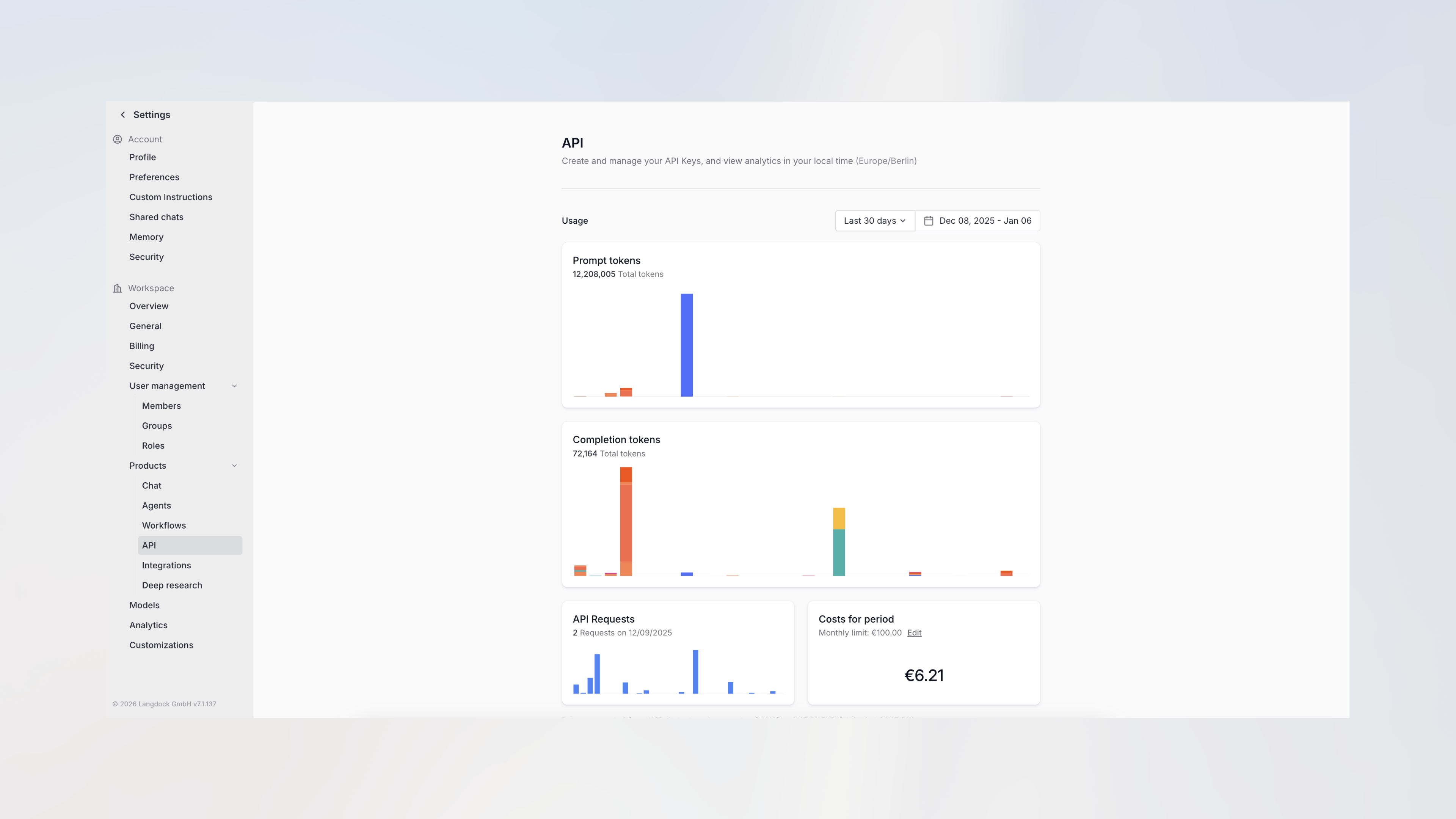
 2. Click on **API** under Products in the sidebar.
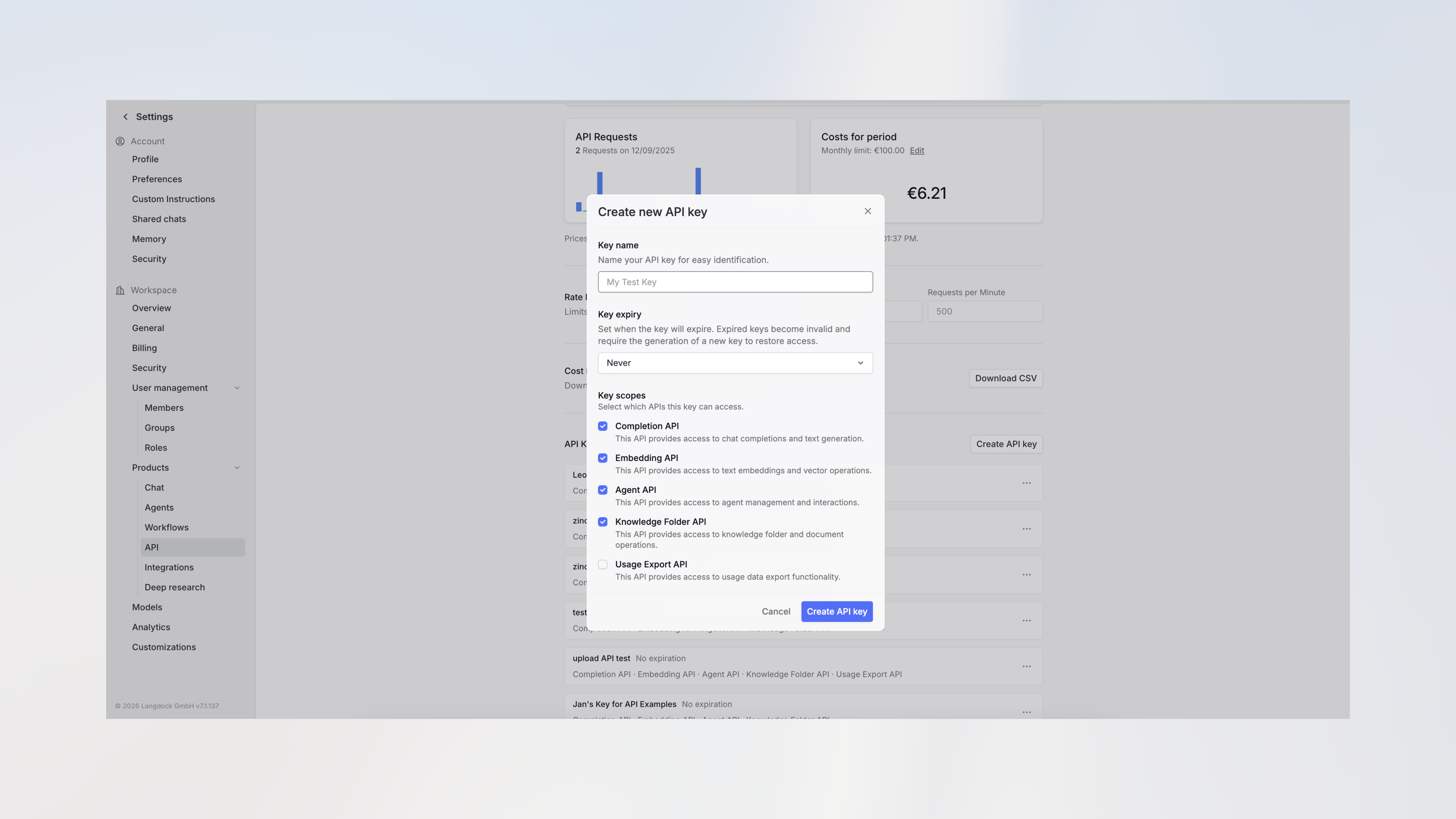
 3. Click **Create API key**, enter a name, select the required scopes (at minimum "Assistant API"), and confirm.
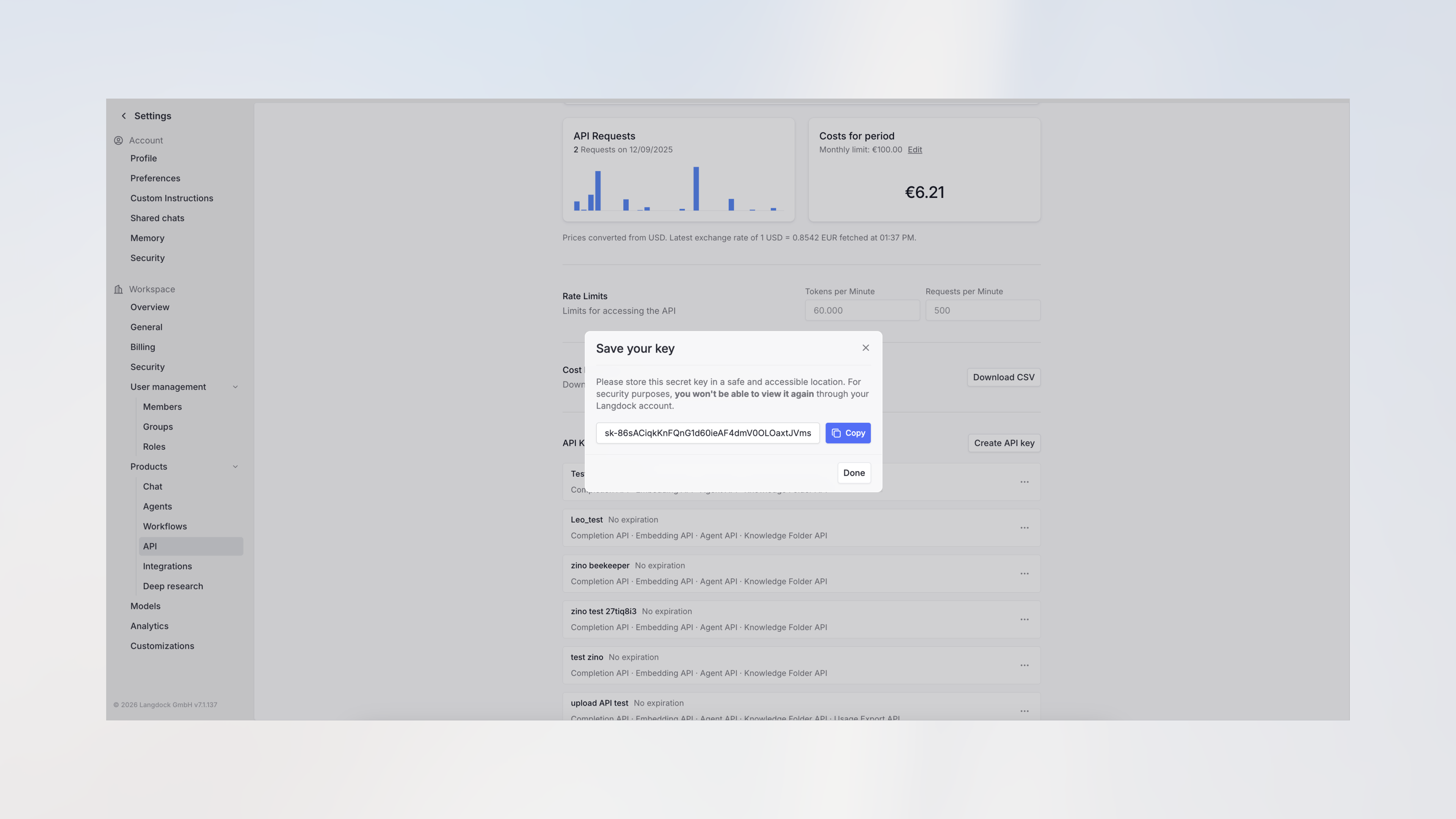
 4. Copy your API key and store it securely. You won't be able to view it again.
 ## How to share an agent with the API key
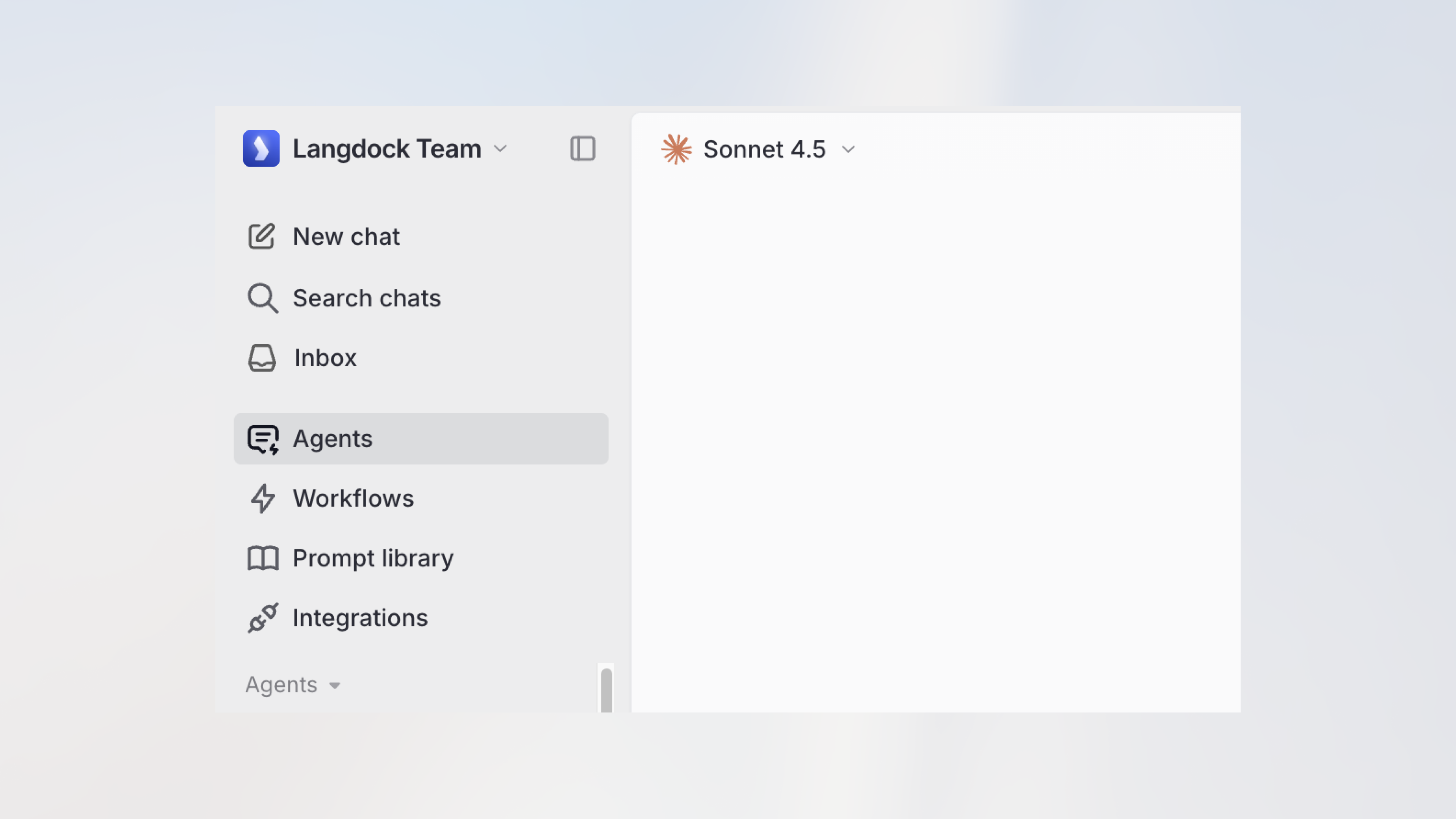
1. Navigate to **Agents** in the sidebar.
## How to share an agent with the API key
1. Navigate to **Agents** in the sidebar.
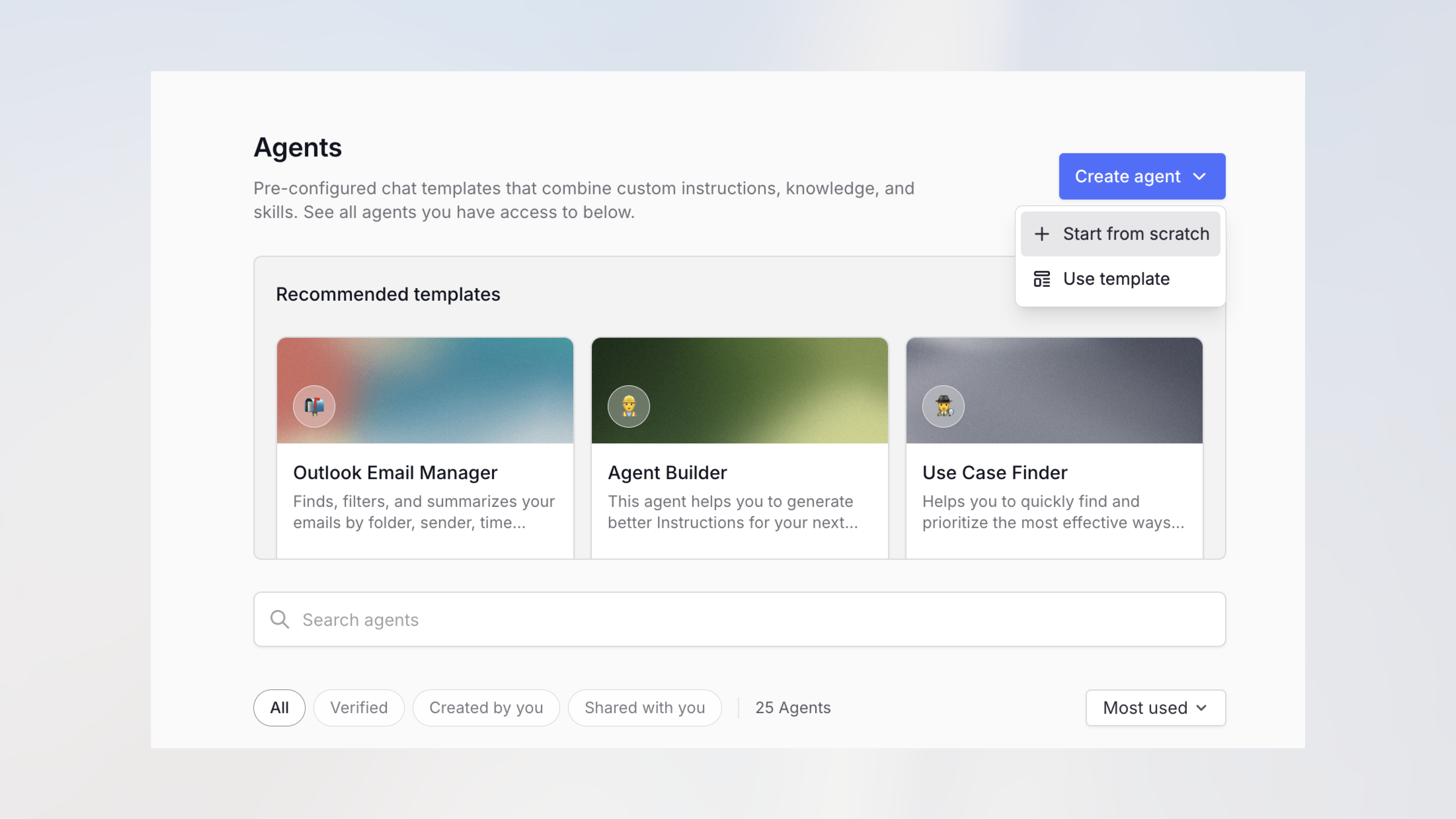
 2. Create a new agent or select an existing one. Enter at least a name to save it.
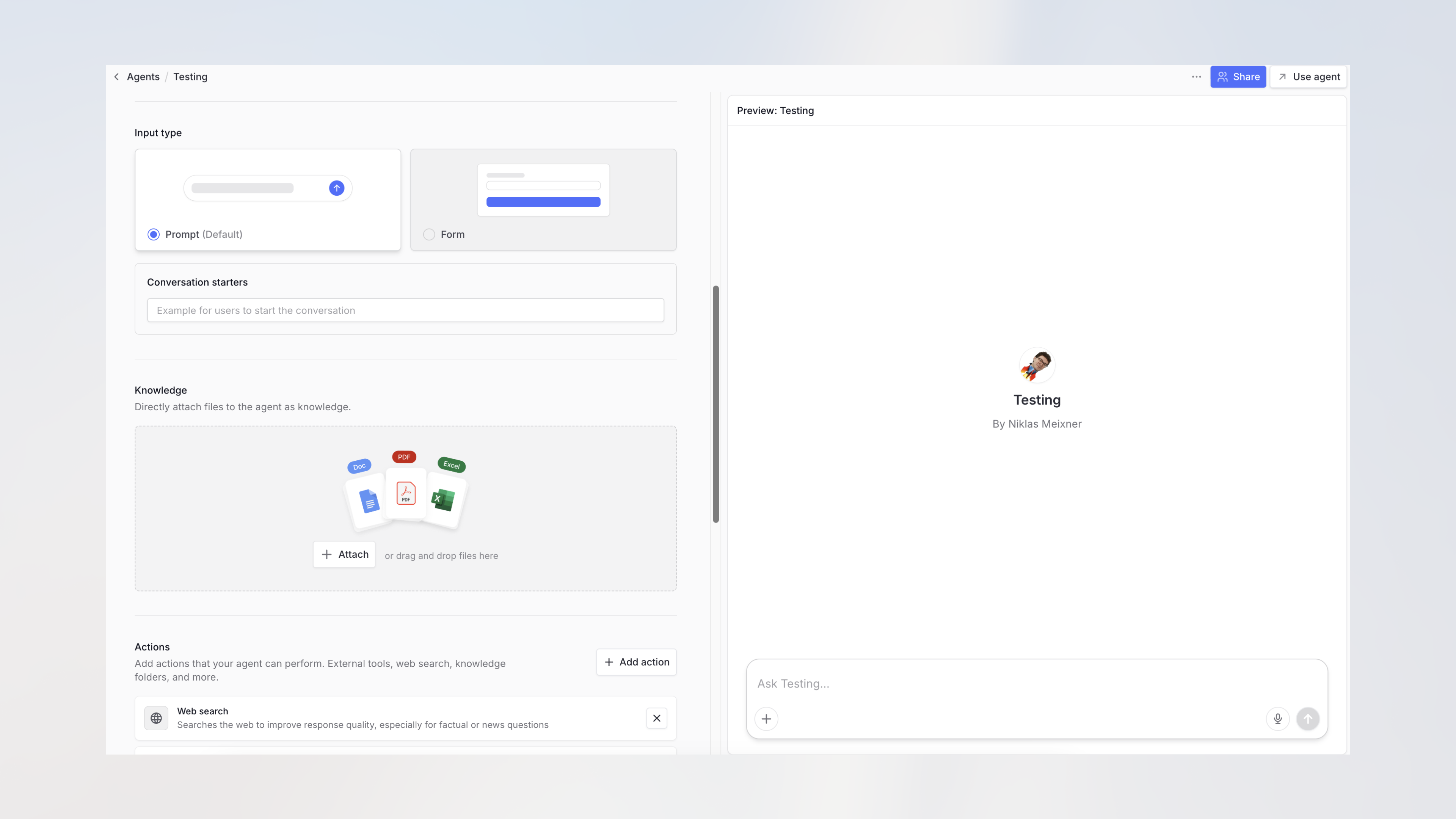
 3. In the agent editor, click the **Share** button in the top right corner.
 4. The share dialog opens showing current access settings.
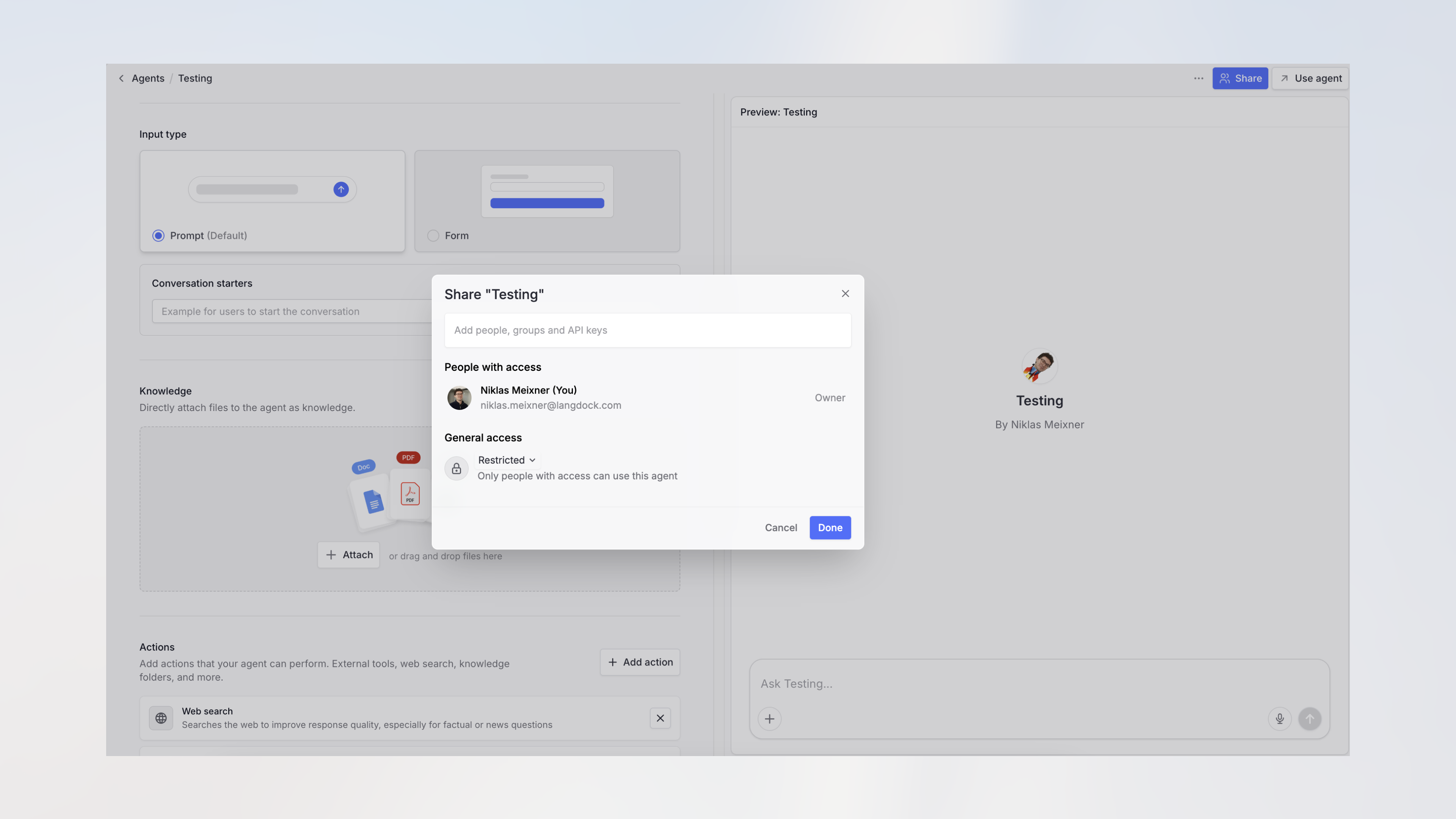 5. Search for your API key by name and add it to share the agent with the API.
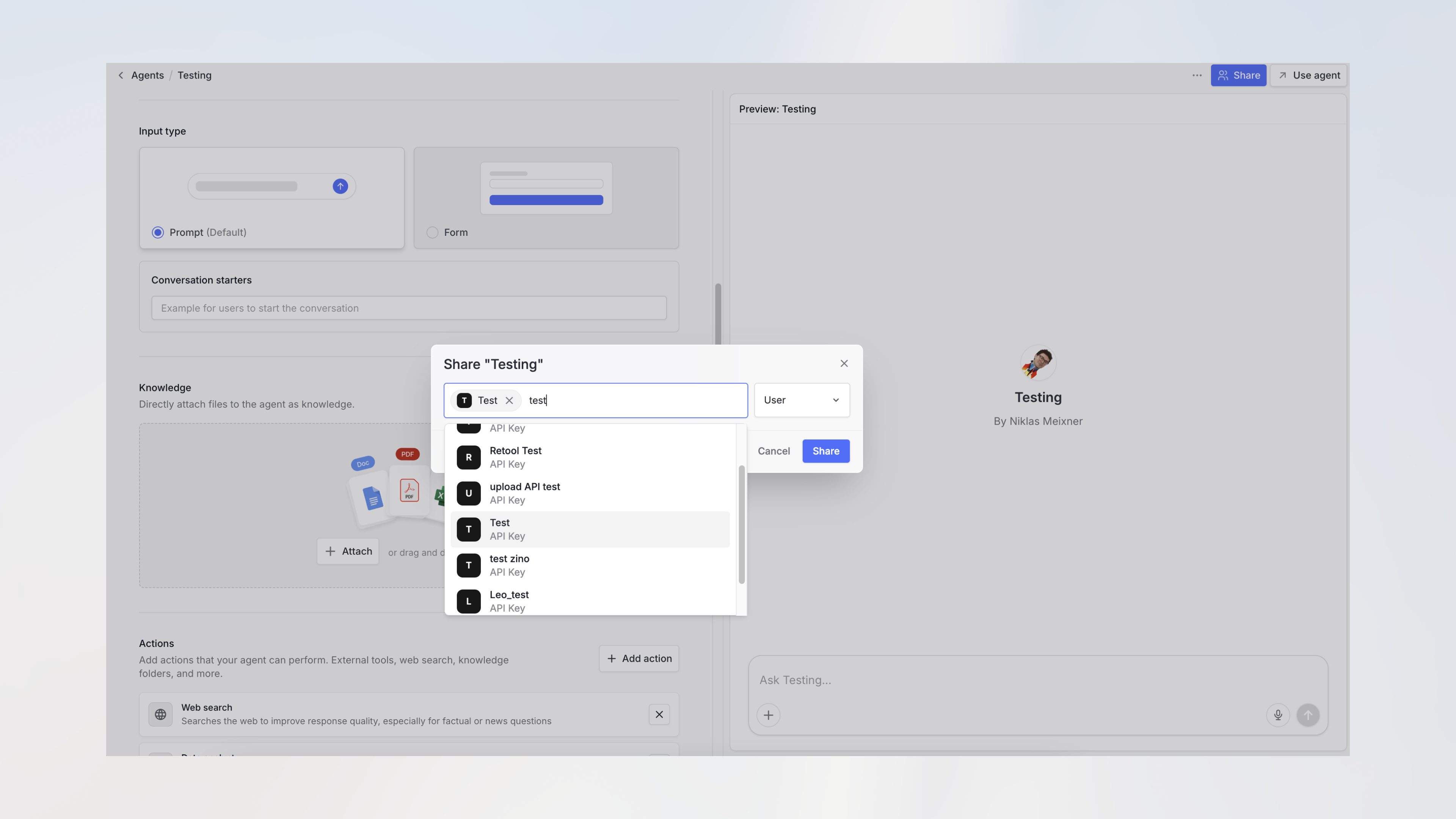 Only admins can connect an agent with an API key. If you don't see API keys in the share menu, ask an admin to perform this step.
If the agent you're sharing has [subagents](/en/using-langdock/agents/subagents) attached, share each subagent with the API key as well. Subagents that aren't shared with the key return an access denied message when the agent calls them via the API.
## Testing the API connection
Once shared, you can test your agent via the [Agent API documentation](/en/developer/agents-api/agent). Use your API key and the agent ID from the URL (`https://app.langdock.com/agents/AGENT_ID/edit`).
Langdock blocks browser-origin requests to protect your API key. For more information, see our guide on [API Key Best Practices](/en/admin/ai-adoption-and-rollout/best-practices/api-key-best-practices).
**Using MCP:** You can also access your agents via the [Langdock MCP Server](/en/using-langdock/guides/integrations/mcp/langdock-agent-mcp-server). This lets MCP-compatible AI clients (like Claude Desktop or Cursor) call your agents directly.
Only admins can connect an agent with an API key. If you don't see API keys in the share menu, ask an admin to perform this step.
If the agent you're sharing has [subagents](/en/using-langdock/agents/subagents) attached, share each subagent with the API key as well. Subagents that aren't shared with the key return an access denied message when the agent calls them via the API.
## Testing the API connection
Once shared, you can test your agent via the [Agent API documentation](/en/developer/agents-api/agent). Use your API key and the agent ID from the URL (`https://app.langdock.com/agents/AGENT_ID/edit`).
Langdock blocks browser-origin requests to protect your API key. For more information, see our guide on [API Key Best Practices](/en/admin/ai-adoption-and-rollout/best-practices/api-key-best-practices).
**Using MCP:** You can also access your agents via the [Langdock MCP Server](/en/using-langdock/guides/integrations/mcp/langdock-agent-mcp-server). This lets MCP-compatible AI clients (like Claude Desktop or Cursor) call your agents directly.