> ## Documentation Index
> Fetch the complete documentation index at: https://docs.langdock.com/llms.txt
> Use this file to discover all available pages before exploring further.
# Getting Started
> Learn about SAML 2.0 Single Sign-On and how to configure it for your Langdock workspace.
## SAML Overview
Security Assertion Markup Language (SAML) 2.0 is the standard protocol Langdock uses for Single Sign-On (SSO) authentication. With SAML, your users can sign in to Langdock using their existing corporate identity provider credentials.
## Setup Checklist
Before configuring SAML, complete the following steps:
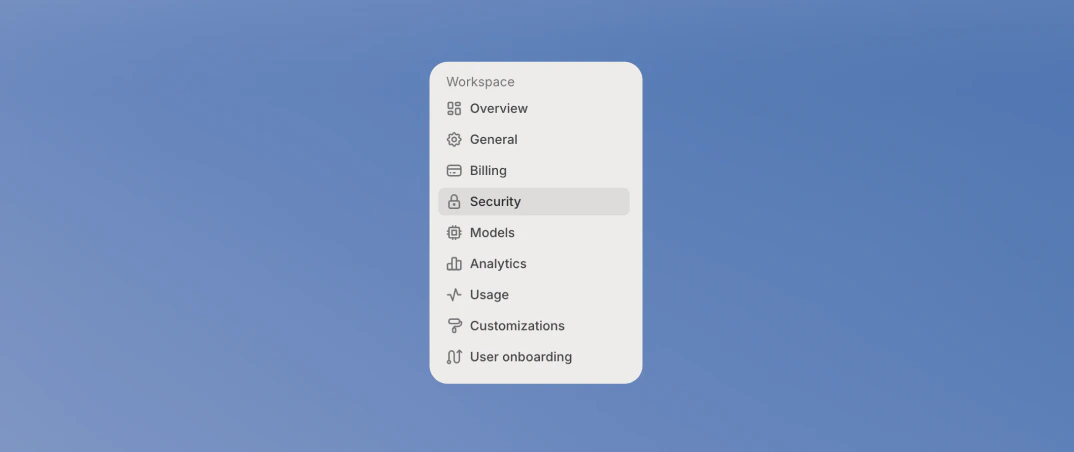
1. Navigate to the **Security** section in your [workspace settings](https://app.langdock.com/settings/workspace/security)
 2. Ensure you have admin access to your Langdock workspace and your identity provider
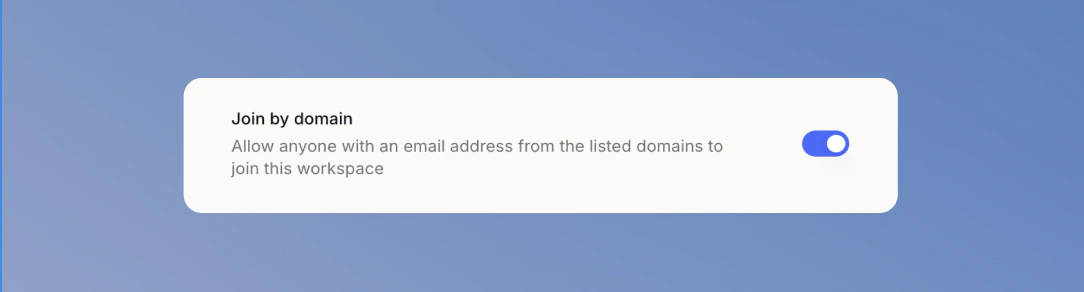
3. Enable **Join by domain**
2. Ensure you have admin access to your Langdock workspace and your identity provider
3. Enable **Join by domain**
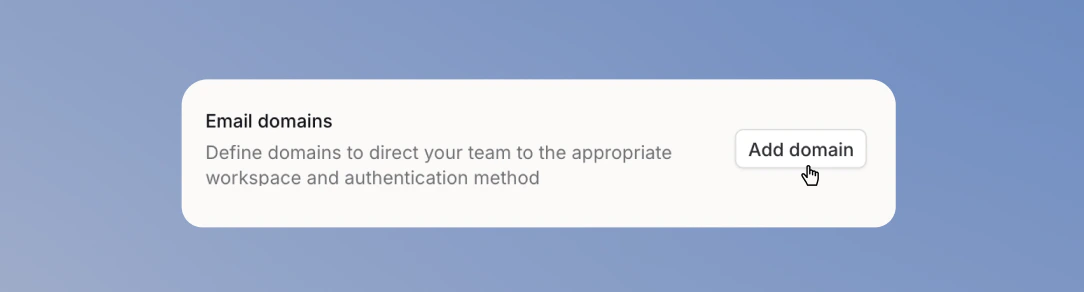
 4. Add your domain
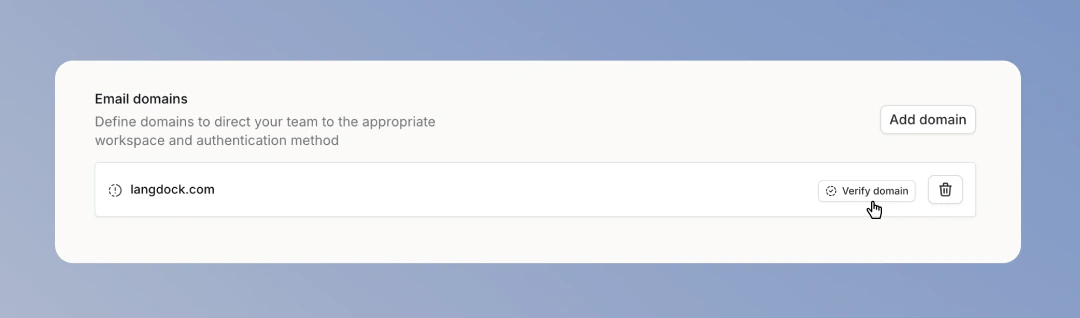
 5. Verify your domain before enabling SAML
 6. Create and configure a SAML application in your identity provider
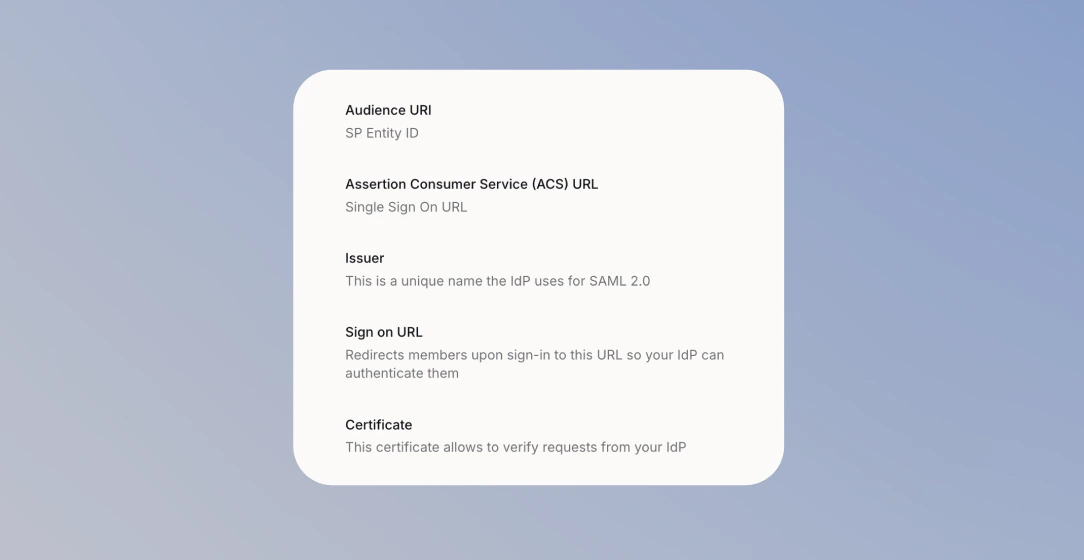
7. Copy the SAML values into Langdock: **Issuer**, **Sign on URL**, **Certificate**, and **Audience URI**
6. Create and configure a SAML application in your identity provider
7. Copy the SAML values into Langdock: **Issuer**, **Sign on URL**, **Certificate**, and **Audience URI**
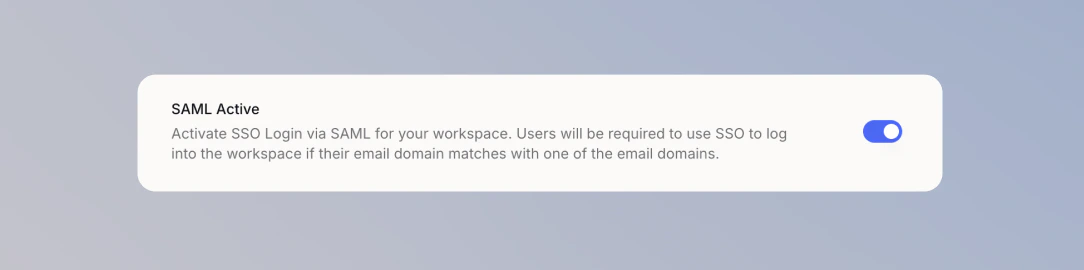
 Continue only after Langdock has verified your domain. You cannot turn on **SAML Active** before verification is complete.
8. Turn on **SAML Active**
Continue only after Langdock has verified your domain. You cannot turn on **SAML Active** before verification is complete.
8. Turn on **SAML Active**
 9. Test SAML login in a separate browser or incognito window before signing out
## Supported Identity Providers
Langdock supports SAML 2.0 with any compatible identity provider. We provide step-by-step guides for:
* [Microsoft Entra ID](/en/admin/security/saml/entra)
* [Google Workspace](/en/admin/security/saml/google)
* [Okta](/en/admin/security/saml/okta)
## Password Login and SAML
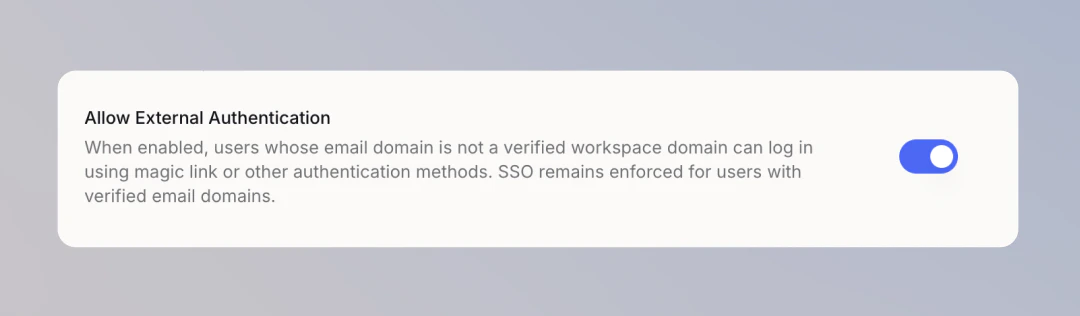
SAML SSO stays required for your verified domains. Turn on **Allow External Authentication** if you want people outside those domains to sign in with a magic link or another available method. That also covers people you invite through the [User Management API](/en/developer/user-management-api/invite). This setting does not open SAML sign-in for arbitrary domains.
9. Test SAML login in a separate browser or incognito window before signing out
## Supported Identity Providers
Langdock supports SAML 2.0 with any compatible identity provider. We provide step-by-step guides for:
* [Microsoft Entra ID](/en/admin/security/saml/entra)
* [Google Workspace](/en/admin/security/saml/google)
* [Okta](/en/admin/security/saml/okta)
## Password Login and SAML
SAML SSO stays required for your verified domains. Turn on **Allow External Authentication** if you want people outside those domains to sign in with a magic link or another available method. That also covers people you invite through the [User Management API](/en/developer/user-management-api/invite). This setting does not open SAML sign-in for arbitrary domains.
 ## Sign SAML requests
Some identity providers require the service provider to sign outgoing `AuthnRequest` messages so they can verify the request came from Langdock. Turning on **Sign SAML requests** enables signed AuthnRequests and generates a stable Langdock signing certificate that you upload to your identity provider.
Leave this off unless your identity provider requires signed requests — most Entra ID, Google Workspace, and Okta setups work without it.
To enable request signing:
1. In [workspace security settings](https://app.langdock.com/settings/workspace/security), turn on **Sign SAML requests** under the SAML configuration.
2. Select **Download SP certificate** to save the Langdock service provider certificate.
3. Upload the certificate to your identity provider's SAML application as the request-verification certificate.
4. Test SAML login in an incognito window and confirm the login completes.
The **Download SP certificate** button only appears after you enable **Sign SAML requests**. If you rotate or reconfigure the certificate on the identity provider side, re-download it from Langdock to keep both sides in sync.
## Multi-Factor Authentication (MFA)
Langdock doesn't offer standalone MFA. When you use SAML SSO, MFA is enforced at the identity provider level as part of the login flow.
If you need an extra layer of security, [IP restrictions](/en/admin/security/ip-restrictions) are a good interim measure — they limit workspace access to specific IP ranges.
## Need Help?
If you encounter any issues during setup, reach out to [support@langdock.com](mailto:support@langdock.com) for assistance.
## Sign SAML requests
Some identity providers require the service provider to sign outgoing `AuthnRequest` messages so they can verify the request came from Langdock. Turning on **Sign SAML requests** enables signed AuthnRequests and generates a stable Langdock signing certificate that you upload to your identity provider.
Leave this off unless your identity provider requires signed requests — most Entra ID, Google Workspace, and Okta setups work without it.
To enable request signing:
1. In [workspace security settings](https://app.langdock.com/settings/workspace/security), turn on **Sign SAML requests** under the SAML configuration.
2. Select **Download SP certificate** to save the Langdock service provider certificate.
3. Upload the certificate to your identity provider's SAML application as the request-verification certificate.
4. Test SAML login in an incognito window and confirm the login completes.
The **Download SP certificate** button only appears after you enable **Sign SAML requests**. If you rotate or reconfigure the certificate on the identity provider side, re-download it from Langdock to keep both sides in sync.
## Multi-Factor Authentication (MFA)
Langdock doesn't offer standalone MFA. When you use SAML SSO, MFA is enforced at the identity provider level as part of the login flow.
If you need an extra layer of security, [IP restrictions](/en/admin/security/ip-restrictions) are a good interim measure — they limit workspace access to specific IP ranges.
## Need Help?
If you encounter any issues during setup, reach out to [support@langdock.com](mailto:support@langdock.com) for assistance.