> ## Documentation Index
> Fetch the complete documentation index at: https://docs.langdock.com/llms.txt
> Use this file to discover all available pages before exploring further.
# Google SAML Setup
> Enable your users to sign in to Langdock using their Google accounts via SAML 2.0.
## Overview
This guide walks you through configuring SAML single sign-on with Google Workspace. You'll create a custom SAML app in your Google Admin console, configure the authentication settings, and establish a secure connection between your identity provider and Langdock.
Once complete, your users will be able to sign in to Langdock using their Google Workspace credentials.
## Setup Checklist
Verify that you have completed these steps from the [setup checklist](/en/admin/security/saml/saml#setup-checklist):
* You have access to an admin account in your Langdock workspace
* "Join by domain" is enabled in your Langdock security settings
* Your domain is added and verified in your Langdock security settings
* You have a Google Workspace Admin account with the ability to create and manage Apps
## Create a new custom SAML app
First, you need to create a new custom SAML app in your Google Workspace Admin console.
To do this, follow these steps:
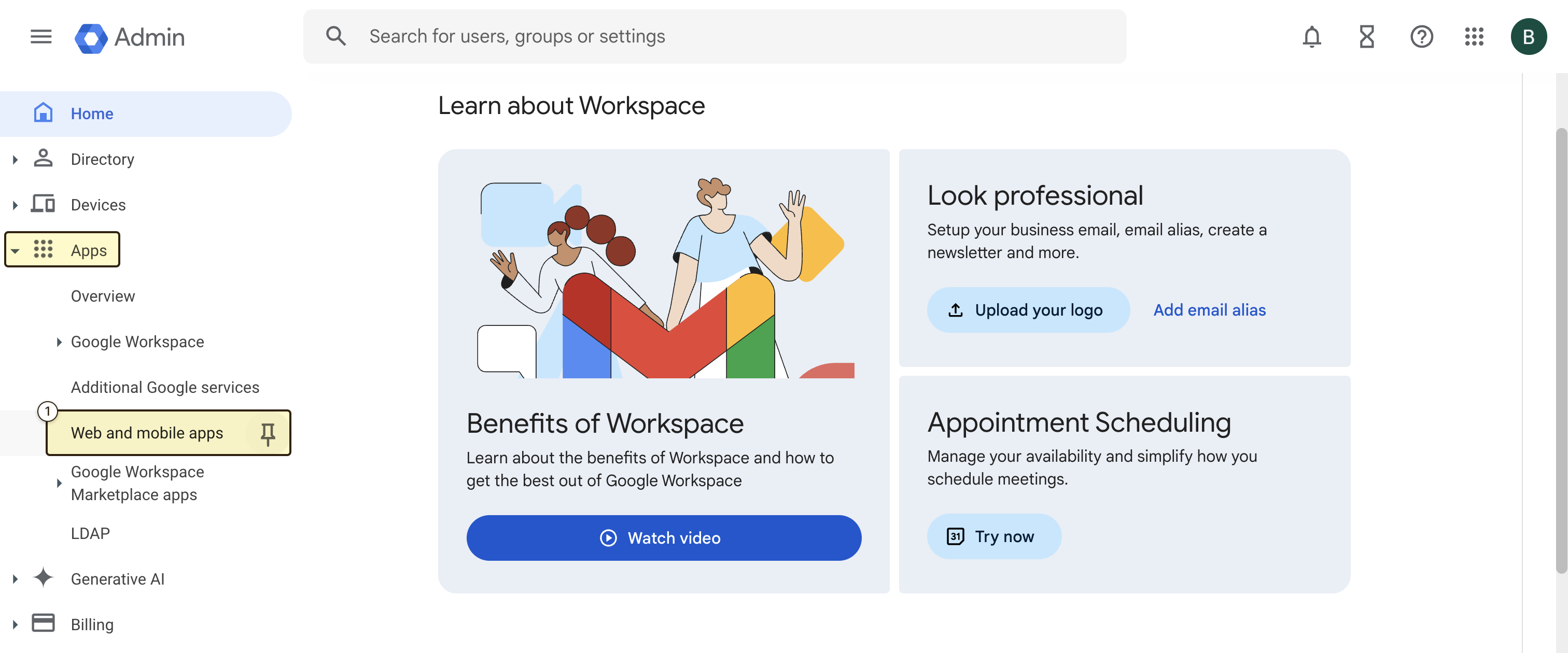
1. In your Admin console, navigate to the Menu and then **"Apps"** and then **"Web and mobile apps"**
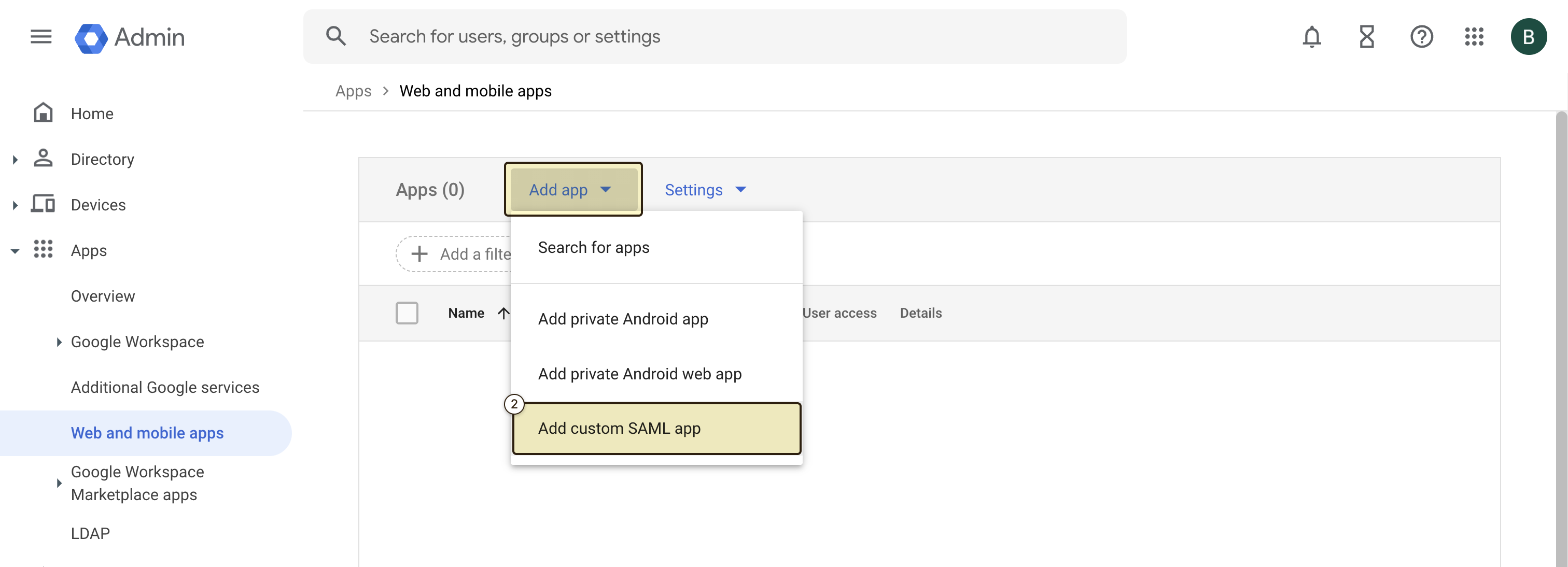
2. Create a new custom SAML application by clicking on **"Add app"** and **"Add custom SAML app"**
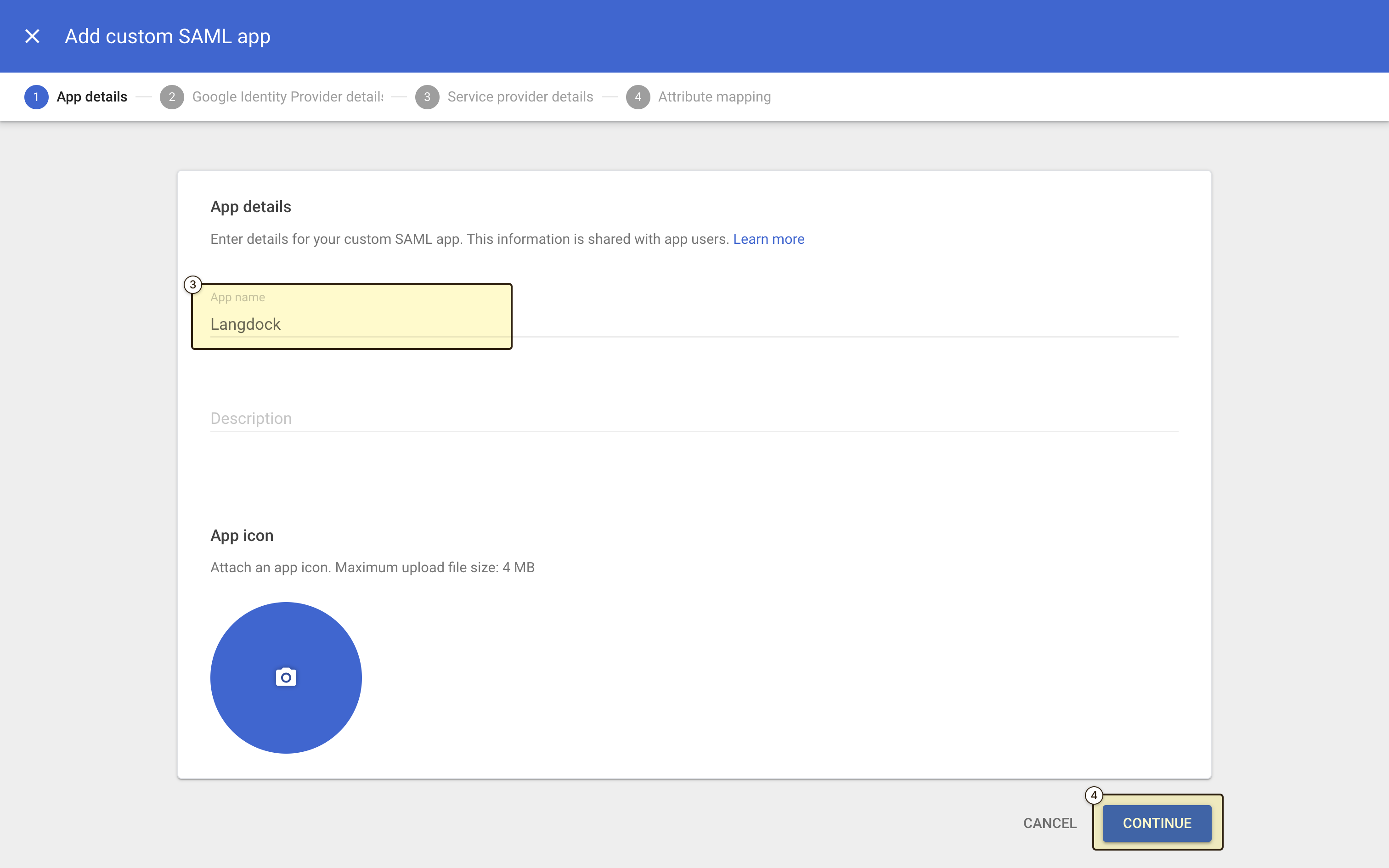
3. Name your application (e.g., "Langdock") and, optionally, upload an icon
4. Click **Continue**
 ## SAML Configuration
Langdock uses SAML 2.0 as the standard for SSO authentication. After creating the application, you need to configure the SAML settings, which will allow Langdock to authenticate users via SAML.
First, you need to copy configuration values from the Google Workspace Admin console to Langdock.
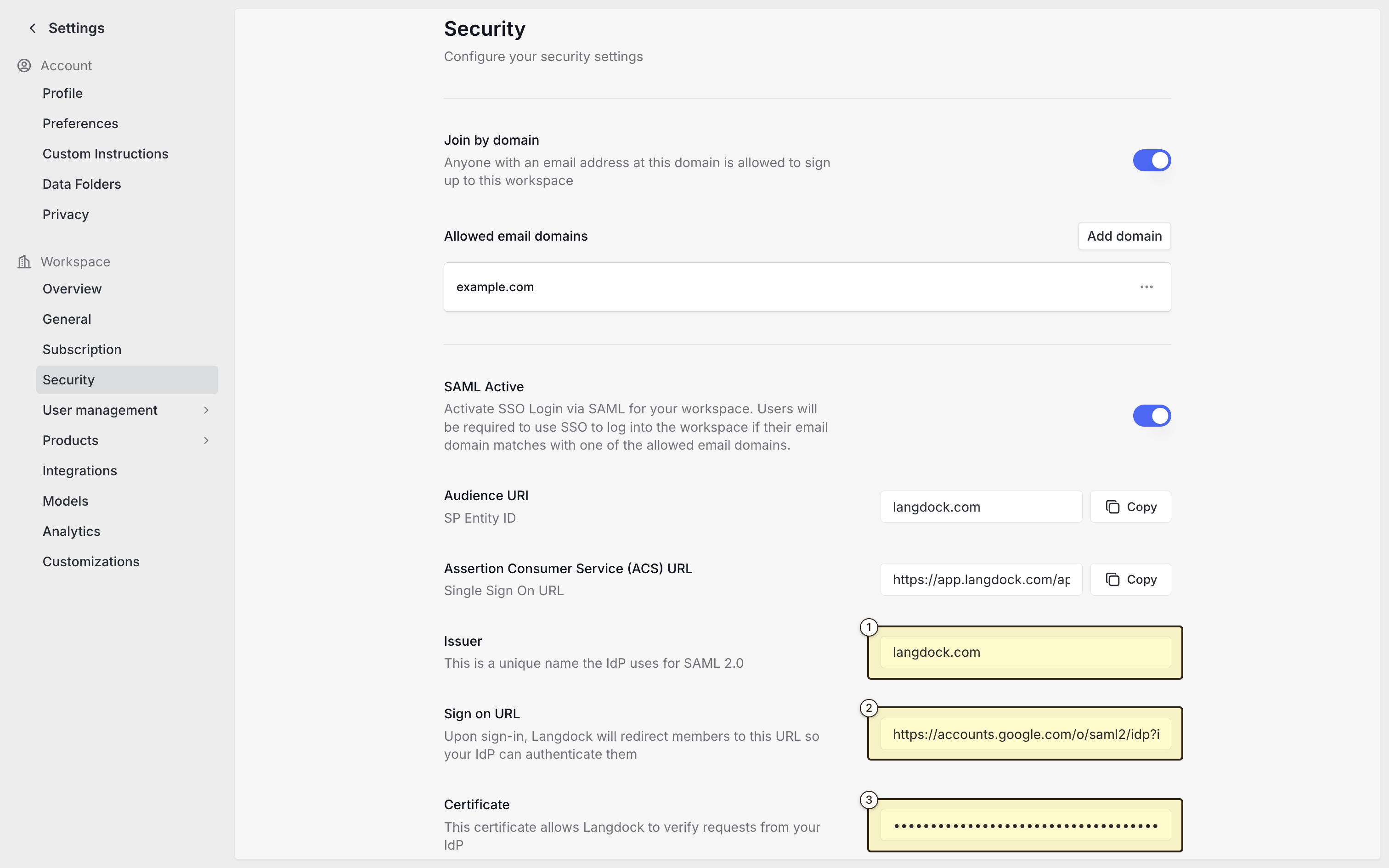
In Langdock, navigate to the [Security settings](https://app.langdock.com/settings/workspace/security) and fill out the following fields:
1. **"Audience URI"**: Set this to a unique identifier for your SAML app (e.g., `langdock.com`)
2. **"Issuer"**: Use the same value as the Audience URI (e.g., `langdock.com`)
3. **"Sign on URL"**: The "SSO URL" value from Google Workspace Admin console (e.g., `https://accounts.google.com/o/saml2/idp?idpid=XXXXXXXXX`)
4. **"Certificate"**: The "Certificate" value from Google Workspace Admin console. Copy the entire certificate so that the beginning and end match the example below:
```
-----BEGIN CERTIFICATE-----
...
-----END CERTIFICATE-----
```
## SAML Configuration
Langdock uses SAML 2.0 as the standard for SSO authentication. After creating the application, you need to configure the SAML settings, which will allow Langdock to authenticate users via SAML.
First, you need to copy configuration values from the Google Workspace Admin console to Langdock.
In Langdock, navigate to the [Security settings](https://app.langdock.com/settings/workspace/security) and fill out the following fields:
1. **"Audience URI"**: Set this to a unique identifier for your SAML app (e.g., `langdock.com`)
2. **"Issuer"**: Use the same value as the Audience URI (e.g., `langdock.com`)
3. **"Sign on URL"**: The "SSO URL" value from Google Workspace Admin console (e.g., `https://accounts.google.com/o/saml2/idp?idpid=XXXXXXXXX`)
4. **"Certificate"**: The "Certificate" value from Google Workspace Admin console. Copy the entire certificate so that the beginning and end match the example below:
```
-----BEGIN CERTIFICATE-----
...
-----END CERTIFICATE-----
```
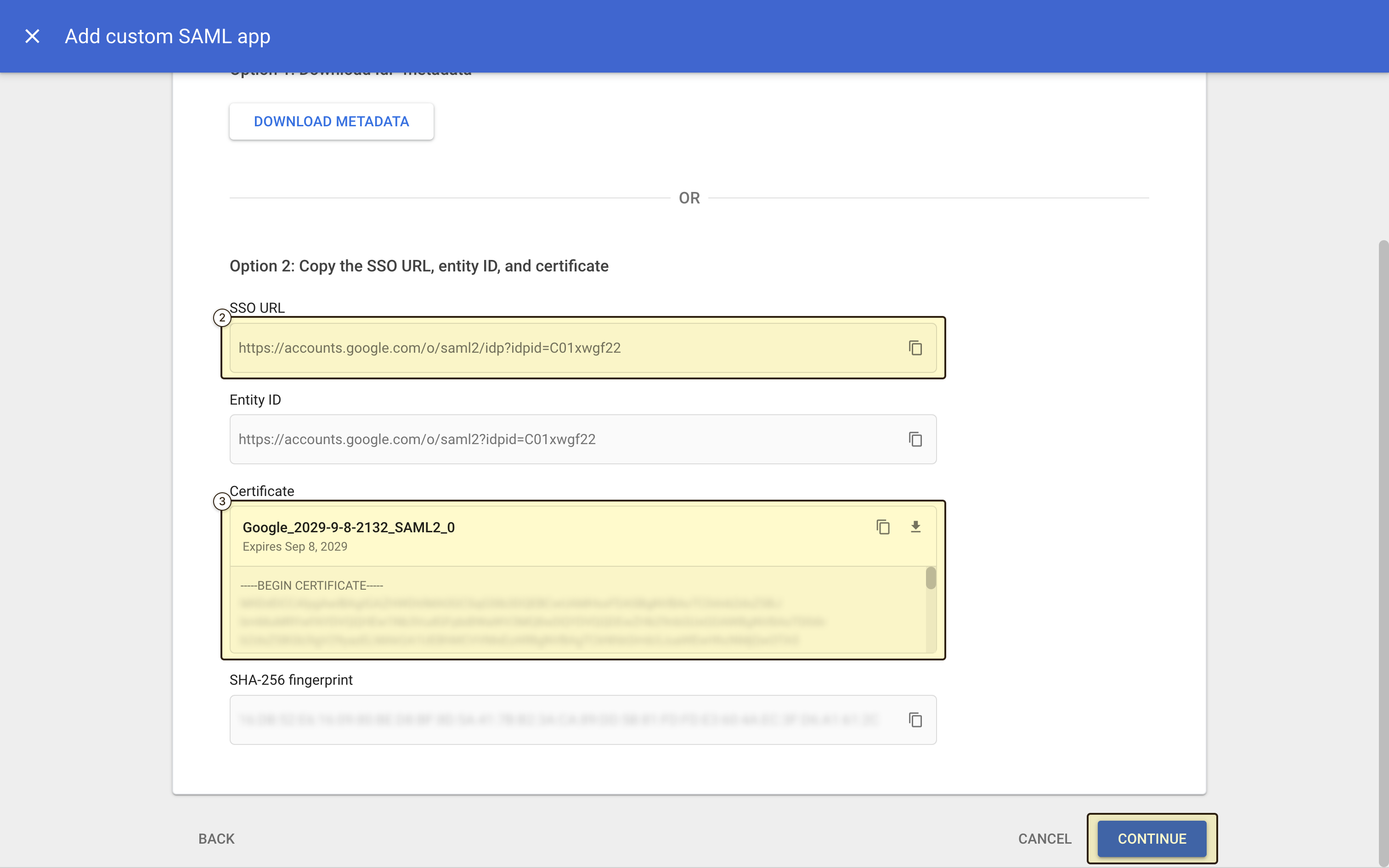 Once all four fields are filled in, activate the **"SAML Active"** toggle.
Now, you can click **"Continue"** in the Google Workspace Admin console to proceed with the SAML configuration.
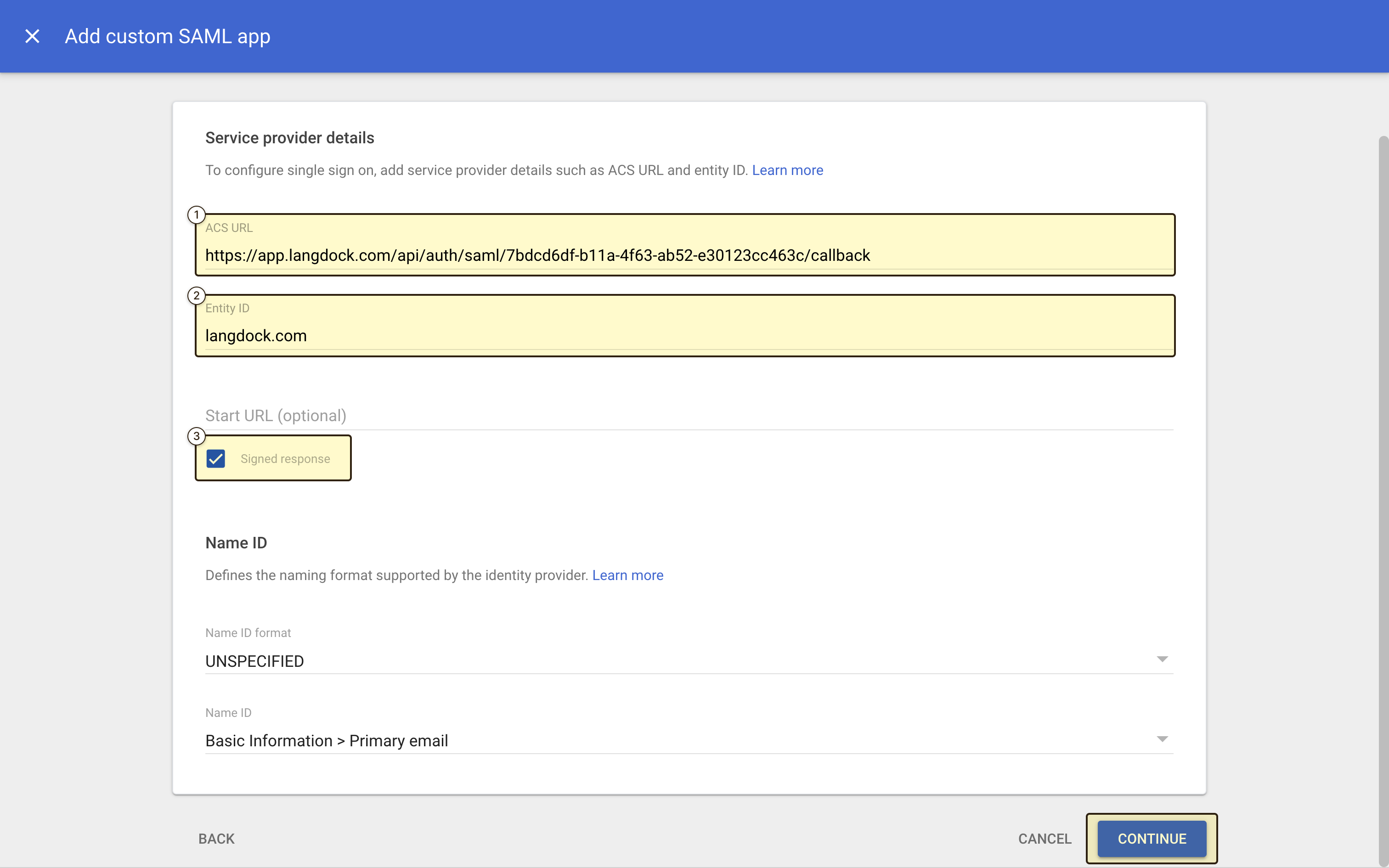
In the **"Service provider details"** section, you need to fill in the following values:
1. **"ACS URL"**: The "Assertion Consumer Service (ACS) URL" value from Langdock
2. **"Entity ID"**: The same value as the "Audience URI" / "Issuer" field (e.g., `langdock.com`)
3. **"Signed response"**: Make sure this is checked
You can leave the other fields empty or with their default values. (**"Name ID format"**: UNSPECIFIED and **"Name ID"**: Basic Information > Primary email). Click **"Continue"** to proceed.
Once all four fields are filled in, activate the **"SAML Active"** toggle.
Now, you can click **"Continue"** in the Google Workspace Admin console to proceed with the SAML configuration.
In the **"Service provider details"** section, you need to fill in the following values:
1. **"ACS URL"**: The "Assertion Consumer Service (ACS) URL" value from Langdock
2. **"Entity ID"**: The same value as the "Audience URI" / "Issuer" field (e.g., `langdock.com`)
3. **"Signed response"**: Make sure this is checked
You can leave the other fields empty or with their default values. (**"Name ID format"**: UNSPECIFIED and **"Name ID"**: Basic Information > Primary email). Click **"Continue"** to proceed.
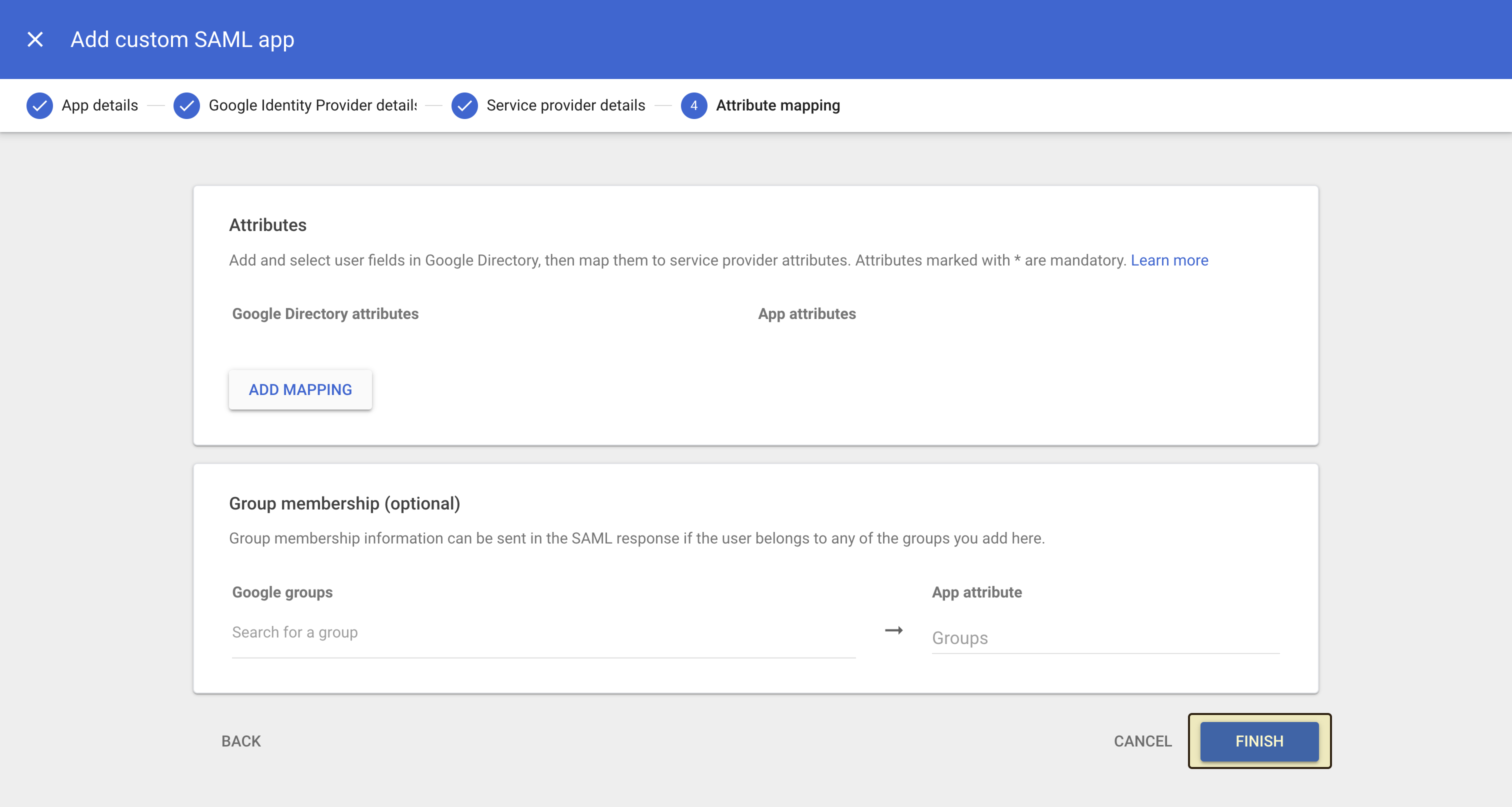
 In the **"Attribute mapping"** section, you can leave the default values or map additional attributes if needed. Map **First name** to `givenname` and **Last name** to `surname` so users don't have to enter their name on first login. Click **"Finish"** to complete the SAML configuration.
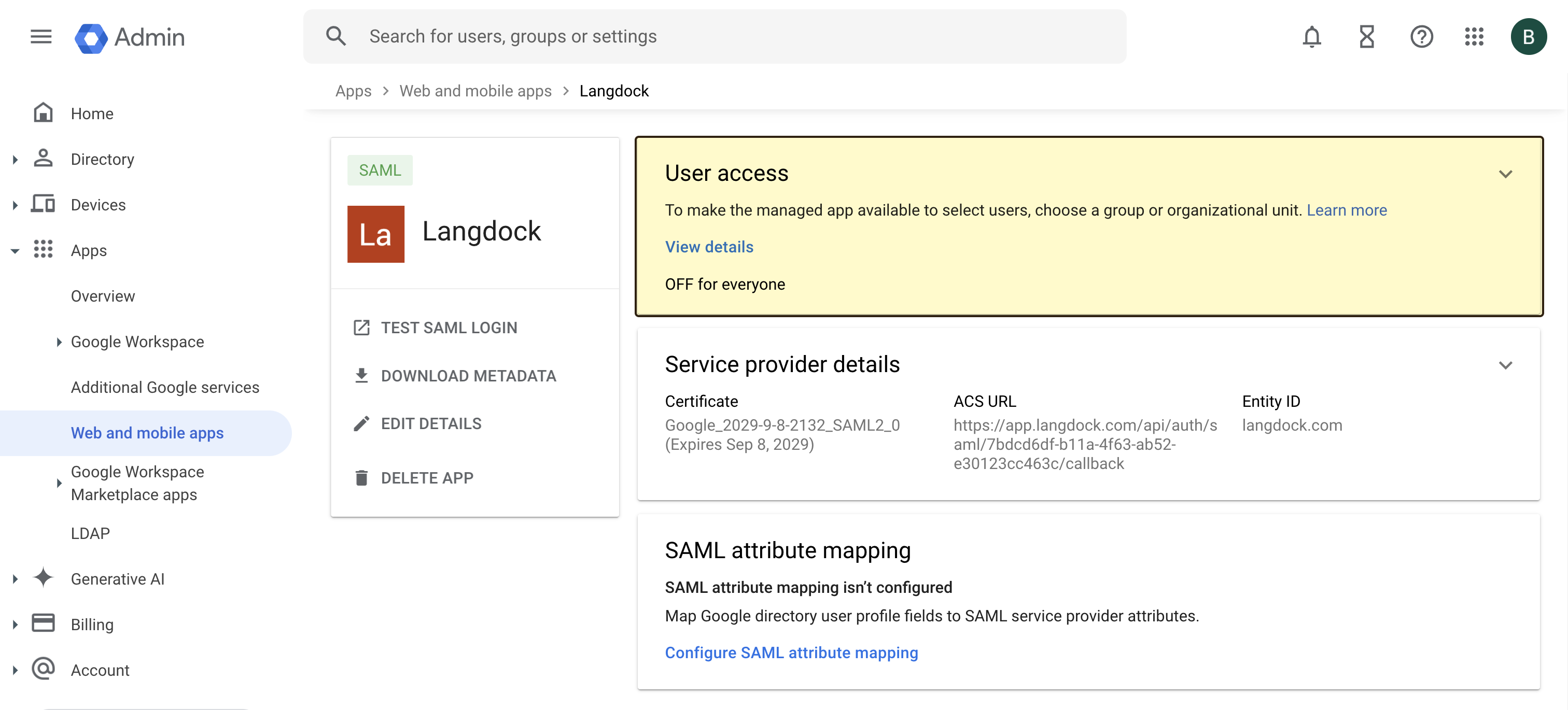
 Make sure to assign the application to the users or groups in your Google Workspace account who should have access to Langdock.
 ## Test the SAML setup
To test the SAML setup, open a separate browser or an incognito window and navigate to [https://app.langdock.com](https://app.langdock.com).
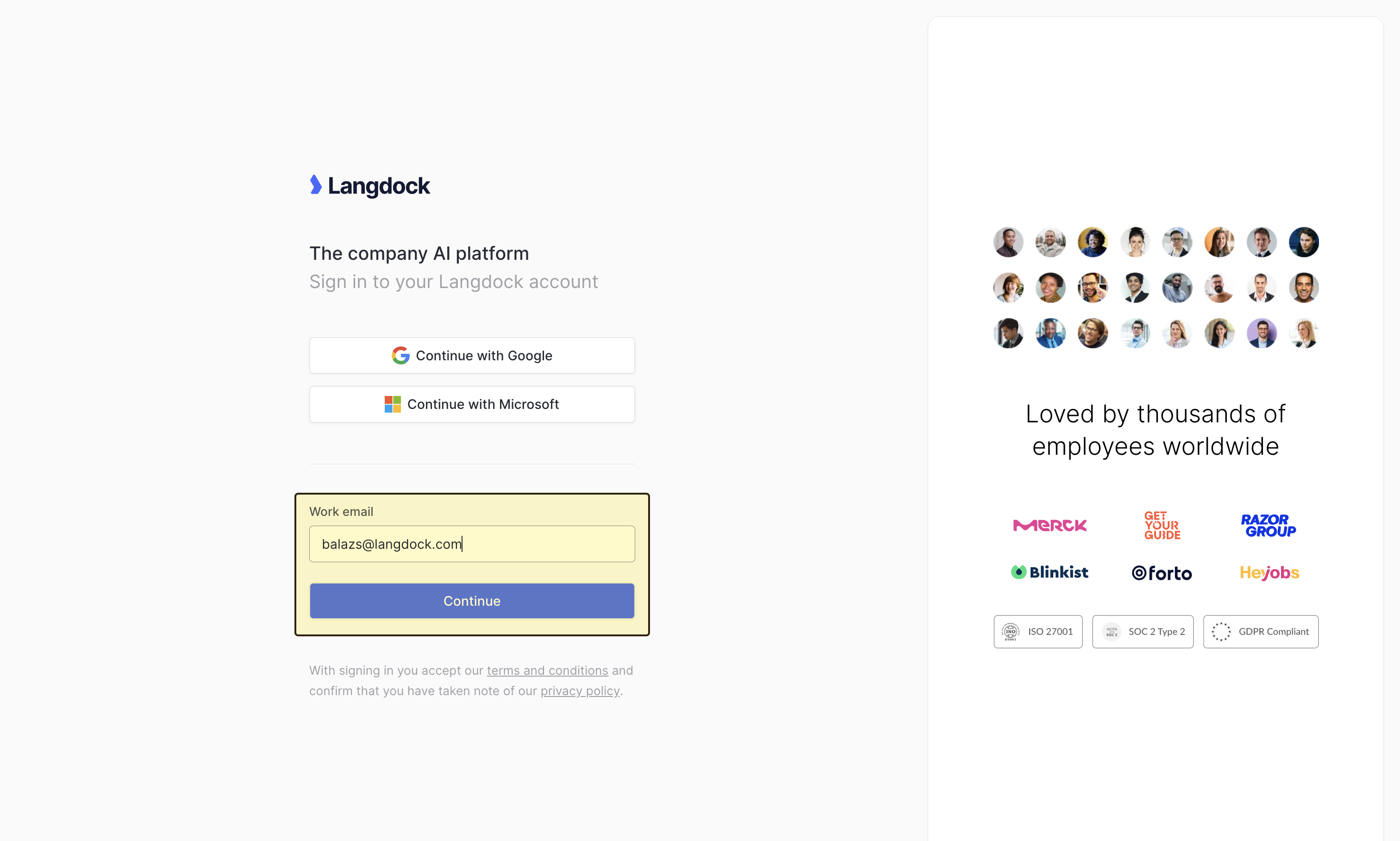
Enter an email address of a user in your Google Workspace account and click **"Continue"**.
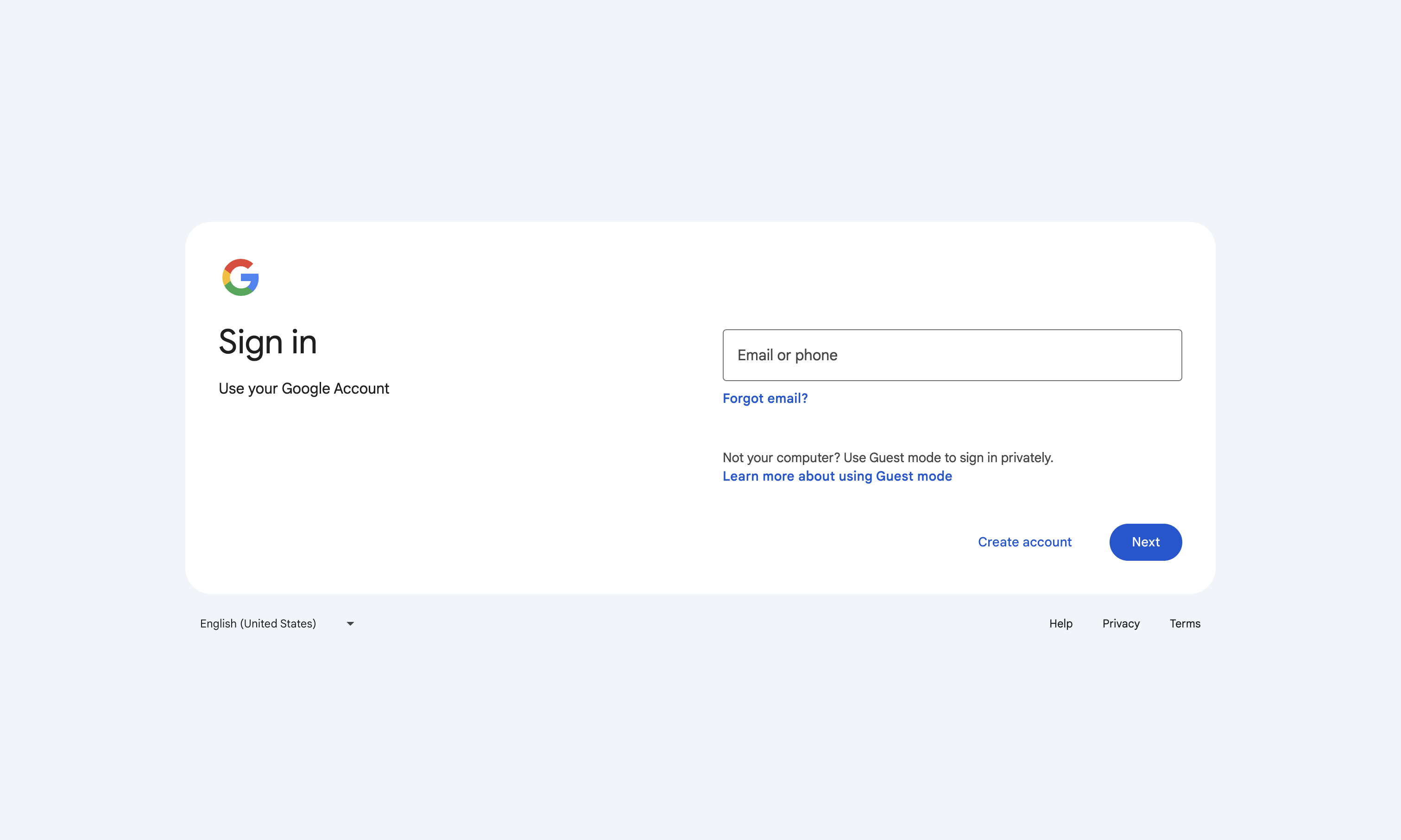
You will be redirected to the Google login page, where you can enter your credentials.
After successful authentication, you will be redirected back to Langdock and logged in.
## Test the SAML setup
To test the SAML setup, open a separate browser or an incognito window and navigate to [https://app.langdock.com](https://app.langdock.com).
Enter an email address of a user in your Google Workspace account and click **"Continue"**.
You will be redirected to the Google login page, where you can enter your credentials.
After successful authentication, you will be redirected back to Langdock and logged in.
 ## Troubleshooting
If you encounter any issues during the setup, please reach out to [support@langdock.com](mailto:support@langdock.com) for assistance.
## Troubleshooting
If you encounter any issues during the setup, please reach out to [support@langdock.com](mailto:support@langdock.com) for assistance.