> ## Documentation Index
> Fetch the complete documentation index at: https://docs.langdock.com/llms.txt
> Use this file to discover all available pages before exploring further.
# Personal API keys
> Control who can create personal API keys, monitor their usage, and revoke keys across your workspace.
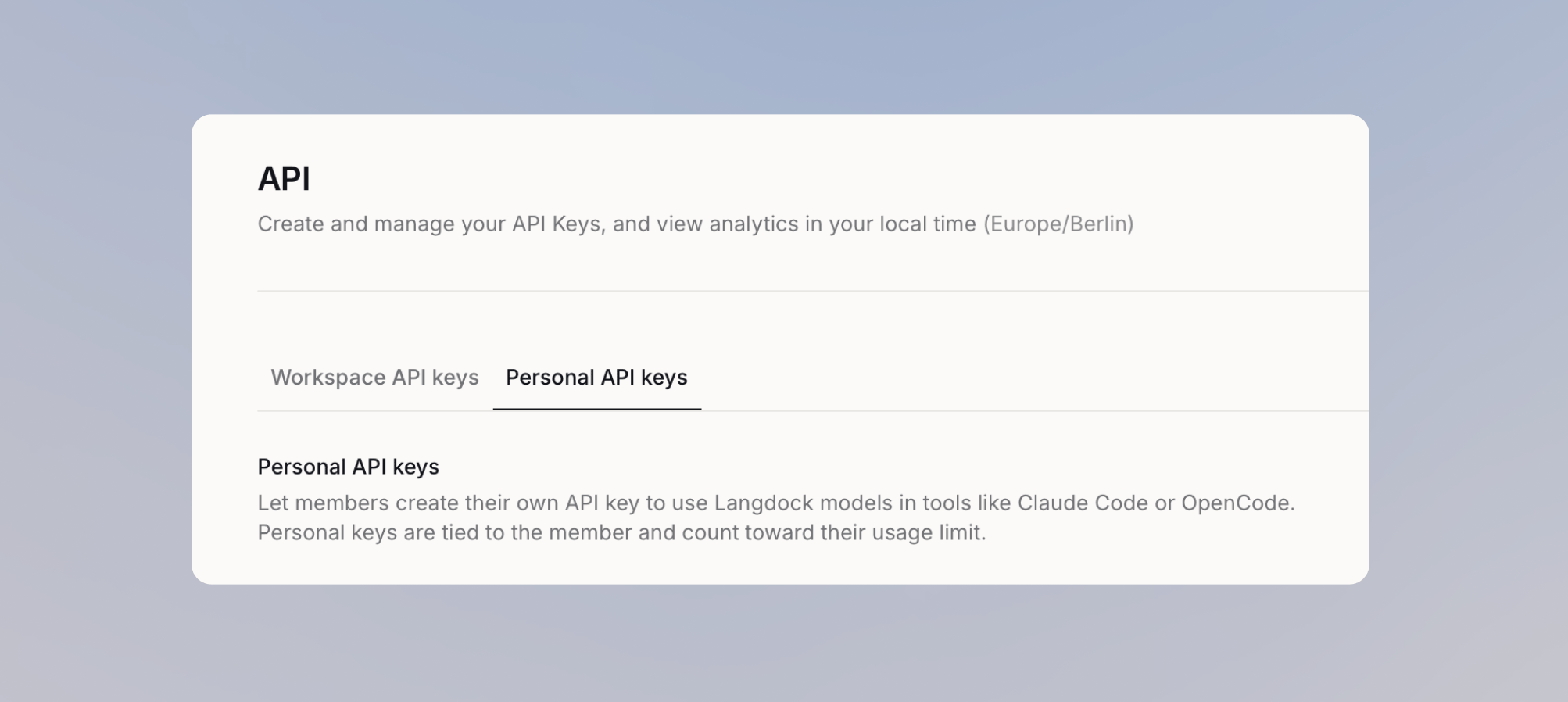 Personal API keys let members use your workspace's models from coding tools and their own projects, without you handing out a shared workspace key. Each key belongs to the member who created it, reaches the completion endpoints only, and spends that member's usage budget, so you decide who gets access and how much they can spend.
The **Personal API keys** tab only appears once the feature is enabled for your workspace. Members only see **API keys** in [their account settings](/en/using-langdock/account/personal-api-keys) after you give them access.
## Give members access
Go to [Settings > Workspace > Products > API](https://app.langdock.com/settings/workspace/products/api), then open **Personal API keys**.
Open access to the whole workspace, or keep it to the people who need it:
Turn on **General access** so everyone in the workspace can create a personal API key.
Personal API keys let members use your workspace's models from coding tools and their own projects, without you handing out a shared workspace key. Each key belongs to the member who created it, reaches the completion endpoints only, and spends that member's usage budget, so you decide who gets access and how much they can spend.
The **Personal API keys** tab only appears once the feature is enabled for your workspace. Members only see **API keys** in [their account settings](/en/using-langdock/account/personal-api-keys) after you give them access.
## Give members access
Go to [Settings > Workspace > Products > API](https://app.langdock.com/settings/workspace/products/api), then open **Personal API keys**.
Open access to the whole workspace, or keep it to the people who need it:
Turn on **General access** so everyone in the workspace can create a personal API key.
 Leave **General access** off and turn on **Allow specific members or groups to create personal API keys**, then add the members and groups that need it.

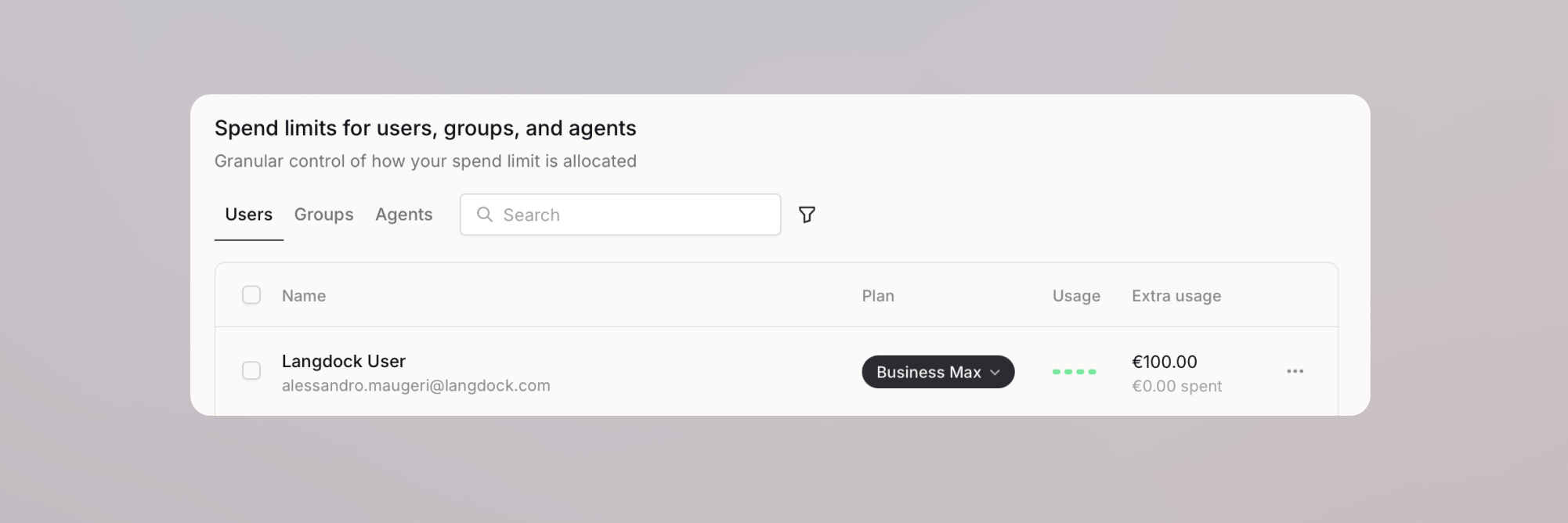 Personal API usage draws on the same budget as the member's chat and agent usage. Under [Settings > Workspace > Usage](https://app.langdock.com/settings/workspace/usage), enable [extra usage](/en/admin/manage-usage/extra-usage) and set an effective limit above zero for each member you granted access.
A member with access but no available budget can still open the personal API key page, but cannot create a key. If [usage requests](/en/admin/manage-usage/extra-usage#usage-requests) are enabled, they can ask for a higher limit right there.
On BYOK and dedicated deployments, set an individual extra usage limit above zero for each member instead. Plan and group limits do not apply to personal keys there, and extra usage does not have to be enabled. See [BYOK usage limits](/en/admin/manage-usage/byok/usage-limits) for how the limits fit together.
## Monitor usage and revoke keys
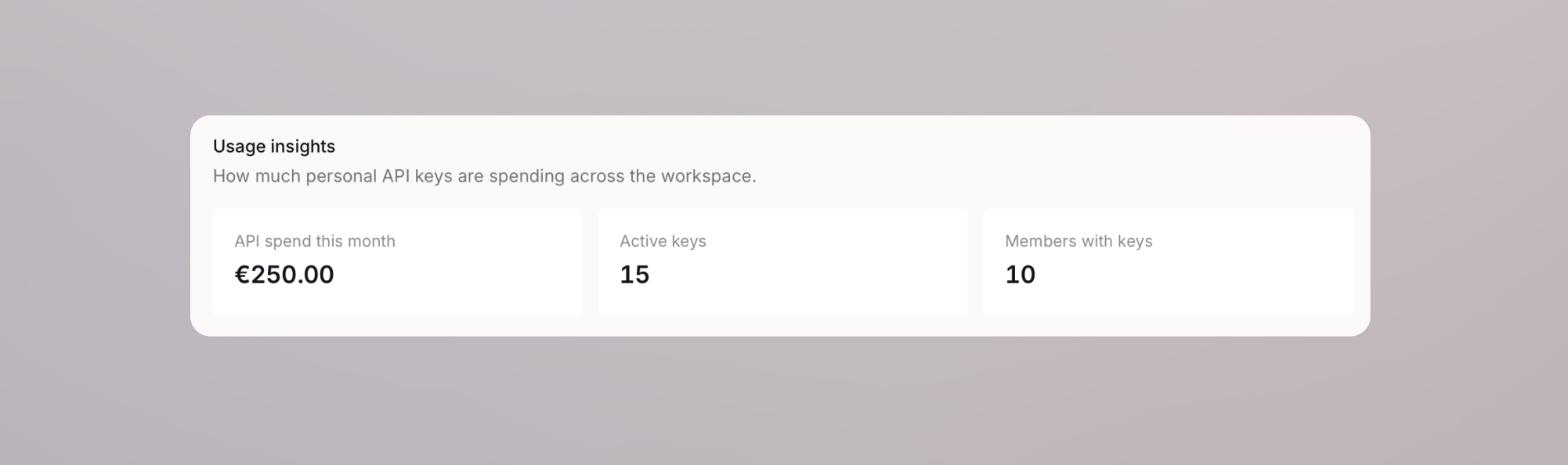
**Usage insights** shows API spend for the current month, how many keys are active, how many members hold one, and daily spend per member over the last 14 days.
Personal API usage draws on the same budget as the member's chat and agent usage. Under [Settings > Workspace > Usage](https://app.langdock.com/settings/workspace/usage), enable [extra usage](/en/admin/manage-usage/extra-usage) and set an effective limit above zero for each member you granted access.
A member with access but no available budget can still open the personal API key page, but cannot create a key. If [usage requests](/en/admin/manage-usage/extra-usage#usage-requests) are enabled, they can ask for a higher limit right there.
On BYOK and dedicated deployments, set an individual extra usage limit above zero for each member instead. Plan and group limits do not apply to personal keys there, and extra usage does not have to be enabled. See [BYOK usage limits](/en/admin/manage-usage/byok/usage-limits) for how the limits fit together.
## Monitor usage and revoke keys
**Usage insights** shows API spend for the current month, how many keys are active, how many members hold one, and daily spend per member over the last 14 days.
 **All personal keys** is where you review individual keys. Search by member, filter by spend or activity, check each key's owner, last use, monthly spend, and status, and revoke a key when you need to.
Revoking takes effect immediately and cannot be undone. A personal key also stops working when you take away a member's access to personal API keys or deactivate their workspace membership.
## When should I use a personal key?
Reach for a personal API key when one member needs API access under their own identity and usage budget. Use a workspace API key for shared applications and automations that should not depend on one person's account.
**All personal keys** is where you review individual keys. Search by member, filter by spend or activity, check each key's owner, last use, monthly spend, and status, and revoke a key when you need to.
Revoking takes effect immediately and cannot be undone. A personal key also stops working when you take away a member's access to personal API keys or deactivate their workspace membership.
## When should I use a personal key?
Reach for a personal API key when one member needs API access under their own identity and usage budget. Use a workspace API key for shared applications and automations that should not depend on one person's account.