> ## Documentation Index
> Fetch the complete documentation index at: https://docs.langdock.com/llms.txt
> Use this file to discover all available pages before exploring further.
# Excel Plugin (Setup)
> Enable Langdock plugins for your workspace so users can access Langdock directly inside Microsoft applications.
The [Excel plugin](/en/using-langdock/microsoft-plugins/excel) brings Langdock directly into Microsoft Excel, allowing users to create tables, write formulas, clean up data, and summarize spreadsheet results without leaving their workbook. This section covers how to enable the plugin for your workspace.
## Enabling the plugin
Navigate to your [workspace integration settings](https://app.langdock.com/settings/workspace/products/integrations) in Langdock.
Find the plugin you want to enable and toggle it on.
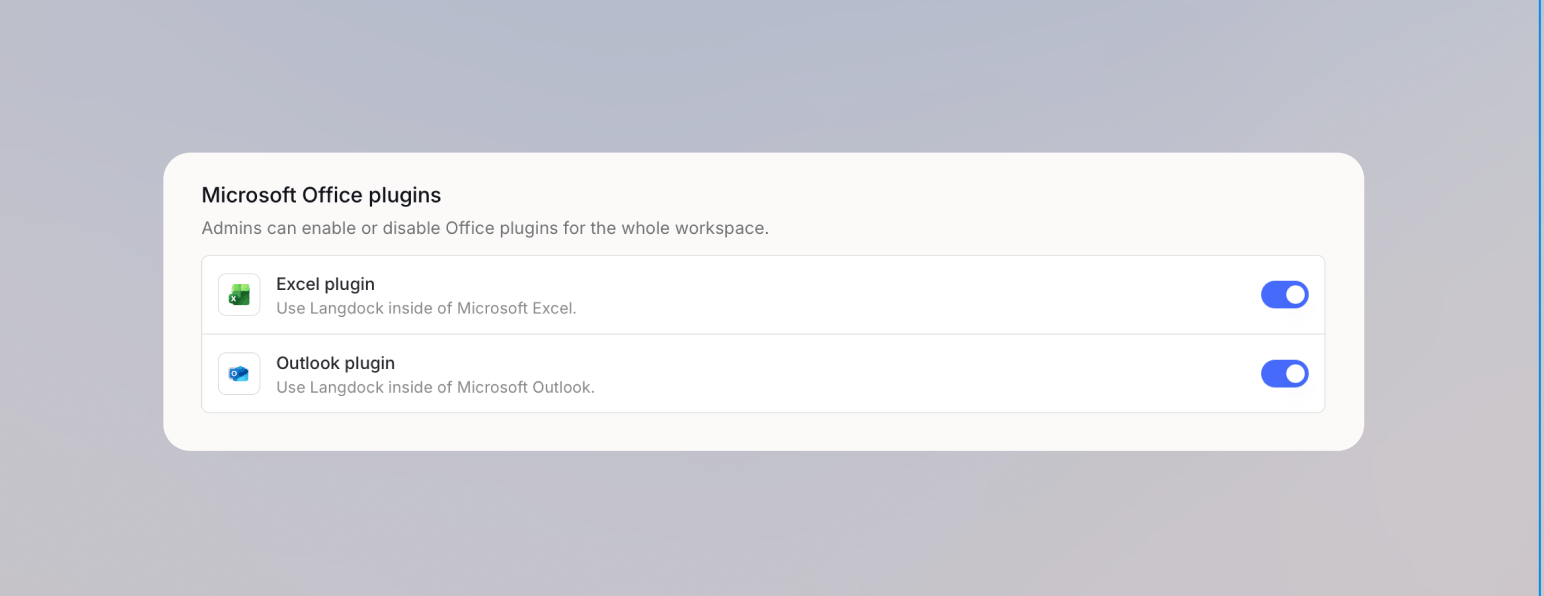 Users can now sign in to the plugin from within their Microsoft application. Share the [Excel plugin overview](/en/using-langdock/microsoft-plugins/excel) with your users so they know how to get started.
## Enabling the plugin for dedicated deployments
Before you start, make sure you have Microsoft admin access to the [Microsoft 365 Admin Portal](https://admin.microsoft.com) and Langdock admin access to your Workspace.
Setting up the Excel plugin involves three parts:
1. A Microsoft admin deploys the custom app in the [Microsoft 365 Admin Portal](https://admin.microsoft.com)
2. A Langdock admin enables the Excel plugin in Langdock as described above
3. Each user opens the Add-in in Excel and signs in
After setup, users in the assigned Microsoft 365 target group can open the Langdock Add-in directly from Excel.
### Upload the custom app in Microsoft 365
This step must be completed by a Microsoft admin.
Navigate to **Settings** > **Integrated apps** in the Microsoft 365 Admin Portal sidebar.
Users can now sign in to the plugin from within their Microsoft application. Share the [Excel plugin overview](/en/using-langdock/microsoft-plugins/excel) with your users so they know how to get started.
## Enabling the plugin for dedicated deployments
Before you start, make sure you have Microsoft admin access to the [Microsoft 365 Admin Portal](https://admin.microsoft.com) and Langdock admin access to your Workspace.
Setting up the Excel plugin involves three parts:
1. A Microsoft admin deploys the custom app in the [Microsoft 365 Admin Portal](https://admin.microsoft.com)
2. A Langdock admin enables the Excel plugin in Langdock as described above
3. Each user opens the Add-in in Excel and signs in
After setup, users in the assigned Microsoft 365 target group can open the Langdock Add-in directly from Excel.
### Upload the custom app in Microsoft 365
This step must be completed by a Microsoft admin.
Navigate to **Settings** > **Integrated apps** in the Microsoft 365 Admin Portal sidebar.
 On the Integrated apps page, click **Upload custom apps**.
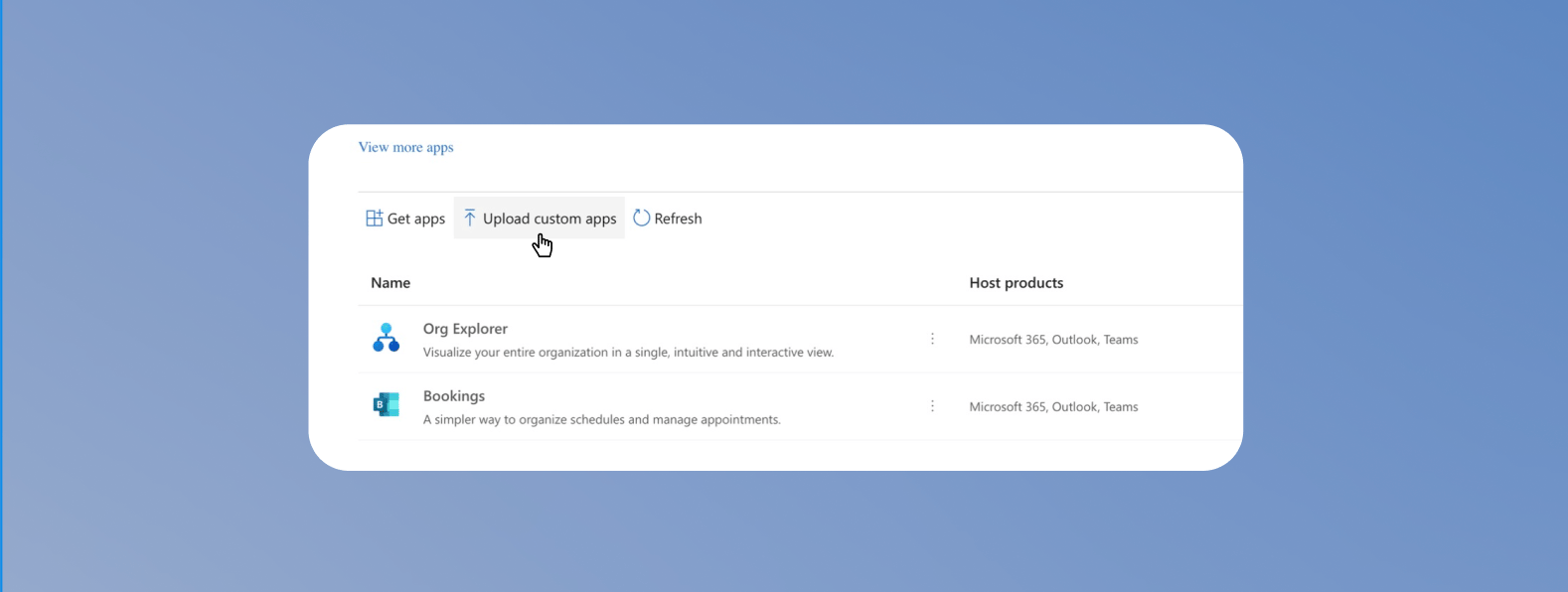 In the New App Deployment window, select:
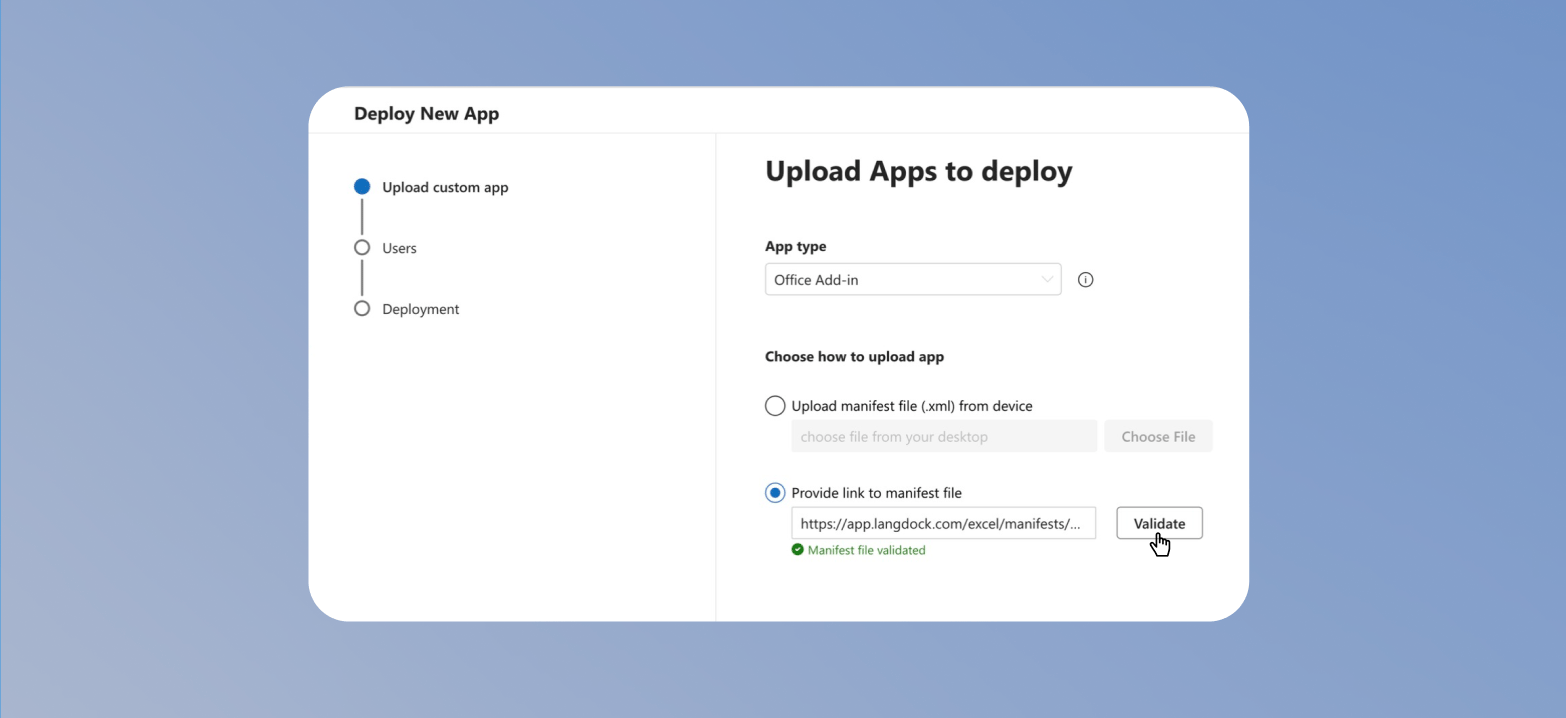
* **App type**: **Office Add-in**
* **Upload option**: **Provide link to manifest file**
* **Manifest link**: `https:///api/addin/dedicated/excel/manifest.xml`
Click **Validate**. After the manifest file validates successfully, click **Next**.
In the New App Deployment window, select:
* **App type**: **Office Add-in**
* **Upload option**: **Provide link to manifest file**
* **Manifest link**: `https:///api/addin/dedicated/excel/manifest.xml`
Click **Validate**. After the manifest file validates successfully, click **Next**.
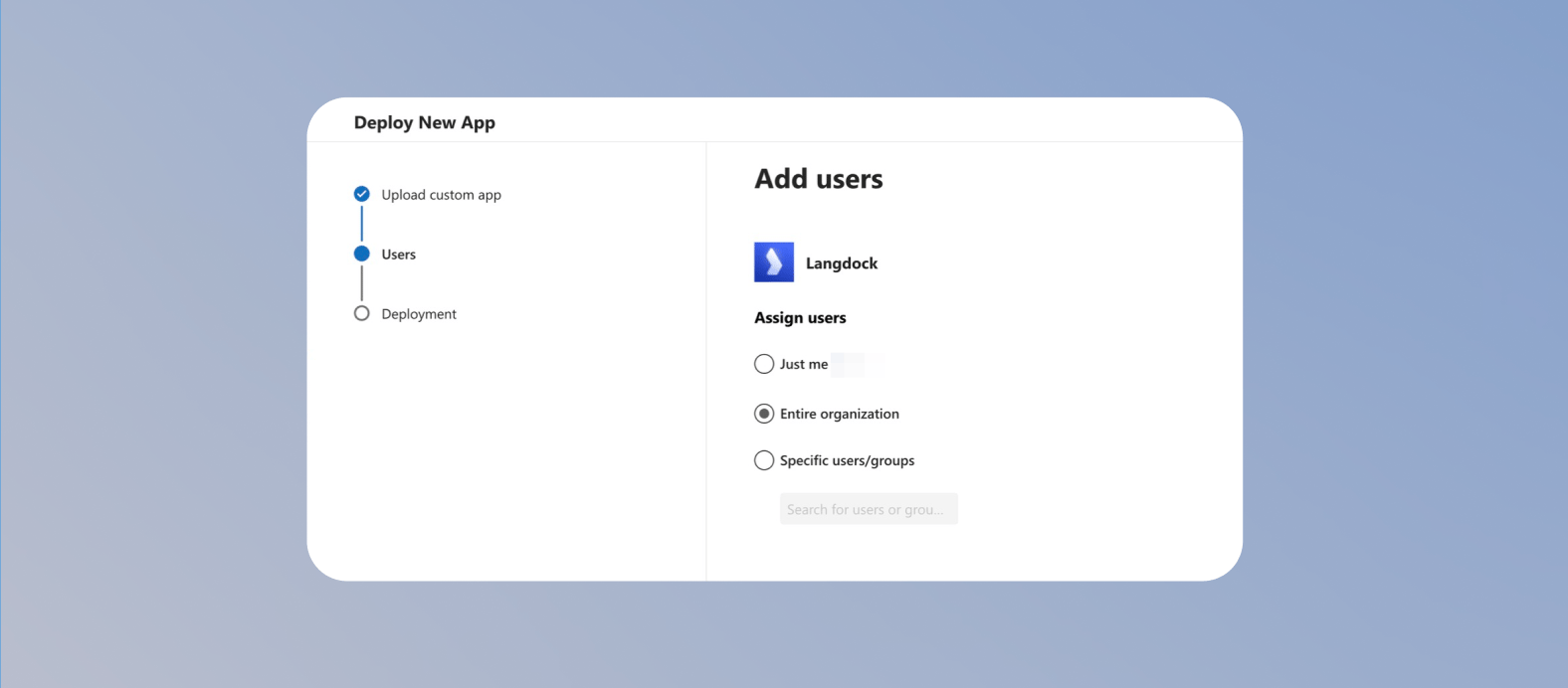
 Choose who should get access to the Excel plugin, then click **Next**.
* Select **Entire organization** if every user in your Microsoft 365 tenant should get access.
* Select **Specific users/groups** if you want to roll out the plugin to a smaller group first.
* Select **Just me** only if you want to test the plugin before a wider rollout.
Choose who should get access to the Excel plugin, then click **Next**.
* Select **Entire organization** if every user in your Microsoft 365 tenant should get access.
* Select **Specific users/groups** if you want to roll out the plugin to a smaller group first.
* Select **Just me** only if you want to test the plugin before a wider rollout.
 Review the configuration and click **Finish Deployment**.
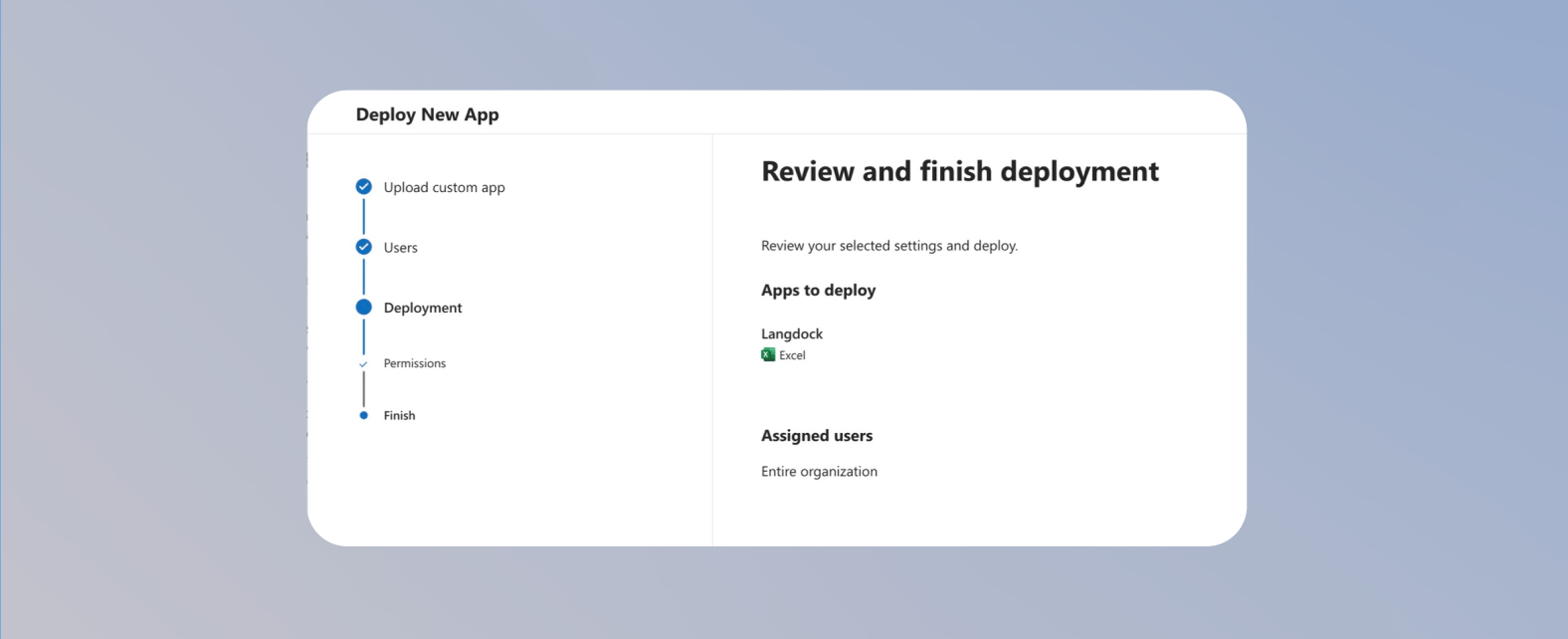 Confirm that the Add-in appears on the overview page.
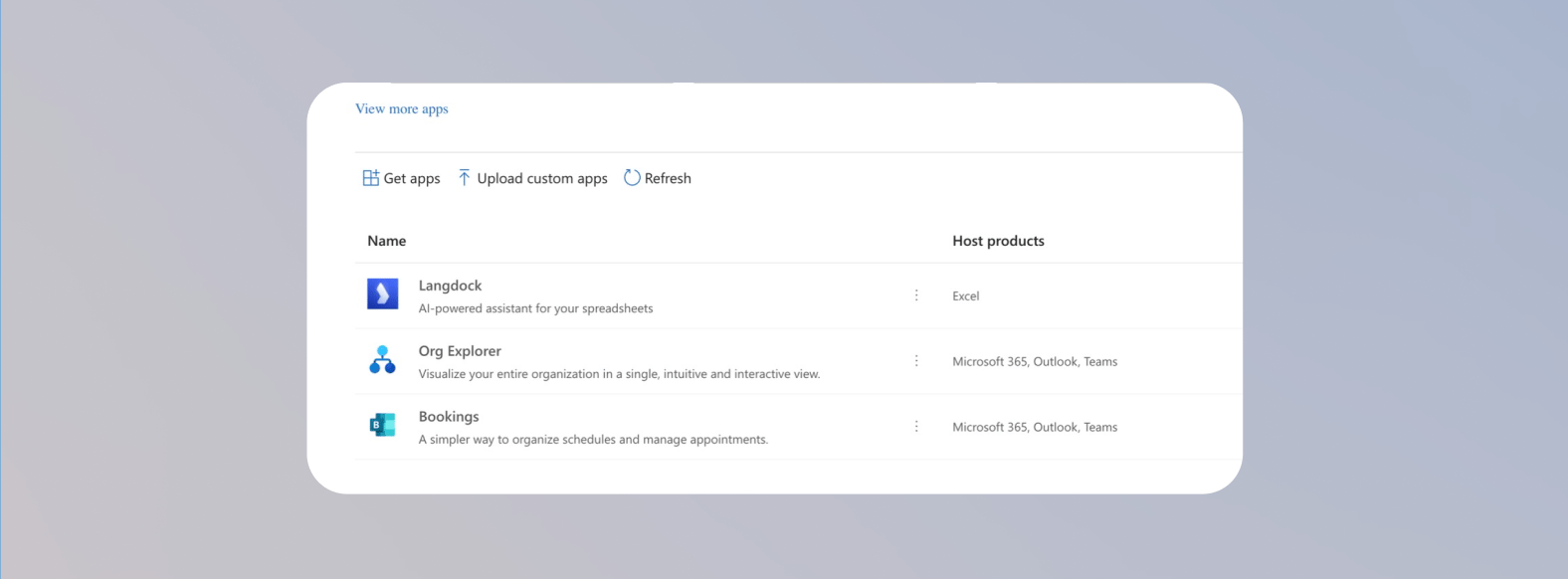 Once deployment is complete, share the [Excel plugin installation guide](/en/using-langdock/microsoft-plugins/excel#how-to-install-langdock-for-excel) with your users so they can open the Add-in and sign in.