> ## Documentation Index
> Fetch the complete documentation index at: https://docs.langdock.com/llms.txt
> Use this file to discover all available pages before exploring further.
# Manage Action-Level Scopes
> Control which OAuth scopes Langdock requests for each integration, manage when new actions are enabled in your workspace, and review the access status of every action.
Control which integration actions are enabled in your workspace and which OAuth scopes Langdock can request when users connect. Use this page when you want to review action access, prepare a custom OAuth client, or understand why an action shows **Missing scope**.
Scopes and Action Access currently applies to SharePoint and Excel integrations. Other Microsoft integrations will follow in the next few weeks. After that, support will roll out to other integrations.
## How scopes control actions
Every integration action needs one or more OAuth scopes from the connected provider. For example, an Outlook Calendar action may need `Calendars.ReadWrite` before it can create or update calendar events.
Langdock groups actions by the scopes they need. When you enable or disable an action, you may also change which scopes Langdock requests from the OAuth provider. The active OAuth client defined in Langdock determines how these requested scopes are managed.
Use the table below to compare how different OAuth Clients can manage the available scopes of your integration.
| Mode | Scope behavior |
| ------------------- | ----------------------------------------------------------------------- |
| **Langdock Client** | Langdock keeps requested scopes in sync with enabled or shared actions. |
| **Scope sync on** | Your custom OAuth client uses the same automatic scope sync behavior. |
| **Scope sync off** | Your custom OAuth client uses Fixed scopes that you manage manually. |
## Control new actions
In your [Integrations settings](https://app.langdock.com/settings/workspace/products/integrations), you can find the **New actions enabled by default** setting, which controls what happens when Langdock adds an action to an existing integration.
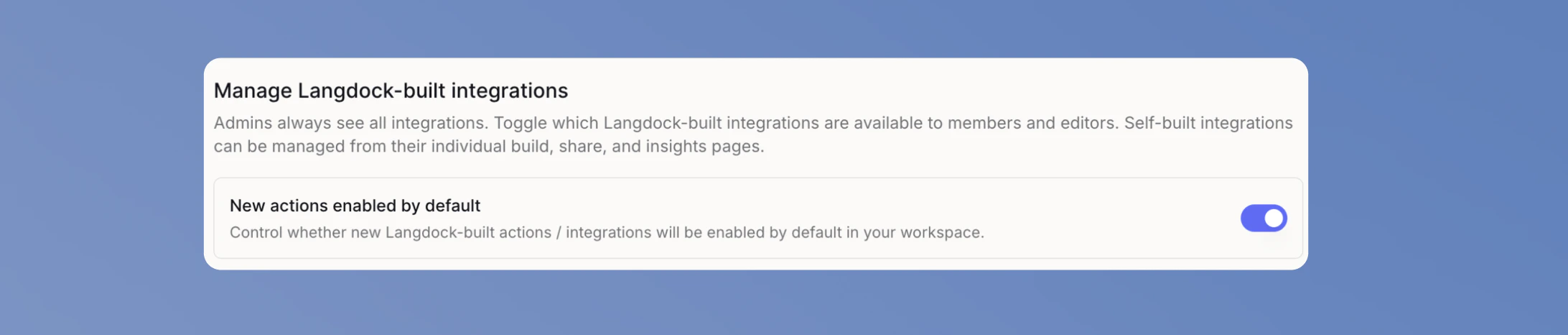 Langdock checks whether the active OAuth client already covers the action's required scopes.
* Actions whose required scopes are covered are enabled automatically.
* Actions with missing scopes stay disabled until you add or sync the required scopes.
New actions stay disabled until you review and enable them.
The same rule applies when Langdock adds a scope to an existing action. A new scope never silently expands what Langdock can request from your provider.
## Choose an OAuth client mode
When using integrations, you can either choose to use the Langdock Client or to [Bring Your Own OAuth Client](/en/admin/manage-integrations/bring-your-own-oauth). In your [Integrations settings](https://app.langdock.com/settings/workspace/products/integrations), select an integration built by Langdock and scroll to **Scopes and Action Access** to configure the OAuth client mode for that integration.
Use the Langdock Client when you want Langdock to manage OAuth scopes for you. This is the default on Multi-Tenant Cloud for integrations where Langdock provides a managed OAuth client.
Langdock requests the auth scopes needed to identify the user, such as `openid`, `email`, and `offline_access`. It also requests the scopes required by actions that are enabled for everyone or shared with specific users and groups.
You do not edit scopes manually. To change the requested scopes, enable, disable, or share actions.
Langdock checks whether the active OAuth client already covers the action's required scopes.
* Actions whose required scopes are covered are enabled automatically.
* Actions with missing scopes stay disabled until you add or sync the required scopes.
New actions stay disabled until you review and enable them.
The same rule applies when Langdock adds a scope to an existing action. A new scope never silently expands what Langdock can request from your provider.
## Choose an OAuth client mode
When using integrations, you can either choose to use the Langdock Client or to [Bring Your Own OAuth Client](/en/admin/manage-integrations/bring-your-own-oauth). In your [Integrations settings](https://app.langdock.com/settings/workspace/products/integrations), select an integration built by Langdock and scroll to **Scopes and Action Access** to configure the OAuth client mode for that integration.
Use the Langdock Client when you want Langdock to manage OAuth scopes for you. This is the default on Multi-Tenant Cloud for integrations where Langdock provides a managed OAuth client.
Langdock requests the auth scopes needed to identify the user, such as `openid`, `email`, and `offline_access`. It also requests the scopes required by actions that are enabled for everyone or shared with specific users and groups.
You do not edit scopes manually. To change the requested scopes, enable, disable, or share actions.
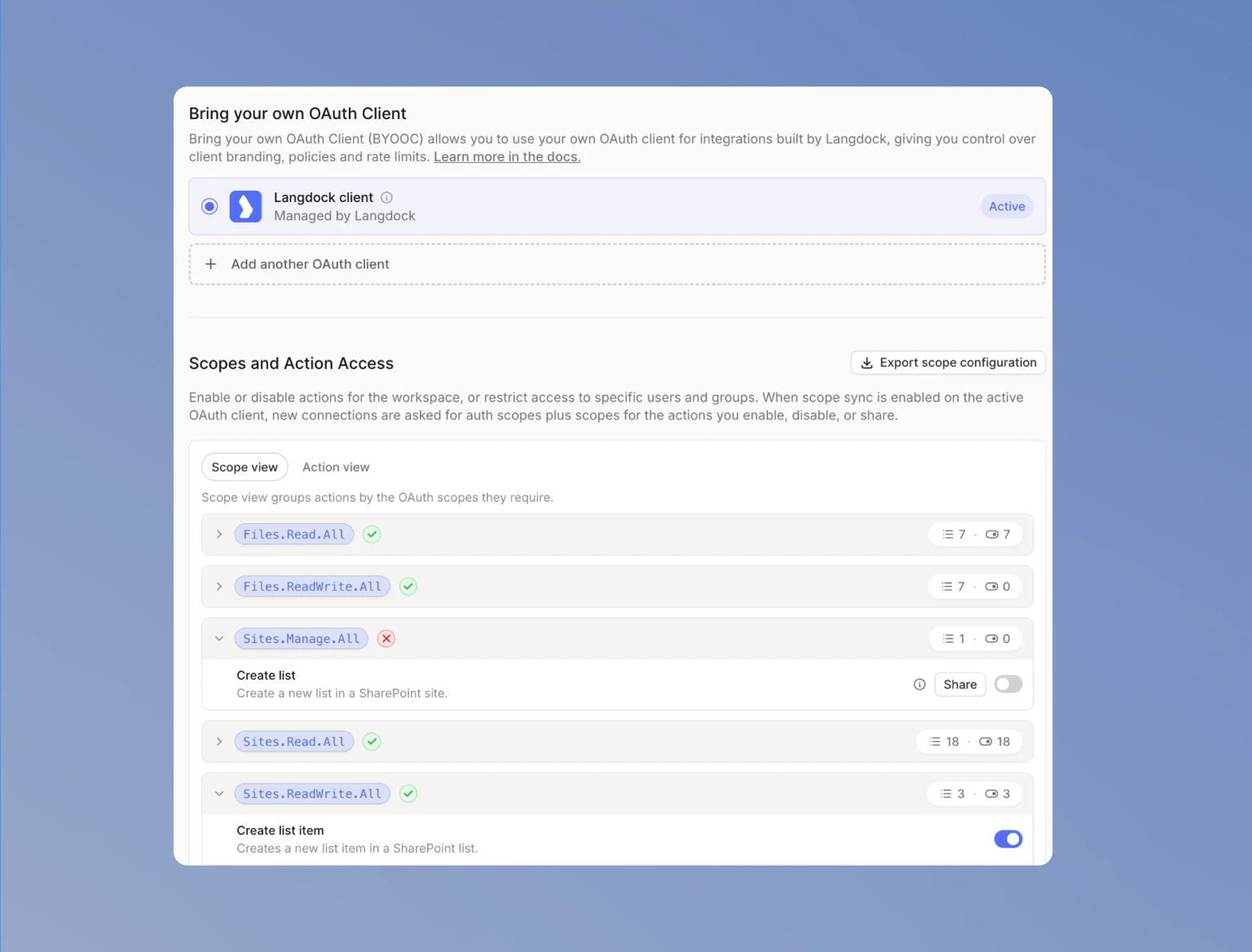 ### Review scope status
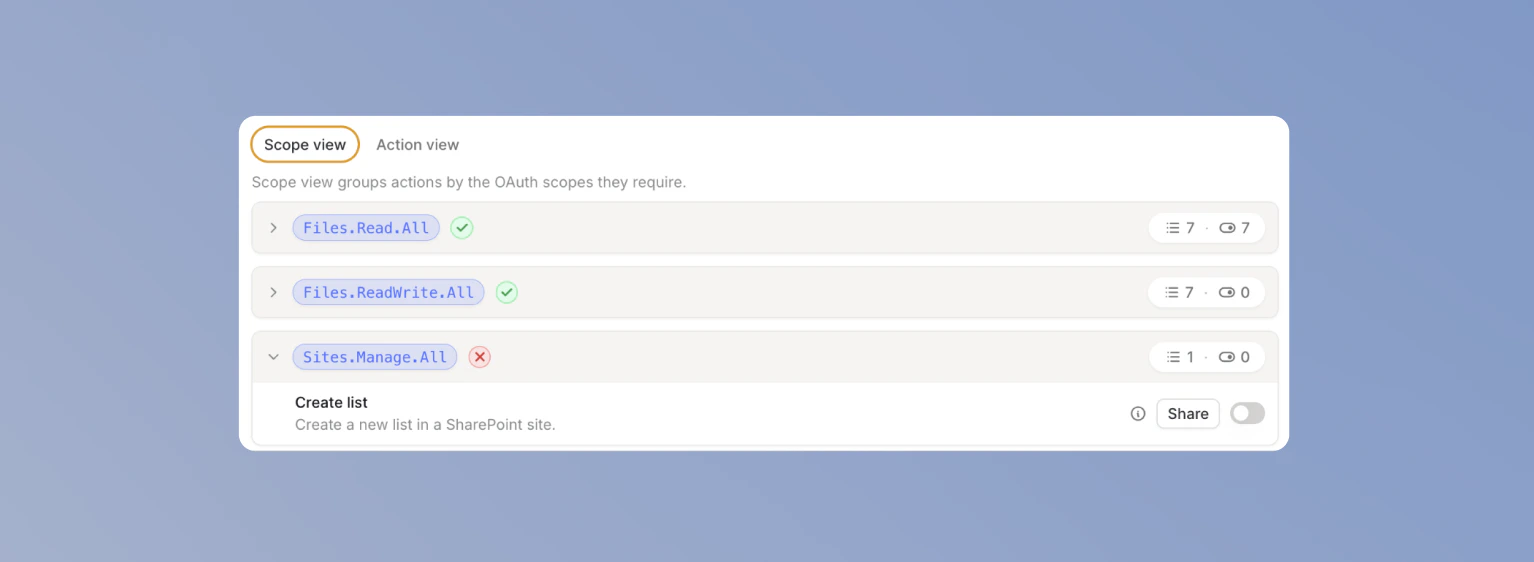
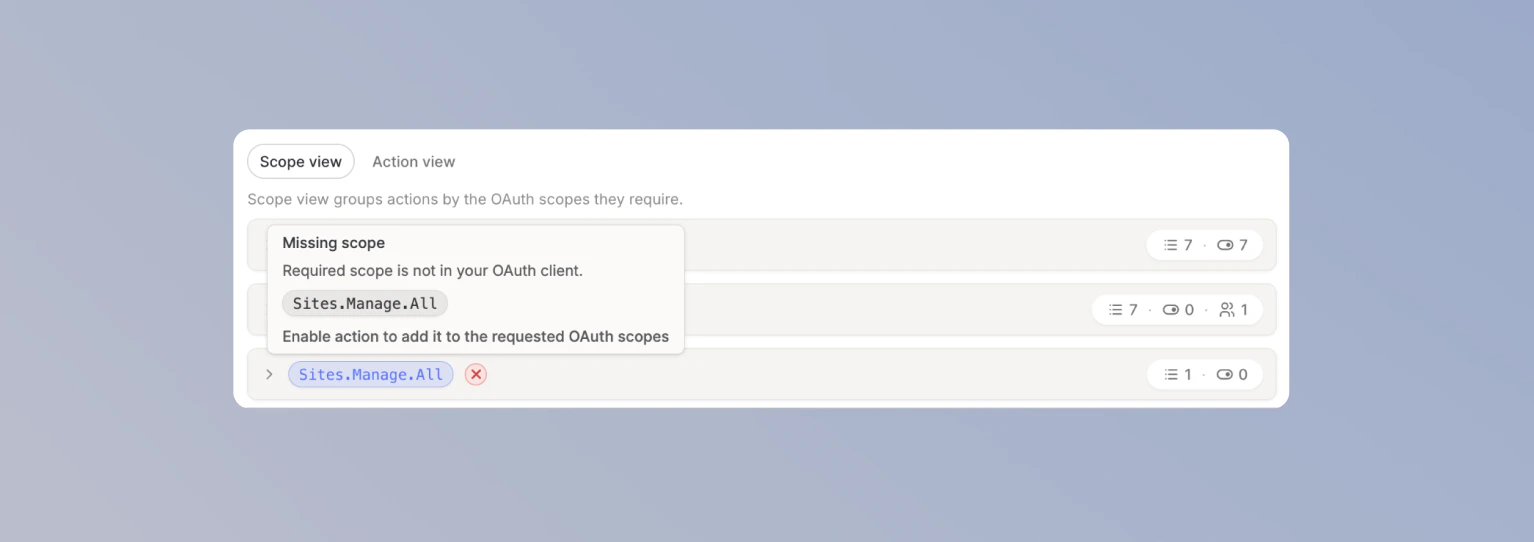
Use **Scope view** to see which scopes are part of the active requested set. Scope groups with a green check are requested. Scope groups with a red X are not requested.
### Review scope status
Use **Scope view** to see which scopes are part of the active requested set. Scope groups with a green check are requested. Scope groups with a red X are not requested.
 Use **Action view** to manage actions one by one. This view is useful when you want to search for an action, sort by enabled state, or check the scopes a specific action needs.
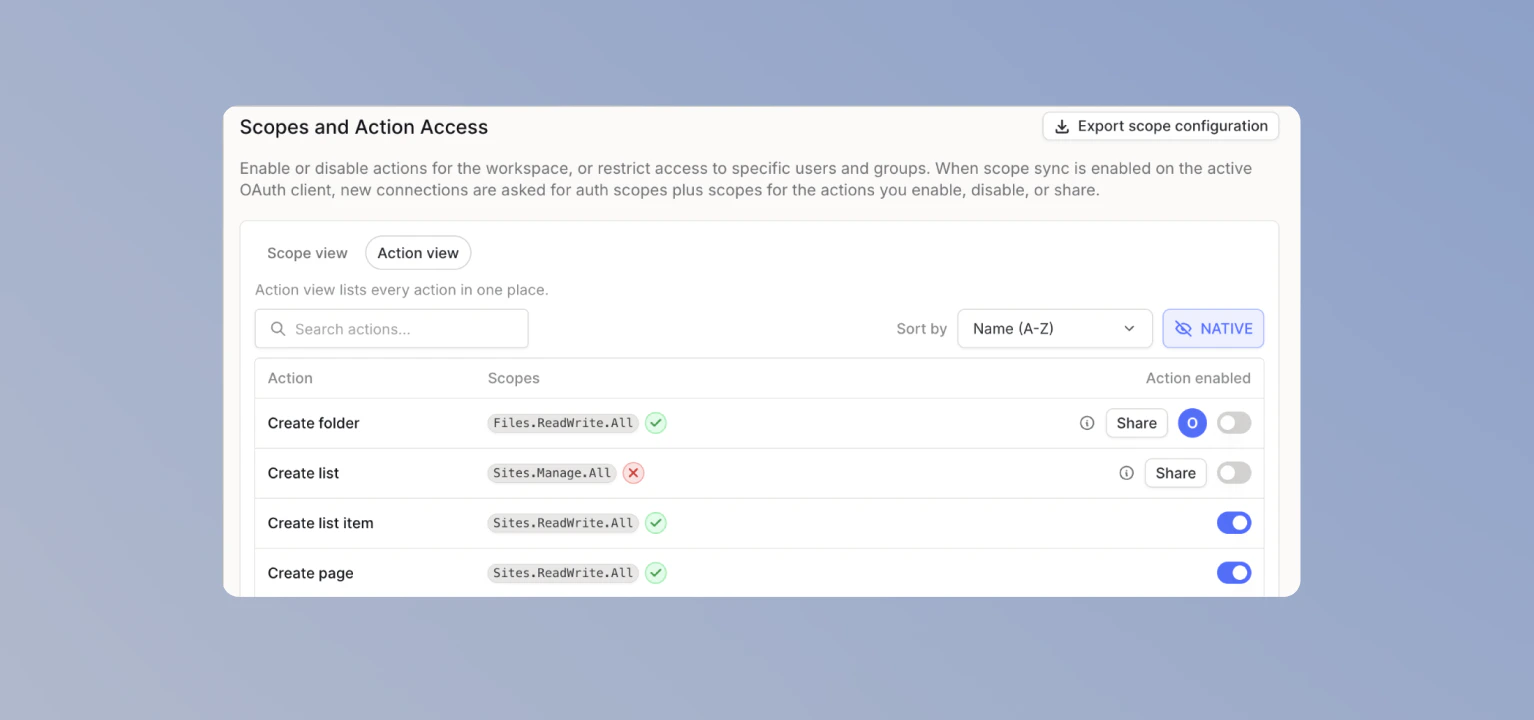 If an action needs a scope that is not currently requested, hover the **Missing scope** badge. With the Langdock Client, enabling the action adds that scope to the requested scopes after you confirm the change.
 ### Confirm scope updates
When your change adds or removes a scope, Langdock shows a confirmation dialog before updating the requested scopes. After you confirm, users need to refresh their connection before the newly granted scope is available.
### Confirm scope updates
When your change adds or removes a scope, Langdock shows a confirmation dialog before updating the requested scopes. After you confirm, users need to refresh their connection before the newly granted scope is available.
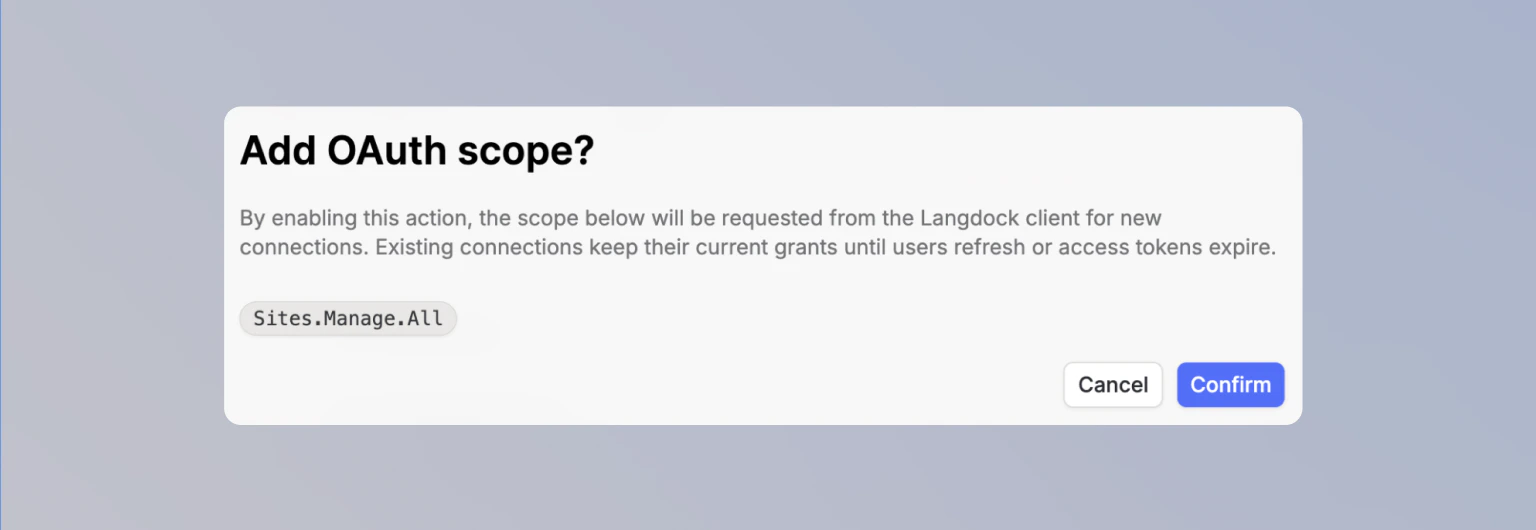 Existing connections keep their granted scopes until users refresh the connection or their access token expires.
### Manage action access
Each action can be available to all users or shared with specific users and groups. See [Manage Action Access](/en/admin/manage-integrations/manage-action-access) for how to control who can use an integration and its actions.
### What changes in this mode
| Change | Result |
| --------------------------------------------------------- | -------------------------------------------------------------------------------------------------------- |
| Enable an action | The action is enabled. Missing scopes are added after you confirm. |
| Disable an action | The action is disabled. Scopes are removed if no other enabled or shared action needs them. |
| Langdock adds an action whose required scopes are covered | The action follows **New actions enabled by default**. |
| Langdock adds an action with missing scopes | The action stays disabled until you enable it and confirm the scope change. |
| Langdock adds a scope to an existing action | The action keeps its current state. The scope is requested only if an enabled or shared action needs it. |
Use a custom OAuth client when your workspace runs on a dedicated deployment, or when you want your own branding, tenant policies, and rate limits on the consent screen.
See [Bring Your Own OAuth Client](/en/admin/manage-integrations/bring-your-own-oauth) for the setup steps.
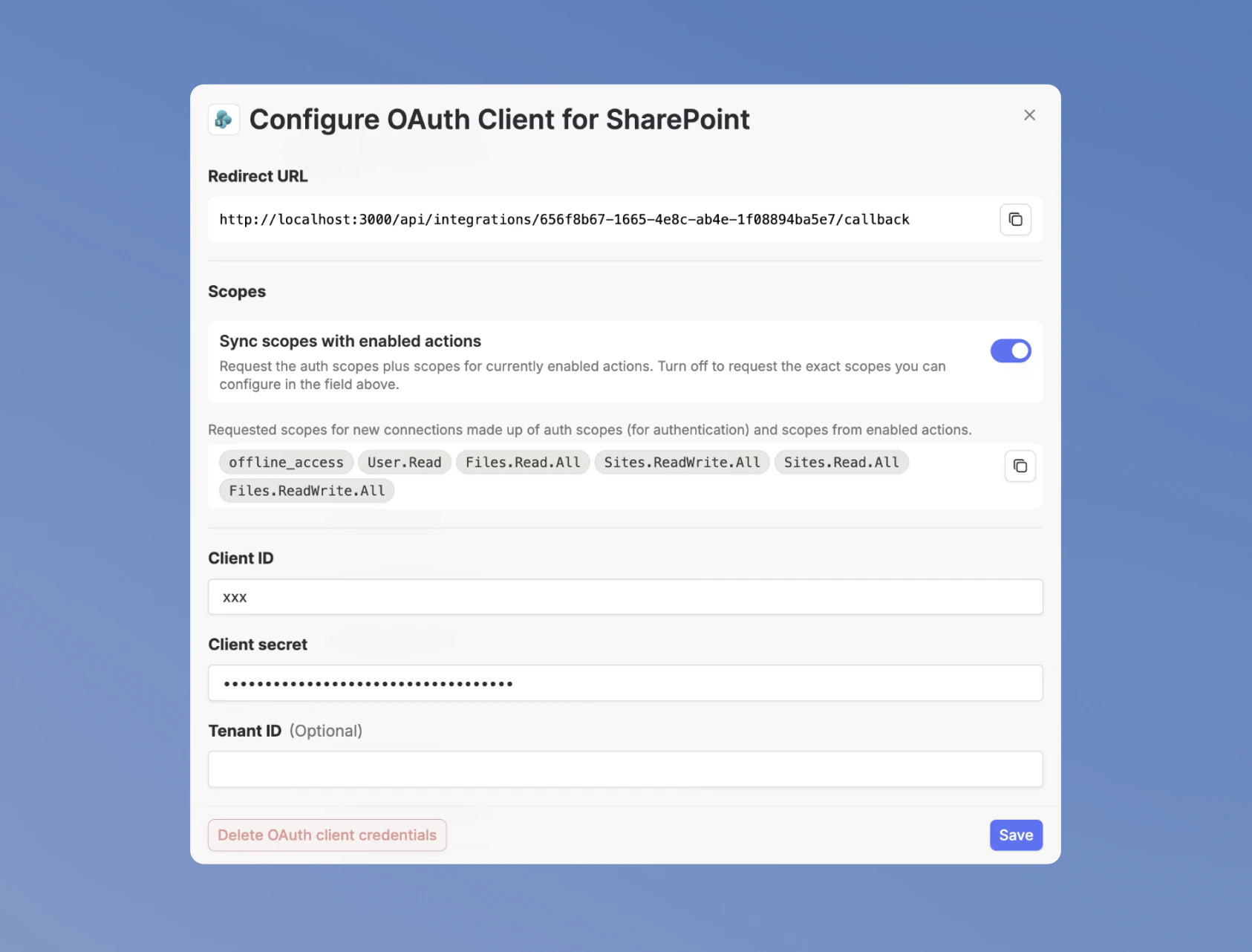
Open **Configure OAuth Client** to choose how Langdock handles scopes for that integration.
Existing connections keep their granted scopes until users refresh the connection or their access token expires.
### Manage action access
Each action can be available to all users or shared with specific users and groups. See [Manage Action Access](/en/admin/manage-integrations/manage-action-access) for how to control who can use an integration and its actions.
### What changes in this mode
| Change | Result |
| --------------------------------------------------------- | -------------------------------------------------------------------------------------------------------- |
| Enable an action | The action is enabled. Missing scopes are added after you confirm. |
| Disable an action | The action is disabled. Scopes are removed if no other enabled or shared action needs them. |
| Langdock adds an action whose required scopes are covered | The action follows **New actions enabled by default**. |
| Langdock adds an action with missing scopes | The action stays disabled until you enable it and confirm the scope change. |
| Langdock adds a scope to an existing action | The action keeps its current state. The scope is requested only if an enabled or shared action needs it. |
Use a custom OAuth client when your workspace runs on a dedicated deployment, or when you want your own branding, tenant policies, and rate limits on the consent screen.
See [Bring Your Own OAuth Client](/en/admin/manage-integrations/bring-your-own-oauth) for the setup steps.
Open **Configure OAuth Client** to choose how Langdock handles scopes for that integration.
 ### Sync scopes with enabled actions
Turn **Sync scopes with enabled actions** on when you want your custom OAuth client to behave like the Langdock Client. Langdock requests auth scopes plus the scopes required by enabled or shared actions.
This is the recommended setup if you mainly need your own OAuth client because the Langdock Client cannot be used. In this case, Langdock still keeps the requested scopes minimal and up to date with your enabled actions.
When you turn **Sync scopes with enabled actions** off, you manage the requested scopes yourself. You can either use Langdock's recommended scopes as a fixed list, or define custom scopes for your own setup.
### Use Fixed scopes
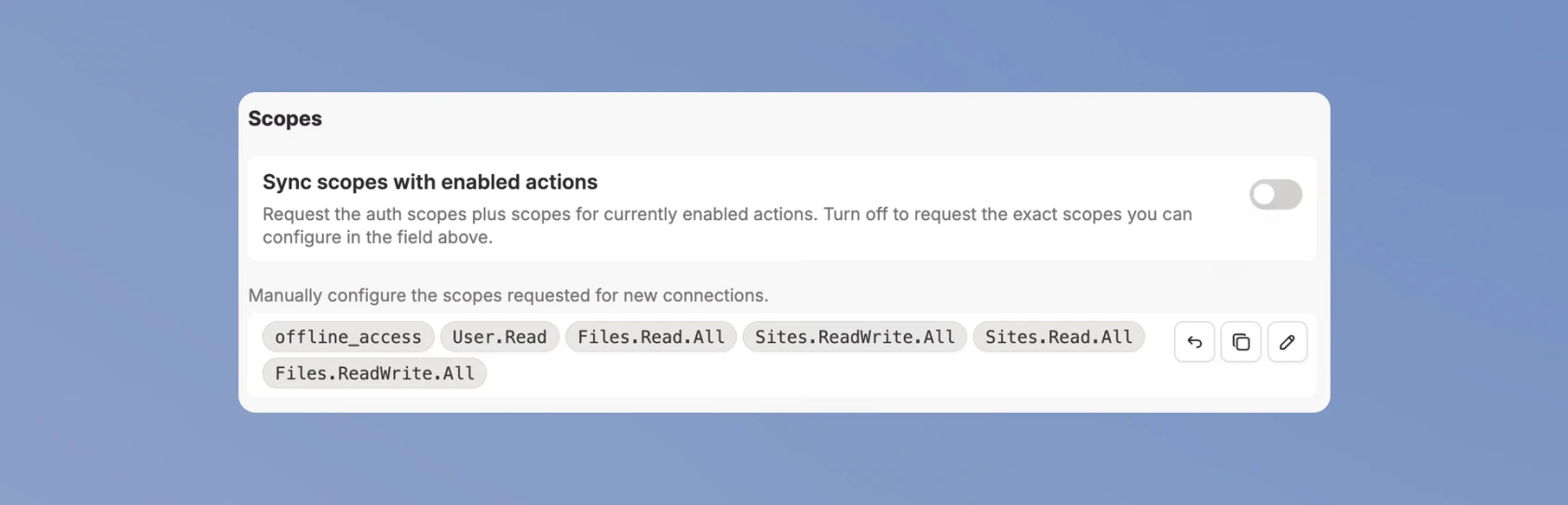
Turn **Sync scopes with enabled actions** off when you want to manage the requested scopes yourself. The OAuth client switches to **Fixed scopes** mode, and the Scopes field becomes the source of truth.
Use the controls next to the scope pills to reset to the recommended defaults, copy the full list, or edit scopes manually.
### Sync scopes with enabled actions
Turn **Sync scopes with enabled actions** on when you want your custom OAuth client to behave like the Langdock Client. Langdock requests auth scopes plus the scopes required by enabled or shared actions.
This is the recommended setup if you mainly need your own OAuth client because the Langdock Client cannot be used. In this case, Langdock still keeps the requested scopes minimal and up to date with your enabled actions.
When you turn **Sync scopes with enabled actions** off, you manage the requested scopes yourself. You can either use Langdock's recommended scopes as a fixed list, or define custom scopes for your own setup.
### Use Fixed scopes
Turn **Sync scopes with enabled actions** off when you want to manage the requested scopes yourself. The OAuth client switches to **Fixed scopes** mode, and the Scopes field becomes the source of truth.
Use the controls next to the scope pills to reset to the recommended defaults, copy the full list, or edit scopes manually.
 Fixed scopes are useful when your security team reviews OAuth scopes separately from action access, or when you want the requested scopes to stay stable across action changes.
### Manage actions with Fixed scopes
Langdock still checks every action against the scopes your custom OAuth client requests.
* **Scope configured** means the action's required scopes are included in your client. You can enable the action normally.
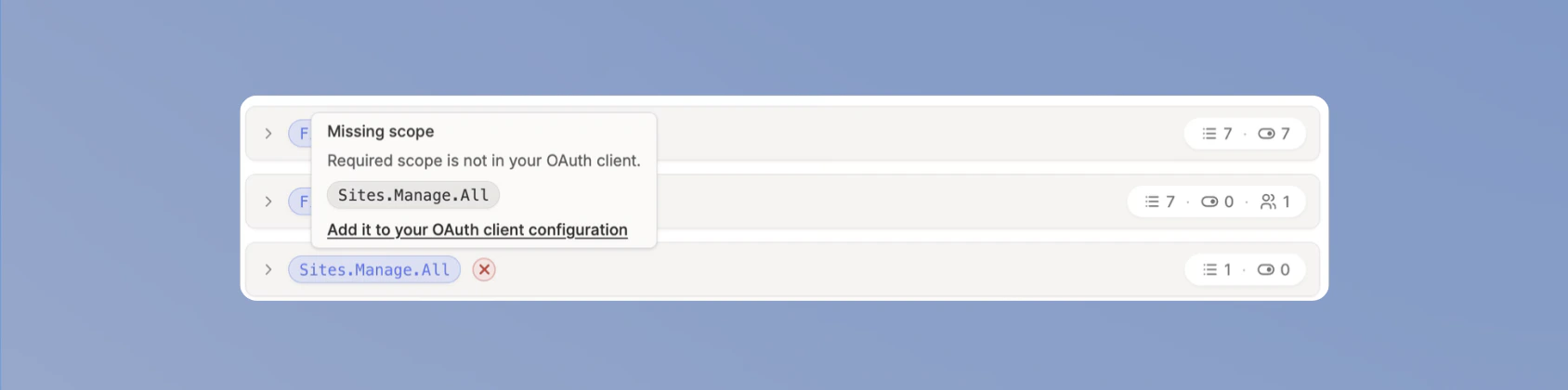
* **Missing scope** means at least one required scope is not included in your client.
Hover **Missing scope** to see which scopes need to be added. The tooltip includes **Add it to your OAuth client configuration**, which opens the OAuth client dialog with the missing scopes prefilled.
Fixed scopes are useful when your security team reviews OAuth scopes separately from action access, or when you want the requested scopes to stay stable across action changes.
### Manage actions with Fixed scopes
Langdock still checks every action against the scopes your custom OAuth client requests.
* **Scope configured** means the action's required scopes are included in your client. You can enable the action normally.
* **Missing scope** means at least one required scope is not included in your client.
Hover **Missing scope** to see which scopes need to be added. The tooltip includes **Add it to your OAuth client configuration**, which opens the OAuth client dialog with the missing scopes prefilled.
 ### Confirm actions with missing scopes
If you enable an action with missing scopes, Langdock asks you to confirm first. The action can appear enabled, but it will not run until the missing scopes are added to the OAuth client.
### Work with custom scopes
Some workspaces request different scopes than Langdock's defaults. A common Microsoft example is using `Sites.Selected` instead of `Sites.ReadWrite.All` for SharePoint, so Langdock can only access selected sites.
Langdock compares actions against the scopes they declare. If an action declares `Sites.ReadWrite.All`, it may still show **Missing scope** even when `Sites.Selected` gives the action enough access in your tenant.
To use custom scopes:
Open **Configure OAuth Client**, turn **Sync scopes with enabled actions** off, and enter the exact scopes you want Langdock to request.
In **Manage Langdock-built integrations**, turn **New actions enabled by default** off.
Enable each action after you confirm that it works with your custom scopes.
When Langdock adds actions, review whether they can run with your custom scopes. Use the [Export scope configuration](#export-scope-configuration) CSV to share the review with your OAuth client admin.
### What changes in this mode
| Change | Result |
| ---------------------------------------------------------------- | ------------------------------------------------------------------------------------------------------------------------------------------------------------------------------ |
| Enable an action with configured scopes | The action is enabled. The requested scopes do not change. |
| Enable an action with missing scopes and scope sync on | Langdock adds the missing scopes to the requested scopes after you confirm. |
| Enable an action with missing scopes and Fixed scopes | The action can be enabled after confirmation, but it may not run unless your custom scopes provide the required access. Review this before enabling the action for users. |
| Add a scope to the OAuth client | Actions that need the scope can now be enabled and run. |
| Remove a scope from the OAuth client | Actions that need the scope show **Missing scope**. They remain enabled, but fail to run until you add it back or confirm that your custom scopes provide the required access. |
| Langdock adds an action with configured scopes and scope sync on | The action follows **New actions enabled by default**. |
| Langdock adds an action with configured scopes and Fixed scopes | The action stays disabled until you review and enable it. |
| Langdock adds an action with missing scopes | The action stays disabled until you add the scope and enable it, or until you enable it manually after confirming that your custom scopes provide the required access. |
Pair **Fixed scopes** with **New actions enabled by default** turned off. New actions will not appear enabled before you review their scopes.
## Native actions
Native actions power core Langdock features and are always enabled.
### Confirm actions with missing scopes
If you enable an action with missing scopes, Langdock asks you to confirm first. The action can appear enabled, but it will not run until the missing scopes are added to the OAuth client.
### Work with custom scopes
Some workspaces request different scopes than Langdock's defaults. A common Microsoft example is using `Sites.Selected` instead of `Sites.ReadWrite.All` for SharePoint, so Langdock can only access selected sites.
Langdock compares actions against the scopes they declare. If an action declares `Sites.ReadWrite.All`, it may still show **Missing scope** even when `Sites.Selected` gives the action enough access in your tenant.
To use custom scopes:
Open **Configure OAuth Client**, turn **Sync scopes with enabled actions** off, and enter the exact scopes you want Langdock to request.
In **Manage Langdock-built integrations**, turn **New actions enabled by default** off.
Enable each action after you confirm that it works with your custom scopes.
When Langdock adds actions, review whether they can run with your custom scopes. Use the [Export scope configuration](#export-scope-configuration) CSV to share the review with your OAuth client admin.
### What changes in this mode
| Change | Result |
| ---------------------------------------------------------------- | ------------------------------------------------------------------------------------------------------------------------------------------------------------------------------ |
| Enable an action with configured scopes | The action is enabled. The requested scopes do not change. |
| Enable an action with missing scopes and scope sync on | Langdock adds the missing scopes to the requested scopes after you confirm. |
| Enable an action with missing scopes and Fixed scopes | The action can be enabled after confirmation, but it may not run unless your custom scopes provide the required access. Review this before enabling the action for users. |
| Add a scope to the OAuth client | Actions that need the scope can now be enabled and run. |
| Remove a scope from the OAuth client | Actions that need the scope show **Missing scope**. They remain enabled, but fail to run until you add it back or confirm that your custom scopes provide the required access. |
| Langdock adds an action with configured scopes and scope sync on | The action follows **New actions enabled by default**. |
| Langdock adds an action with configured scopes and Fixed scopes | The action stays disabled until you review and enable it. |
| Langdock adds an action with missing scopes | The action stays disabled until you add the scope and enable it, or until you enable it manually after confirming that your custom scopes provide the required access. |
Pair **Fixed scopes** with **New actions enabled by default** turned off. New actions will not appear enabled before you review their scopes.
## Native actions
Native actions power core Langdock features and are always enabled.
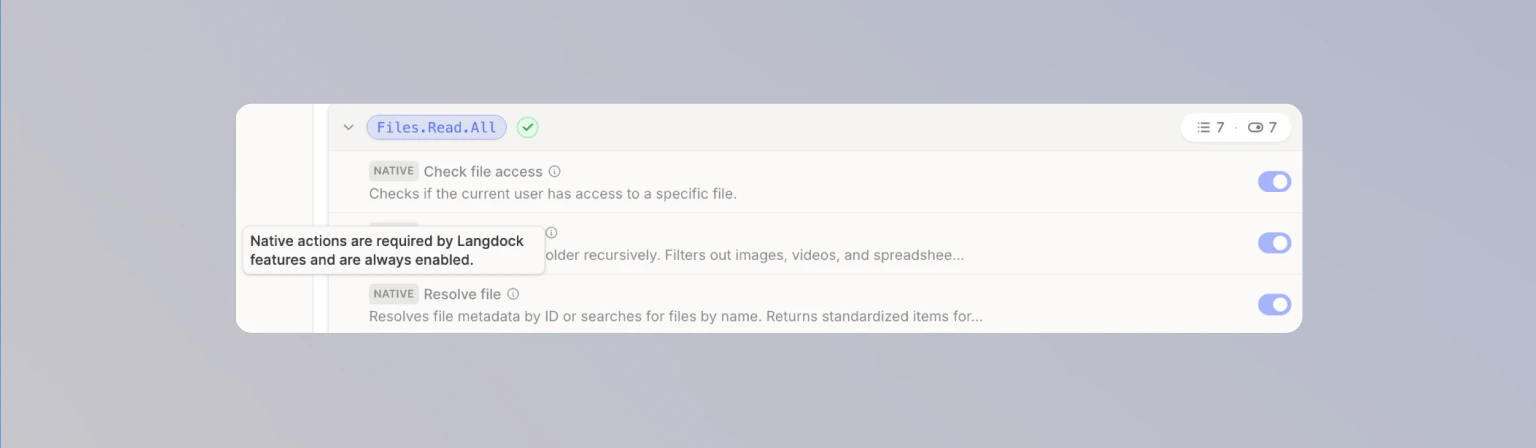 Native actions support:
* File attachments from integrations in chat and Agents.
* Folder syncing.
* Company Knowledge.
* Access checks for synchronized attachments from integrations.
* Resolving IDs to resource names in action calls and Workflows.
When you use the Langdock Client or a custom OAuth client with **Sync scopes with enabled actions** turned on, native action scopes cannot be removed from the requested scopes. With a custom OAuth client that uses Fixed scopes, you can configure a setup where Langdock does not request the scopes required for native actions.
Not requesting scopes required for native actions can break platform functionality for the features listed above. It can also affect the user experience beyond direct integration usage in chat, Agents, or Workflows.
## Export scope configuration
Click **Export scope configuration** to download a CSV of the current action and scope configuration.
Native actions support:
* File attachments from integrations in chat and Agents.
* Folder syncing.
* Company Knowledge.
* Access checks for synchronized attachments from integrations.
* Resolving IDs to resource names in action calls and Workflows.
When you use the Langdock Client or a custom OAuth client with **Sync scopes with enabled actions** turned on, native action scopes cannot be removed from the requested scopes. With a custom OAuth client that uses Fixed scopes, you can configure a setup where Langdock does not request the scopes required for native actions.
Not requesting scopes required for native actions can break platform functionality for the features listed above. It can also affect the user experience beyond direct integration usage in chat, Agents, or Workflows.
## Export scope configuration
Click **Export scope configuration** to download a CSV of the current action and scope configuration.
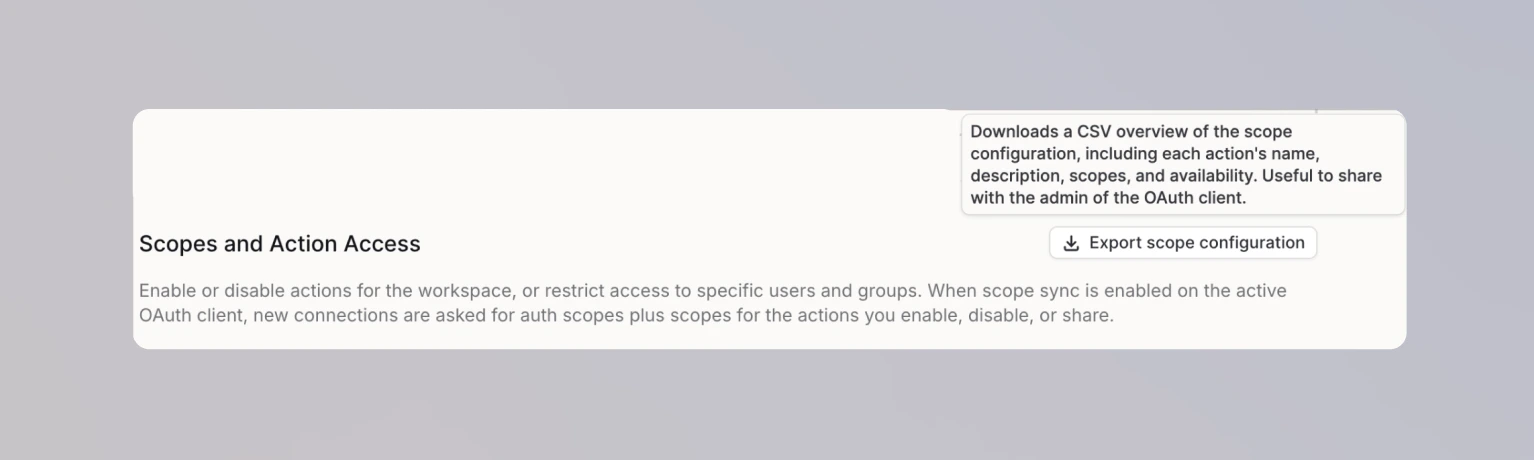 The export includes each action's name, description, required scopes, enabled state, and sharing configuration. Use it when you need to review integration access with your security team or the admin who manages your OAuth provider.
## FAQ
The action is disabled when **New actions enabled by default** is off in the integration settings, or when the active OAuth client for this integration does not request all scopes required by the action.
You can manually enable the action based on your OAuth setup. This may add permissions to the requested scopes. If you use Fixed scopes, add the missing scopes to your OAuth client first.
To enable future actions automatically when all required scopes are already part of the OAuth client, turn **New actions enabled by default** on.
The toggle only appears for custom OAuth clients. The Langdock Client always syncs scopes with enabled and shared actions.
Existing connections keep the scopes granted at connection time. After you add a scope, users need to refresh their connection before the new scope is granted.
Confirm that the scope is listed in the Langdock OAuth client configuration and as an API permission in your Azure app registration. If admin consent is required, confirm that it has been granted.
Yes. Turn **New actions enabled by default** off. Existing actions keep their current state. Future actions are disabled until you review them.
Yes. Each workspace configures its own OAuth client per integration.
With the Langdock Client or a custom OAuth client with **Sync scopes with enabled actions** turned on, Langdock removes a scope only when no enabled or shared action needs it. Auth scopes such as `offline_access` and `openid` are always requested.
With Fixed scopes, Langdock never changes the requested scopes automatically.
## Related pages
Set up a custom OAuth application for an integration.
Review action access in your workspace.
Grant tenant-wide admin consent for Microsoft integrations.
Learn how integrations work in Langdock.
The export includes each action's name, description, required scopes, enabled state, and sharing configuration. Use it when you need to review integration access with your security team or the admin who manages your OAuth provider.
## FAQ
The action is disabled when **New actions enabled by default** is off in the integration settings, or when the active OAuth client for this integration does not request all scopes required by the action.
You can manually enable the action based on your OAuth setup. This may add permissions to the requested scopes. If you use Fixed scopes, add the missing scopes to your OAuth client first.
To enable future actions automatically when all required scopes are already part of the OAuth client, turn **New actions enabled by default** on.
The toggle only appears for custom OAuth clients. The Langdock Client always syncs scopes with enabled and shared actions.
Existing connections keep the scopes granted at connection time. After you add a scope, users need to refresh their connection before the new scope is granted.
Confirm that the scope is listed in the Langdock OAuth client configuration and as an API permission in your Azure app registration. If admin consent is required, confirm that it has been granted.
Yes. Turn **New actions enabled by default** off. Existing actions keep their current state. Future actions are disabled until you review them.
Yes. Each workspace configures its own OAuth client per integration.
With the Langdock Client or a custom OAuth client with **Sync scopes with enabled actions** turned on, Langdock removes a scope only when no enabled or shared action needs it. Auth scopes such as `offline_access` and `openid` are always requested.
With Fixed scopes, Langdock never changes the requested scopes automatically.
## Related pages
Set up a custom OAuth application for an integration.
Review action access in your workspace.
Grant tenant-wide admin consent for Microsoft integrations.
Learn how integrations work in Langdock.