> ## Documentation Index
> Fetch the complete documentation index at: https://docs.langdock.com/llms.txt
> Use this file to discover all available pages before exploring further.
# Microsoft Integrations: Permissions & Admin Approval
> Understand Microsoft permission types, grant admin consent, and review what permissions Langdock requires for Microsoft integrations.
Before admin approval is granted, no user can connect a Microsoft integration. Users will see a **"Need admin approval"** or **"Approval required"** error.
This applies to the following integrations: **Excel**, **Microsoft Teams**, **OneDrive**, **Outlook Calendar**, **Outlook Email**, **Planner**, and **SharePoint**.
## Understanding Permission Types
Microsoft uses two types of OAuth permissions:
| Type | Who Acts | When Used |
| --------------- | ------------------------ | ------------------------------------------------------------------------ |
| **Delegated** | User on their own behalf | User is signed in. Actions happen as that user with their access rights. |
| **Application** | App on behalf of org | No user signed in. App has its own access (e.g., background jobs). |
**Langdock uses delegated permissions.** When you connect a Microsoft integration, Langdock acts on your behalf with your existing access rights—it cannot access data you don't already have access to.
## Granting Admin Consent
A Microsoft admin must grant tenant-wide consent before users can connect Microsoft integrations.
**Prerequisite:** A user or admin must have attempted to connect an integration at least once. This triggers the creation of the Langdock Service Principal in your tenant.
Sign in to the [Microsoft Entra admin center](https://entra.microsoft.com/) as a Cloud Application Administrator or Global Administrator.
Go to **Identity** → **Applications** → **Enterprise applications** → **All applications** and select **Langdock**.
Under **Security**, select **Permissions**, then click **Grant admin consent for \[Your Organization]**.
In Langdock, go to **Settings → Integrations**, click on a Microsoft integration (e.g., Outlook Calendar), and connect your account to confirm it works.
For more details, see Microsoft's documentation on [granting tenant-wide admin consent](https://learn.microsoft.com/en-us/entra/identity/enterprise-apps/grant-admin-consent?pivots=portal#grant-tenant-wide-admin-consent-in-enterprise-apps-pane).
## Reviewing Granted Permissions
After granting consent, you can review all permissions in Microsoft Entra:
1. Go to **Identity** → **Applications** → **Enterprise applications** → **Langdock**
2. Under **Security**, click **Permissions**
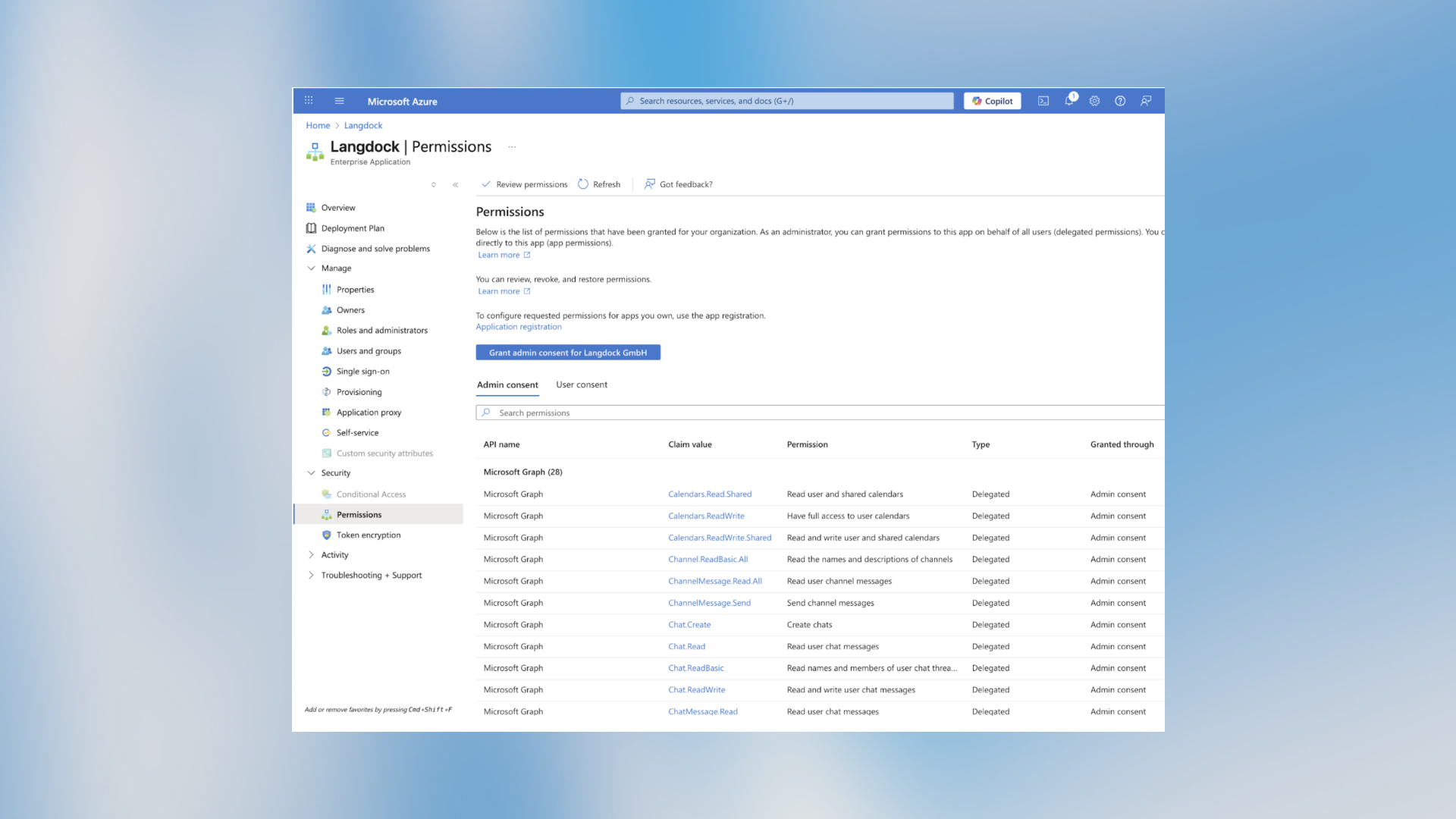 The **Type** column shows "Delegated" for all Langdock permissions—confirming Langdock only acts on behalf of signed-in users.
## Viewing Required Permissions per Integration
Each Microsoft integration requires specific permissions (scopes). To see what a particular integration needs:
1. In Langdock, go to **Settings → Integrations**
2. Click on the Microsoft integration (e.g., Outlook Calendar)
3. Click **Configure your own** in the OAuth dropdown
4. View the **Required Scopes** section
The **Type** column shows "Delegated" for all Langdock permissions—confirming Langdock only acts on behalf of signed-in users.
## Viewing Required Permissions per Integration
Each Microsoft integration requires specific permissions (scopes). To see what a particular integration needs:
1. In Langdock, go to **Settings → Integrations**
2. Click on the Microsoft integration (e.g., Outlook Calendar)
3. Click **Configure your own** in the OAuth dropdown
4. View the **Required Scopes** section
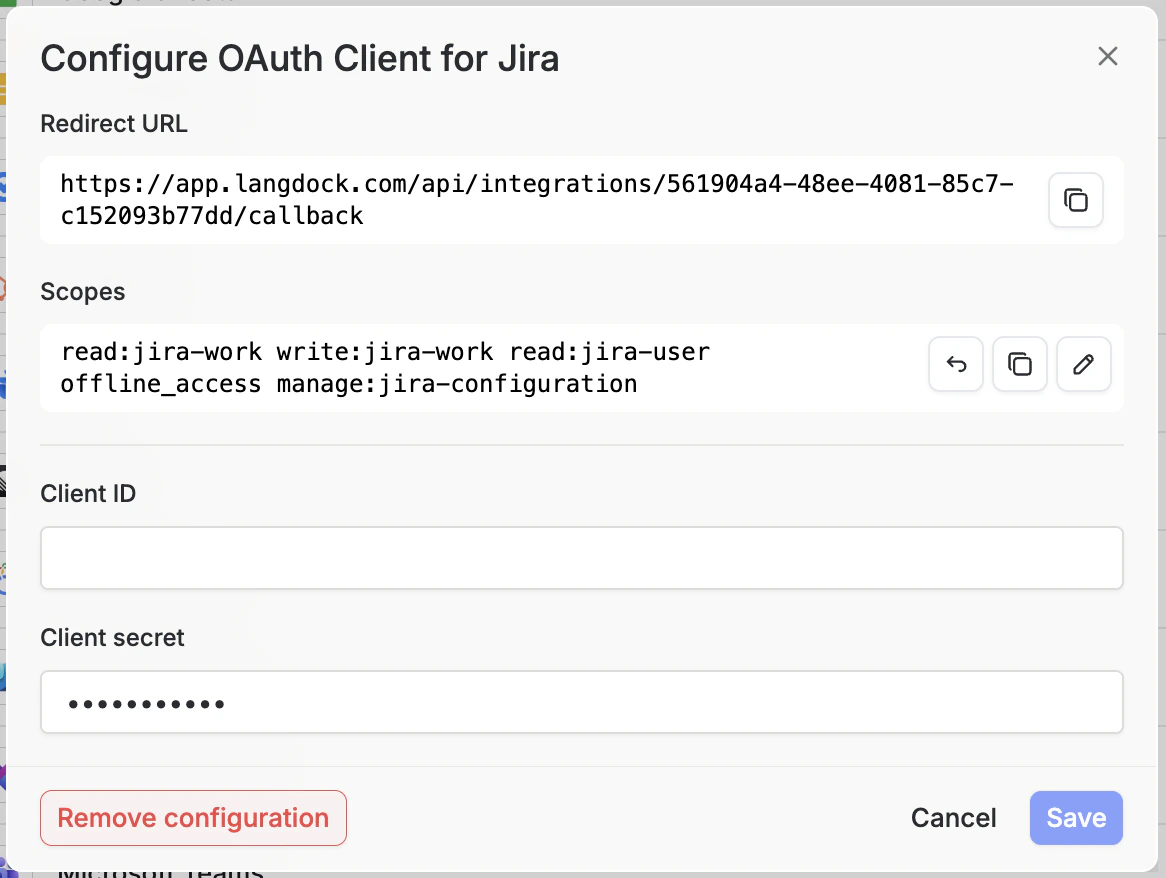 These scopes map directly to [Microsoft Graph permissions](https://learn.microsoft.com/en-us/graph/permissions-reference).
### Common Permissions
| Permission | What It Allows |
| --------------------- | -------------------------------- |
| `Calendars.ReadWrite` | Read and create calendar events |
| `Mail.ReadWrite` | Read and send emails |
| `Files.ReadWrite.All` | Access OneDrive/SharePoint files |
| `User.Read` | Read your basic profile |
| `offline_access` | Maintain access without re-login |
## Customizing Permissions
If your organization requires different scopes than Langdock's defaults, you can configure your own OAuth client.
Set up your own OAuth application to control exactly which scopes are requested.
These scopes map directly to [Microsoft Graph permissions](https://learn.microsoft.com/en-us/graph/permissions-reference).
### Common Permissions
| Permission | What It Allows |
| --------------------- | -------------------------------- |
| `Calendars.ReadWrite` | Read and create calendar events |
| `Mail.ReadWrite` | Read and send emails |
| `Files.ReadWrite.All` | Access OneDrive/SharePoint files |
| `User.Read` | Read your basic profile |
| `offline_access` | Maintain access without re-login |
## Customizing Permissions
If your organization requires different scopes than Langdock's defaults, you can configure your own OAuth client.
Set up your own OAuth application to control exactly which scopes are requested.