> ## Documentation Index
> Fetch the complete documentation index at: https://docs.langdock.com/llms.txt
> Use this file to discover all available pages before exploring further.
# Configure Microsoft Fabric for Langdock
> Prepare a Fabric API for GraphQL and configure the Langdock integration as a Fabric owner or workspace admin.
Use this guide if you are a Fabric workspace admin, owner of the API for GraphQL, or Langdock workspace admin. After you complete the configuration, individual users only need to add their connection. For access and write operation decisions, see [Access and mutations](./permissions-and-mutations).
## Before you start
You need:
* A Fabric workspace backed by a Fabric, Trial, or Premium capacity.
## Set up the API for GraphQL in Fabric
As a Fabric workspace admin or API owner, prepare the API for Langdock:
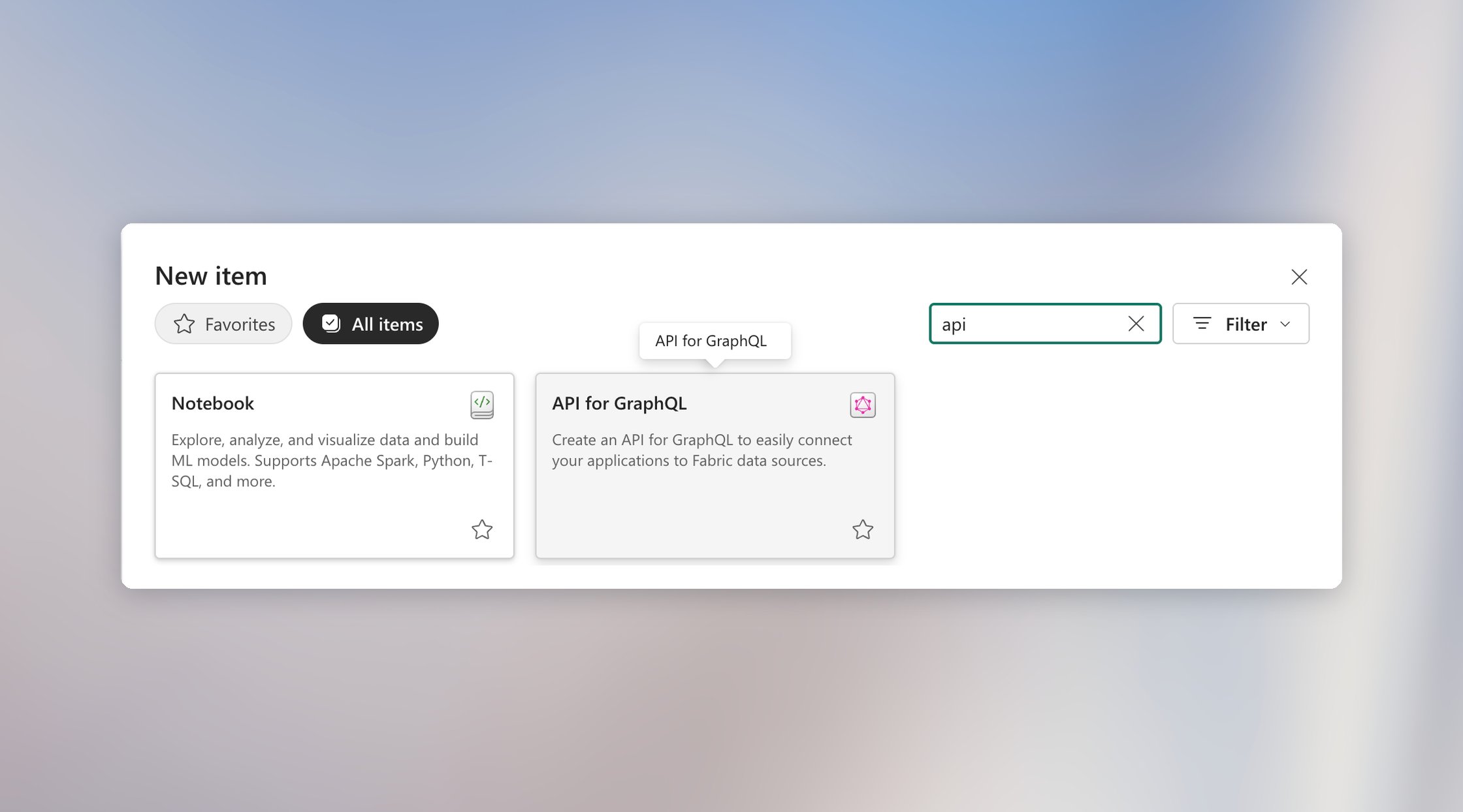
In the Fabric workspace, create an **API for GraphQL** item.
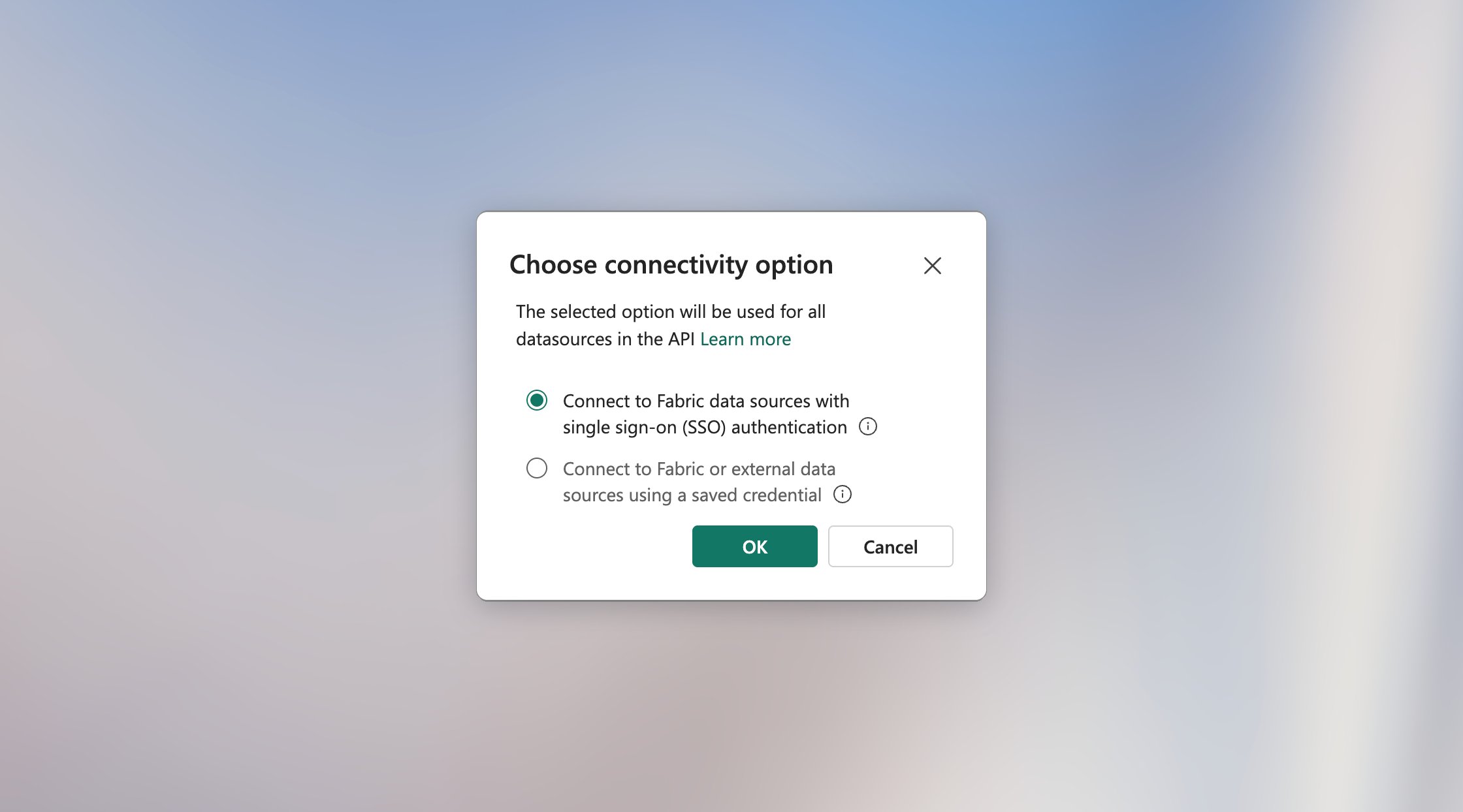
 Choose **Single sign-on (SSO)** (recommended) when users should access the source with their own identity. Choose **Saved credentials** when every API caller should use one centrally managed source identity. Each GraphQL API uses a single mode across its sources.
If you are unsure which option fits, [compare how each authentication model handles identity, permissions, and access](./permissions-and-mutations#choose-how-fabric-accesses-data).
Choose **Single sign-on (SSO)** (recommended) when users should access the source with their own identity. Choose **Saved credentials** when every API caller should use one centrally managed source identity. Each GraphQL API uses a single mode across its sources.
If you are unsure which option fits, [compare how each authentication model handles identity, permissions, and access](./permissions-and-mutations#choose-how-fabric-accesses-data).
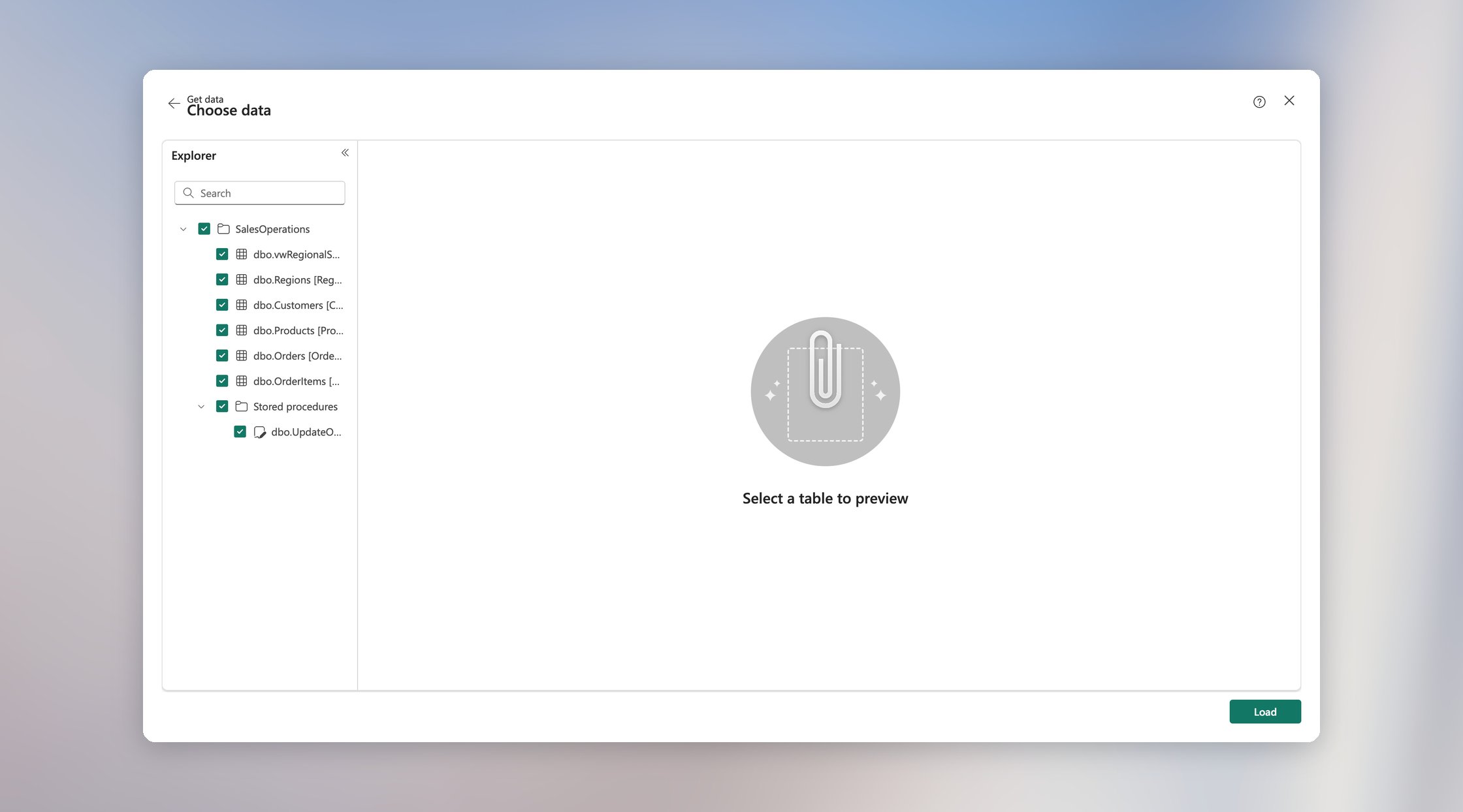
 Add the relevant data sources and select the tables, views, stored procedures, and columns to include. Define relationships between objects in the same source when users should retrieve related records in one query. Relationships are available between objects from the same source.
Keep the schema focused on the intended use case by including only the objects and operations consumers need.
Add the relevant data sources and select the tables, views, stored procedures, and columns to include. Define relationships between objects in the same source when users should retrieve related records in one query. Relationships are available between objects from the same source.
Keep the schema focused on the intended use case by including only the objects and operations consumers need.
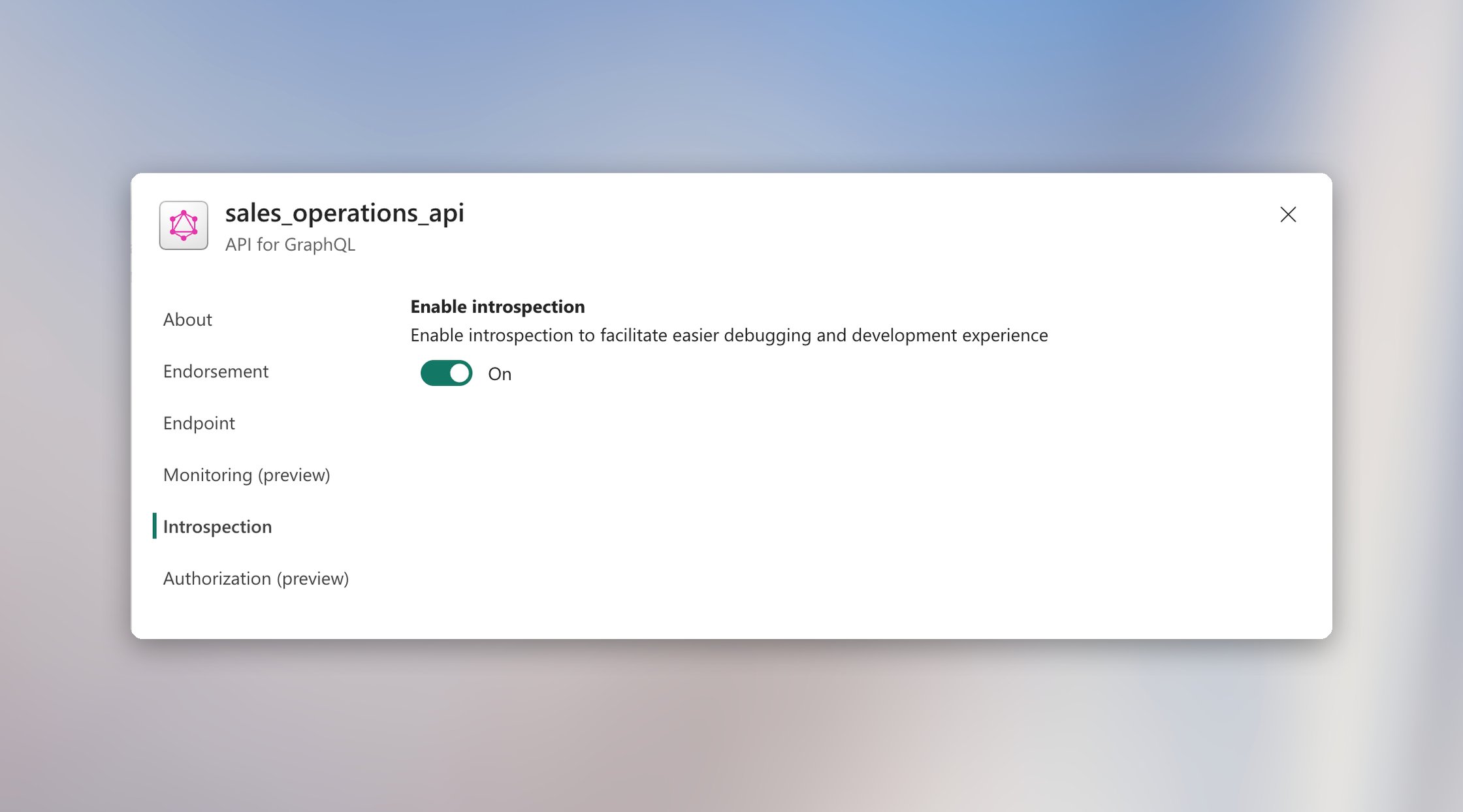
 Open **API Settings**, select **Introspection**, and enable it. Introspection is disabled by default. Enabling it allows Langdock to discover the available types, fields, arguments, queries, and mutations, and makes this schema metadata visible to all users with access to the API endpoint.
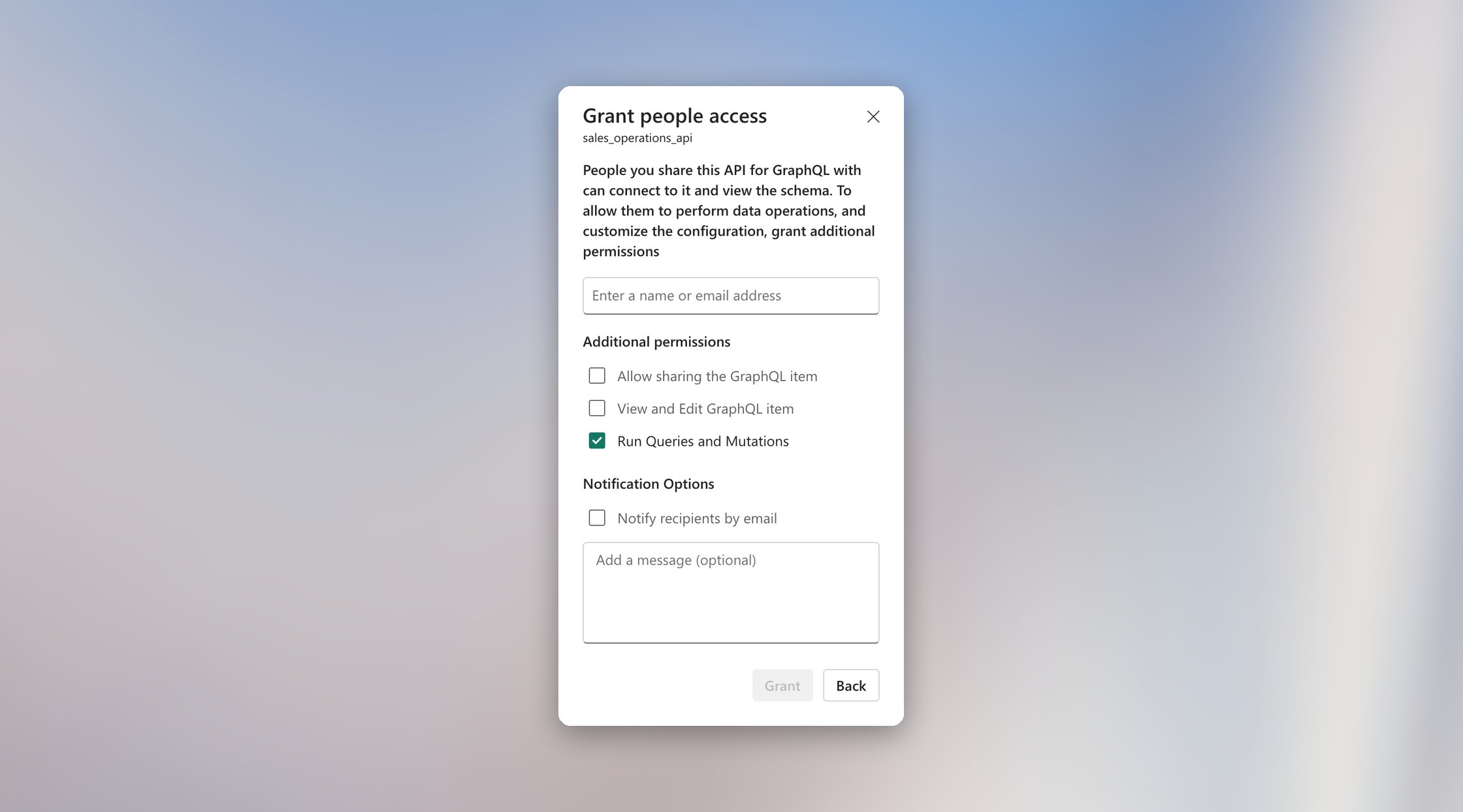
 Give every user **Run Queries and Mutations** on the GraphQL API item. The grant dialog uses that label, while **Direct access** and its ellipsis menu summarize and manage the same permission as **Execute**.
 With SSO, also grant each user the required permissions on every underlying source. With Saved credentials, grant the saved Fabric identity the required source permissions instead. See [Control who can read or change data](./permissions-and-mutations#control-who-can-read-or-change-data).
After adding, removing, or changing source objects, select **Update schema** and verify the result in **Schema explorer** so the API reflects the latest source schema.
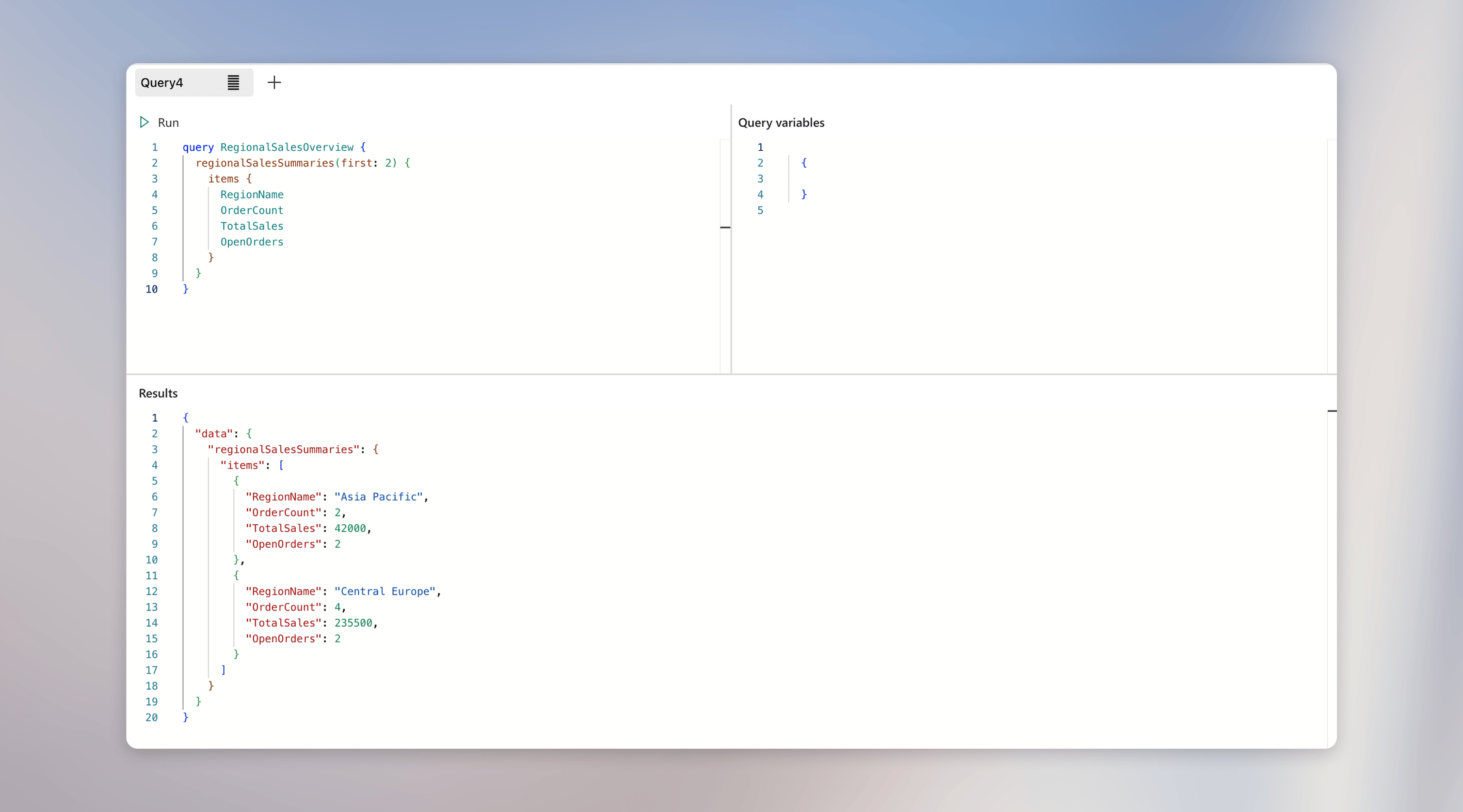
Run a focused query in Fabric and confirm that the expected source objects and results are available before connecting users.
With SSO, also grant each user the required permissions on every underlying source. With Saved credentials, grant the saved Fabric identity the required source permissions instead. See [Control who can read or change data](./permissions-and-mutations#control-who-can-read-or-change-data).
After adding, removing, or changing source objects, select **Update schema** and verify the result in **Schema explorer** so the API reflects the latest source schema.
Run a focused query in Fabric and confirm that the expected source objects and results are available before connecting users.
 ## Enable the integration in Langdock
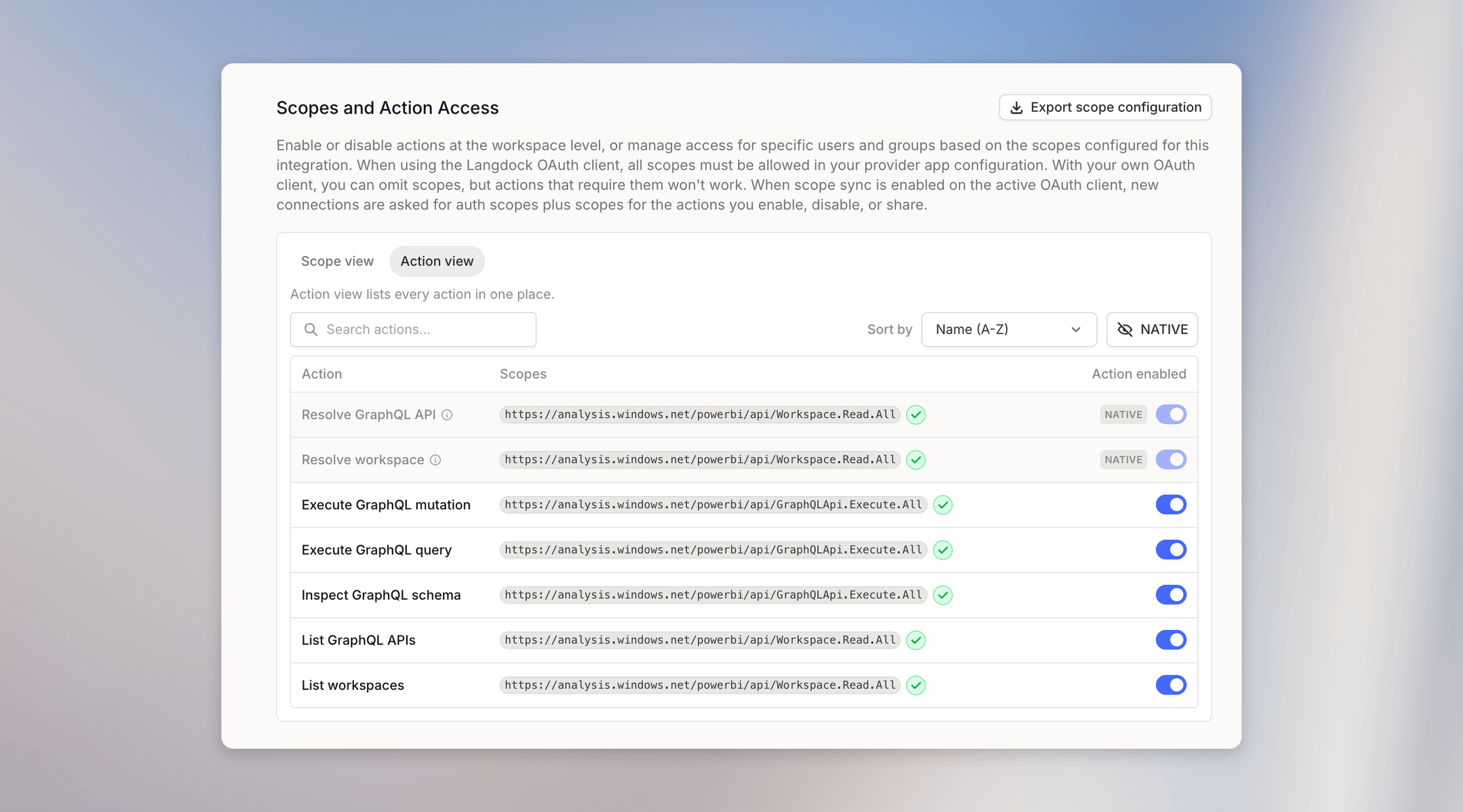
As a Langdock workspace admin, enable Microsoft Fabric. Langdock can then find APIs, inspect their schemas, query data, and use mutations without requiring users to provide IDs or endpoint URLs. The mutation action asks for confirmation before execution.
## Enable the integration in Langdock
As a Langdock workspace admin, enable Microsoft Fabric. Langdock can then find APIs, inspect their schemas, query data, and use mutations without requiring users to provide IDs or endpoint URLs. The mutation action asks for confirmation before execution.
 If newly enabled actions add Microsoft permissions, ask existing users to reconnect once.
## Connect users
Ask each user to open Microsoft Fabric in Langdock, select **Add connection**, and sign in with the Microsoft account you granted access to.
Direct users to the [three step user guide](../microsoft-fabric#use-microsoft-fabric). If an API is not discoverable by name, see [Troubleshooting](./troubleshooting).
## Validate the setup
Use a representative business user to confirm the access you intend to roll out:
1. Run a focused query in Fabric's GraphQL editor as that user.
2. In Langdock, ask a question that requires the same data and compare the result with the source.
3. If you expose mutations, use a disposable record, confirm the operation in Langdock, and verify the change in Fabric.
If a check fails, use [Troubleshooting](./troubleshooting) to identify whether discovery, schema, or permissions need attention.
If newly enabled actions add Microsoft permissions, ask existing users to reconnect once.
## Connect users
Ask each user to open Microsoft Fabric in Langdock, select **Add connection**, and sign in with the Microsoft account you granted access to.
Direct users to the [three step user guide](../microsoft-fabric#use-microsoft-fabric). If an API is not discoverable by name, see [Troubleshooting](./troubleshooting).
## Validate the setup
Use a representative business user to confirm the access you intend to roll out:
1. Run a focused query in Fabric's GraphQL editor as that user.
2. In Langdock, ask a question that requires the same data and compare the result with the source.
3. If you expose mutations, use a disposable record, confirm the operation in Langdock, and verify the change in Fabric.
If a check fails, use [Troubleshooting](./troubleshooting) to identify whether discovery, schema, or permissions need attention.