> ## Documentation Index
> Fetch the complete documentation index at: https://docs.langdock.com/llms.txt
> Use this file to discover all available pages before exploring further.
# Teams Bot (Setup)
> Install the Langdock App in Microsoft Teams and use your models and Agents directly in Teams
## Prerequisites
This guide is for **Langdock administrators**. If you're a user looking to set up the Teams Bot, share this page with your workspace admin.
In addition to Langdock admin rights, you'll also need:
1. Admin access to the [Teams Admin Center](https://admin.teams.microsoft.com)
2. Azure admin rights
Only members of a Langdock workspace can chat with the Teams Bot. Make sure all intended users are added to your Langdock workspace before they try to use the bot in Teams.
### Step 1: Locate Langdock Application
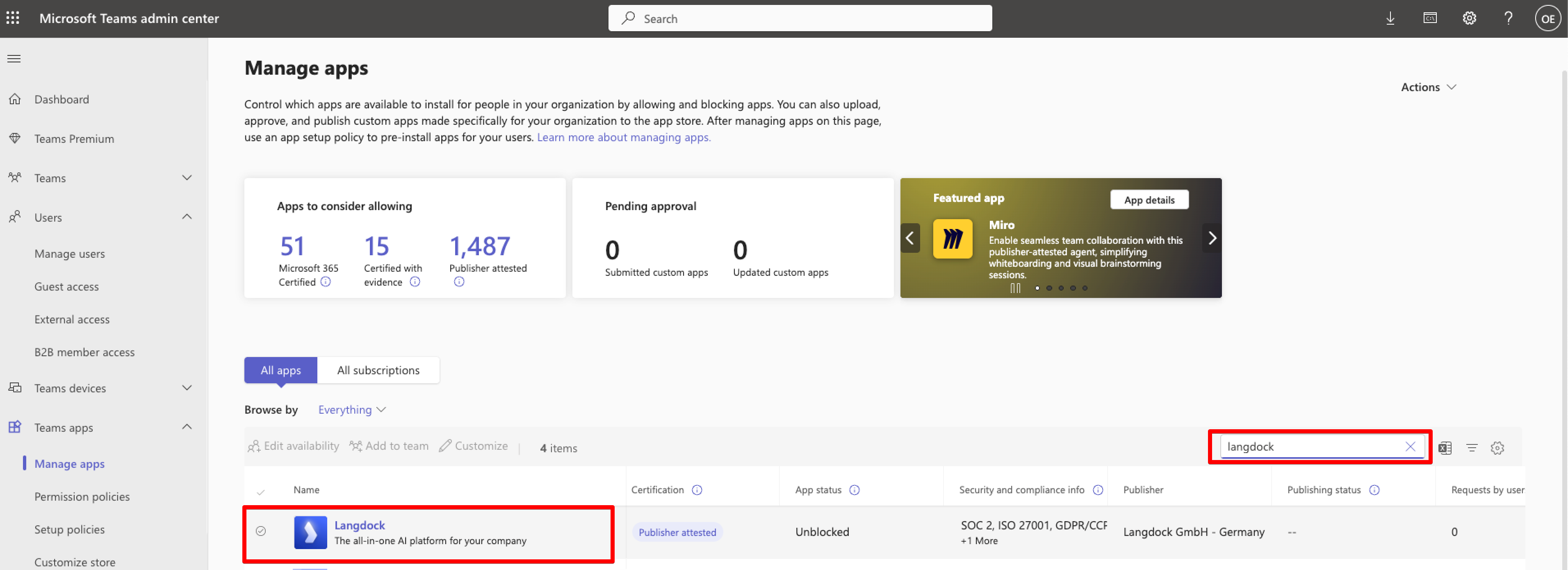
In the [Teams Admin Center](https://admin.teams.microsoft.com), navigate to **Teams apps** > **Manage apps** and search for "Langdock".
 ### Step 2: Configure App Availability Settings
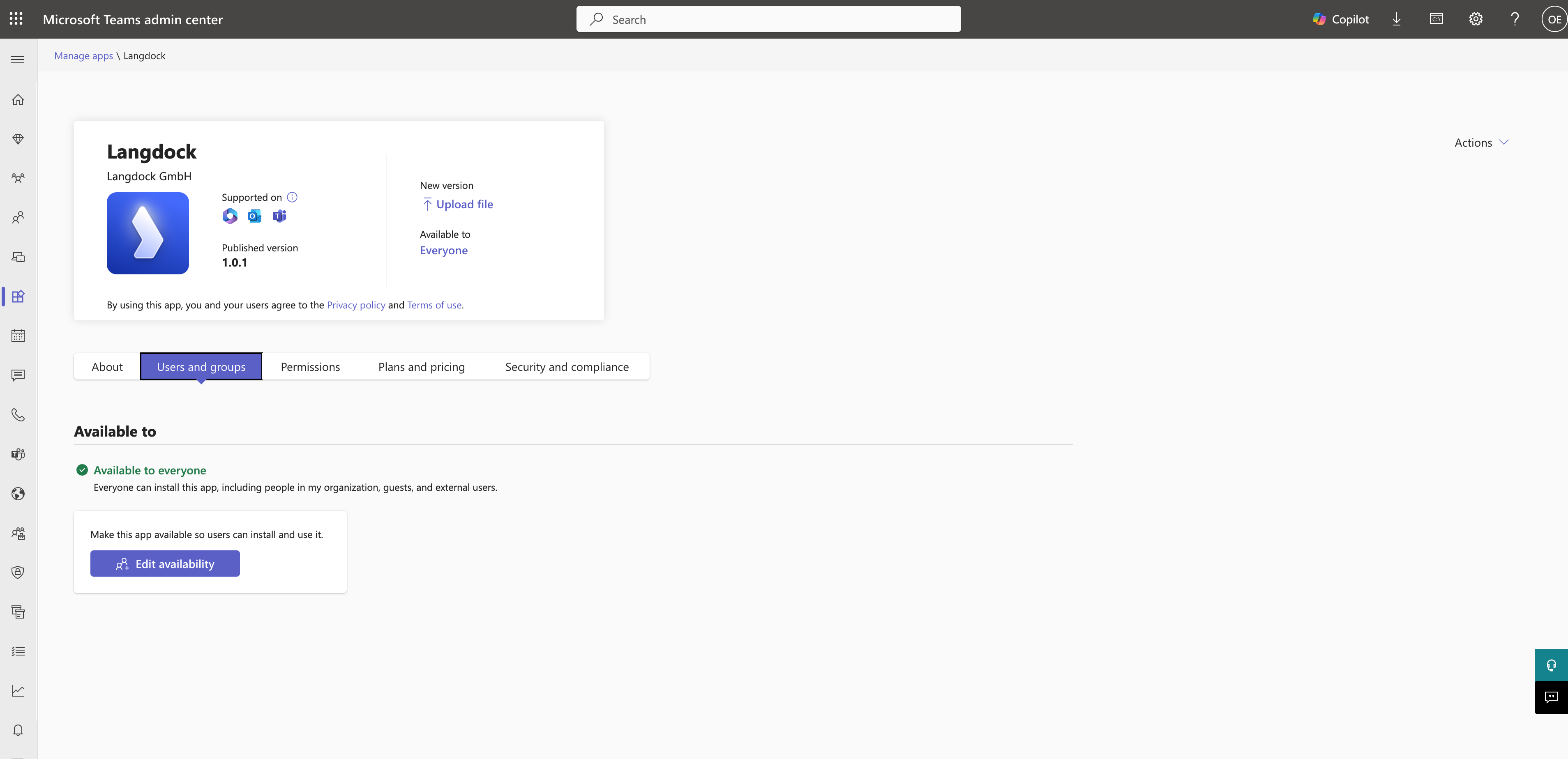
1. Click on the Langdock application to open its settings
2. In the **Users and groups** tab, click **Edit availability** to configure who can access the app (organization-wide, specific groups, or blocked)
### Step 2: Configure App Availability Settings
1. Click on the Langdock application to open its settings
2. In the **Users and groups** tab, click **Edit availability** to configure who can access the app (organization-wide, specific groups, or blocked)
 ### Step 3: Review App Permissions
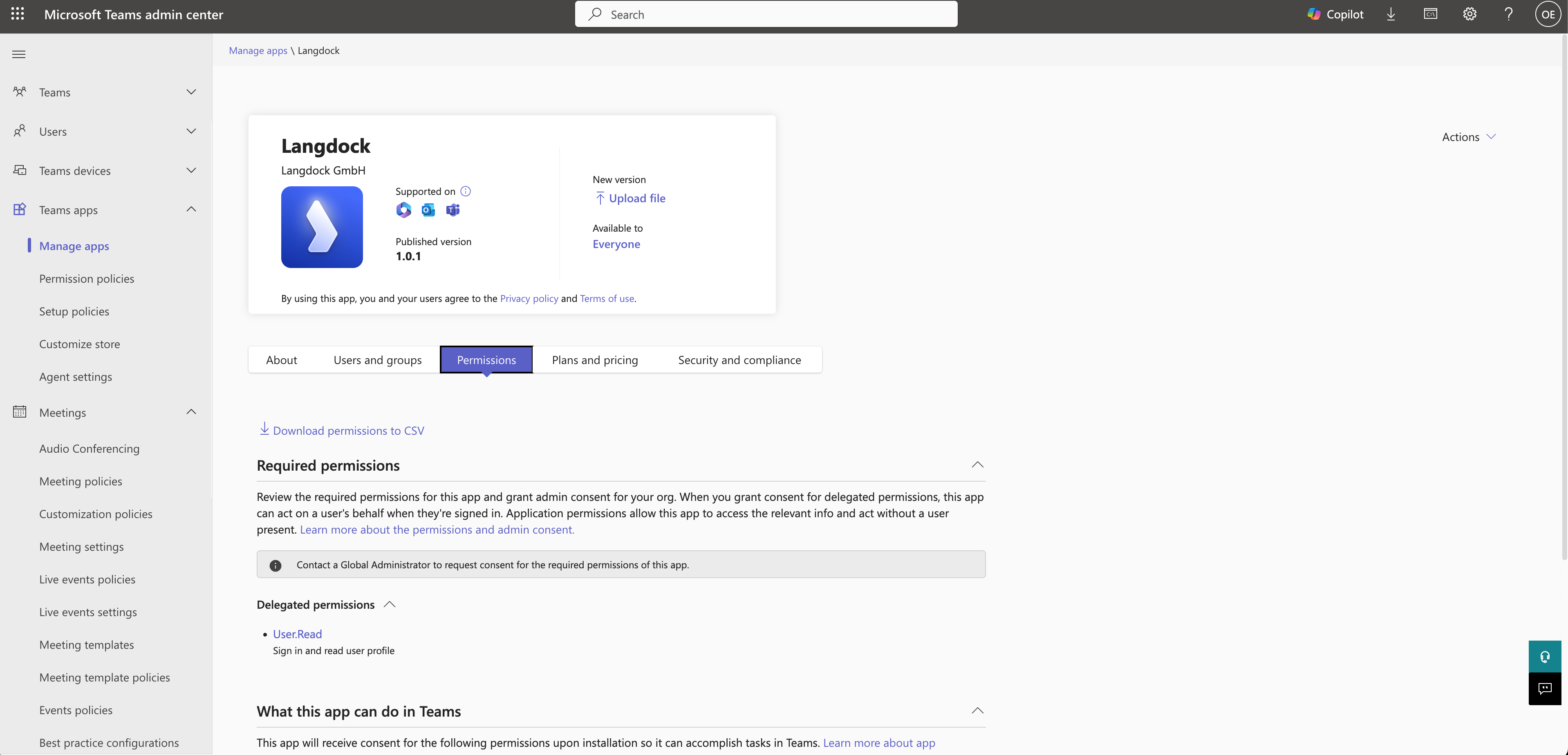
1. Navigate to the **Permissions** tab
2. Have your Azure admin consent to the required permissions
Teams admins are not necessarily Azure admins. Make sure the person with Azure admin rights completes this step.
### Step 3: Review App Permissions
1. Navigate to the **Permissions** tab
2. Have your Azure admin consent to the required permissions
Teams admins are not necessarily Azure admins. Make sure the person with Azure admin rights completes this step.
 ### Step 4: Configure App Setup Policies
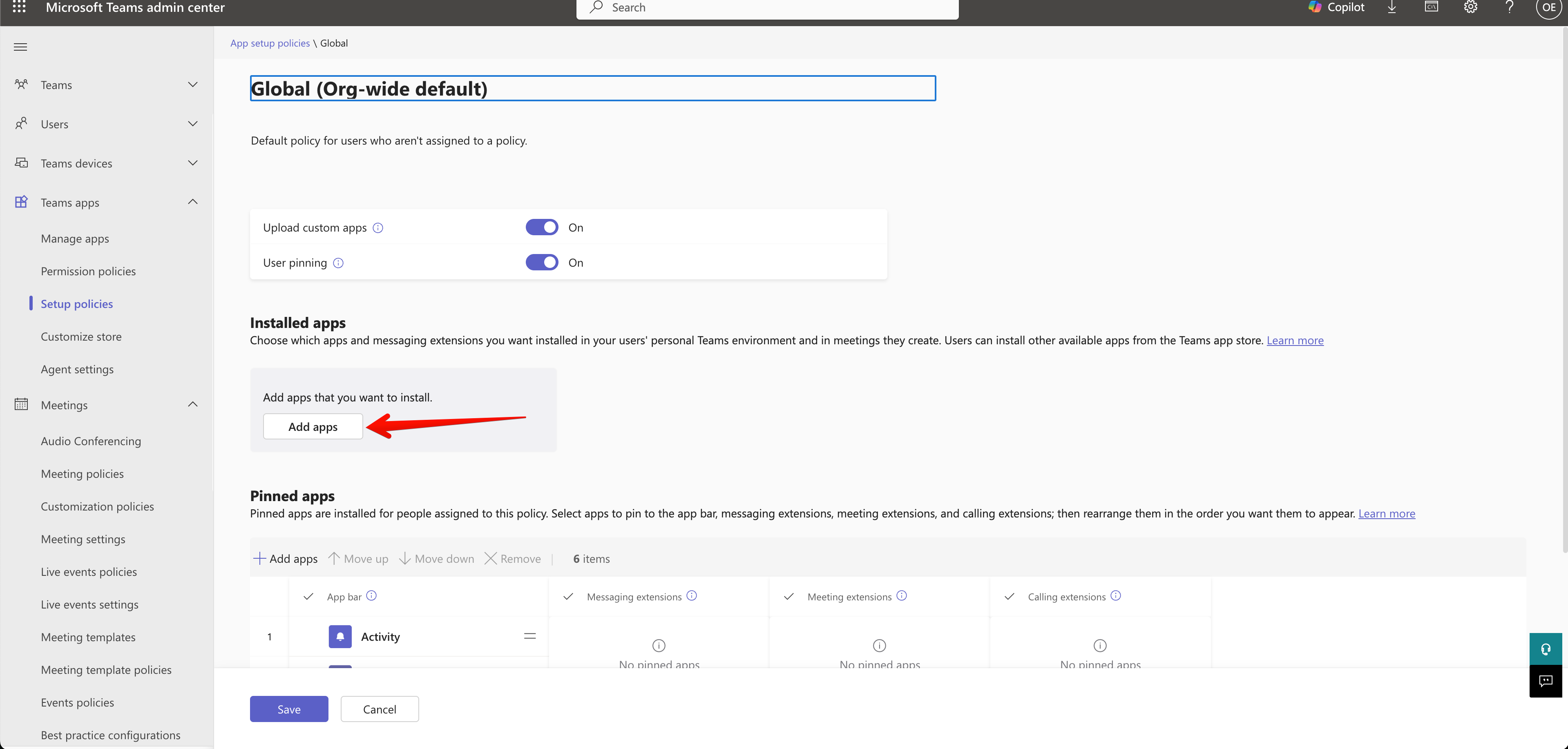
1. Navigate to **Teams apps** > **Setup policies**
2. Select **Global (Org-wide default)** (or your preferred policy)
3. In the **Installed apps** section, click **Add apps**
**Pro tip**: Enable **User pinning** so users can pin the Langdock app to their Teams sidebar for quick access.
### Step 4: Configure App Setup Policies
1. Navigate to **Teams apps** > **Setup policies**
2. Select **Global (Org-wide default)** (or your preferred policy)
3. In the **Installed apps** section, click **Add apps**
**Pro tip**: Enable **User pinning** so users can pin the Langdock app to their Teams sidebar for quick access.
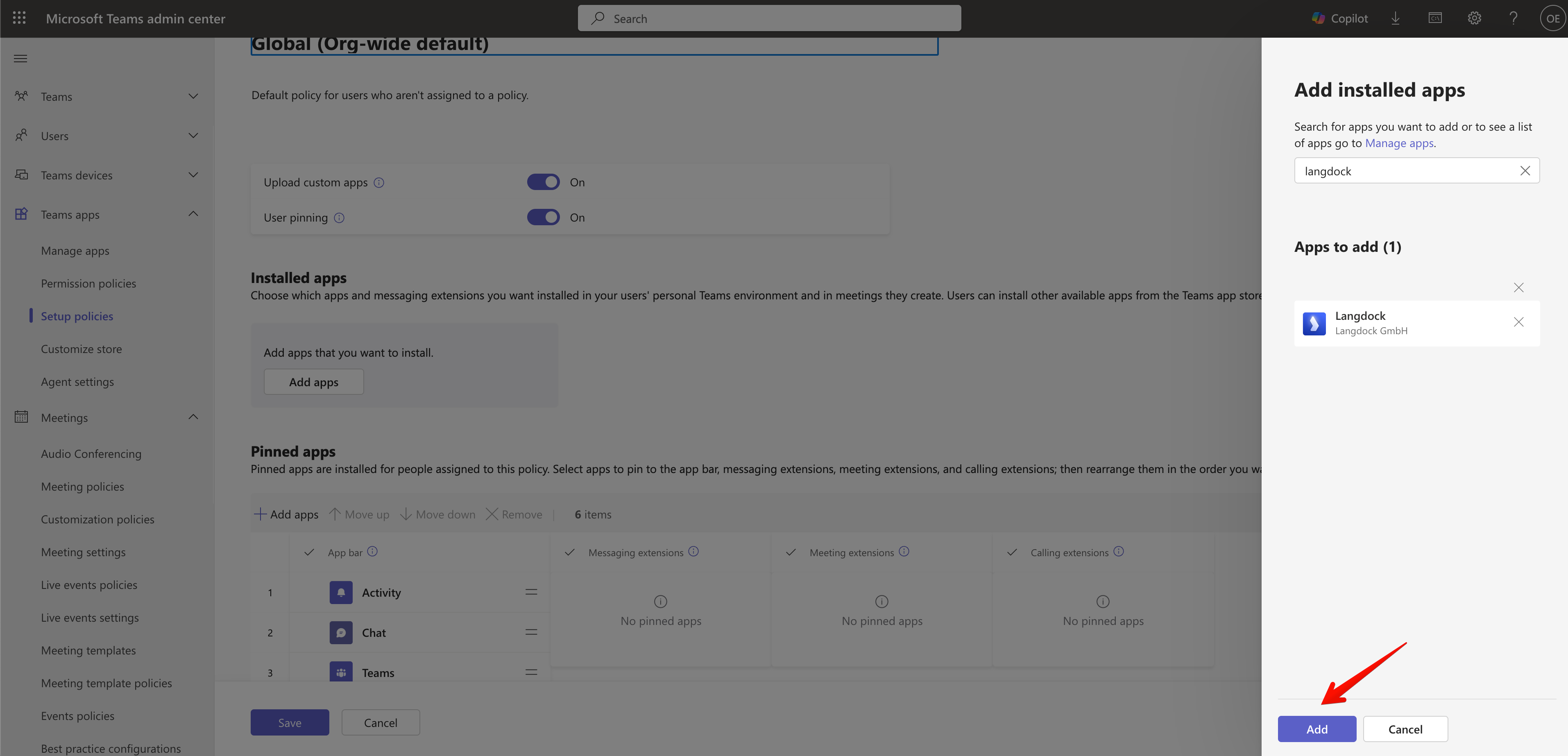
 ### Step 5: Add Your App to the Setup Policy
1. Search for "langdock" and select the application
2. Click **Add**
3. (Optional) Add Langdock to **Pinned apps** for easy access
4. Click **Save**
### Step 5: Add Your App to the Setup Policy
1. Search for "langdock" and select the application
2. Click **Add**
3. (Optional) Add Langdock to **Pinned apps** for easy access
4. Click **Save**
 ### Step 6: Connect Your Langdock Workspace
1. Go to your [workspace integration settings](https://app.langdock.com/settings/workspace/products/integrations) in Langdock
2. Find the Microsoft Teams Bot section and enable the integration
3. Repeat this step for any additional Langdock workspaces you want to make available in Teams
You need admin access to your Langdock workspace to complete this step. Each workspace that should be available in the Teams Bot must be connected separately.
Done! Now all users in your workspace can use the Langdock app in private Chat or in your Teams Channel by tagging **@Langdock**. For a detailed guide on how to use the Langdock app in Teams, please refer to the [Langdock Teams Bot User Guide](/en/using-langdock/guides/chatbots/teams-bot).
***
*For additional support or questions about the Teams Bot setup, please contact your Langdock administrator or reach out to [support@langdock.com](mailto:support@langdock.com).*
### Step 6: Connect Your Langdock Workspace
1. Go to your [workspace integration settings](https://app.langdock.com/settings/workspace/products/integrations) in Langdock
2. Find the Microsoft Teams Bot section and enable the integration
3. Repeat this step for any additional Langdock workspaces you want to make available in Teams
You need admin access to your Langdock workspace to complete this step. Each workspace that should be available in the Teams Bot must be connected separately.
Done! Now all users in your workspace can use the Langdock app in private Chat or in your Teams Channel by tagging **@Langdock**. For a detailed guide on how to use the Langdock app in Teams, please refer to the [Langdock Teams Bot User Guide](/en/using-langdock/guides/chatbots/teams-bot).
***
*For additional support or questions about the Teams Bot setup, please contact your Langdock administrator or reach out to [support@langdock.com](mailto:support@langdock.com).*