> ## Documentation Index
> Fetch the complete documentation index at: https://docs.langdock.com/llms.txt
> Use this file to discover all available pages before exploring further.
# Slack Bot (Setup)
> Install the Langdock App in Slack and use your models and Agents directly in Slack
You can reach out to [support@langdock.com](mailto:support@langdock.com) to
set up your integration with assistance.
## Prerequisites
* Access to an admin account in your Langdock workspace.
* Permission to install apps in your Slack workspace to follow this guide.
Looking for a guide on how to interact with the Slack Bot once it's already
installed? Check out the [Langdock Slack Bot User
Guide](/en/using-langdock/guides/chatbots/slack).
***
1. Setup the Slack bot in your [workspace integration settings](https://app.langdock.com/settings/workspace/products/integrations)
2. Allow the Langdock app to read and write messages in your workspace by clicking "Allow".
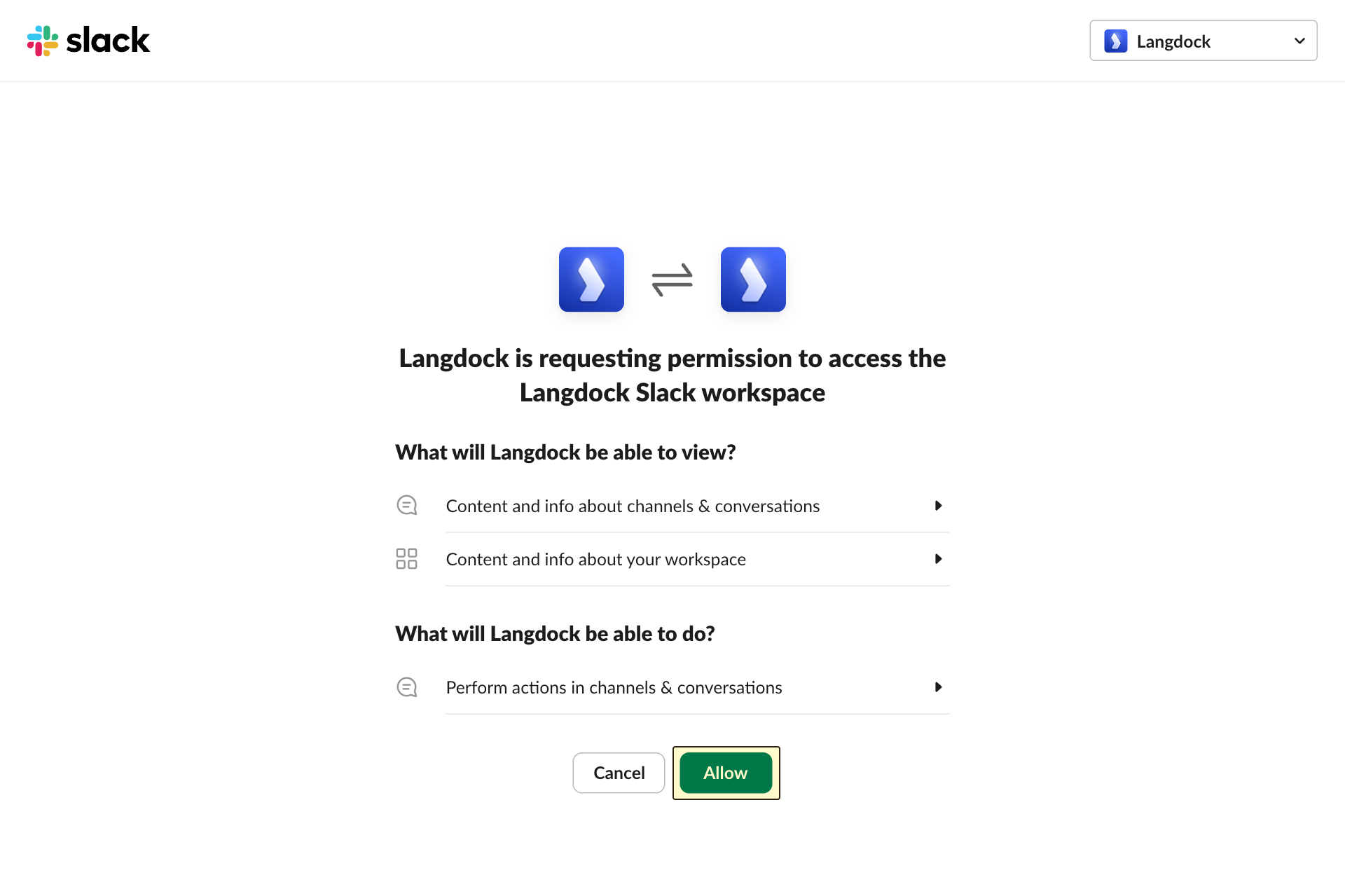 3. Done! Now all users in your workspace can use the Langdock app in your Slack workspace by tagging **@Langdock**. For a detailed guide on how to use the Langdock app in Slack, please refer to the [Langdock Slack Bot User Guide](/en/using-langdock/guides/chatbots/slack).