> ## Documentation Index
> Fetch the complete documentation index at: https://docs.langdock.com/llms.txt
> Use this file to discover all available pages before exploring further.
# Overview
> Governance gives workspace admins one place to review agents, oversee shared skills, and enforce custom compliance rules across the workspace.
As AI adoption grows in your workspace, so does the number of agents and skills your team creates and shares. Governance gives you, as a workspace admin, a single place to keep oversight: review every agent, understand what shared skills can do, and define compliance rules that check agents automatically. Instead of tracking spreadsheets or reviewing agents one by one on request, you see the compliance state of your entire workspace at a glance and can act directly where needed.
Governance is a paid add-on for your workspace and is free to use until January 1st, 2027. After that, you can add Governance to your subscription in your [billing settings](/en/admin/billing/subscription).
## What you can do with Governance
### Review agents
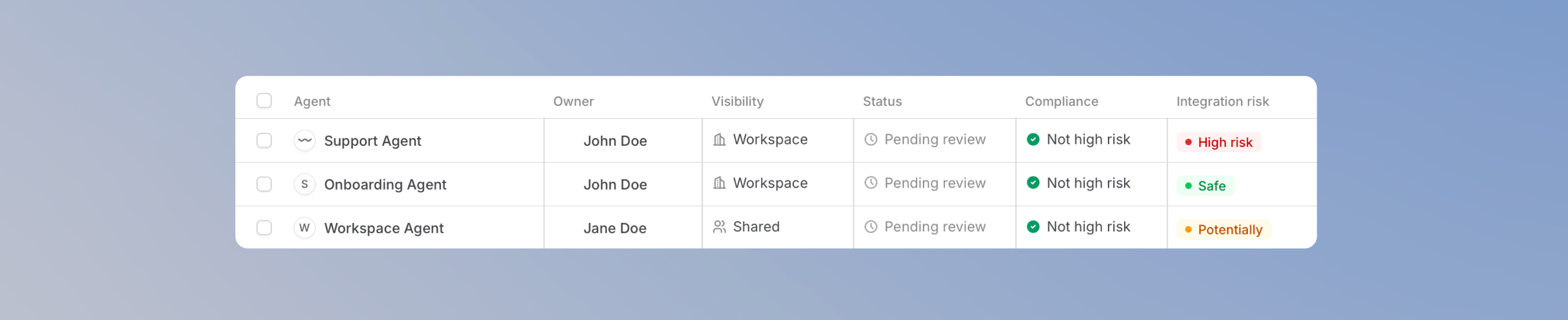 The [Agents view](/en/admin/governance/agents) lists every agent in your workspace and shows you at a glance which ones have been reviewed, which pass your compliance rules, and which carry risk. Open an agent to see everything behind it: its instructions, integrations, sharing, analytics, costs, and history. After reviewing, you take one of three actions: approve the agent, flag it with an internal note, or disable it until its editor publishes a fixed version.
### Oversee skills
The [Agents view](/en/admin/governance/agents) lists every agent in your workspace and shows you at a glance which ones have been reviewed, which pass your compliance rules, and which carry risk. Open an agent to see everything behind it: its instructions, integrations, sharing, analytics, costs, and history. After reviewing, you take one of three actions: approve the agent, flag it with an internal note, or disable it until its editor publishes a fixed version.
### Oversee skills
 The [Skills view](/en/admin/governance/skills) shows all skills shared with your workspace. You can review each skill's instructions, files, and sharing settings to understand exactly what it does before your team relies on it.
### Enforce compliance rules
The [Skills view](/en/admin/governance/skills) shows all skills shared with your workspace. You can review each skill's instructions, files, and sharing settings to understand exactly what it does before your team relies on it.
### Enforce compliance rules
 With [Compliance rules](/en/admin/governance/compliance-rules), you define the standards agents in your workspace must meet. Each rule checks agents automatically whenever a new agent version is published, so compliance is enforced continuously rather than reviewed once.
## Who Governance is for
Governance is designed for workspace admins who are responsible for how AI is rolled out and used in their organization. This includes IT and security teams, compliance officers, and platform owners.
Workspace members without an admin role do not see Governance. Agent editors only notice it when an admin disables their agent, in which case they are notified with the reason.
## Enable Governance
Governance is disabled by default for all workspaces. To start using it:
Go to your workspace settings and open **Governance**. Enabling the product requires admin access.
With [Compliance rules](/en/admin/governance/compliance-rules), you define the standards agents in your workspace must meet. Each rule checks agents automatically whenever a new agent version is published, so compliance is enforced continuously rather than reviewed once.
## Who Governance is for
Governance is designed for workspace admins who are responsible for how AI is rolled out and used in their organization. This includes IT and security teams, compliance officers, and platform owners.
Workspace members without an admin role do not see Governance. Agent editors only notice it when an admin disables their agent, in which case they are notified with the reason.
## Enable Governance
Governance is disabled by default for all workspaces. To start using it:
Go to your workspace settings and open **Governance**. Enabling the product requires admin access.
 Turn on **Enable for all admins** to give every workspace admin access.
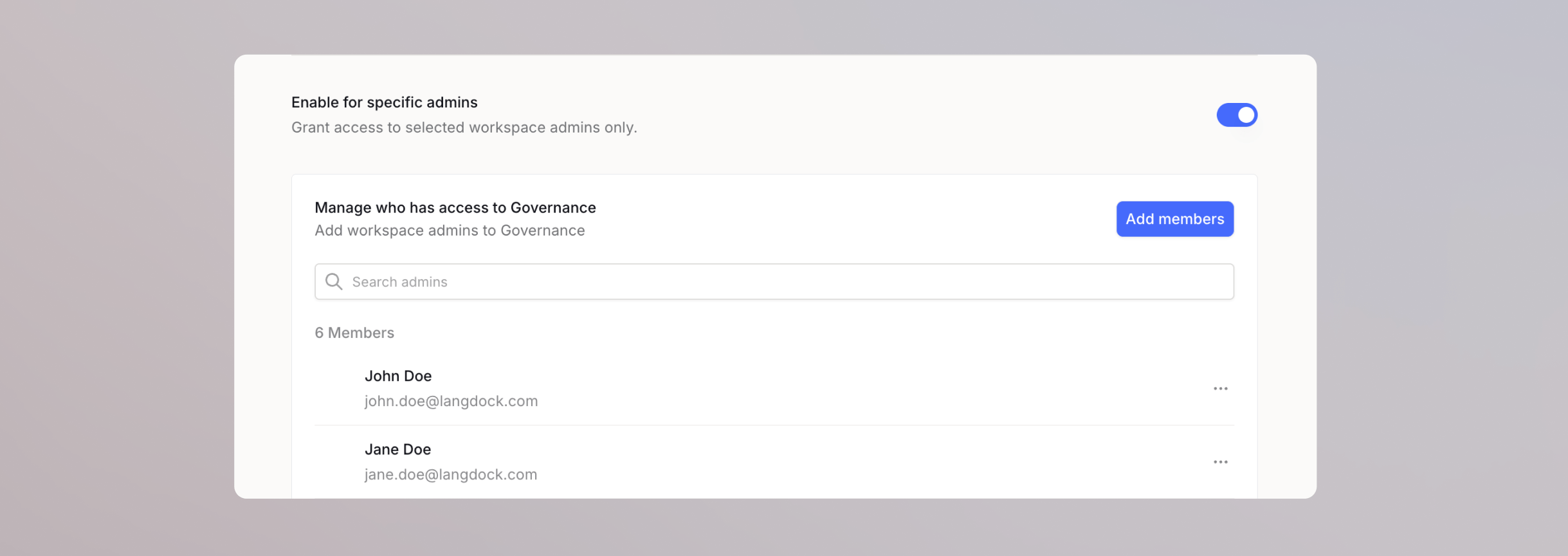
 Alternatively, use **Enable for specific admins** to grant access to selected admins only, then add them with **Add members**.
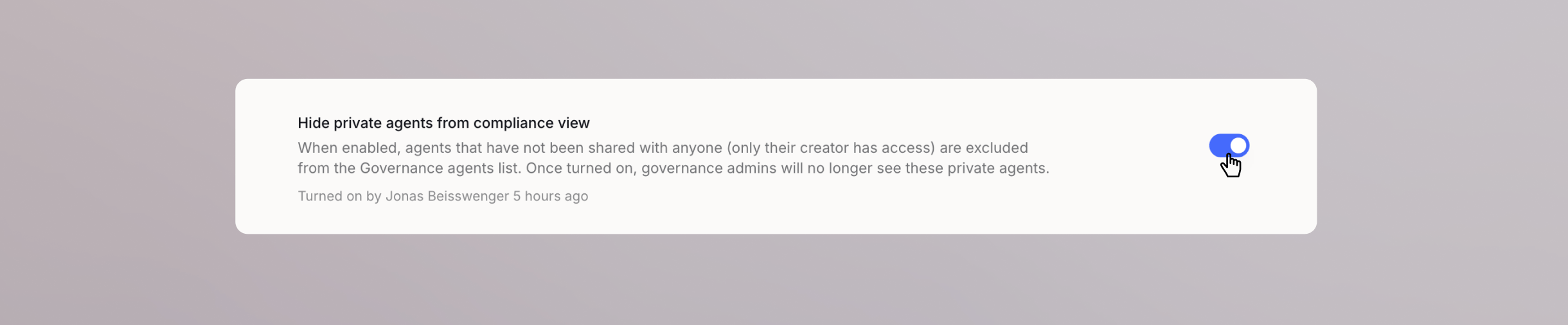
 Optionally, turn on **Hide private agents from compliance view**. Agents that are not shared with anyone are then excluded from the [Governance agents list](/en/admin/governance/agents).
 Once enabled, Governance appears as its own entry in the top navigation bar for the admins you selected. Everyone else in your workspace continues working as before.
## Pricing
Governance is free for all workspaces until January 1st, 2027. After the free period, Governance is billed as an add-on per user. The exact price depends on the number of seats in your workspace and whether you are on monthly or annual billing, with the price per user decreasing as your workspace grows. You can find the current add-on pricing on our [pricing page](https://www.langdock.com/pricing). If you want to keep using Governance after the free period, add it to your subscription in your [billing settings](/en/admin/billing/subscription).
## What's coming next
Governance launches with agents, skills, and compliance rules. Oversight for workflows, an integrations view, and visibility into MCP gateway usage are planned as future additions, extending the same review approach to everything your team builds in Langdock.
Once enabled, Governance appears as its own entry in the top navigation bar for the admins you selected. Everyone else in your workspace continues working as before.
## Pricing
Governance is free for all workspaces until January 1st, 2027. After the free period, Governance is billed as an add-on per user. The exact price depends on the number of seats in your workspace and whether you are on monthly or annual billing, with the price per user decreasing as your workspace grows. You can find the current add-on pricing on our [pricing page](https://www.langdock.com/pricing). If you want to keep using Governance after the free period, add it to your subscription in your [billing settings](/en/admin/billing/subscription).
## What's coming next
Governance launches with agents, skills, and compliance rules. Oversight for workflows, an integrations view, and visibility into MCP gateway usage are planned as future additions, extending the same review approach to everything your team builds in Langdock.