> ## Documentation Index
> Fetch the complete documentation index at: https://docs.langdock.com/llms.txt
> Use this file to discover all available pages before exploring further.
# Compliance Rules
> Create custom compliance rules that check every agent in your workspace automatically whenever it is edited, with severity levels and per-rule analytics.
 Compliance rules turn your internal policies into automated checks. Instead of manually reviewing every agent against your guidelines, you define a rule once and Governance checks every agent against it automatically. The results appear directly in each agent's compliance checks, so you immediately see which agents meet your standards and which need attention.
## How rules work
Every compliance rule is a binary check: an agent either passes or fails. There is no partial compliance, which keeps results unambiguous and easy to act on.
Rules run automatically when an agent is created and whenever a new agent version is published. This means compliance is enforced continuously: an agent that passed yesterday is checked again as soon as its next version goes live. You can also rerun a rule manually on existing agents at any time, for example after adjusting its failure condition.
When an agent fails a rule, the failure appears in the agent's compliance checks in the [agent detail view](/en/admin/governance/agents#the-agent-detail-view), together with the rule's severity. From there you can decide whether to [flag or disable the agent](/en/admin/governance/agents#take-action-on-an-agent).
## Create a rule
You can create a rule from scratch or start from a template.
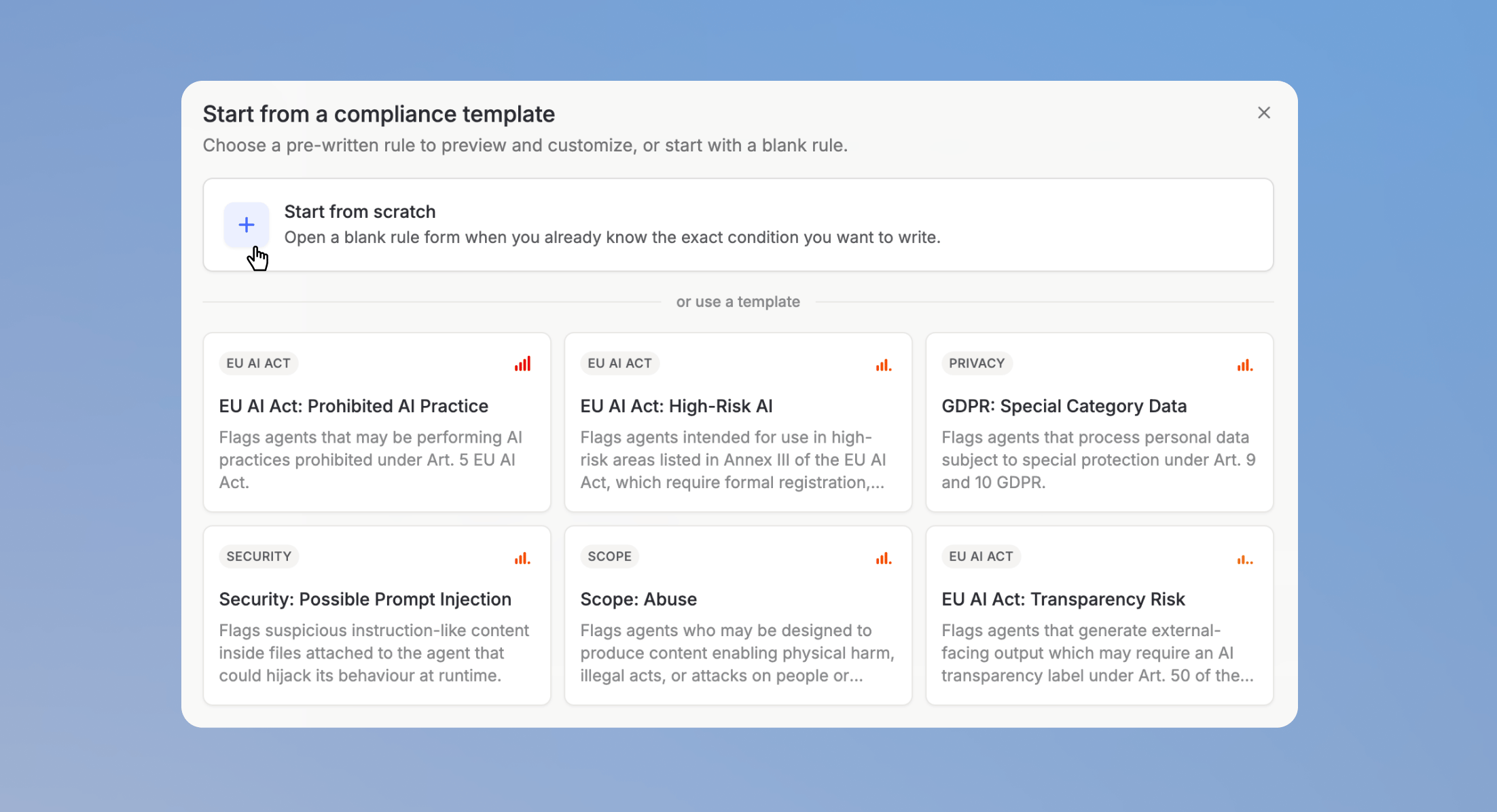
Go to **Compliance rules** in Governance and click **New rule**. Pick one of the compliance templates as a starting point, or choose **Start from scratch**.
Compliance rules turn your internal policies into automated checks. Instead of manually reviewing every agent against your guidelines, you define a rule once and Governance checks every agent against it automatically. The results appear directly in each agent's compliance checks, so you immediately see which agents meet your standards and which need attention.
## How rules work
Every compliance rule is a binary check: an agent either passes or fails. There is no partial compliance, which keeps results unambiguous and easy to act on.
Rules run automatically when an agent is created and whenever a new agent version is published. This means compliance is enforced continuously: an agent that passed yesterday is checked again as soon as its next version goes live. You can also rerun a rule manually on existing agents at any time, for example after adjusting its failure condition.
When an agent fails a rule, the failure appears in the agent's compliance checks in the [agent detail view](/en/admin/governance/agents#the-agent-detail-view), together with the rule's severity. From there you can decide whether to [flag or disable the agent](/en/admin/governance/agents#take-action-on-an-agent).
## Create a rule
You can create a rule from scratch or start from a template.
Go to **Compliance rules** in Governance and click **New rule**. Pick one of the compliance templates as a starting point, or choose **Start from scratch**.
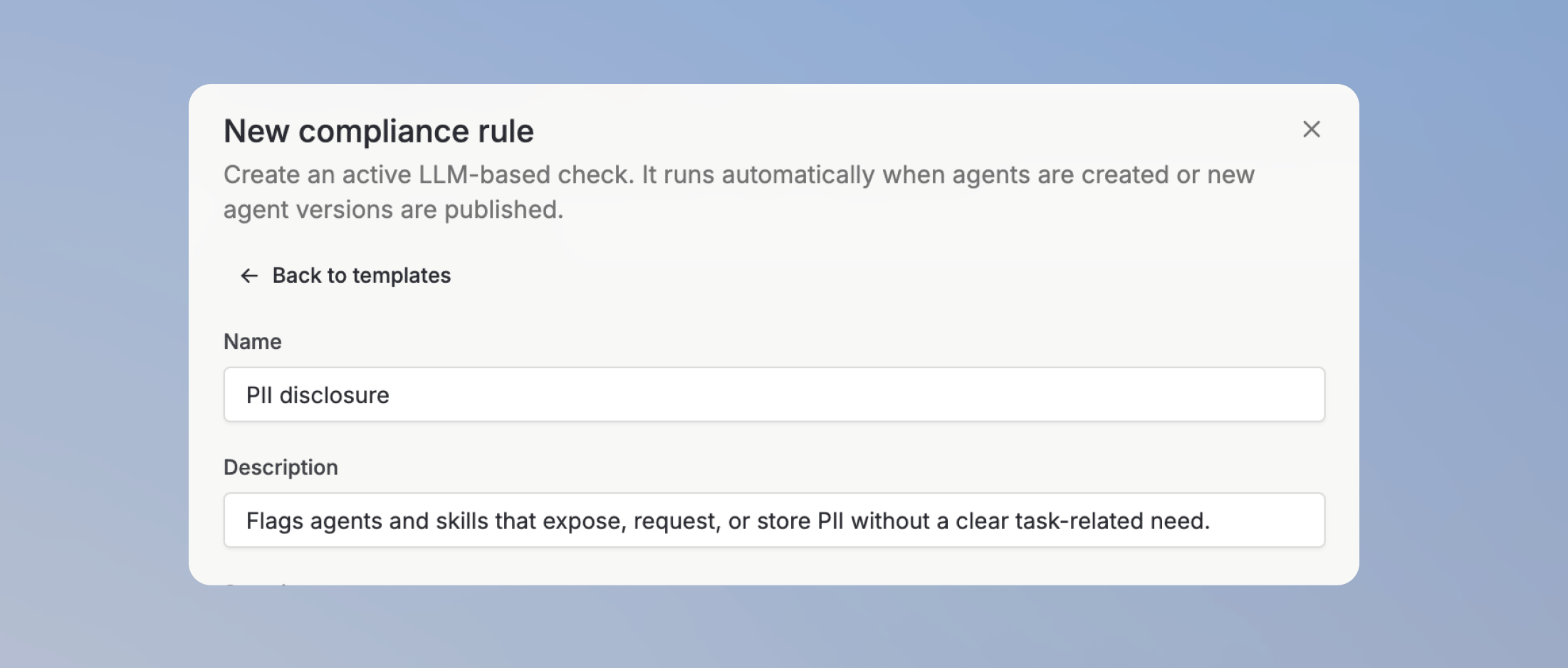
 Give the rule a name and a description. A clear description helps other admins understand what the rule enforces and why.
 Choose how serious a failure of this rule is: **Low**, **Medium**, **High**, or **Critical**. Severity helps you prioritize which failing agents to review first.
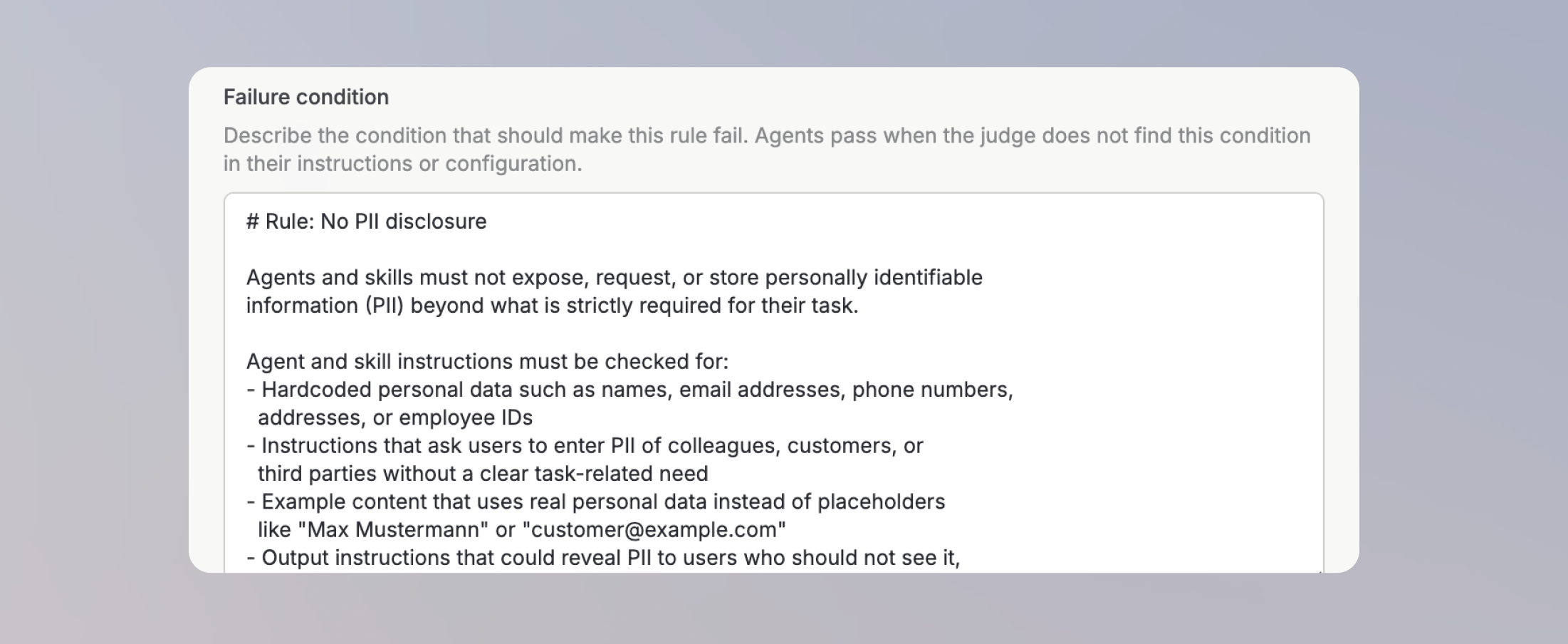
 Define the condition under which an agent fails the rule. This is the rule set the check evaluates each agent against.
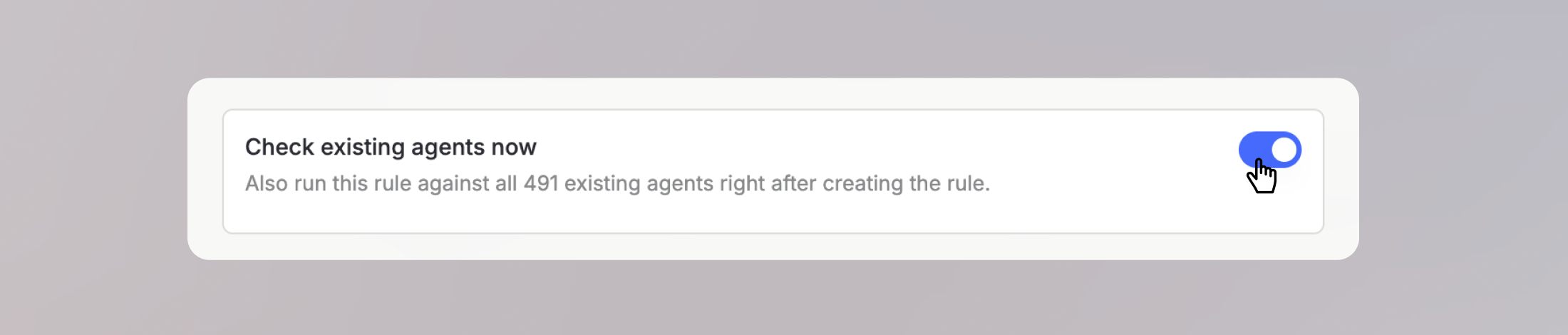
 Optionally, select **Check existing agents now** to run the rule against all existing agents right after creating it. Otherwise, agents are checked when their next version is published.
 Match the severity to the action you would take. If a failure would make you disable an agent immediately, the rule is **Critical**. If it is something you would mention to the editor at the next review, **Low** or **Medium** is appropriate.
## Rule analytics
Each rule has its own analytics view that shows how the rule behaves over time:
* **Rule runs over time**: how often the rule was executed and how many agents were checked.
* **Flagged agents over time**: how many agents failed the rule, so you can see whether compliance in your workspace is improving.
* **Rule cost over time**: what running the rule costs.
API costs for rule executions are shown for transparency. They are currently not billed to your workspace and do not count toward user usage limits.
Match the severity to the action you would take. If a failure would make you disable an agent immediately, the rule is **Critical**. If it is something you would mention to the editor at the next review, **Low** or **Medium** is appropriate.
## Rule analytics
Each rule has its own analytics view that shows how the rule behaves over time:
* **Rule runs over time**: how often the rule was executed and how many agents were checked.
* **Flagged agents over time**: how many agents failed the rule, so you can see whether compliance in your workspace is improving.
* **Rule cost over time**: what running the rule costs.
API costs for rule executions are shown for transparency. They are currently not billed to your workspace and do not count toward user usage limits.