> ## Documentation Index
> Fetch the complete documentation index at: https://docs.langdock.com/llms.txt
> Use this file to discover all available pages before exploring further.
# Excel-Plugin (Einrichtung)
> Aktiviere Langdock Plugins für deinen Workspace, damit Nutzer direkt in Microsoft Anwendungen auf Langdock zugreifen können.
Das [Excel-Plugin](/de/using-langdock/microsoft-plugins/excel) bringt Langdock direkt in Microsoft Excel. Nutzer können Tabellen erstellen, Formeln schreiben, Daten bereinigen und Ergebnisse zusammenfassen, ohne ihr Workbook zu verlassen. In diesem Abschnitt erfährst du, wie du das Plugin für deinen Workspace aktivierst.
## Excel-Plugin aktivieren
Navigiere zu deinen [Workspace-Integrationseinstellungen](https://app.langdock.com/settings/workspace/products/integrations) in Langdock.
Finde das Plugin, das du aktivieren möchtest, und schalte es ein.
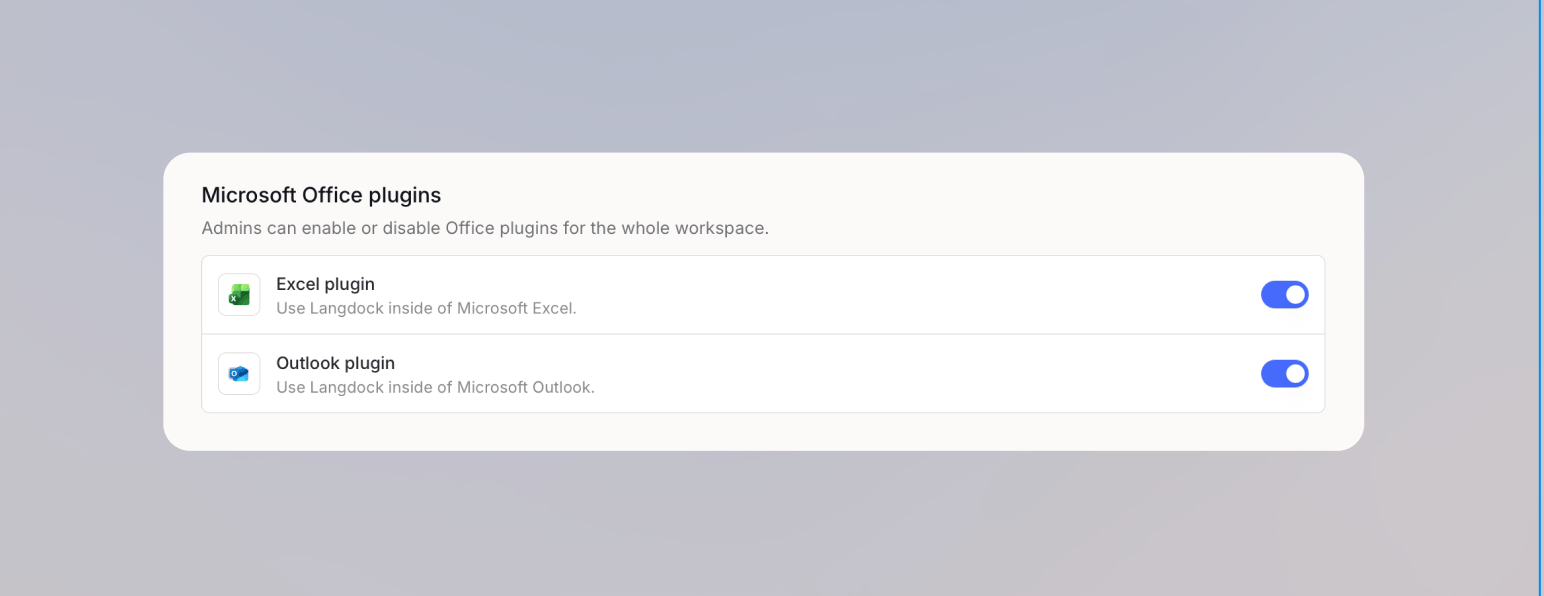 Nutzer können sich jetzt innerhalb ihrer Microsoft Anwendung beim Plugin anmelden. Teile den [Überblick zum Excel-Plugin](/de/using-langdock/microsoft-plugins/excel) mit deinen Nutzern, damit sie wissen, wie sie loslegen können.
## Plugin für dedizierte Deployments aktivieren
Bevor du beginnst, brauchst du Microsoft Adminzugriff auf das [Microsoft 365 Admin Portal](https://admin.microsoft.com) und Langdock Adminzugriff auf deinen Workspace.
Die Einrichtung des Excel-Plugins umfasst drei Schritte:
1. Ein Microsoft Admin stellt die benutzerdefinierte App im [Microsoft 365 Admin Portal](https://admin.microsoft.com) bereit
2. Ein Langdock Admin aktiviert das Excel-Plugin wie oben beschrieben in Langdock
3. Jeder Nutzer öffnet das Add-in in Excel und meldet sich an
Danach können Nutzer in der ausgewählten Microsoft 365 Zielgruppe das Langdock Add-in direkt in Excel öffnen.
### Benutzerdefinierte App in Microsoft 365 bereitstellen
Diesen Schritt übernimmt ein Microsoft Admin.
Navigiere in der Seitenleiste des Microsoft 365 Admin Portals zu **Settings** > **Integrated apps**.
Nutzer können sich jetzt innerhalb ihrer Microsoft Anwendung beim Plugin anmelden. Teile den [Überblick zum Excel-Plugin](/de/using-langdock/microsoft-plugins/excel) mit deinen Nutzern, damit sie wissen, wie sie loslegen können.
## Plugin für dedizierte Deployments aktivieren
Bevor du beginnst, brauchst du Microsoft Adminzugriff auf das [Microsoft 365 Admin Portal](https://admin.microsoft.com) und Langdock Adminzugriff auf deinen Workspace.
Die Einrichtung des Excel-Plugins umfasst drei Schritte:
1. Ein Microsoft Admin stellt die benutzerdefinierte App im [Microsoft 365 Admin Portal](https://admin.microsoft.com) bereit
2. Ein Langdock Admin aktiviert das Excel-Plugin wie oben beschrieben in Langdock
3. Jeder Nutzer öffnet das Add-in in Excel und meldet sich an
Danach können Nutzer in der ausgewählten Microsoft 365 Zielgruppe das Langdock Add-in direkt in Excel öffnen.
### Benutzerdefinierte App in Microsoft 365 bereitstellen
Diesen Schritt übernimmt ein Microsoft Admin.
Navigiere in der Seitenleiste des Microsoft 365 Admin Portals zu **Settings** > **Integrated apps**.
 Klicke auf der Seite **Integrated apps** auf **Upload custom apps**.
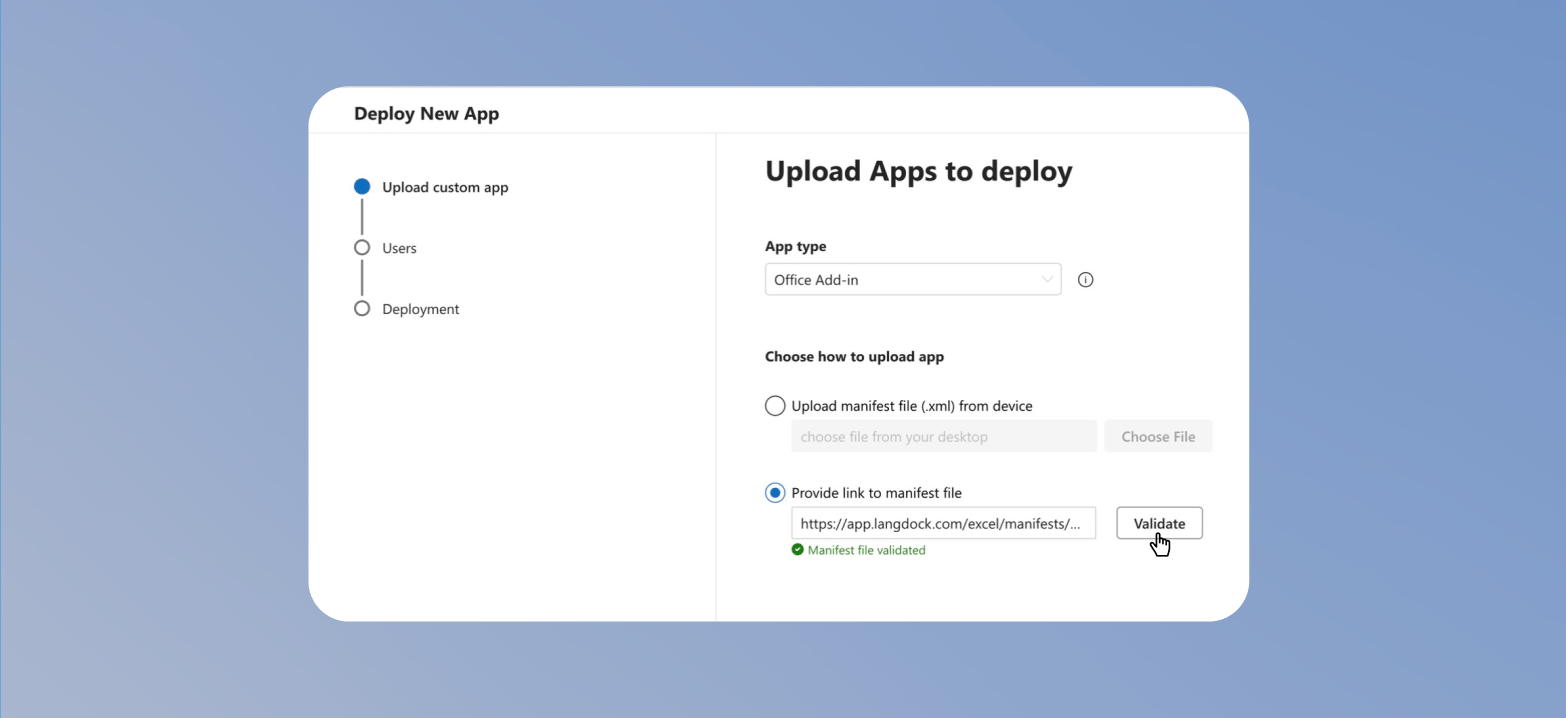
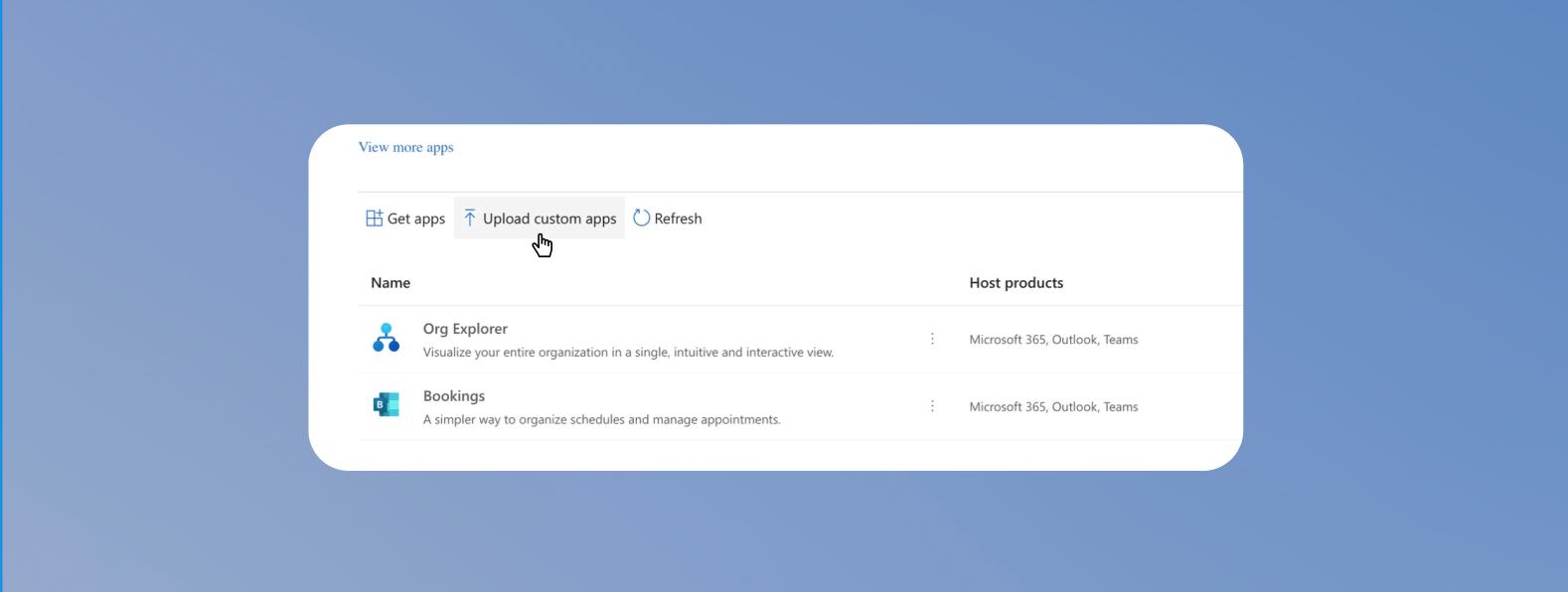 Wähle im Fenster New App Deployment die folgenden Optionen aus:
* **App type**: **Office Add-in**
* **Upload option**: **Provide link to manifest file**
* **Manifest link**: `https:///api/addin/dedicated/excel/manifest.xml`
Klicke auf **Validate**. Sobald die Manifest-Datei erfolgreich validiert wurde, klicke auf **Next**.
Wähle im Fenster New App Deployment die folgenden Optionen aus:
* **App type**: **Office Add-in**
* **Upload option**: **Provide link to manifest file**
* **Manifest link**: `https:///api/addin/dedicated/excel/manifest.xml`
Klicke auf **Validate**. Sobald die Manifest-Datei erfolgreich validiert wurde, klicke auf **Next**.
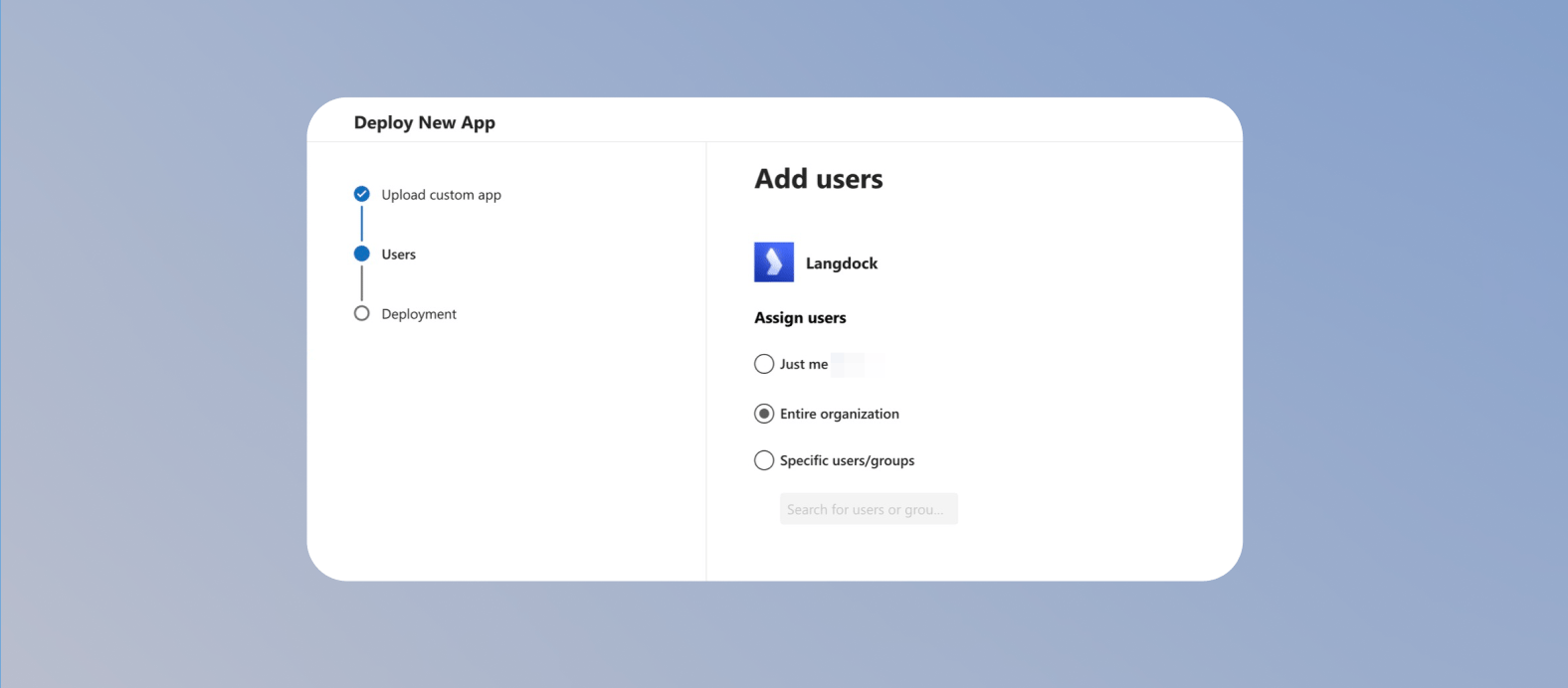
 Wähle aus, wer Zugriff auf das Excel-Plugin erhalten soll, und klicke auf **Next**.
* Wähle **Entire organization**, wenn alle Nutzer in deinem Microsoft 365 Tenant Zugriff erhalten sollen.
* Wähle **Specific users/groups**, wenn du das Excel-Plugin zuerst für eine kleinere Gruppe bereitstellen möchtest.
* Wähle **Just me** nur, wenn du das Excel-Plugin vor dem breiteren Rollout testen möchtest.
Wähle aus, wer Zugriff auf das Excel-Plugin erhalten soll, und klicke auf **Next**.
* Wähle **Entire organization**, wenn alle Nutzer in deinem Microsoft 365 Tenant Zugriff erhalten sollen.
* Wähle **Specific users/groups**, wenn du das Excel-Plugin zuerst für eine kleinere Gruppe bereitstellen möchtest.
* Wähle **Just me** nur, wenn du das Excel-Plugin vor dem breiteren Rollout testen möchtest.
 Prüfe die Konfiguration und klicke auf **Finish Deployment**.
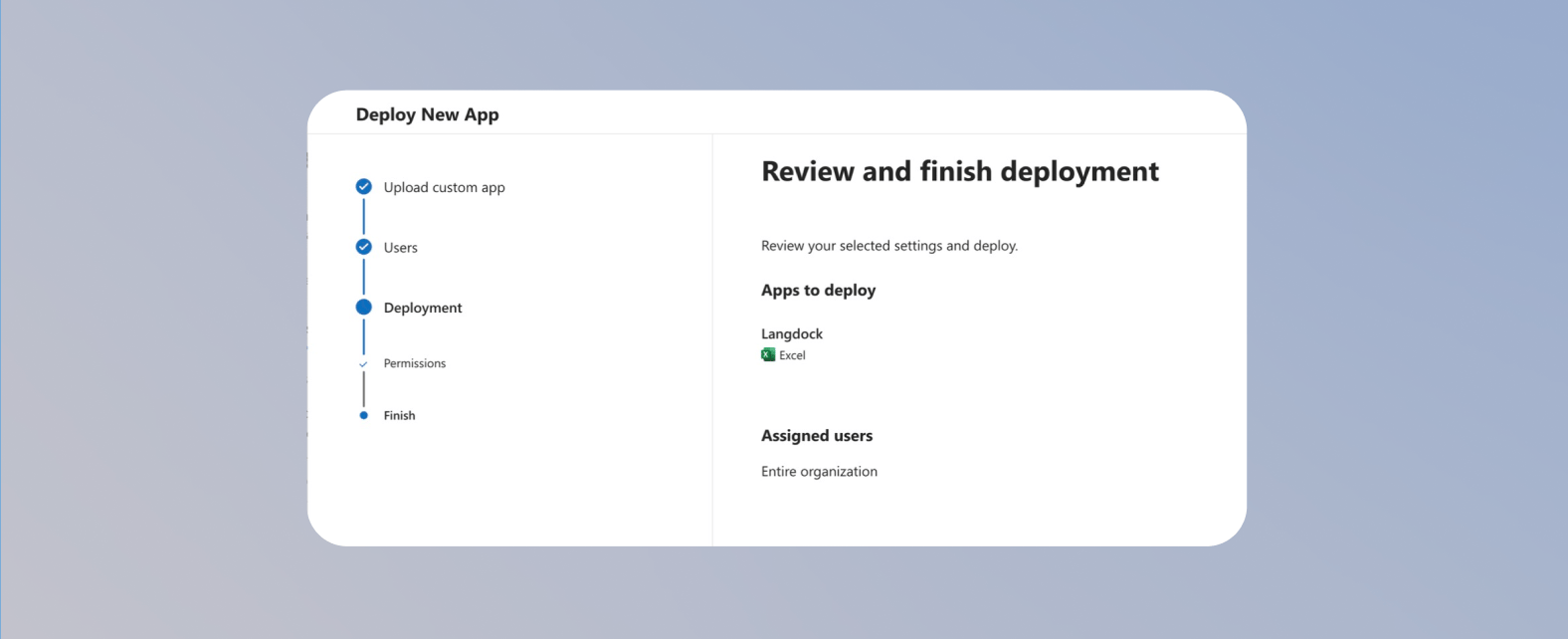 Prüfe, ob das Add-in auf der Übersichtsseite sichtbar ist.
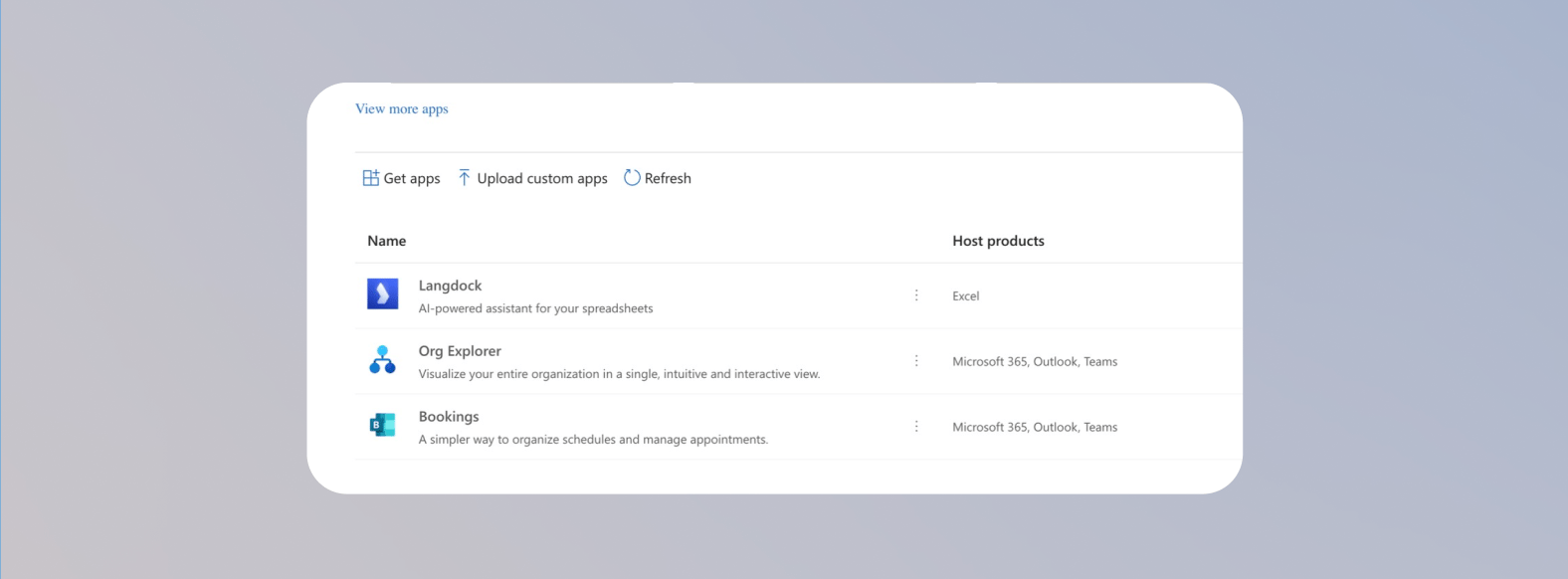 Teile nach der Bereitstellung den [Installationsguide für das Excel-Plugin](/de/using-langdock/microsoft-plugins/excel#langdock-für-excel-installieren) mit deinen Nutzern, damit sie das Add-in öffnen und sich anmelden können.